From sign-up to your first WhatsApp message.
Ten steps with real screenshots, on phone and laptop. Takes about 20 minutes once your Meta account is ready.
Before you start
Create a free Meta Business portfolio at business.facebook.com. You'll connect your WhatsApp number to it.
A number that can receive a call or SMS and isn't already on the regular WhatsApp app (or is migrated).
Legal name, website and, for higher sending limits, Meta business verification documents such as GST or registration.
Create your workspace
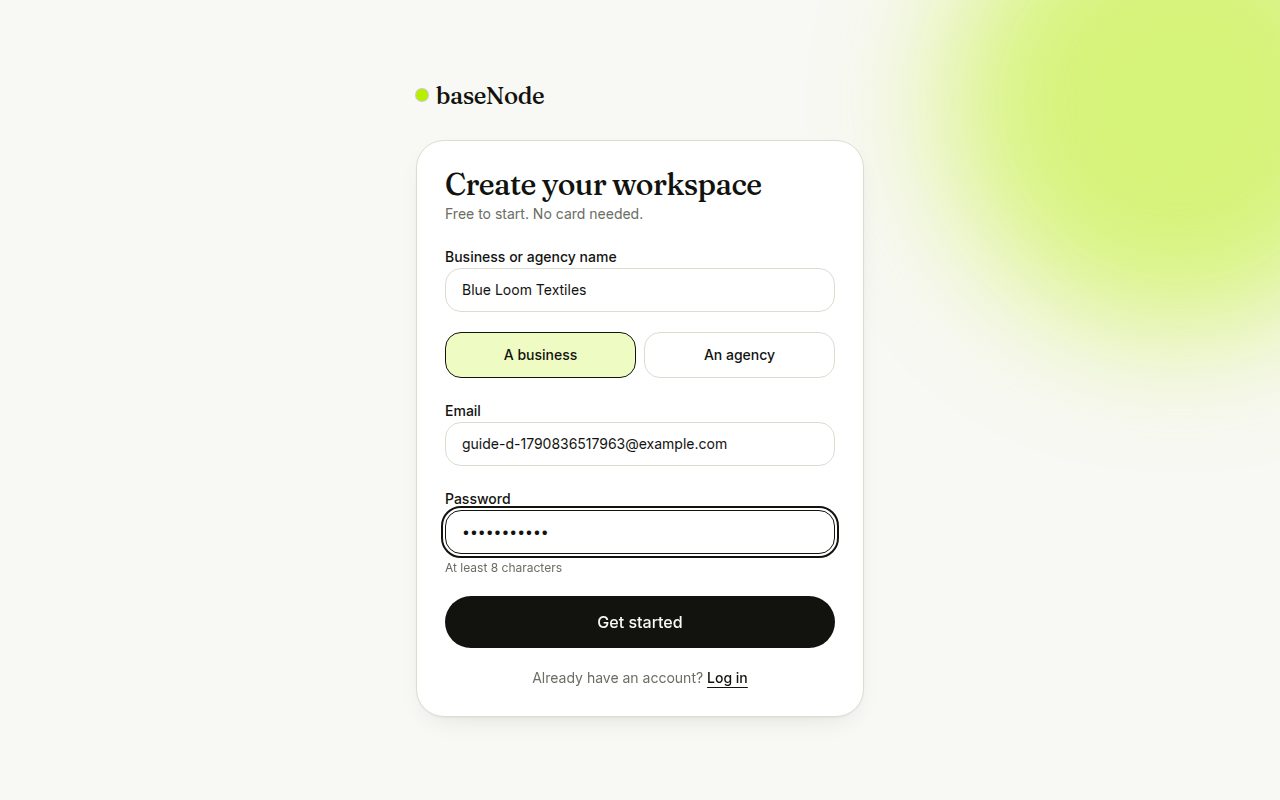
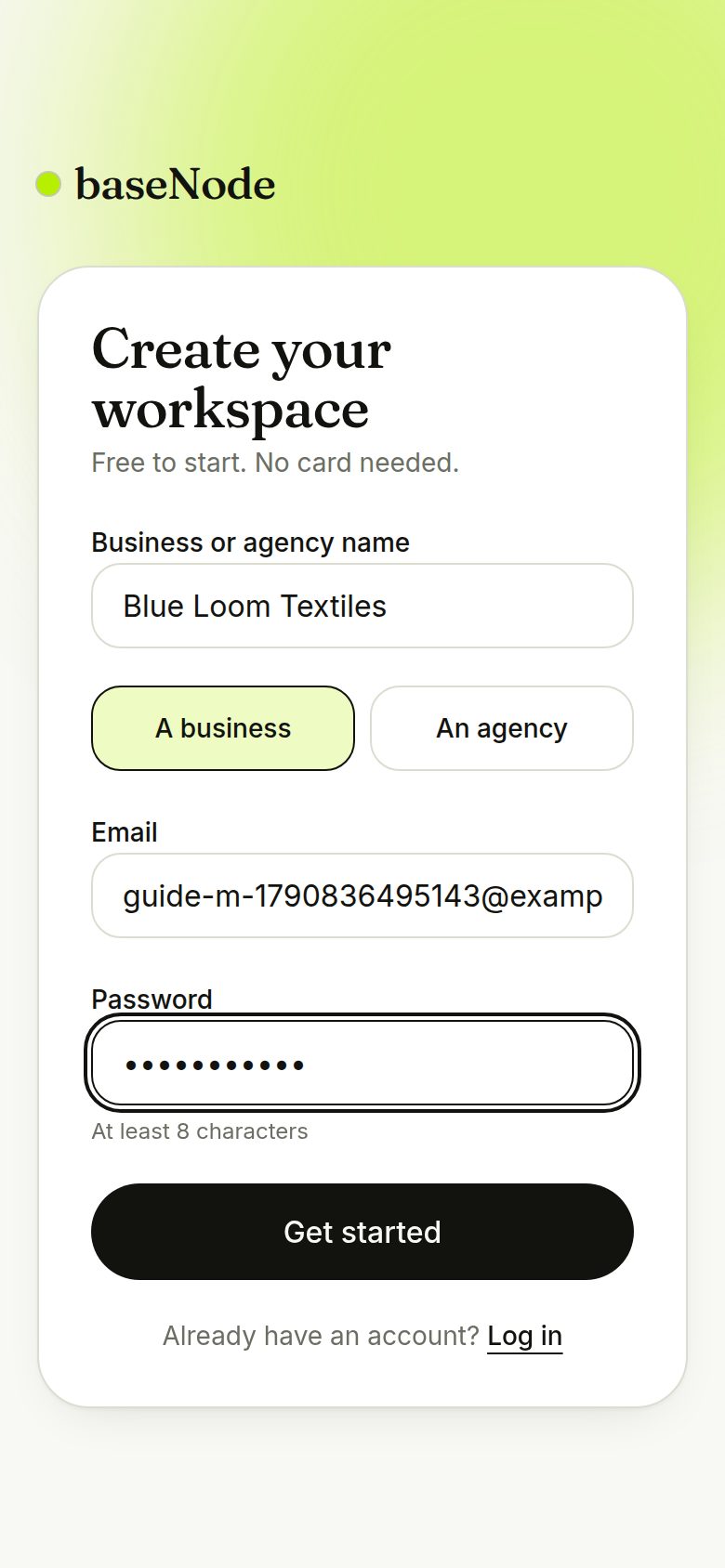
Sign up with your work email and your business name. Agencies pick the agency account type to manage several clients from one login.
- Free plan: 1 number, 100 contacts, no card needed
Follow the setup checklist
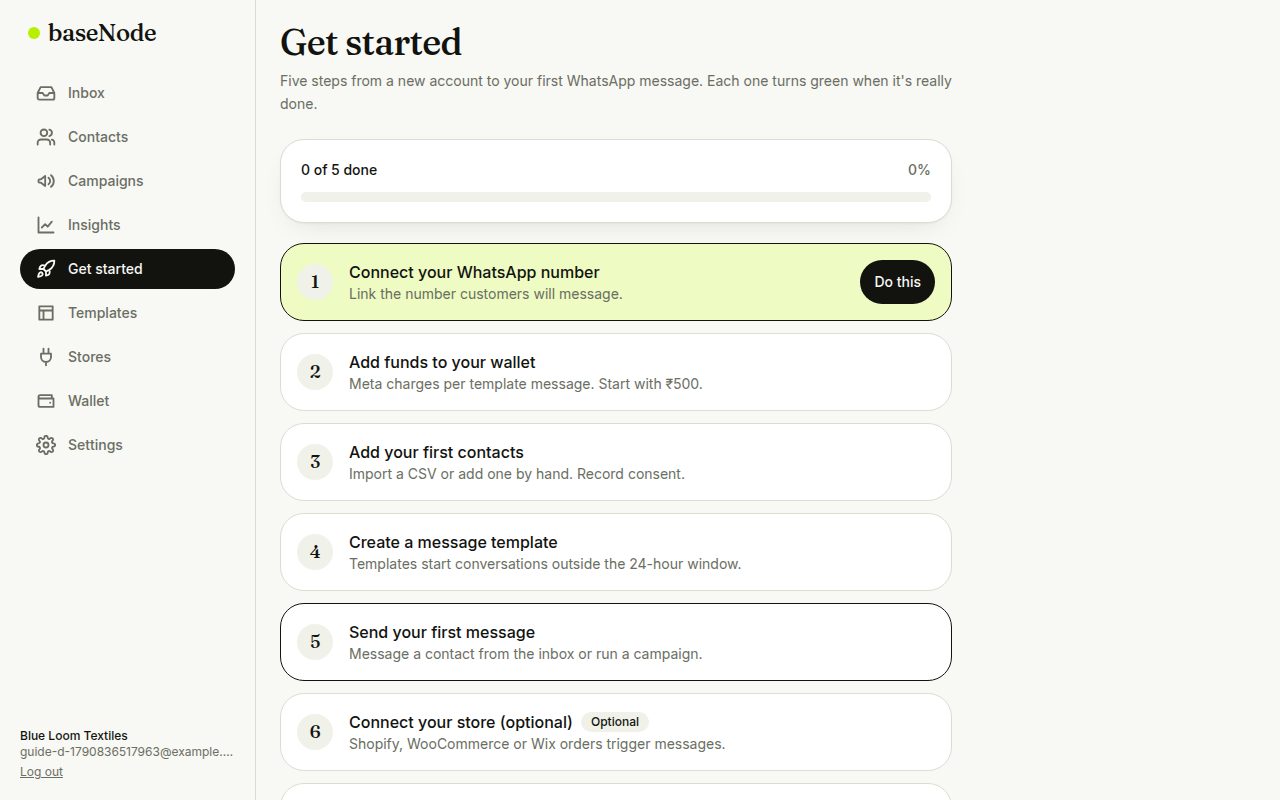
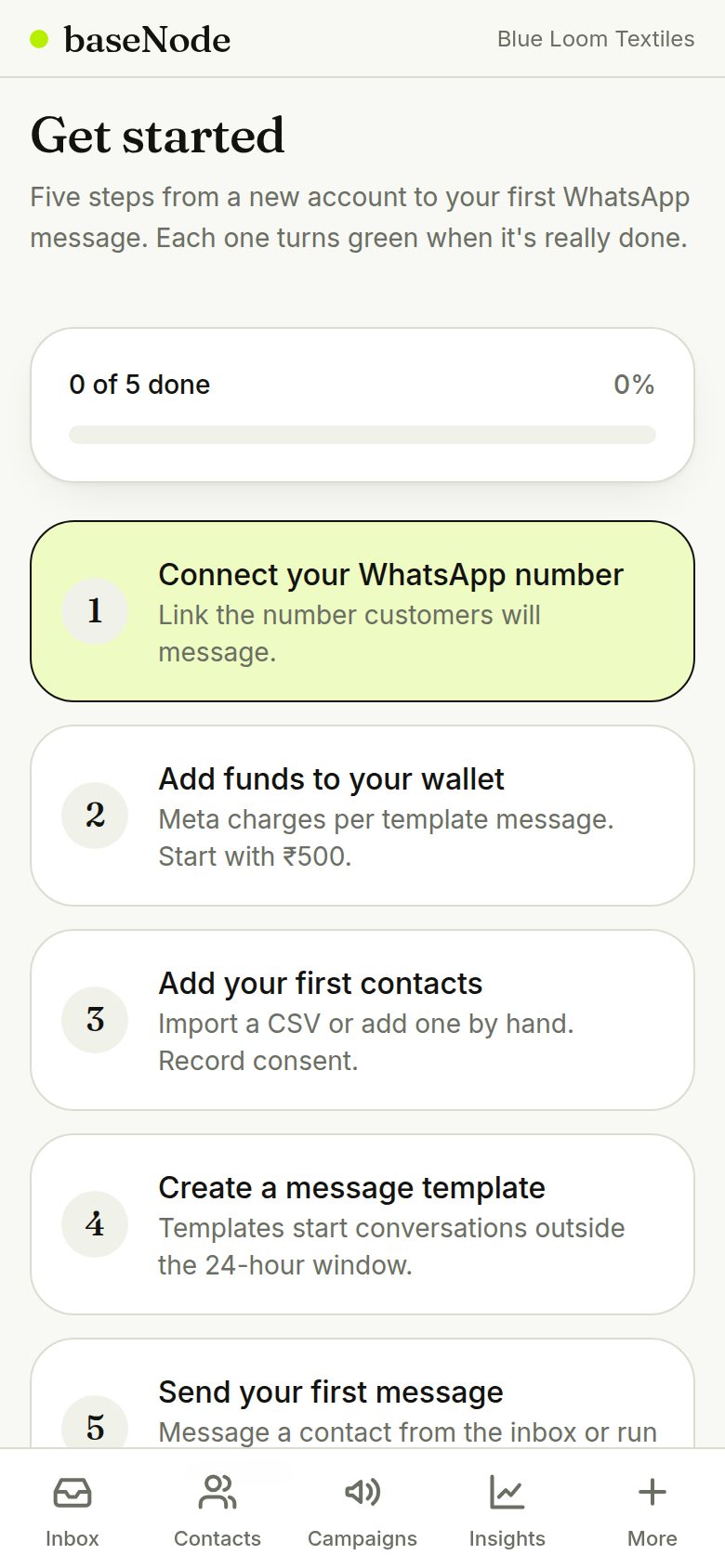
The Get started checklist shows exactly what's left. A step only turns green when it's really done, for example when a number is connected or a message has actually been sent.
- It reappears on your inbox until the five required steps are done
Connect your WhatsApp number
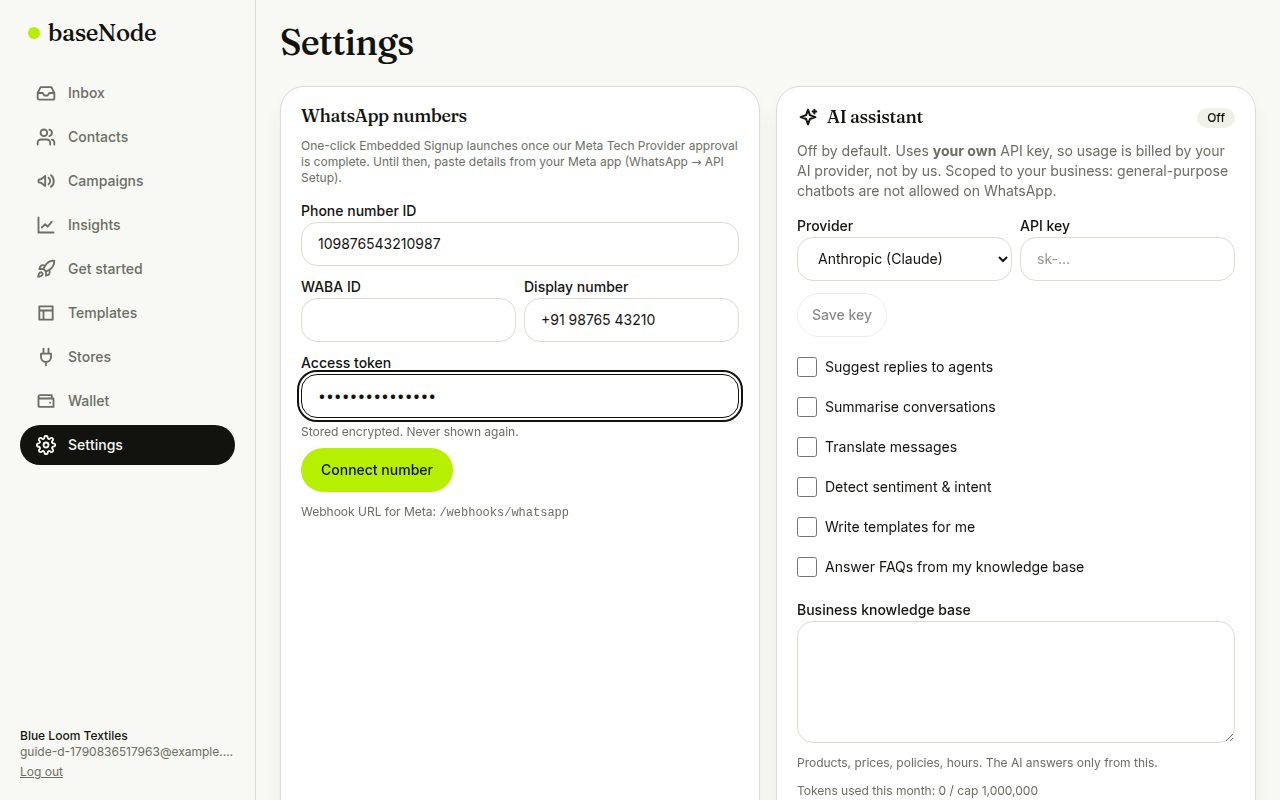
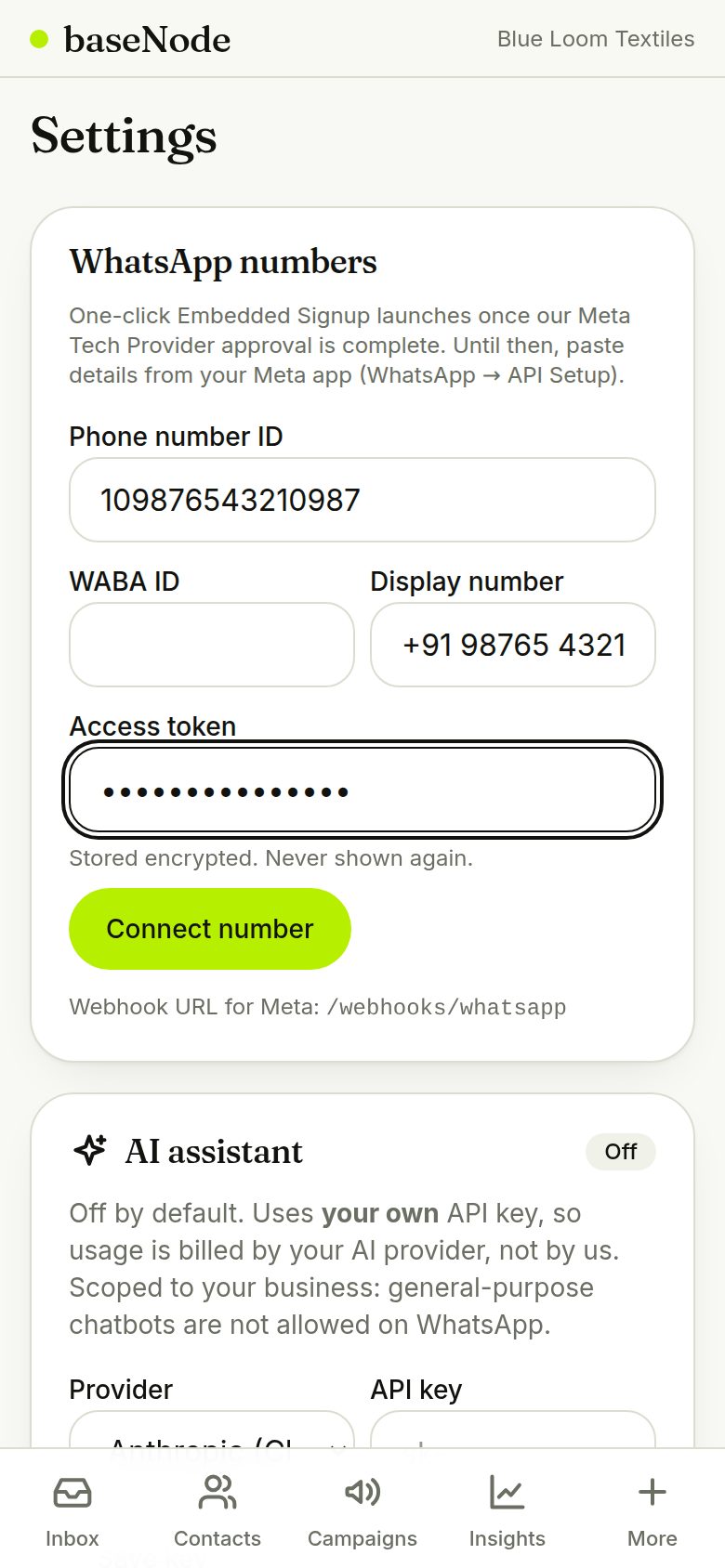
Open Settings and add your WhatsApp Business phone number ID and access token from your Meta app. One-click Embedded Signup replaces this once our Meta Tech Provider approval is complete. Your token is stored encrypted and never shown again.
- Use a number that isn't already on the regular WhatsApp app, or migrate it first
- Meta business verification raises your daily sending limit
Add funds to your wallet
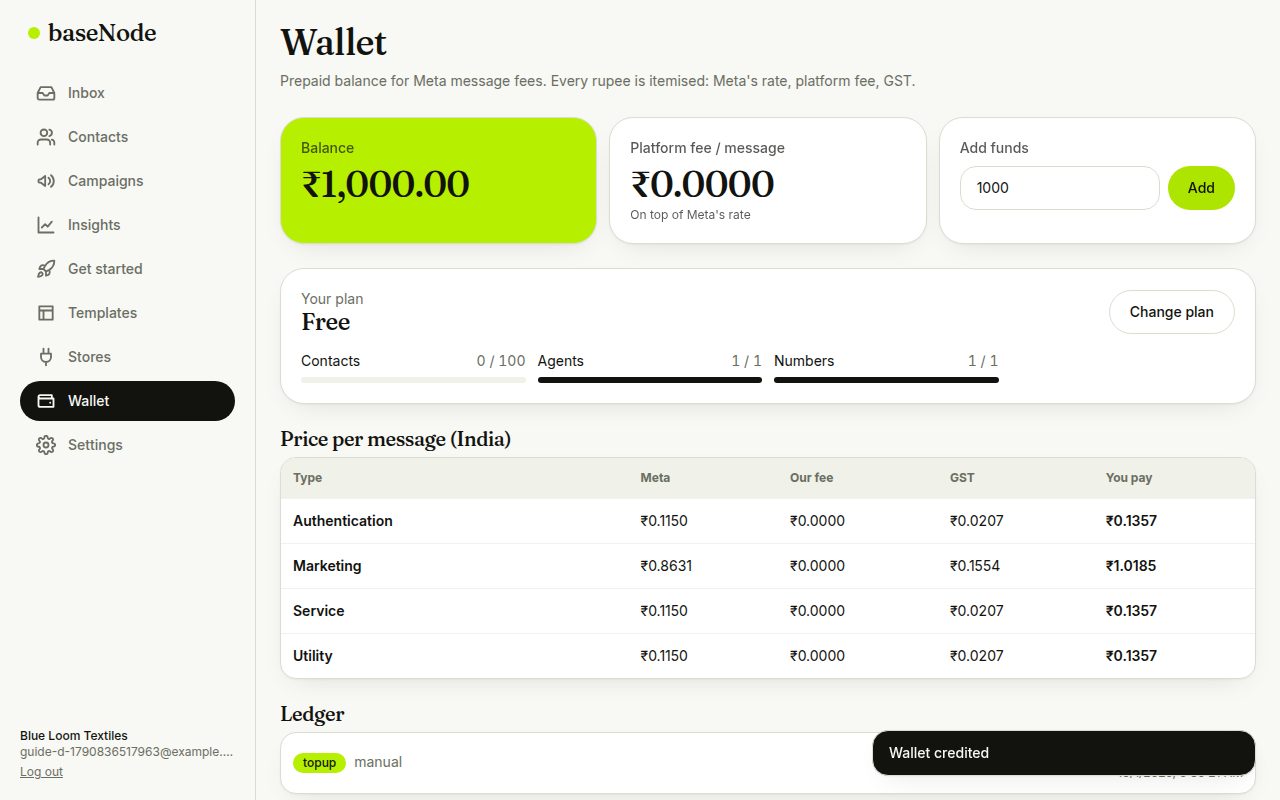
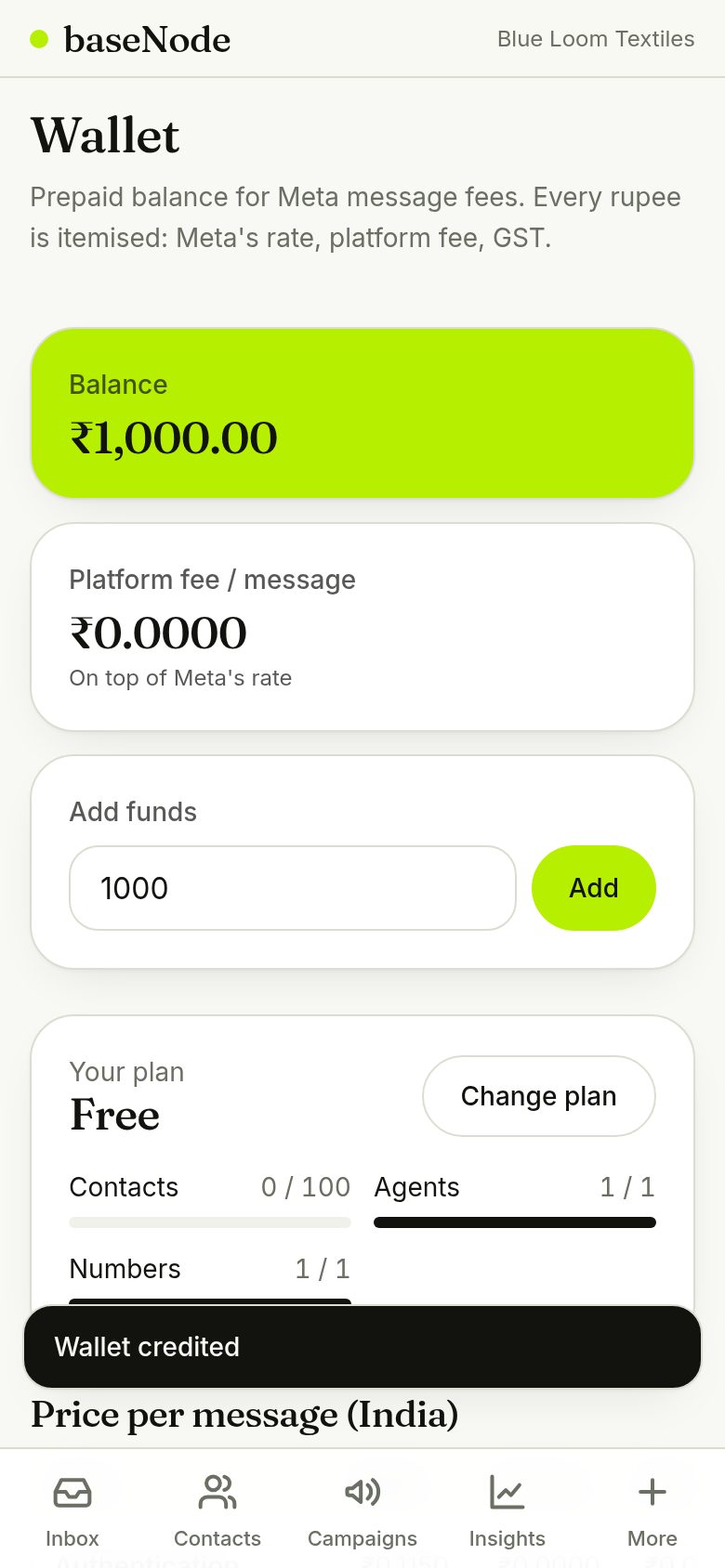
Meta charges per delivered template message. Top up the wallet; every send shows Meta's fee, ours and GST, and failed sends are refunded.
- Replies inside the 24-hour window are free
- Start with ₹500 to ₹1,000
Add contacts, with consent
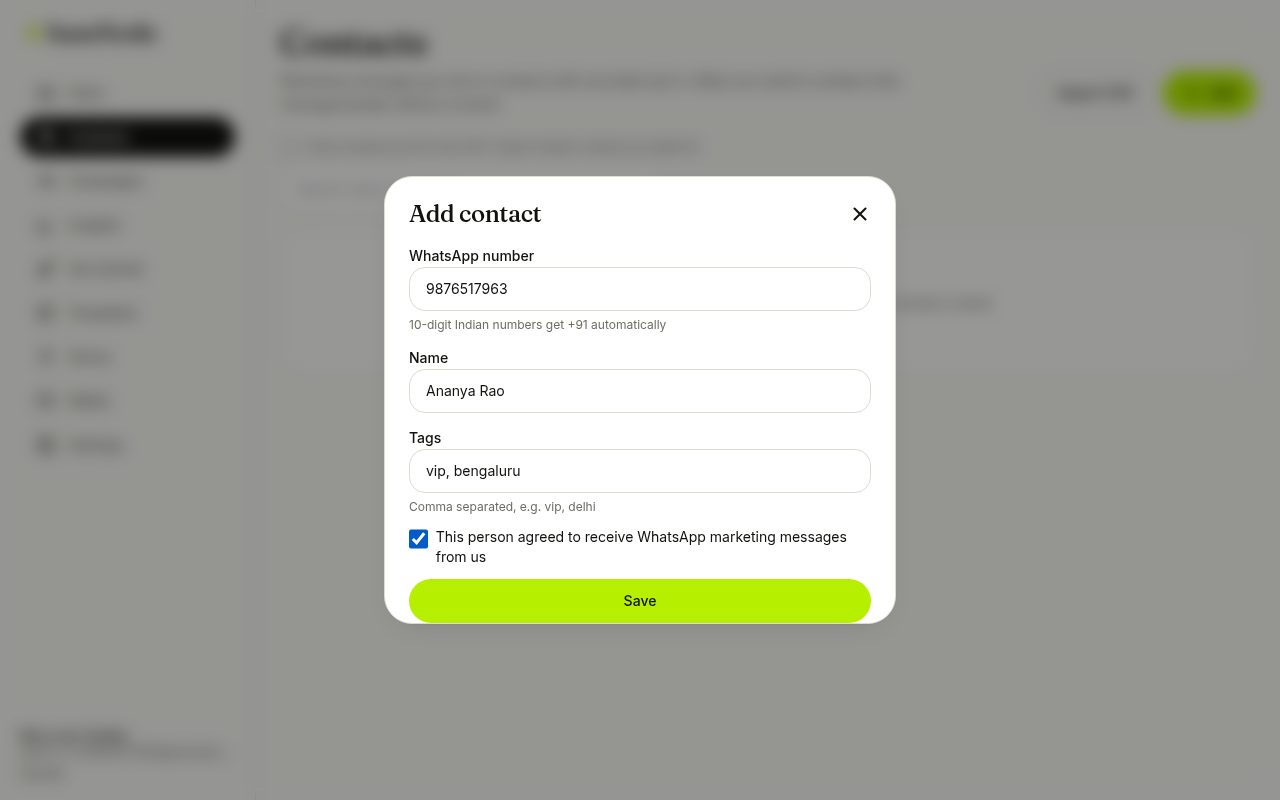
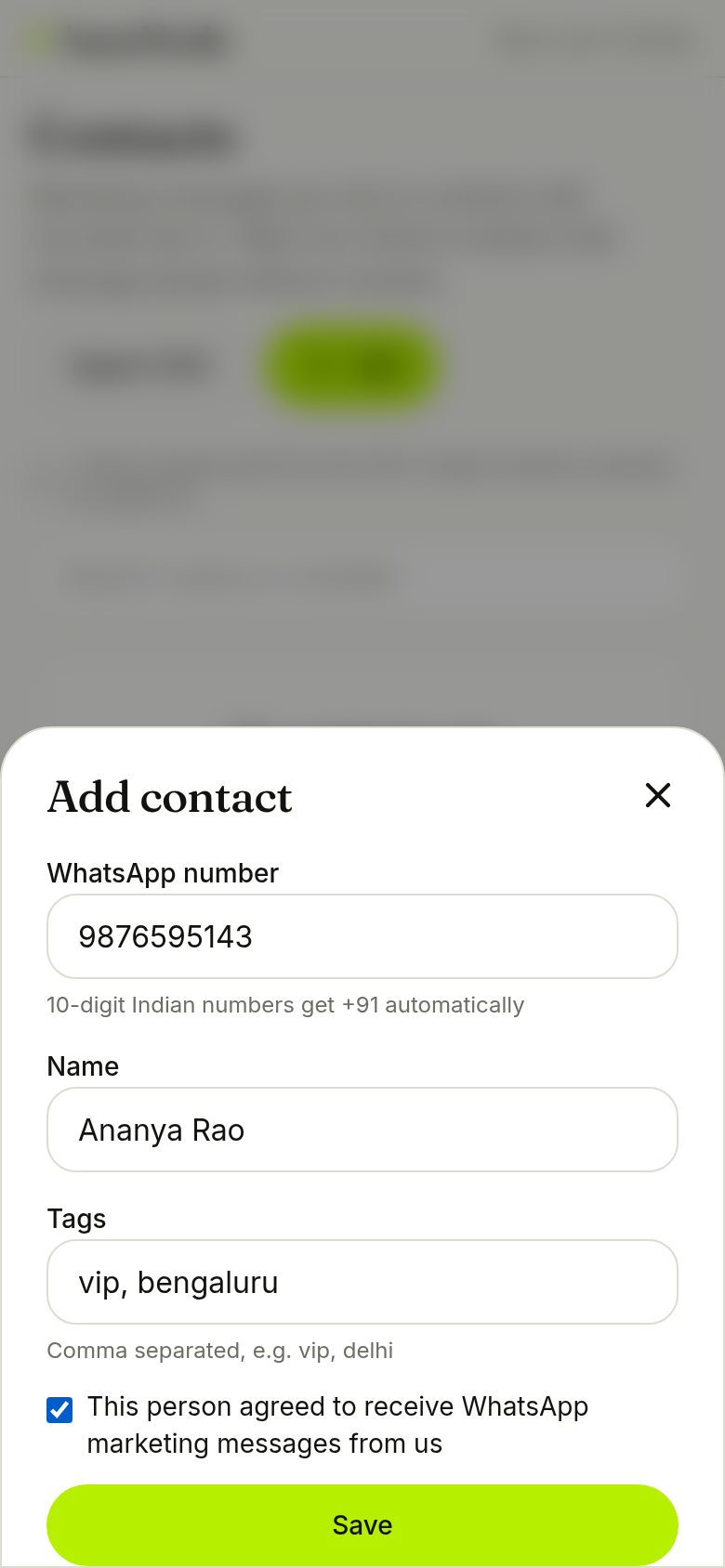
Add people one by one or import a CSV (phone, name, email, tags). Tick the consent box only if the person agreed to receive WhatsApp messages. Marketing messages go only to opted-in contacts.
- 10-digit Indian numbers get +91 automatically
- STOP replies opt people out instantly
Create a message template
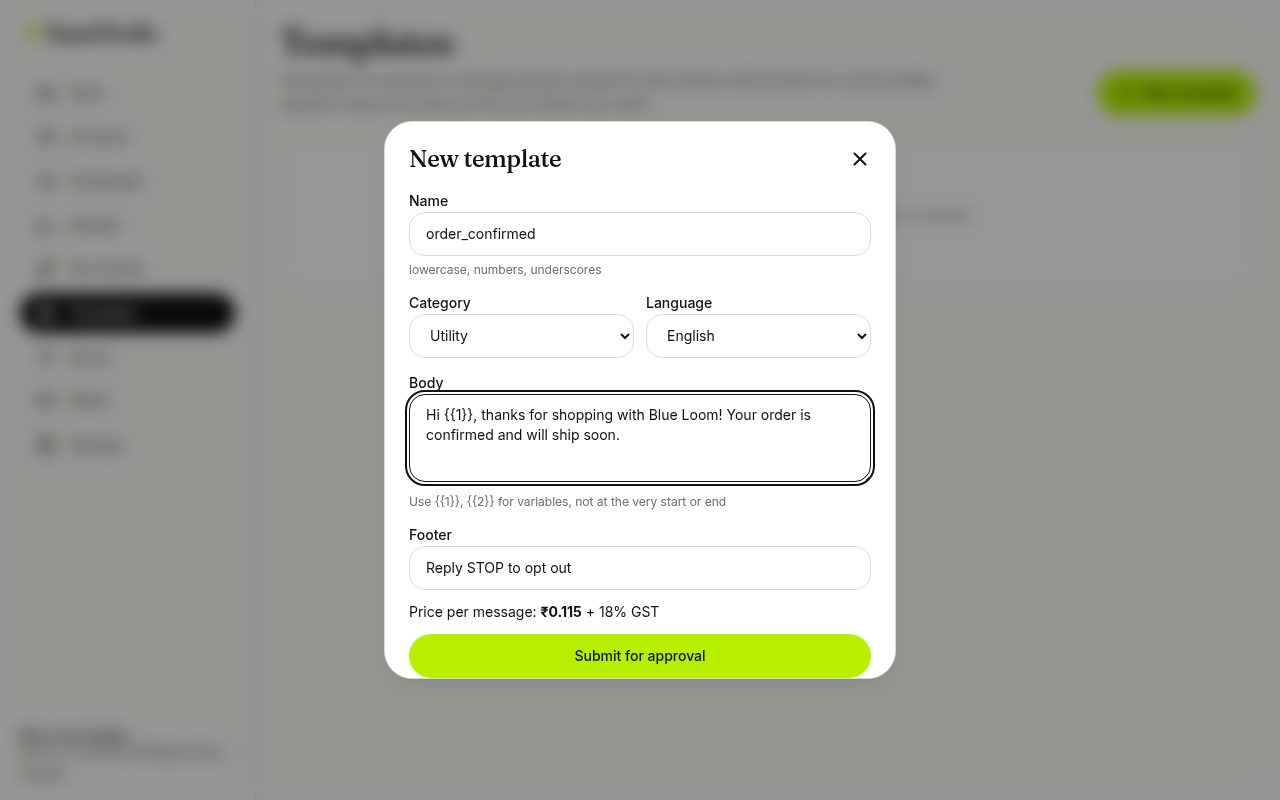
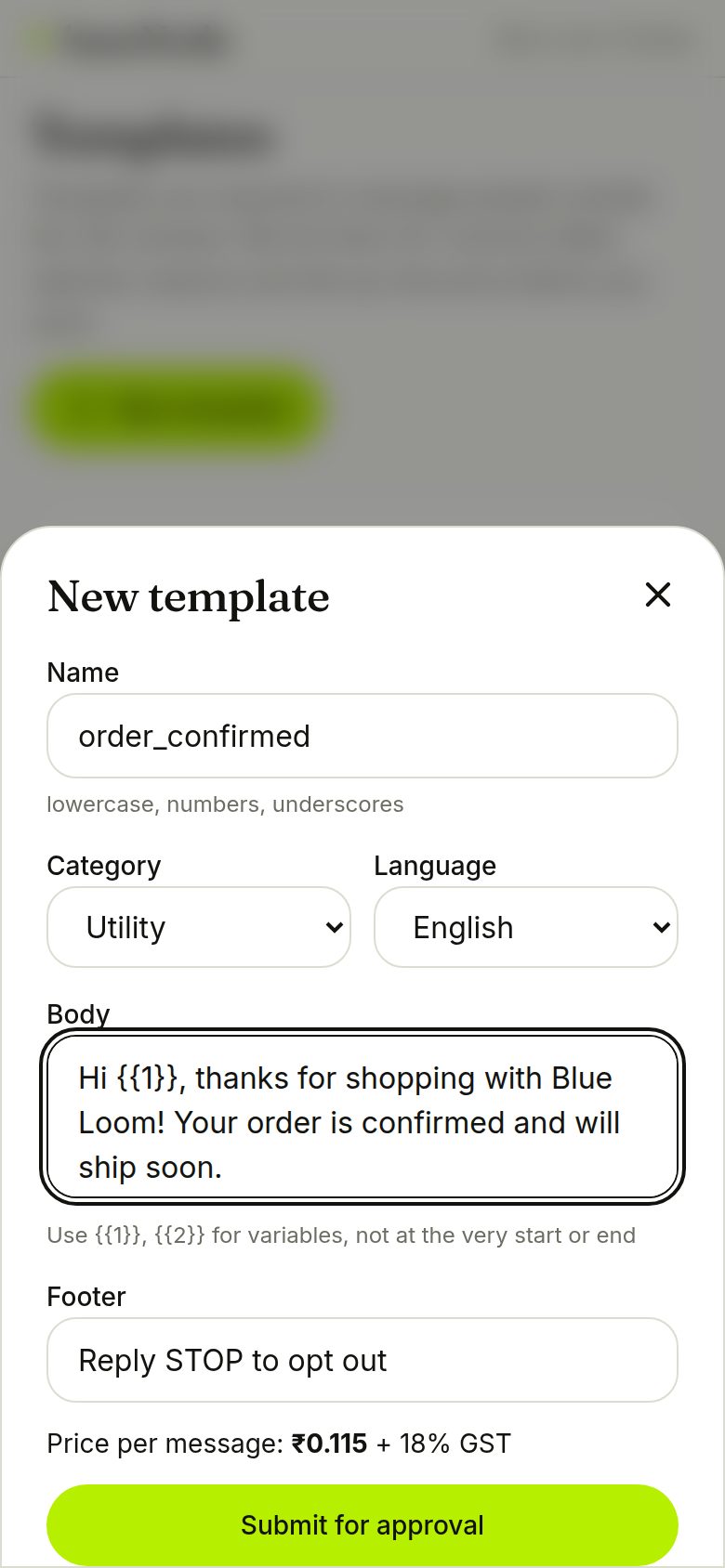
Templates start conversations outside the 24-hour window. Pick utility for order updates (cheapest) or marketing for offers. We check the wording against common rejection reasons and show the price per message before you submit.
- Placeholders like {{1}} can't start or end the message
- Promotional wording in a utility template may be re-categorised and billed as marketing
Send your first message
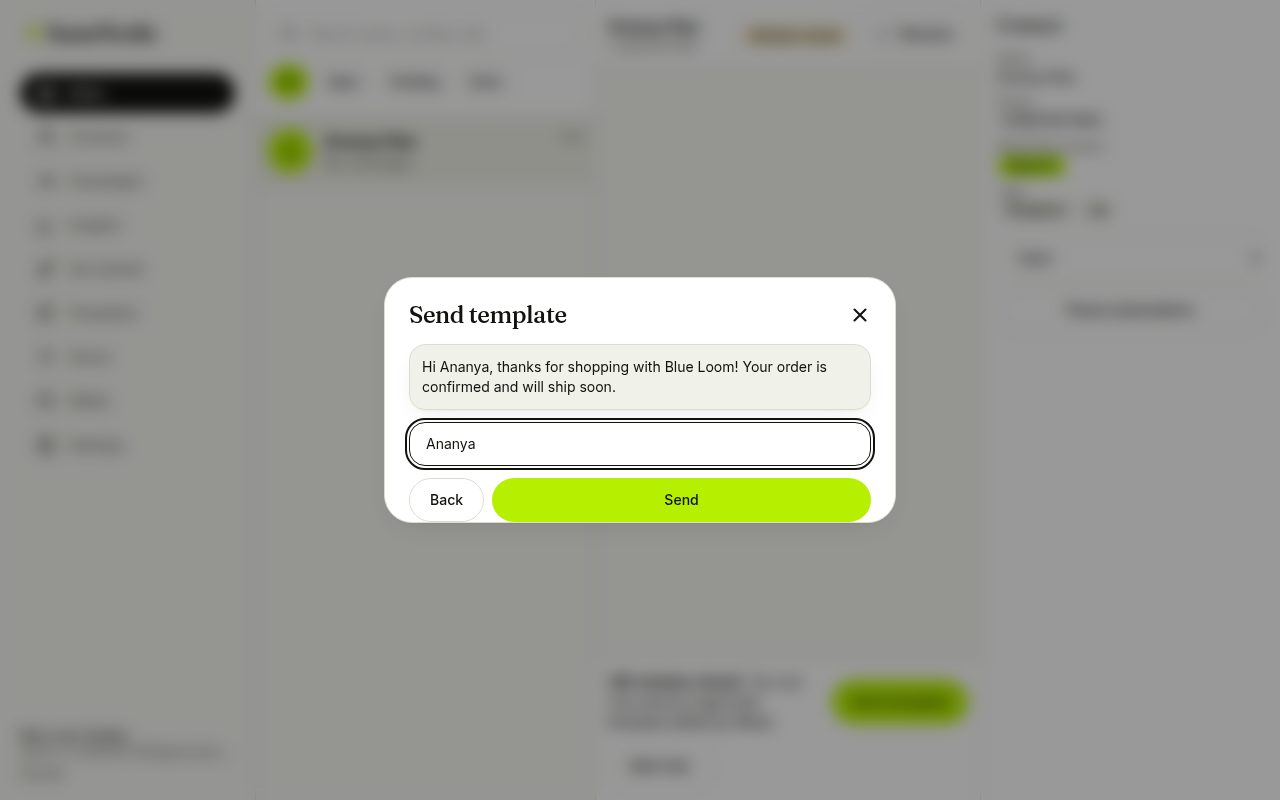
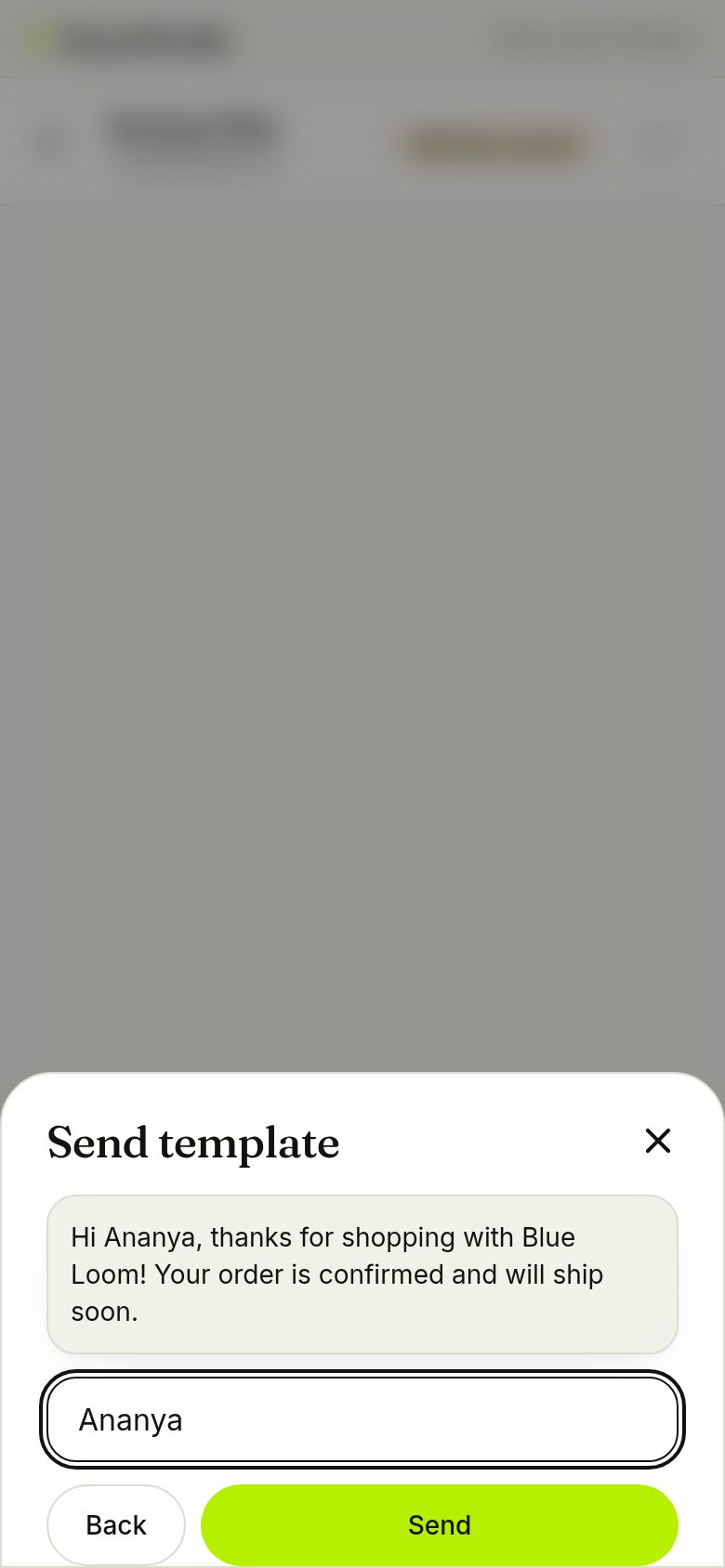
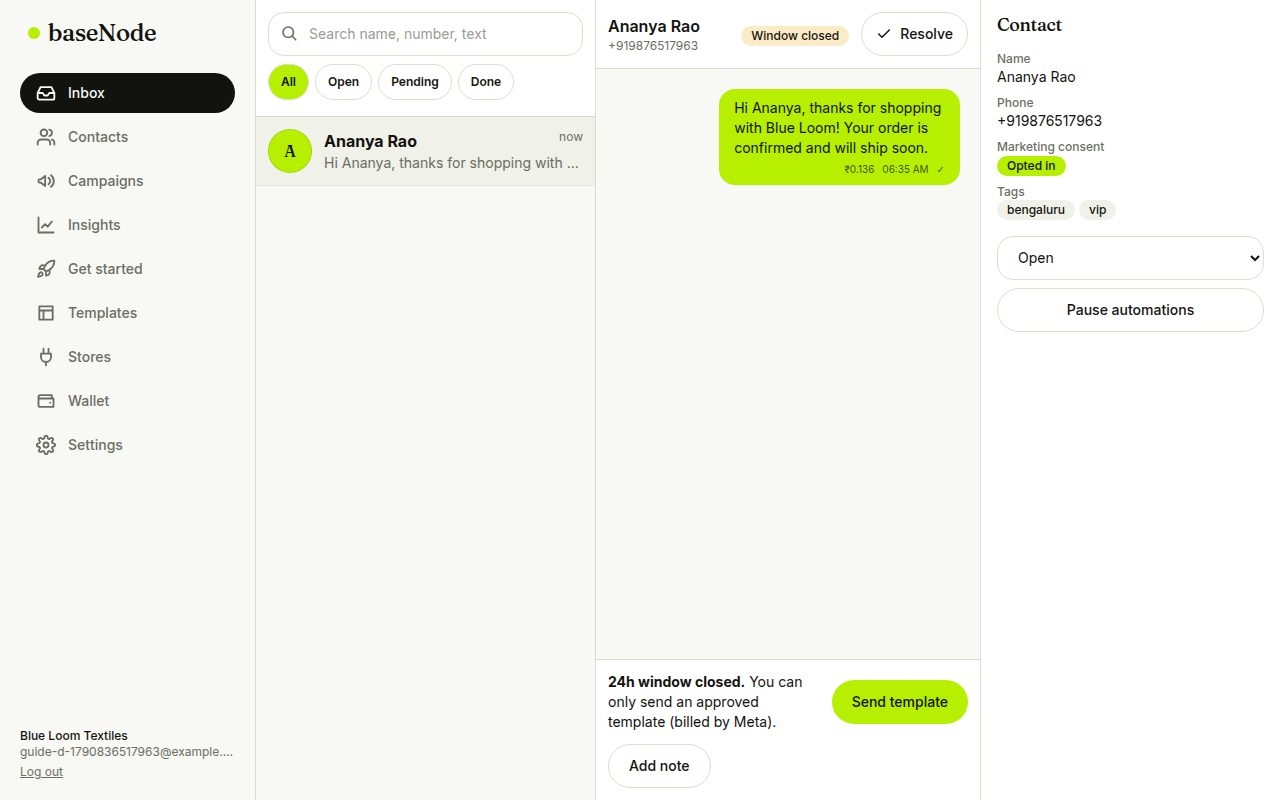
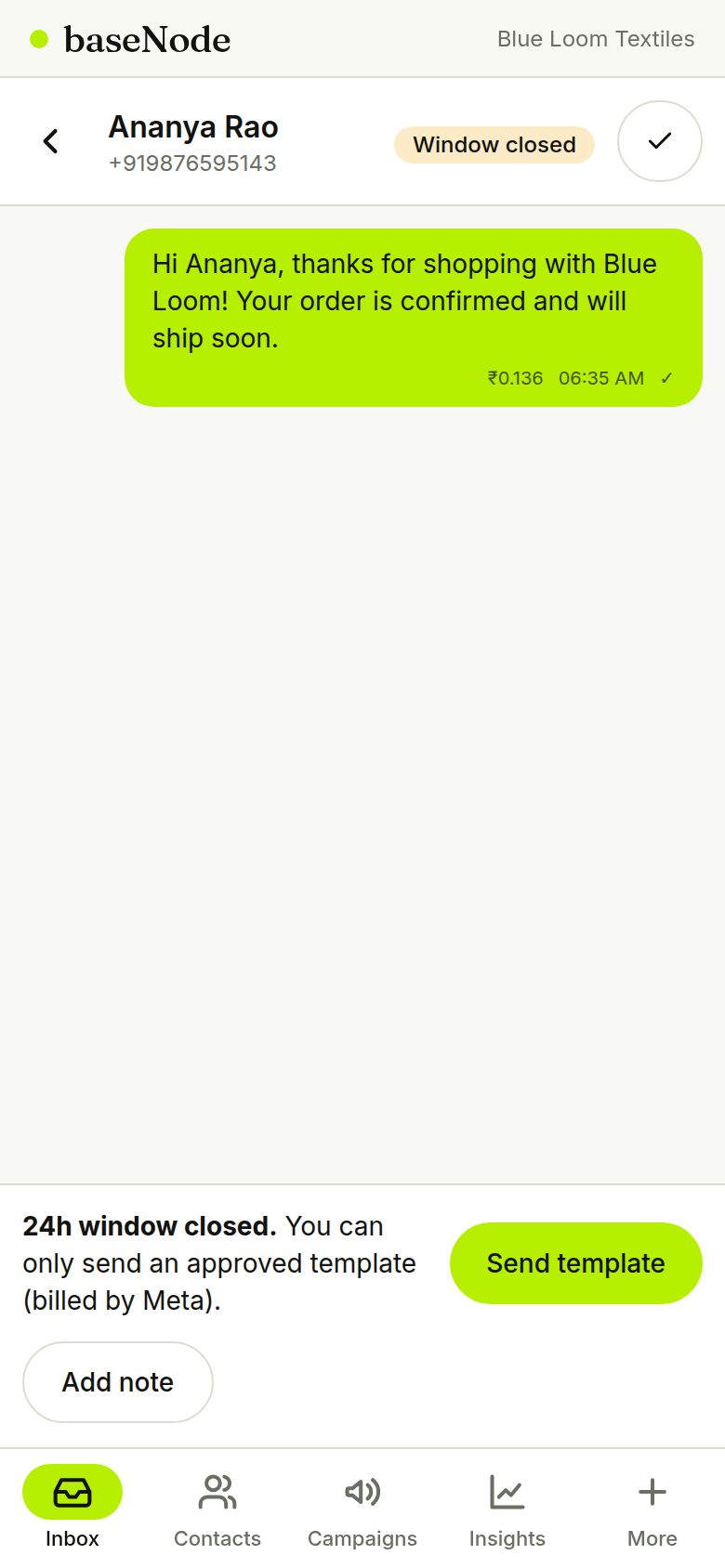
Open a contact and tap Message. Because the customer hasn't written yet, the 24-hour window is closed, so you send an approved template. Fill the variable and send; the cost appears on the message.
- The cost shown includes 18% GST
- Marketing templates are blocked for contacts without opt-in
The customer replies
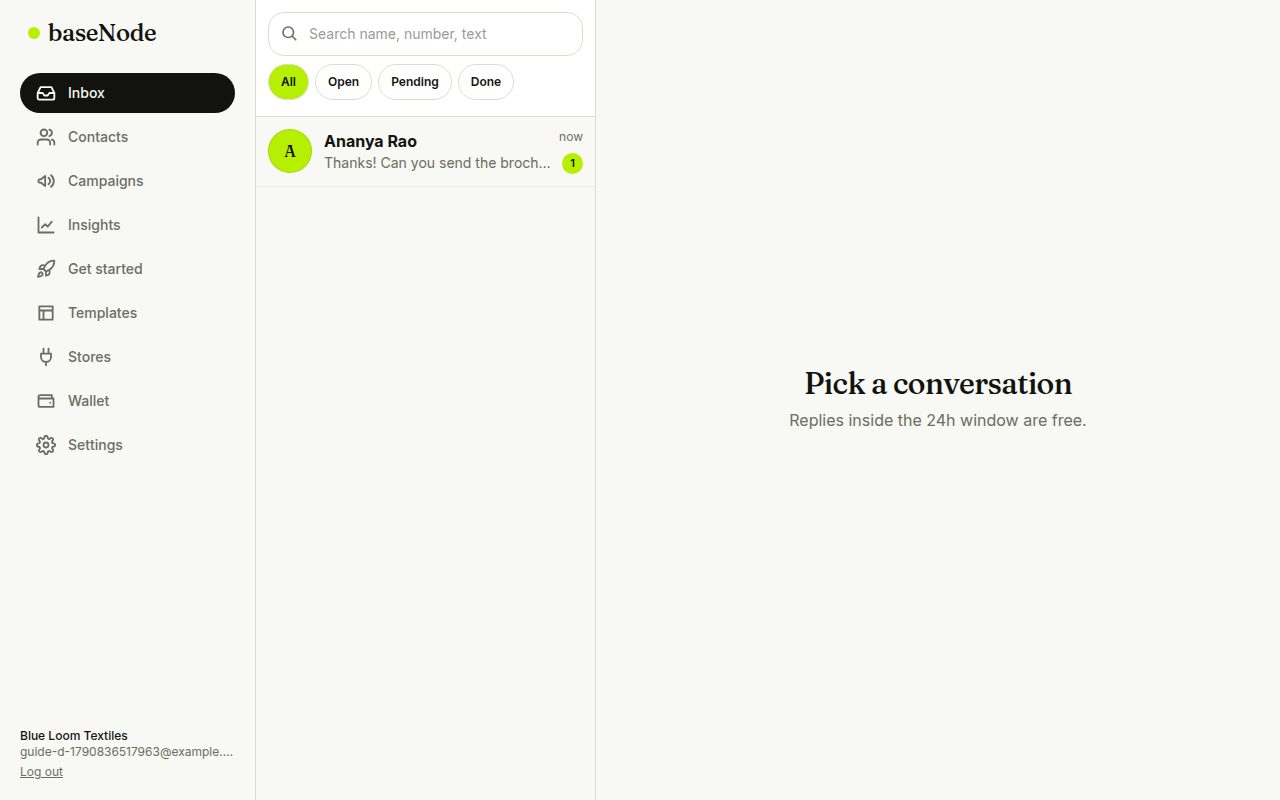
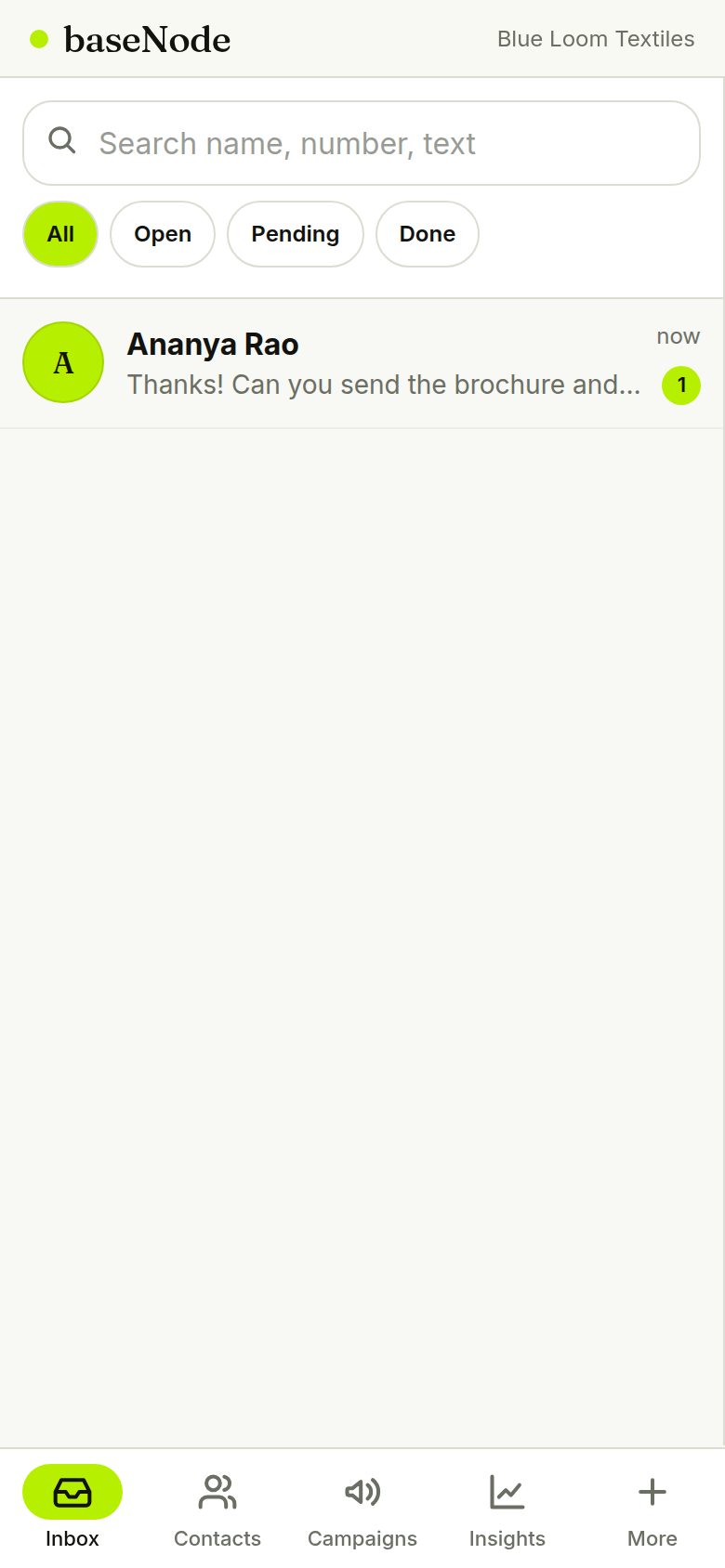
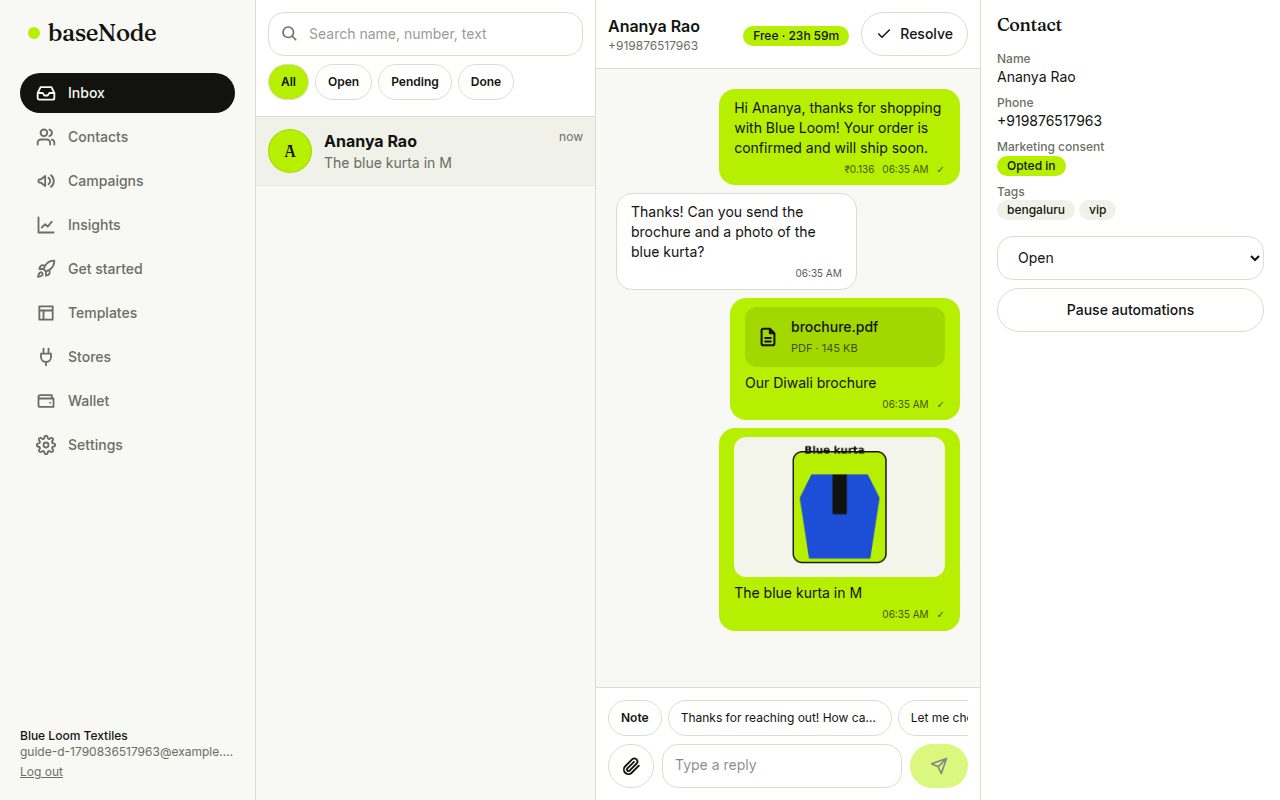
When the customer answers, the chat jumps to the top of your shared inbox with an unread badge, and a timer shows the free 24-hour reply window.
- Assign the chat to a teammate or leave an internal note
- Quick replies save typing
Send a PDF and a photo
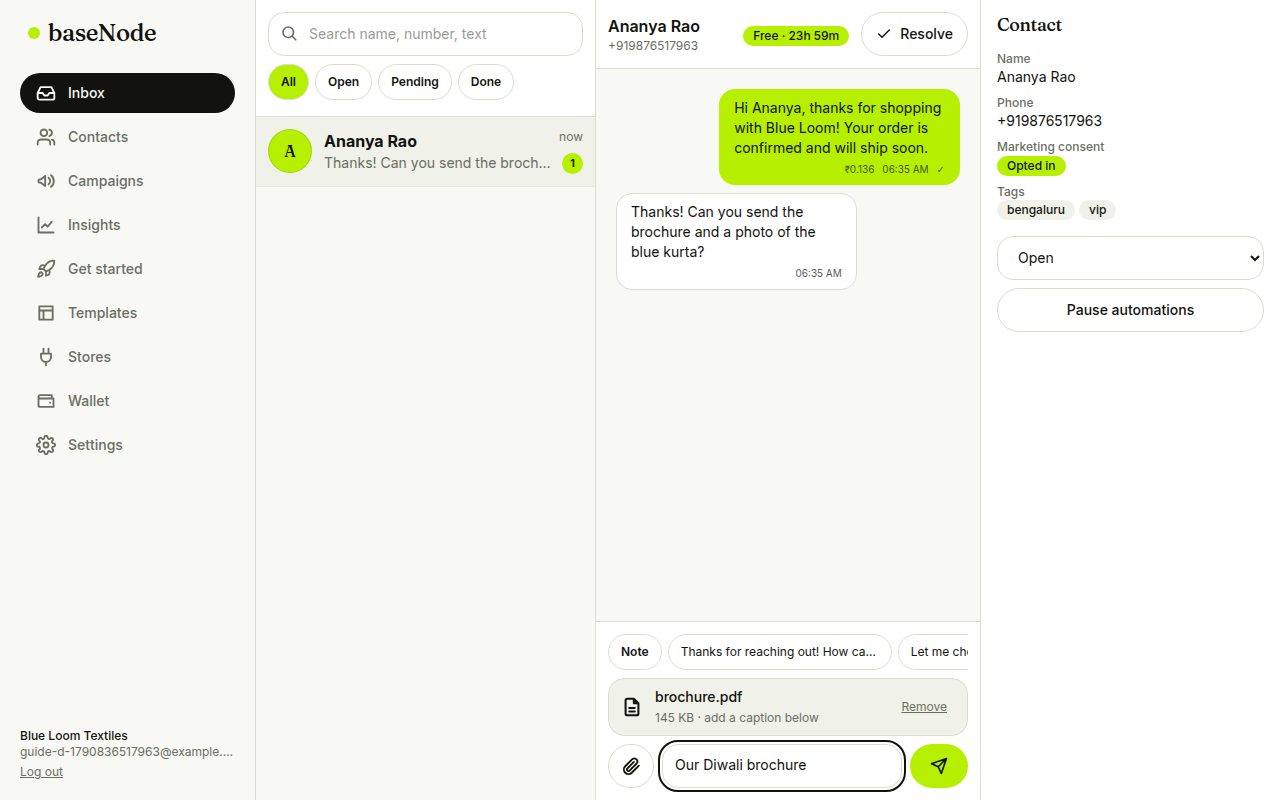
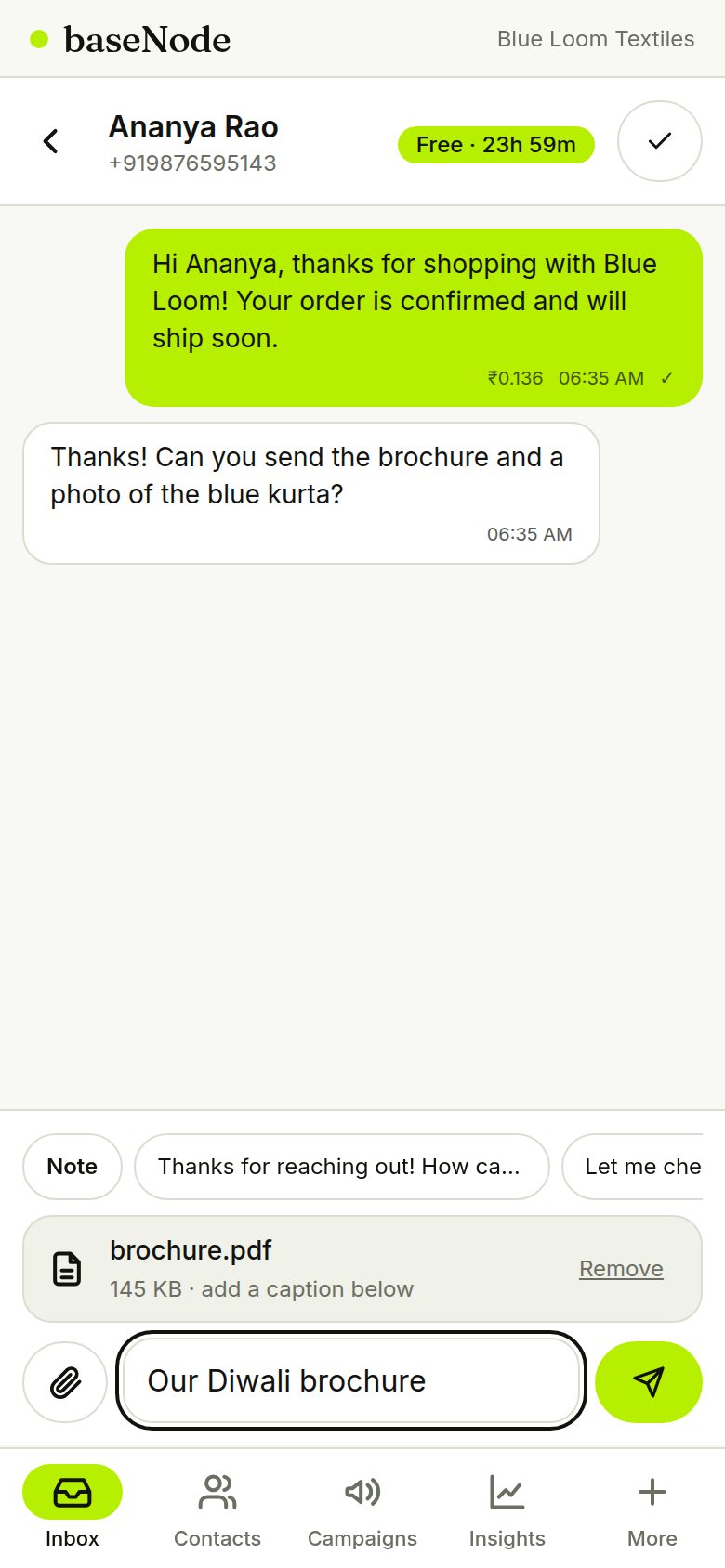
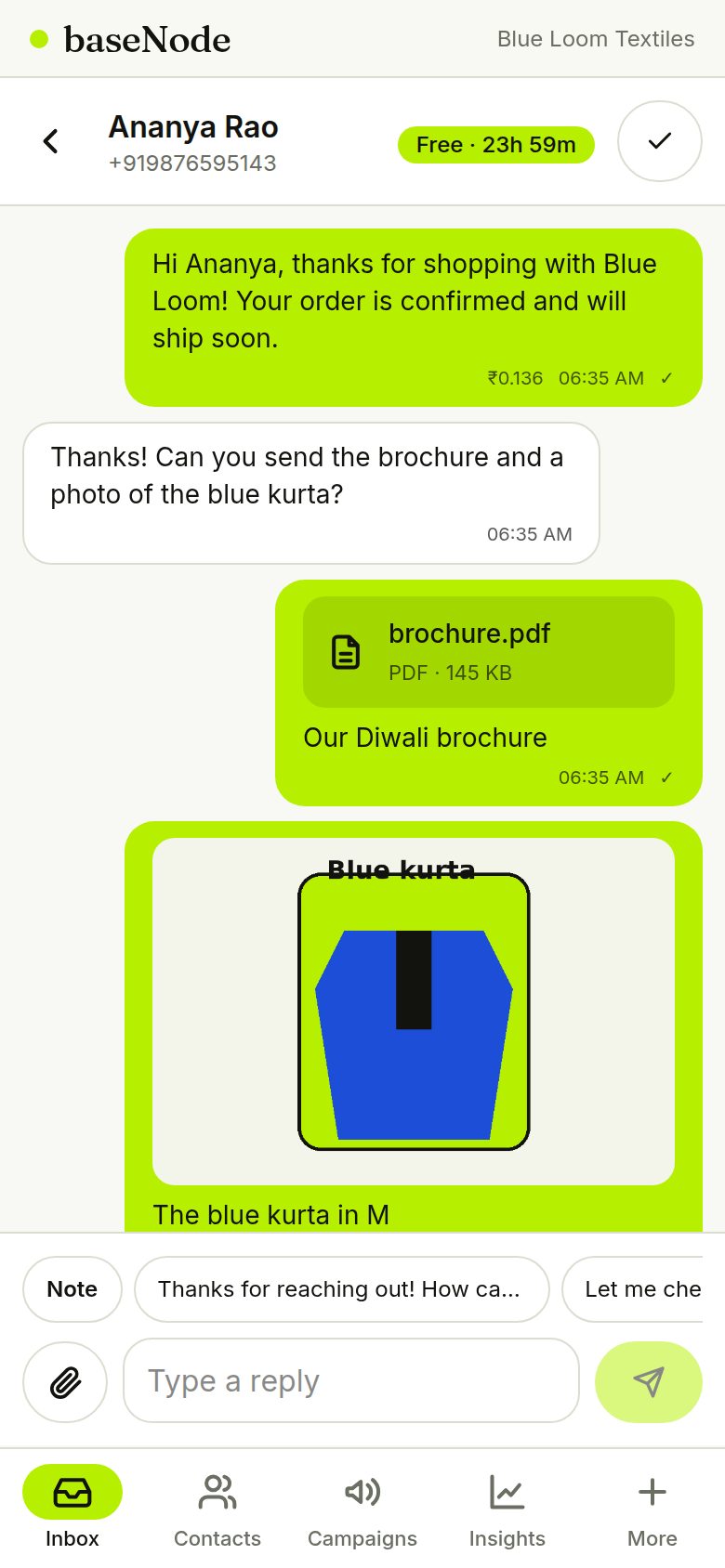
Inside the free window, tap the paperclip to attach a brochure, invoice or product photo. Add a caption and send. Documents appear as cards and photos as thumbnails.
- JPG and PNG up to 5 MB; PDF, Word, Excel, TXT and MP4 up to 10 MB
- Attachments as replies cost nothing from Meta
Run a campaign with a preflight
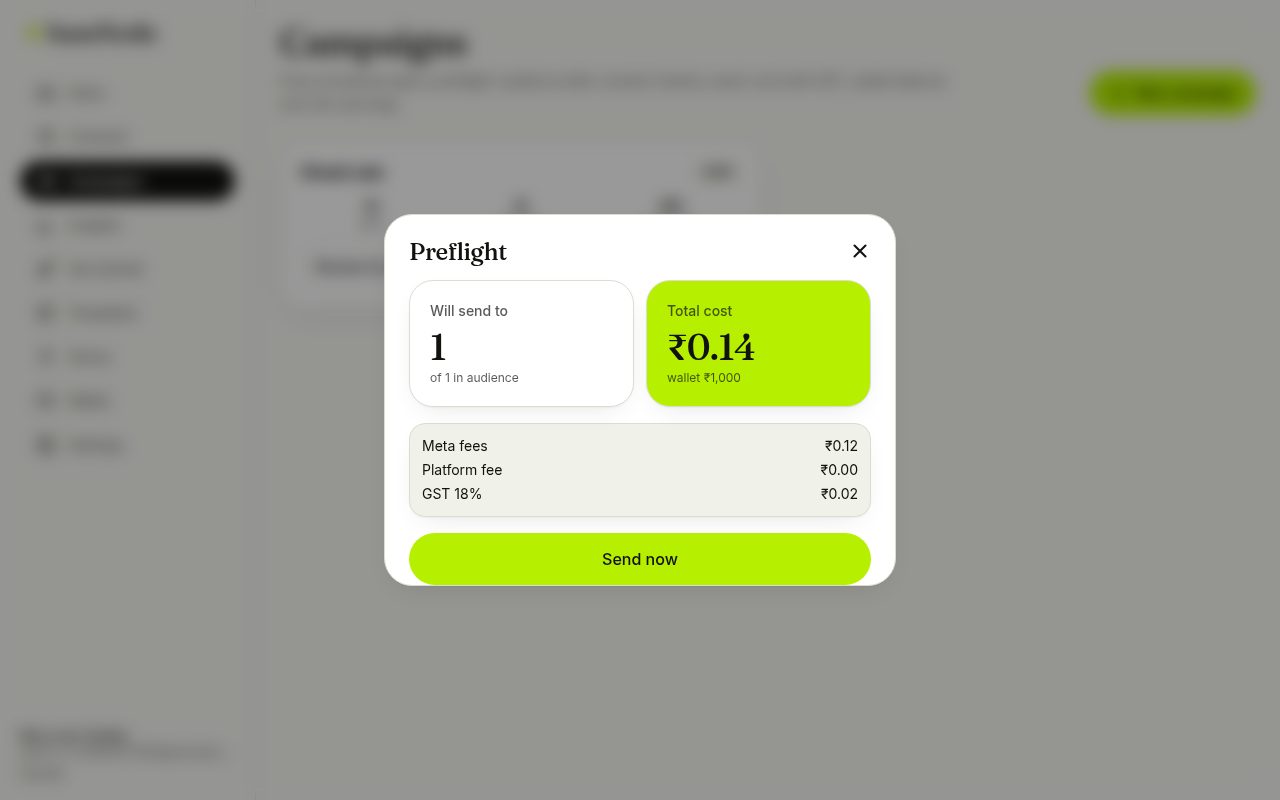
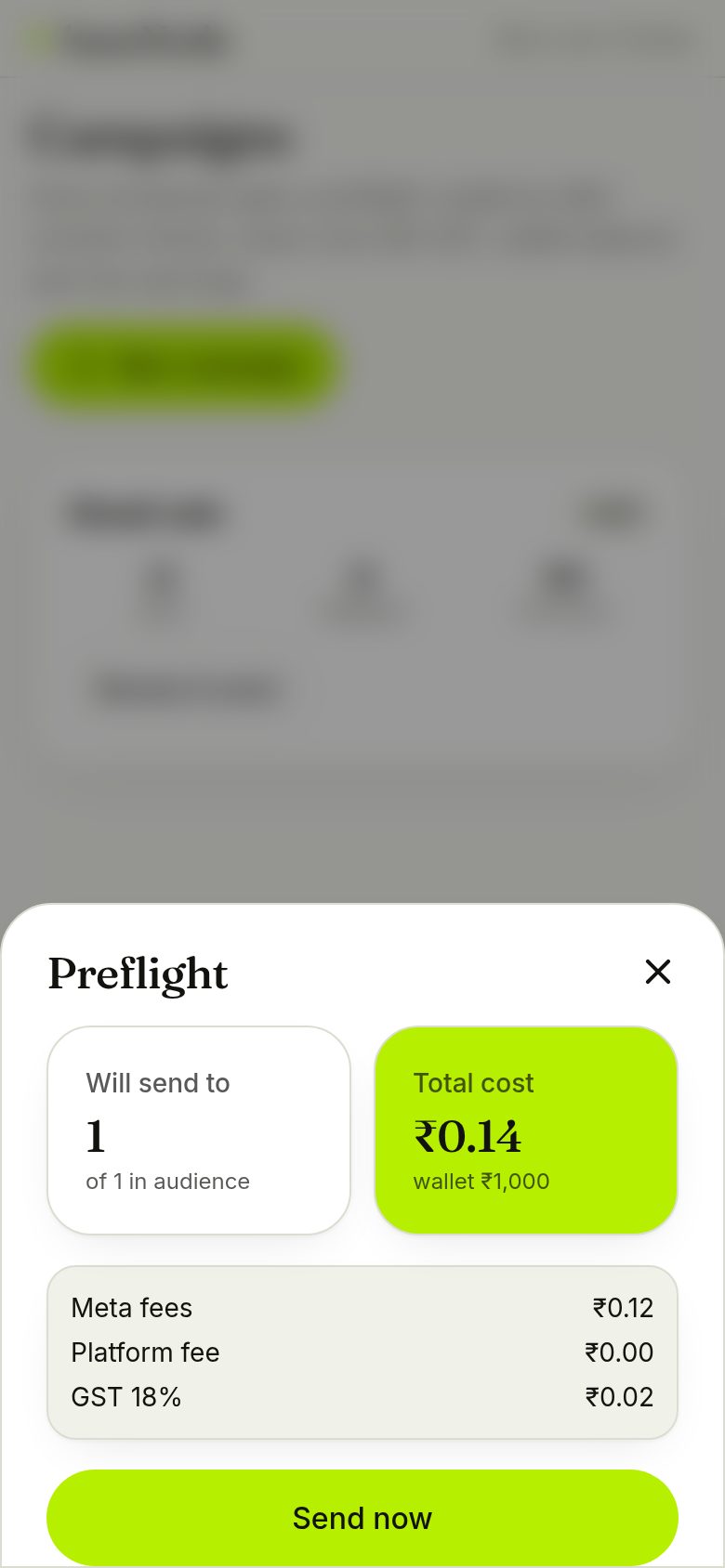
Choose a template and a tag. Before anything is sent, the preflight shows how many people will receive it after consent checks, the exact cost with GST, your wallet balance, and any warnings.
- No contact gets two marketing messages in 24 hours
- After the send, the report credits store orders back to the campaign
What it cost in this walkthrough
The template message in step 7 was a utility message: ₹0.115 from Meta plus 18% GST = ₹0.136. The PDF and photo in step 9 were free because the customer had replied within 24 hours. A marketing template would have cost ₹0.8631 plus GST. See Meta's rates and the calculator.
Ready to send your first message?
Free to start. Connect a number when you're ready.