The complete baseNode flow guide.
Every flow in one place, with diagrams and screenshots on laptop and phone: onboarding, how messages travel, chatbots, scheduling, links, stores and agencies.
Contents
- 1. Client onboarding
- 2. How a message travels
- 3. Chatbots and flows
- 4. Scheduling, quick replies and business hours
- 5. Click-to-chat links and QR codes
- 6. Store integrations and automations
- 7. Forms and segments
- 8. Catalogue, customer photos, reply times and ratings
- 9. Webhooks and tracked links
- 10. Agencies, plans and the admin panel
- 11. Payments and invoices
- 12. Security and privacy
- 13. Templates, A/B tests and a faster inbox
- 14. Playbooks, appointments, pipeline and getting paid
- 15. Workflows, custom stages, duplicates and email summaries
- 16. Your day: Today, ownership, contacts, reports and help
- 17. Connections, sequences, link-in-bio and smarter insights
What baseNode covers
1. Client onboarding
Everything a new business does, from creating a workspace to sending a first message, a PDF and a photo, and running a campaign.
- Sign upFree plan, no card
- Connect numberMeta WhatsApp number
- Add fundsPrepaid wallet
- Add contactsWith consent
- Create templateMeta reviews it
- First messageTemplate opens the chat
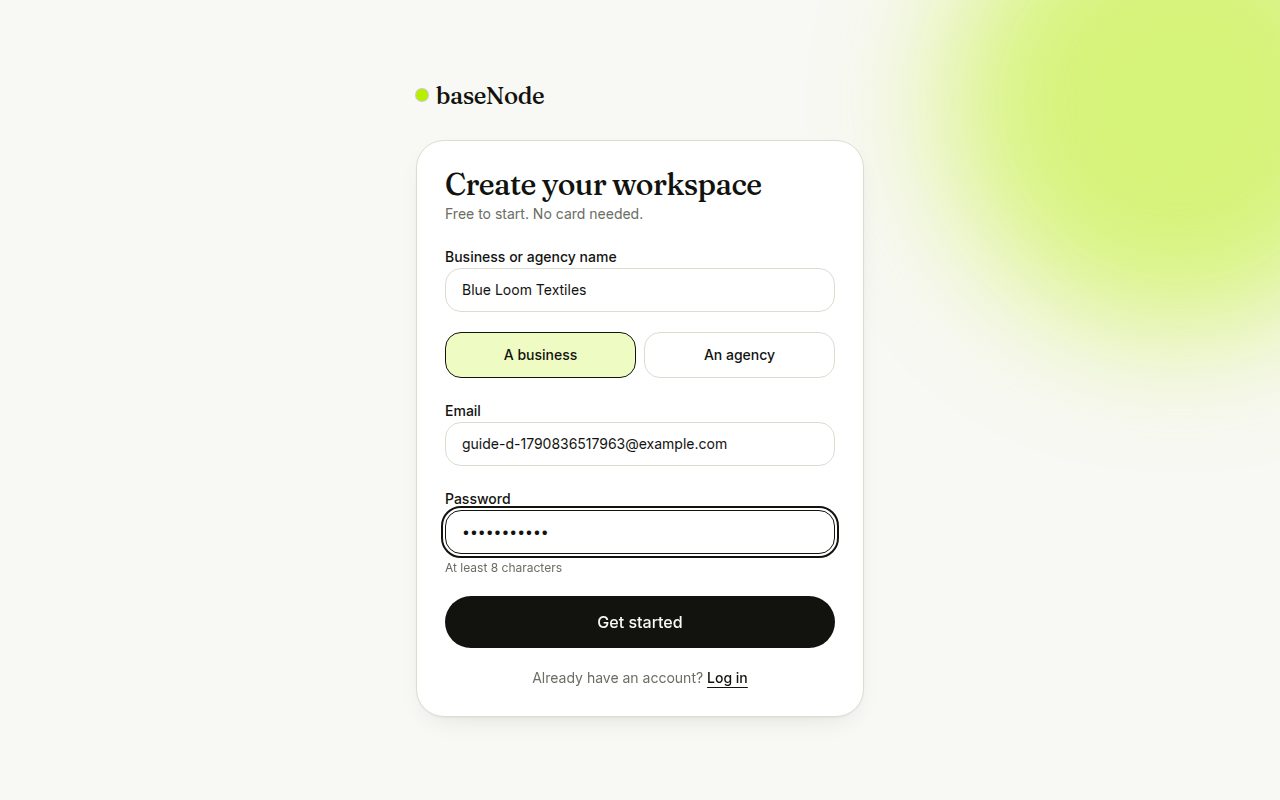
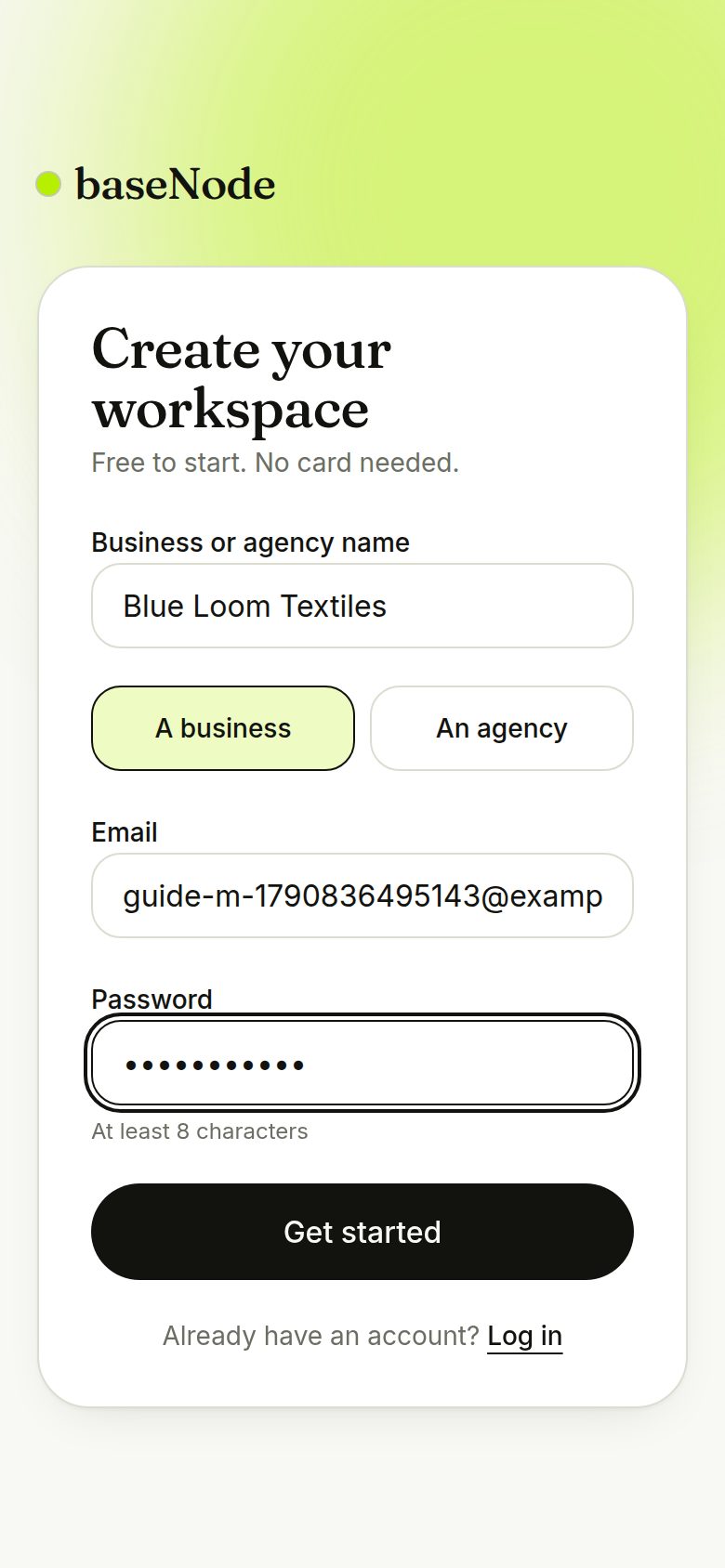
Create your workspace
Sign up with your work email and your business name. Agencies pick the agency account type to manage several clients from one login.
- Free plan: 1 number, 100 contacts, no card needed
Follow the setup checklist
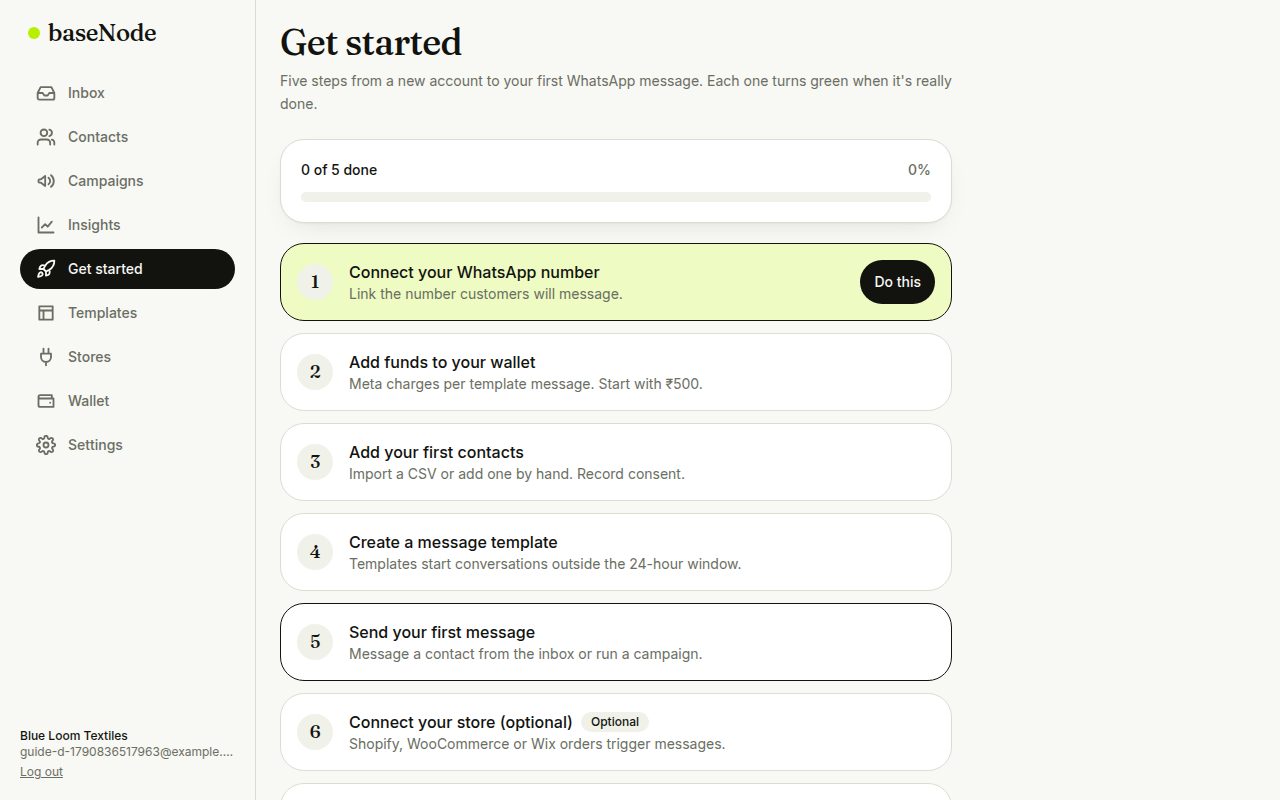
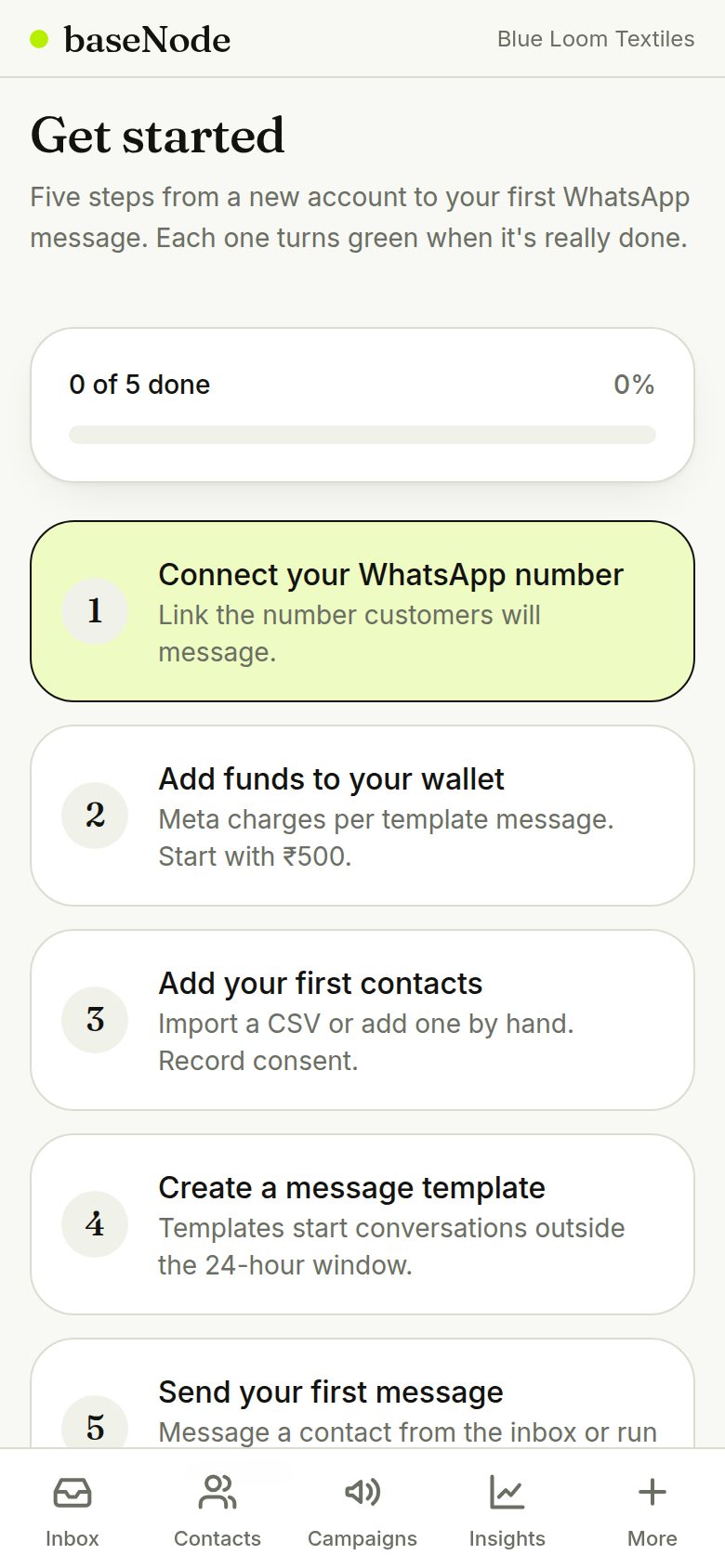
The Get started checklist shows exactly what's left. A step only turns green when it's really done, for example when a number is connected or a message has actually been sent.
- It reappears on your inbox until the five required steps are done
Connect your WhatsApp number
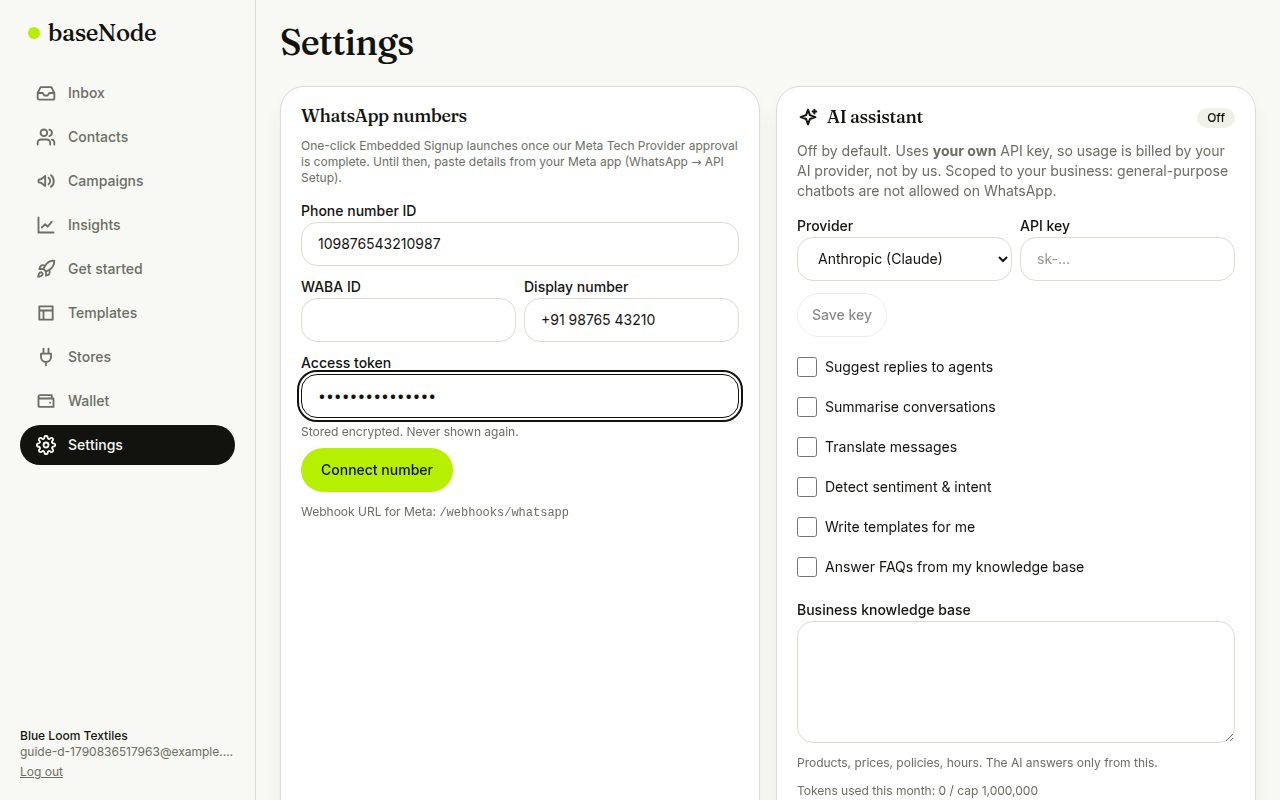
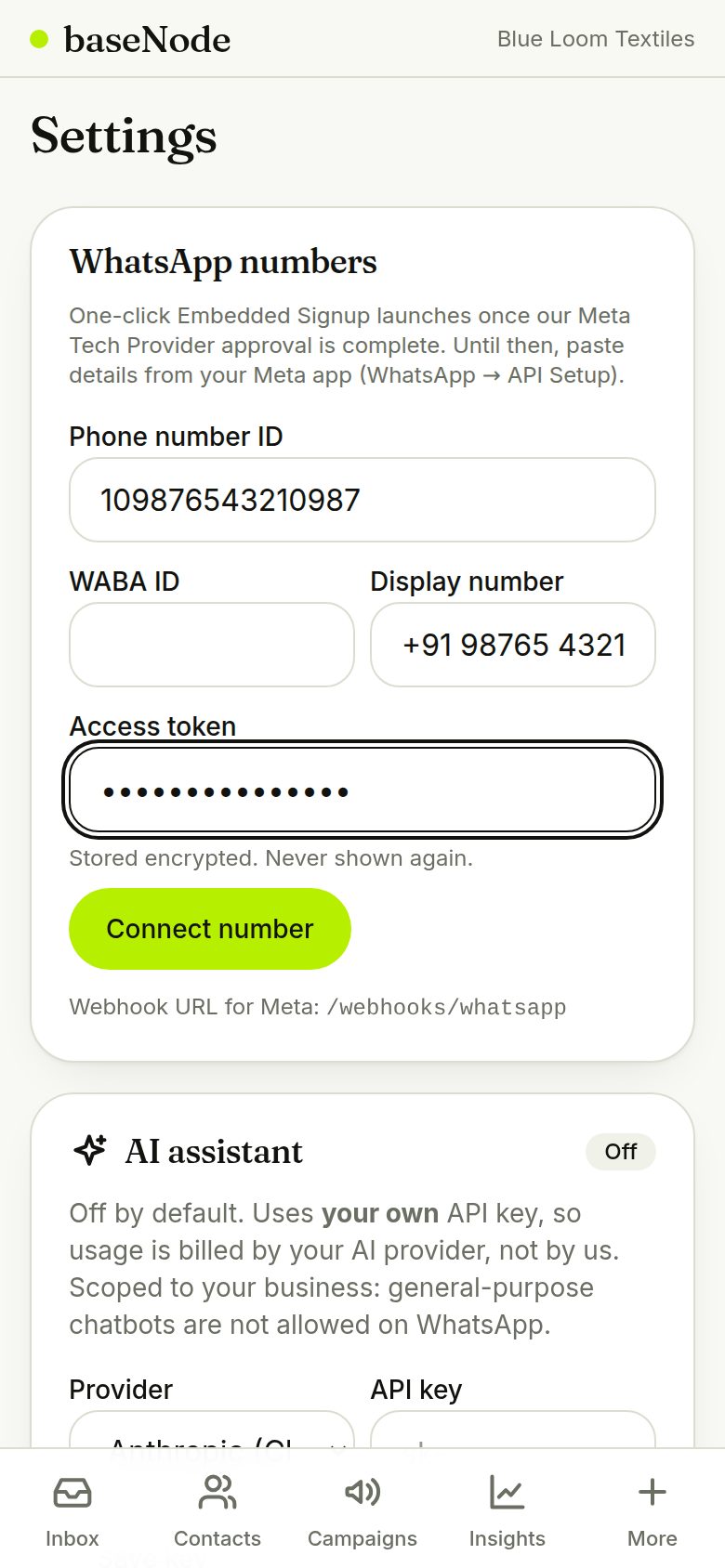
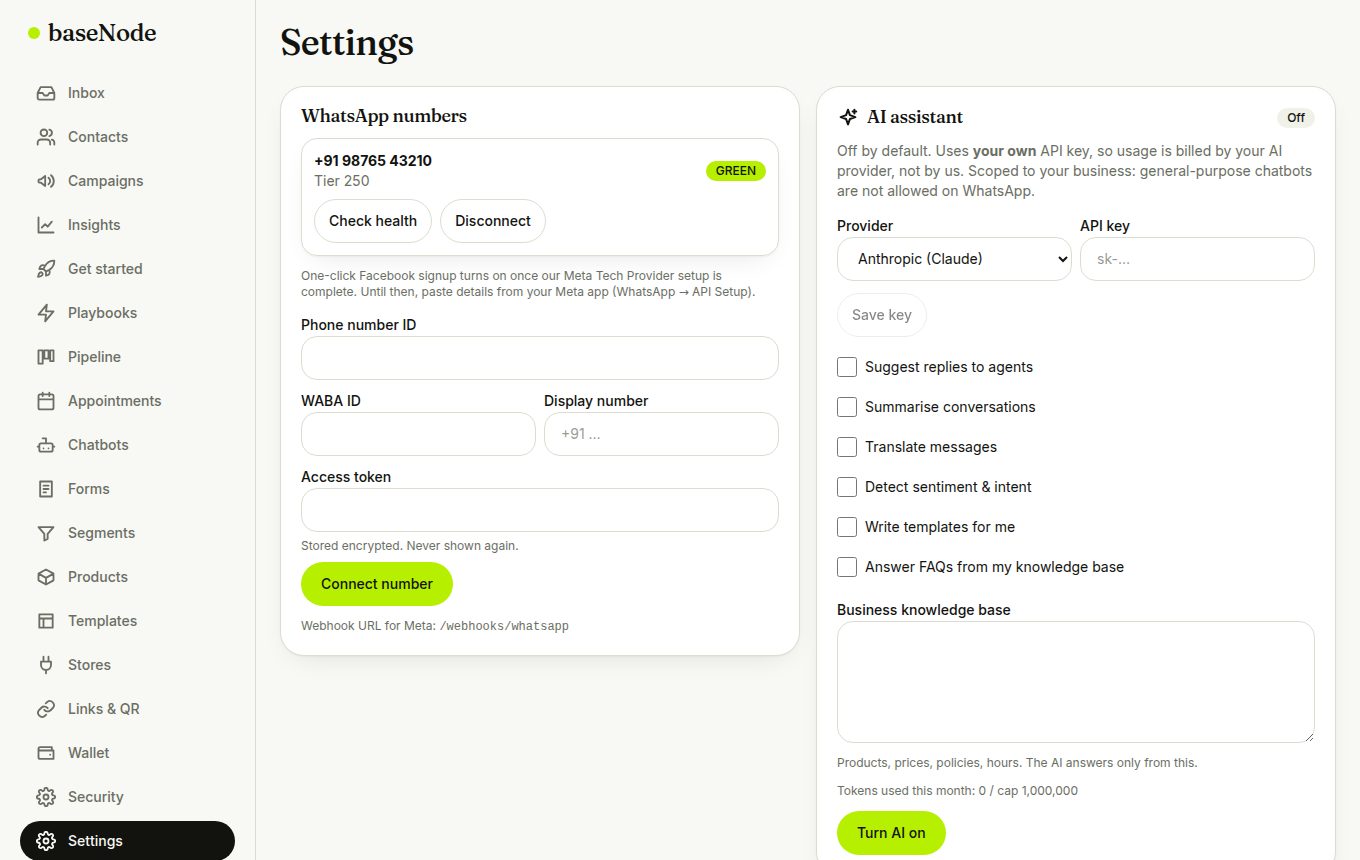
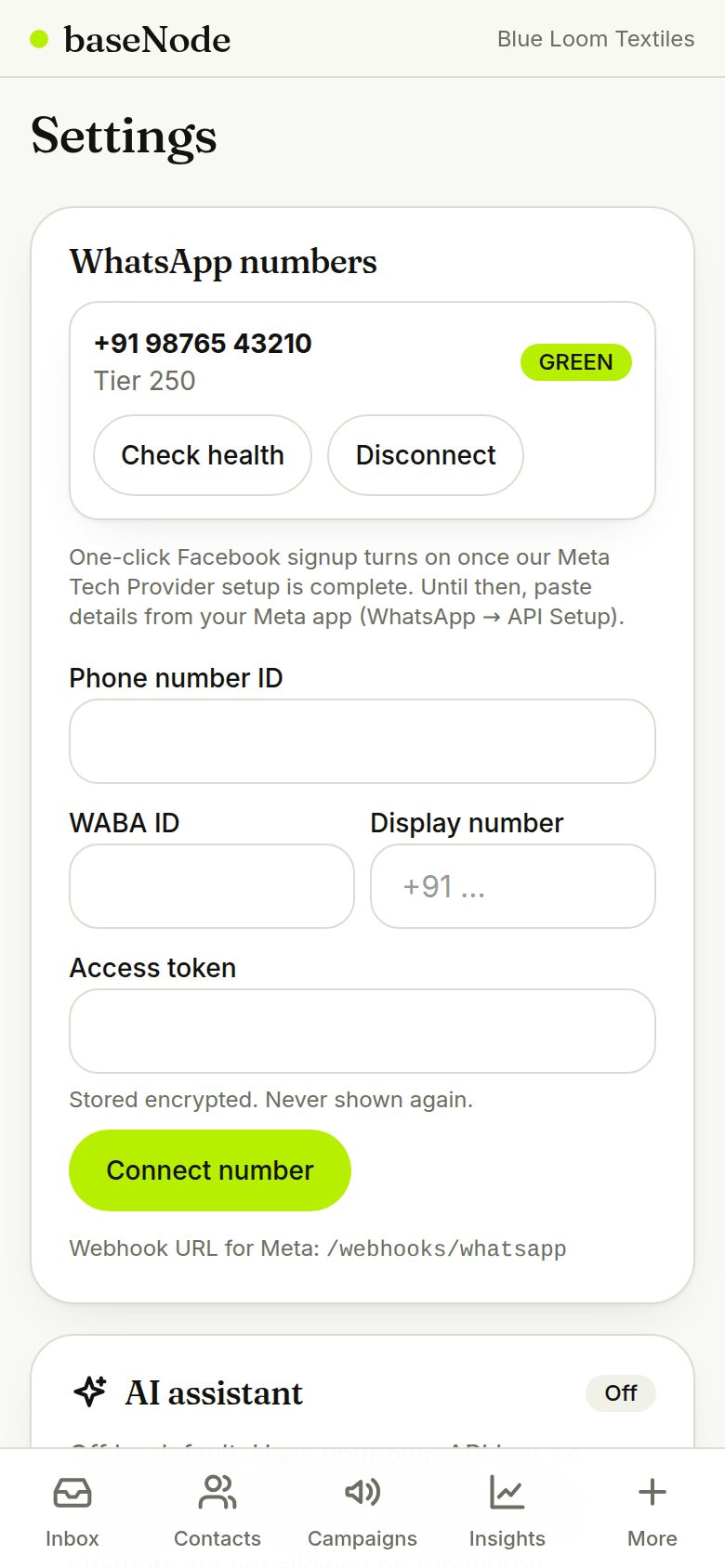
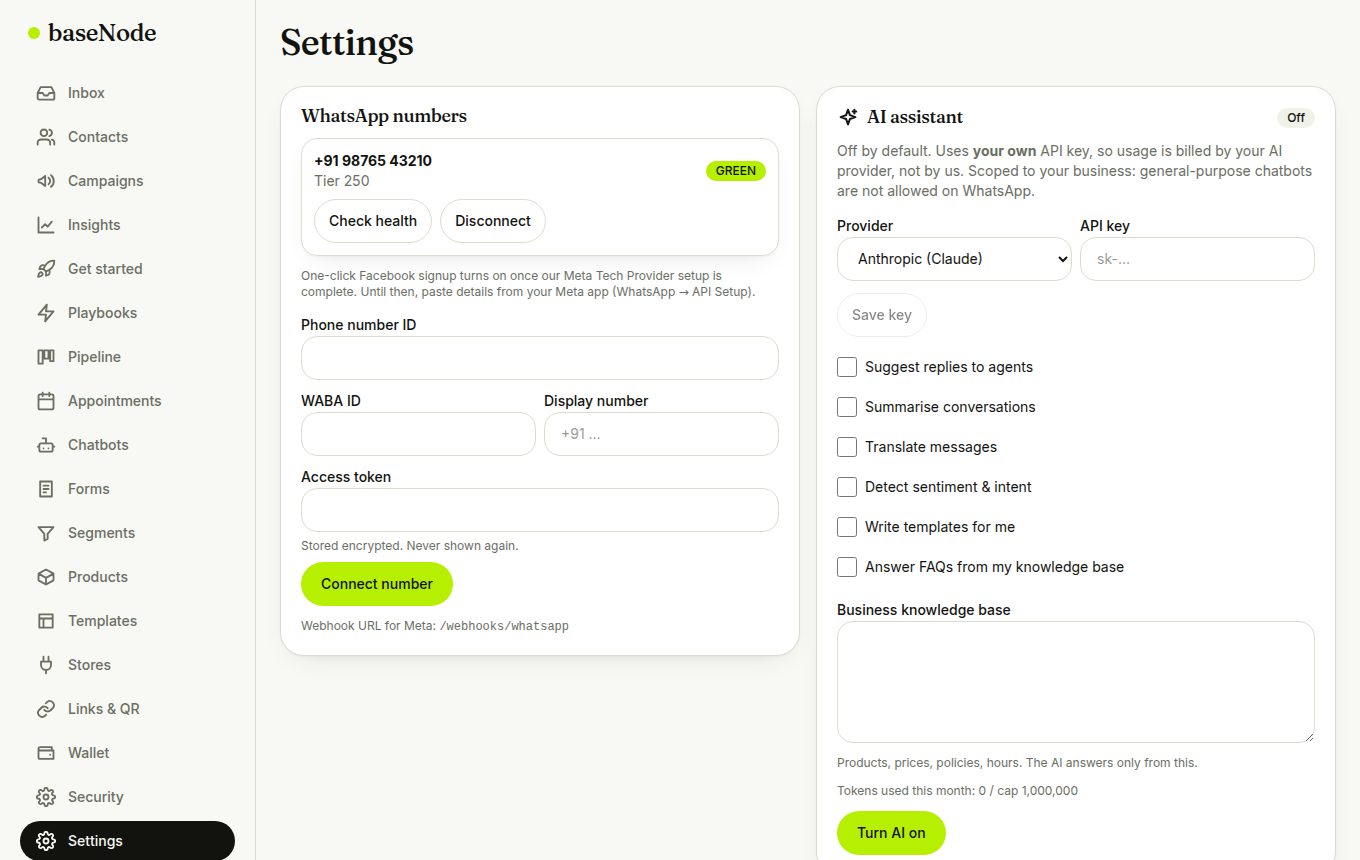
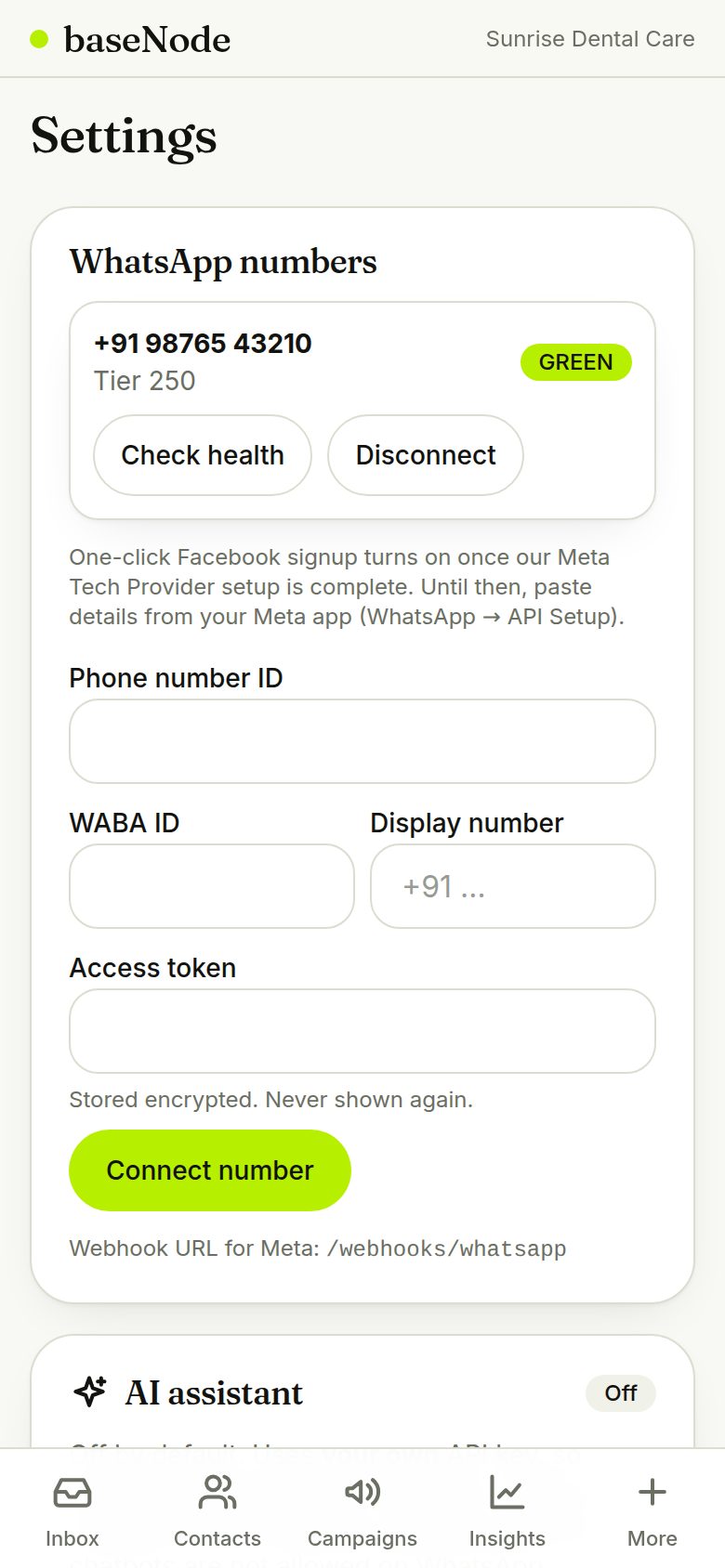
Open Settings and add your WhatsApp Business phone number ID and access token from your Meta app. One-click Embedded Signup replaces this once our Meta Tech Provider approval is complete. Your token is stored encrypted and never shown again.
- Use a number that isn't already on the regular WhatsApp app, or migrate it first
- Meta business verification raises your daily sending limit
Add funds to your wallet
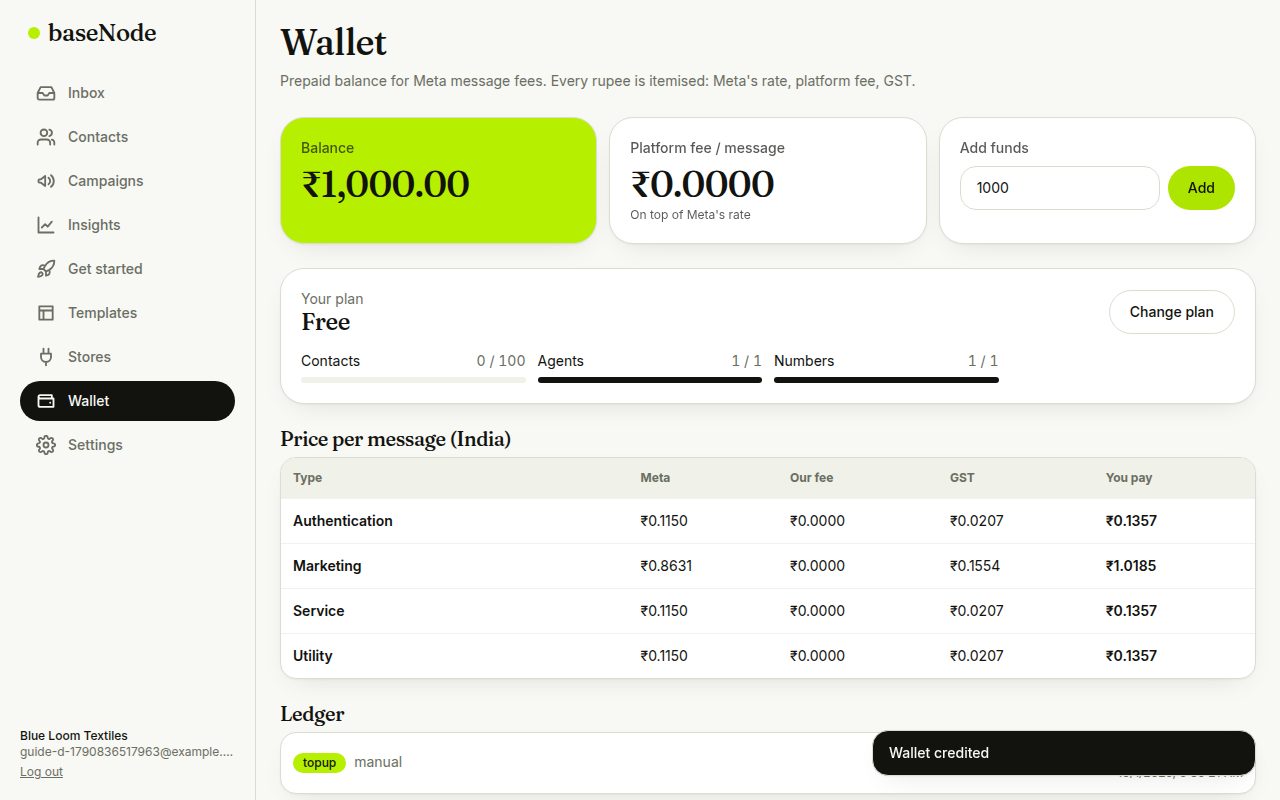
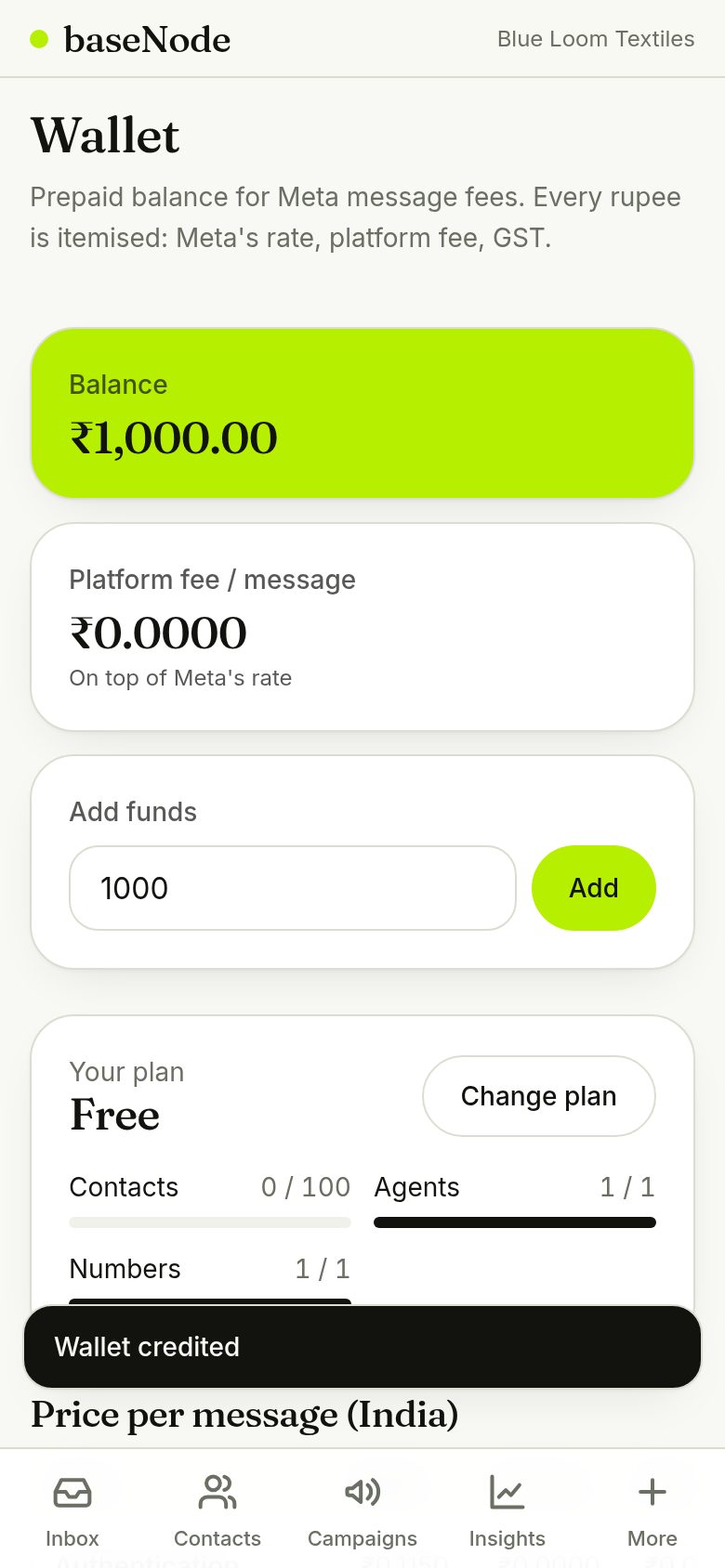
Meta charges per delivered template message. Top up the wallet; every send shows Meta's fee, ours and GST, and failed sends are refunded.
- Replies inside the 24-hour window are free
- Start with ₹500 to ₹1,000
Add contacts, with consent
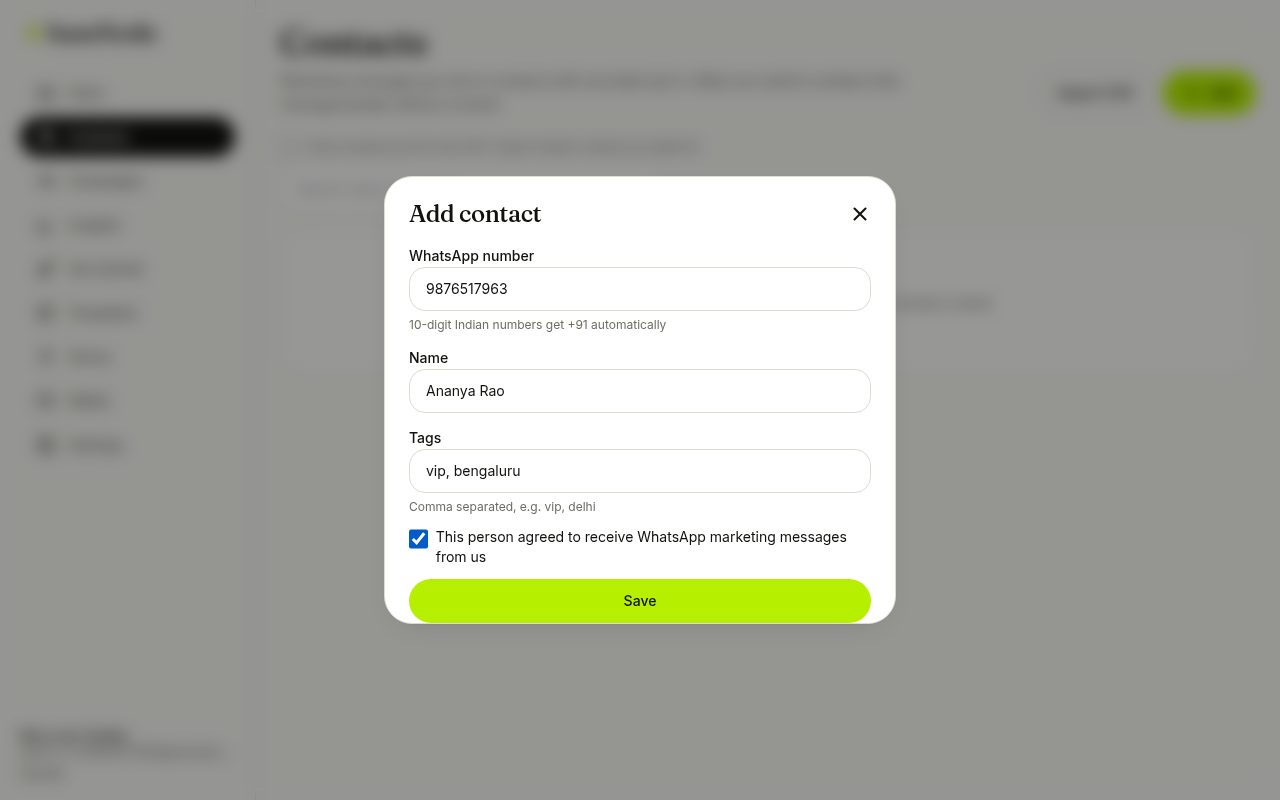
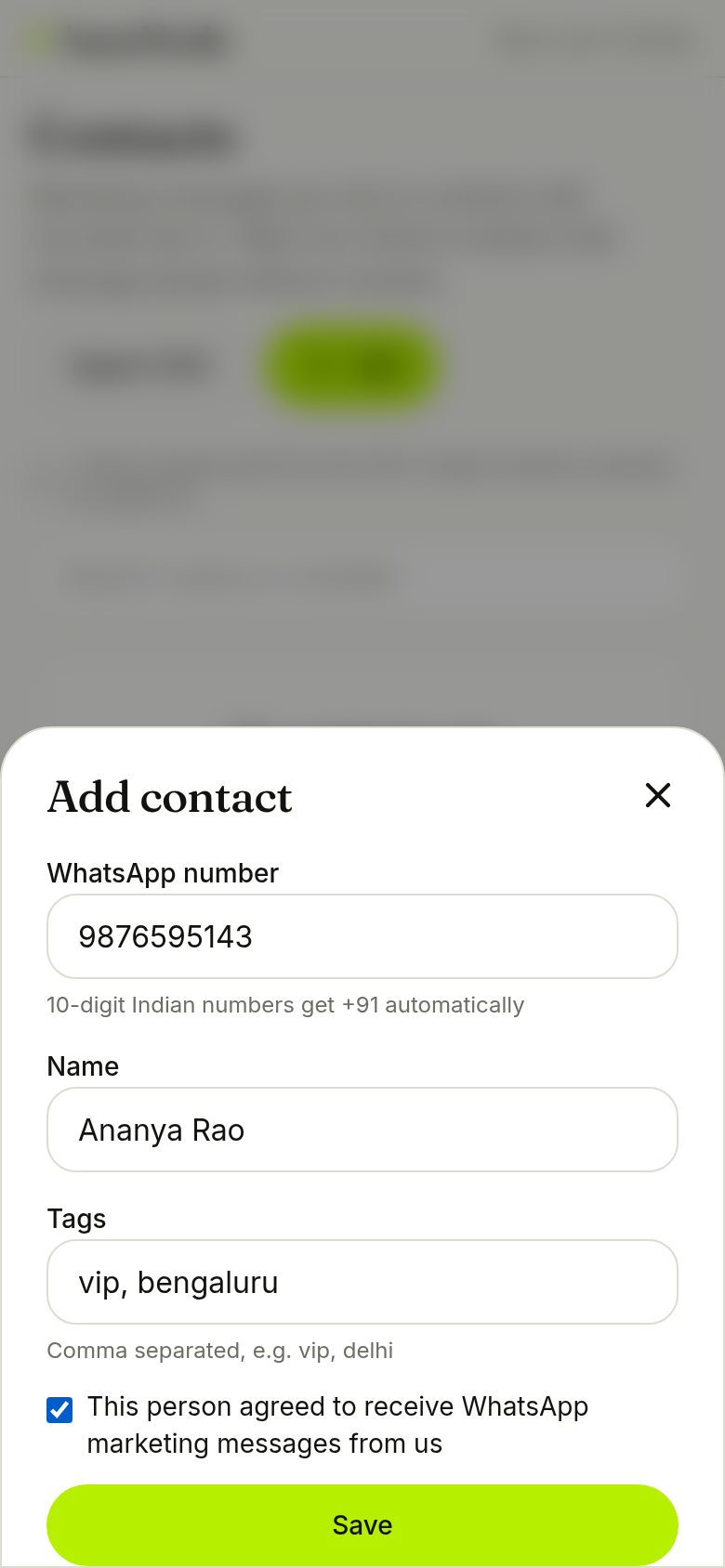
Add people one by one or import a CSV (phone, name, email, tags). Tick the consent box only if the person agreed to receive WhatsApp messages. Marketing messages go only to opted-in contacts.
- 10-digit Indian numbers get +91 automatically
- STOP replies opt people out instantly
Create a message template
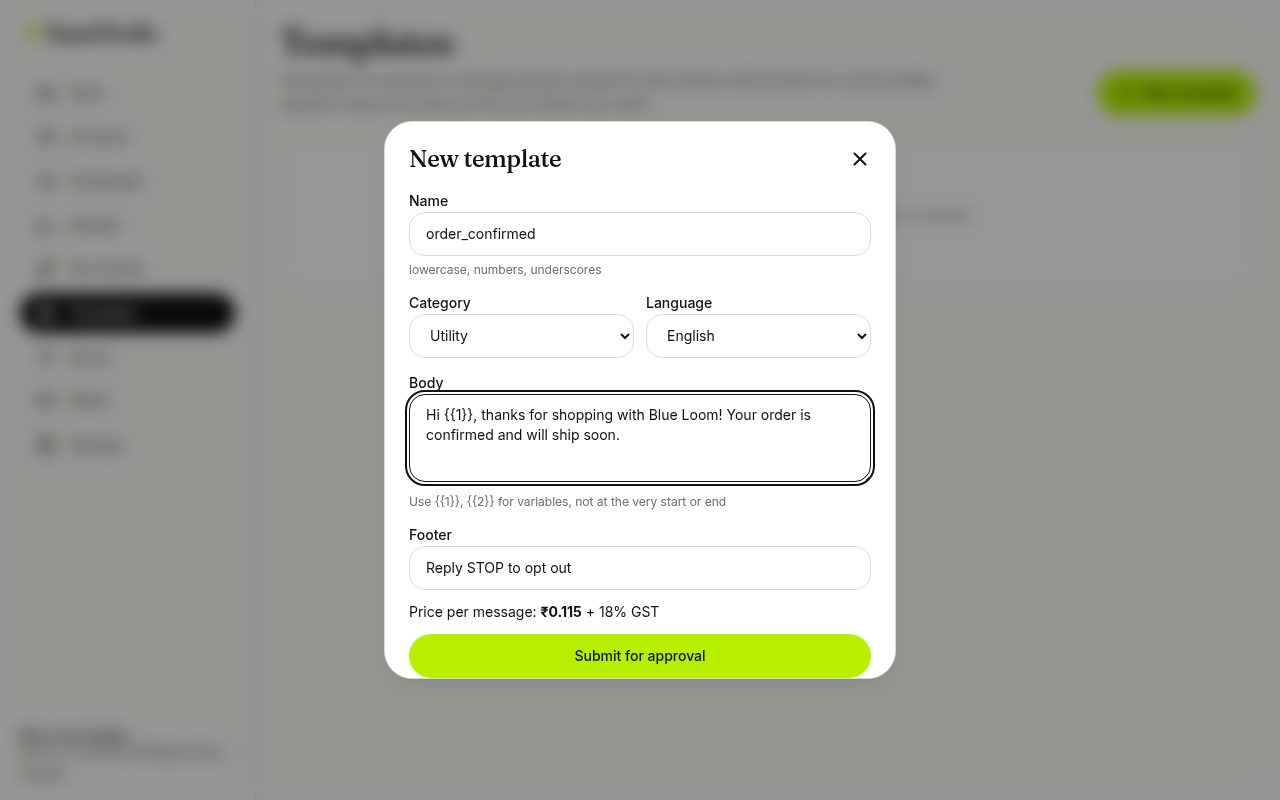
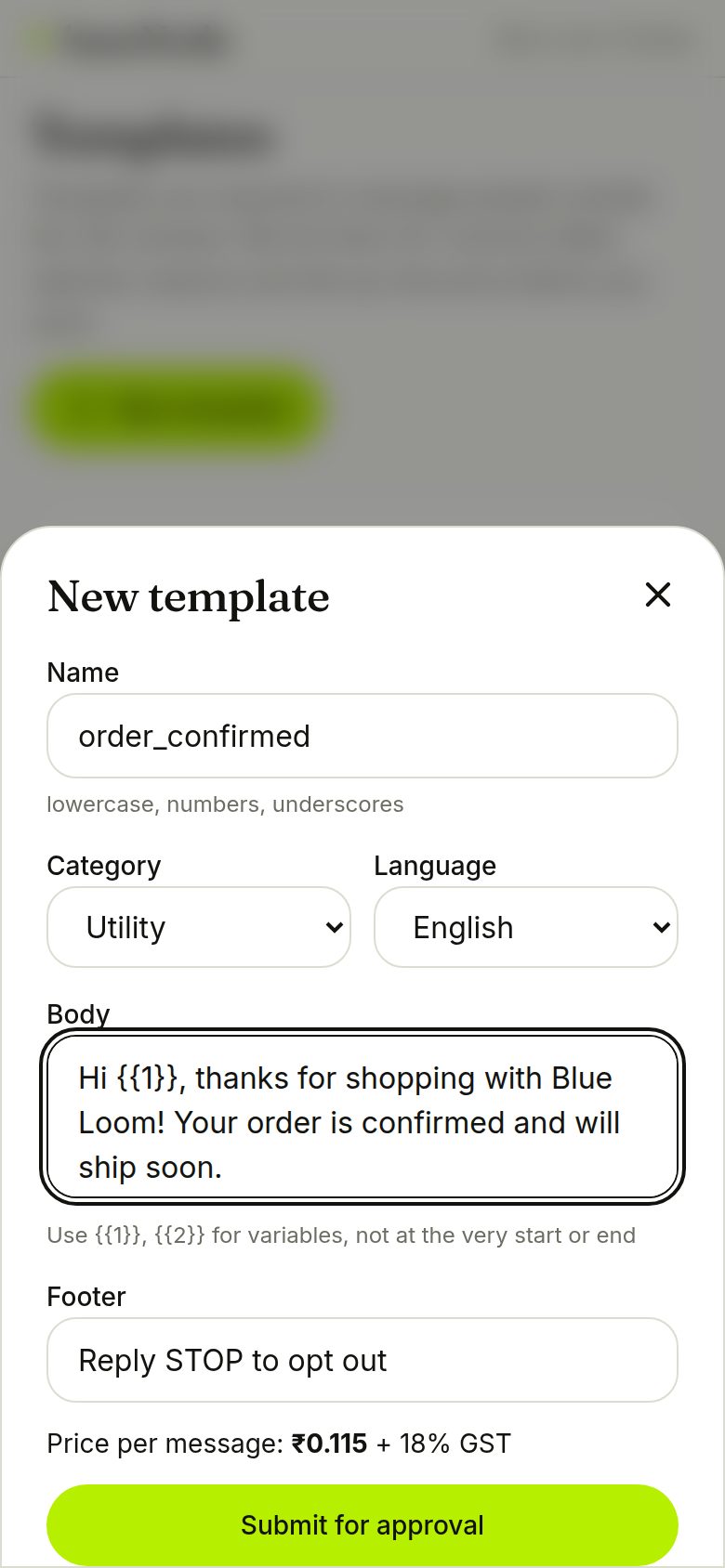
Templates start conversations outside the 24-hour window. Pick utility for order updates (cheapest) or marketing for offers. We check the wording against common rejection reasons and show the price per message before you submit.
- Placeholders like {{1}} can't start or end the message
- Promotional wording in a utility template may be re-categorised and billed as marketing
Send your first message
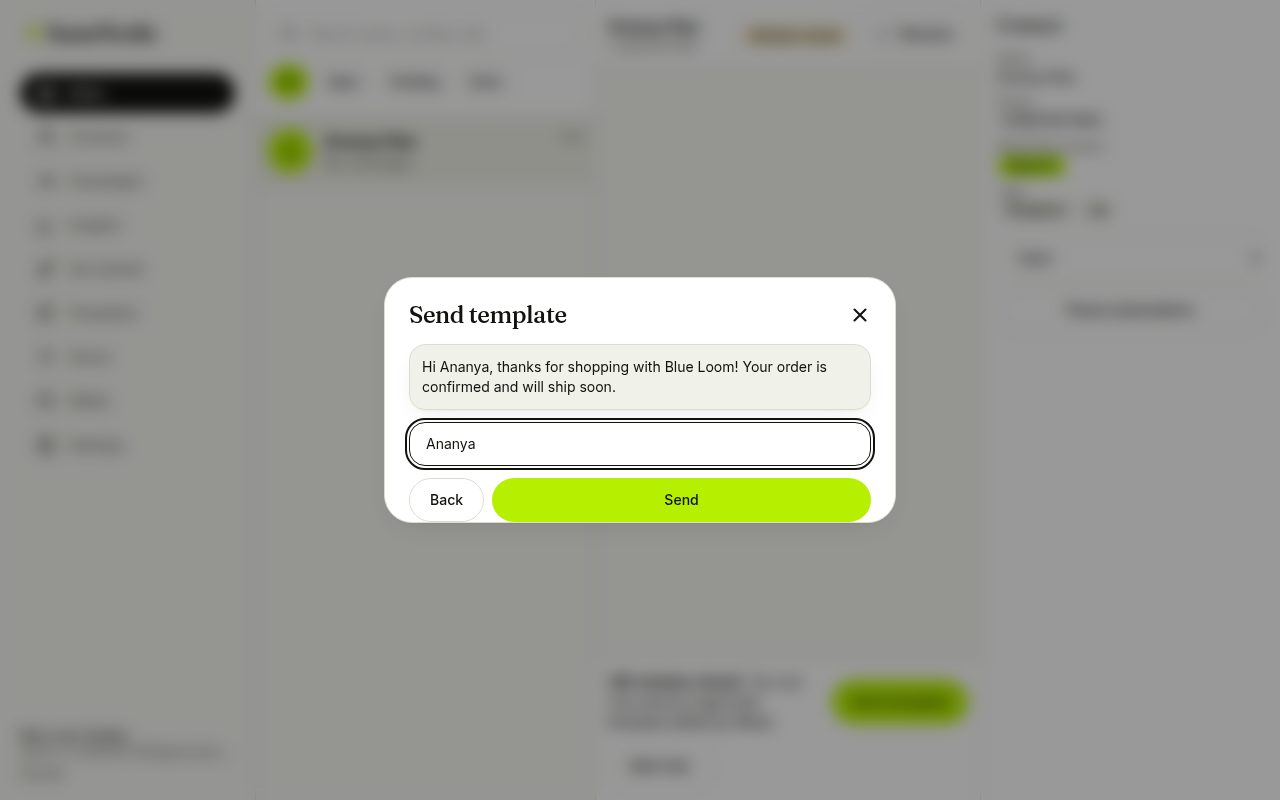
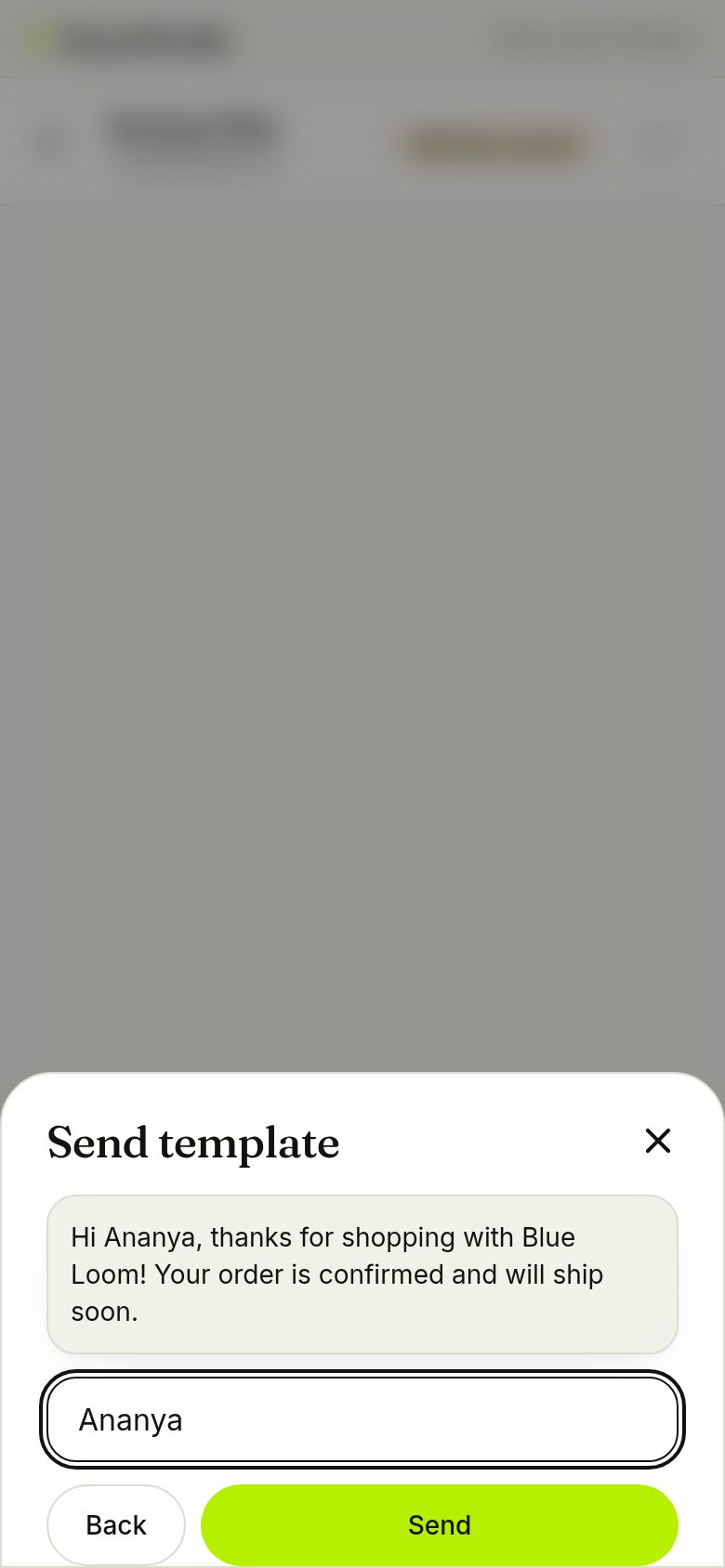
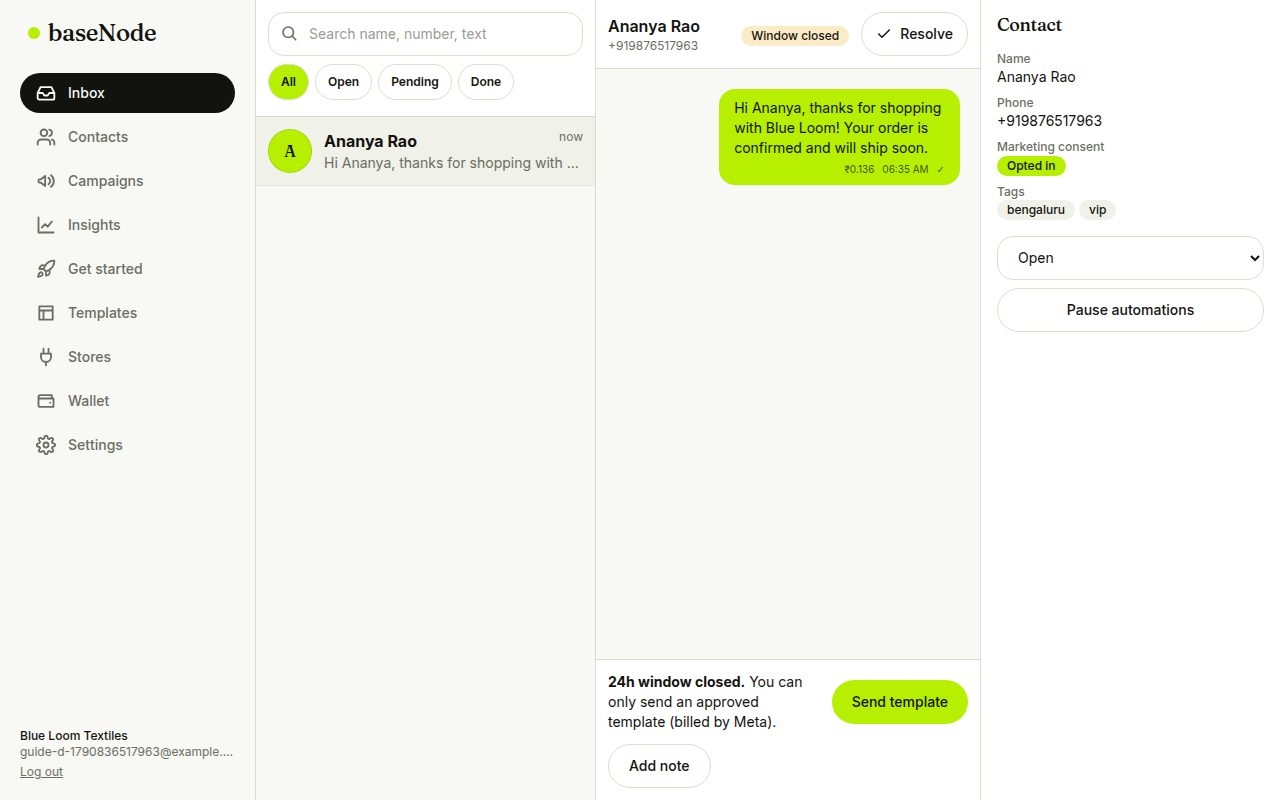
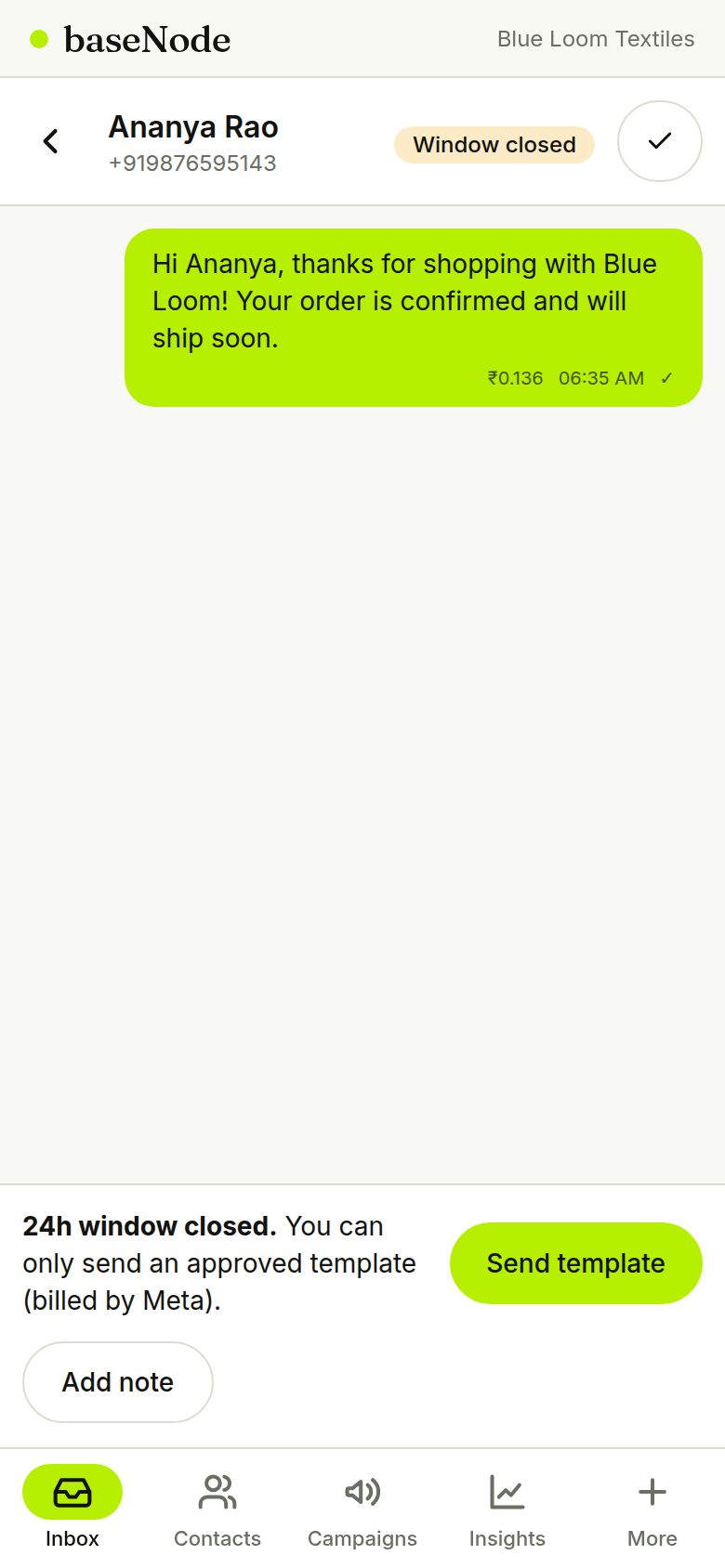
Open a contact and tap Message. Because the customer hasn't written yet, the 24-hour window is closed, so you send an approved template. Fill the variable and send; the cost appears on the message.
- The cost shown includes 18% GST
- Marketing templates are blocked for contacts without opt-in
The customer replies
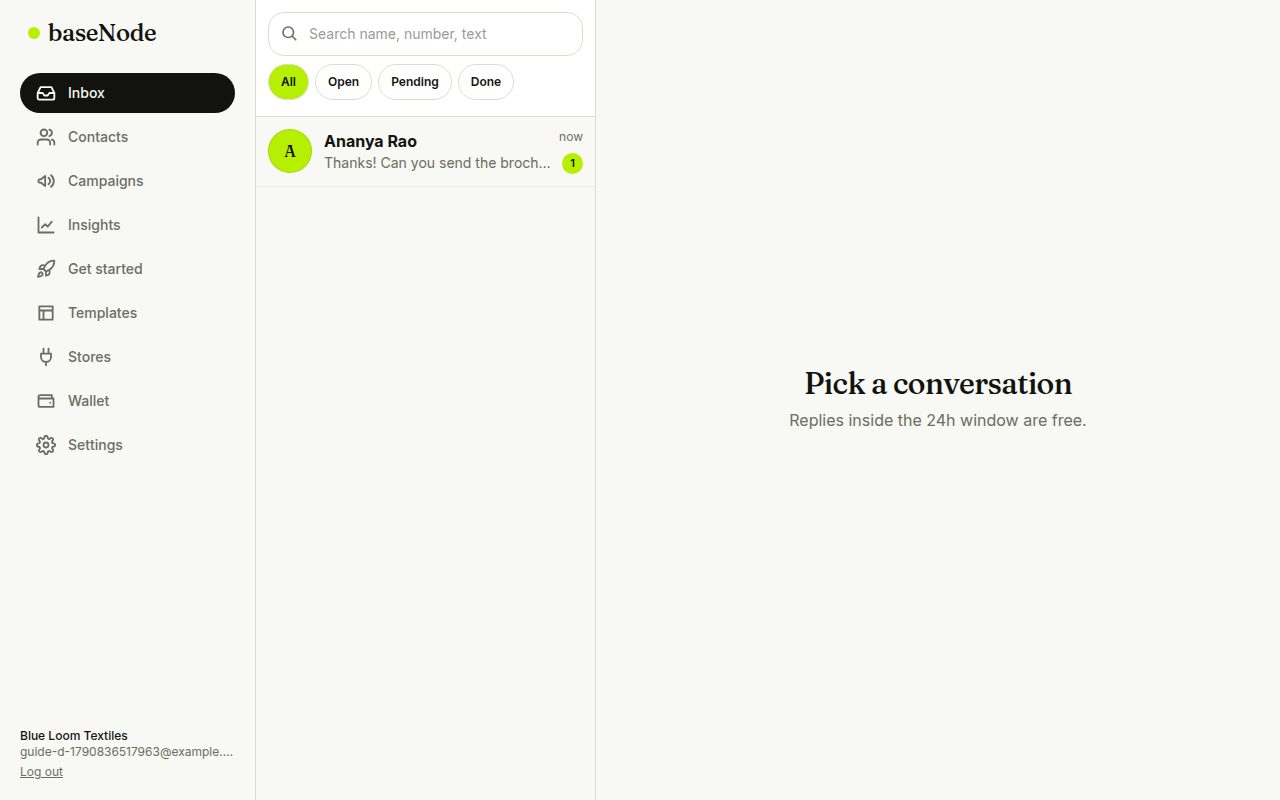
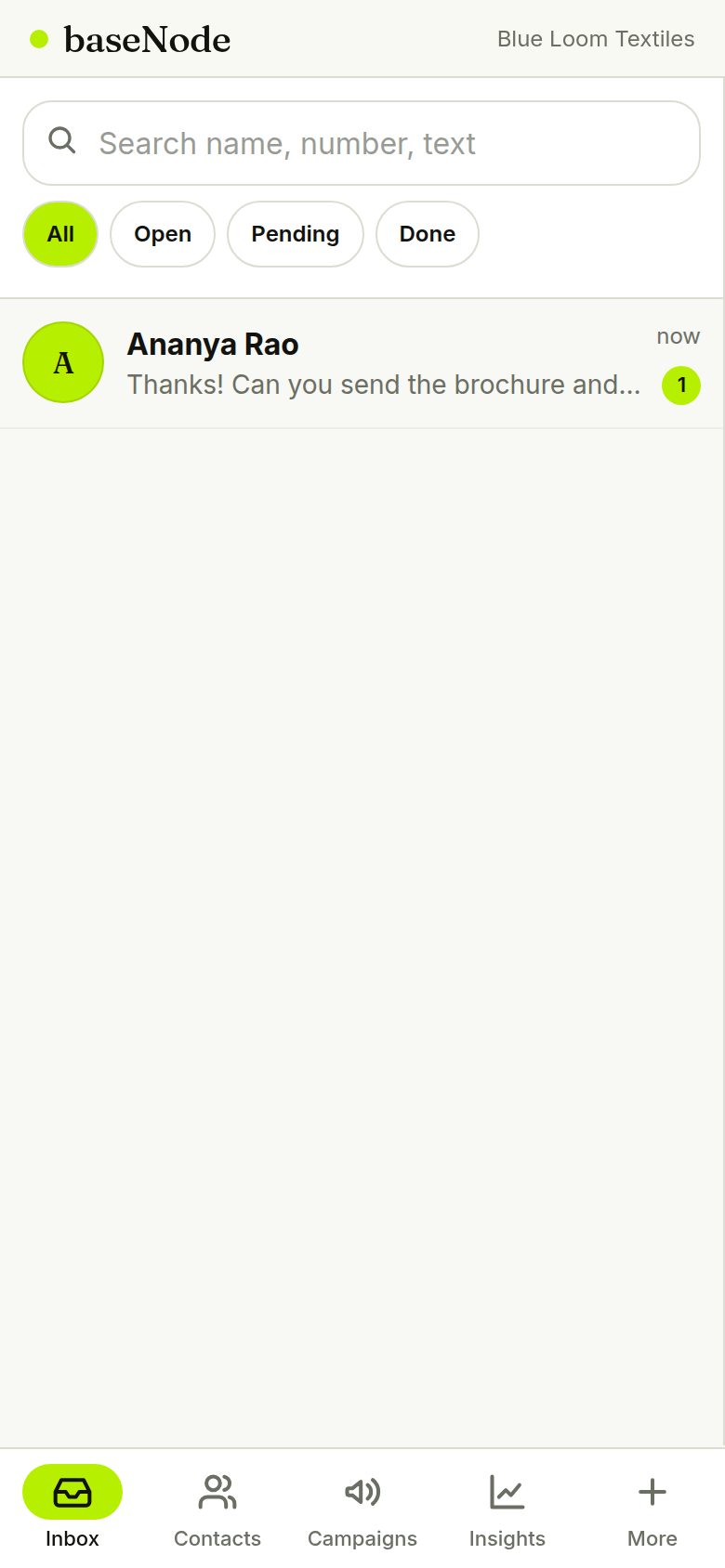
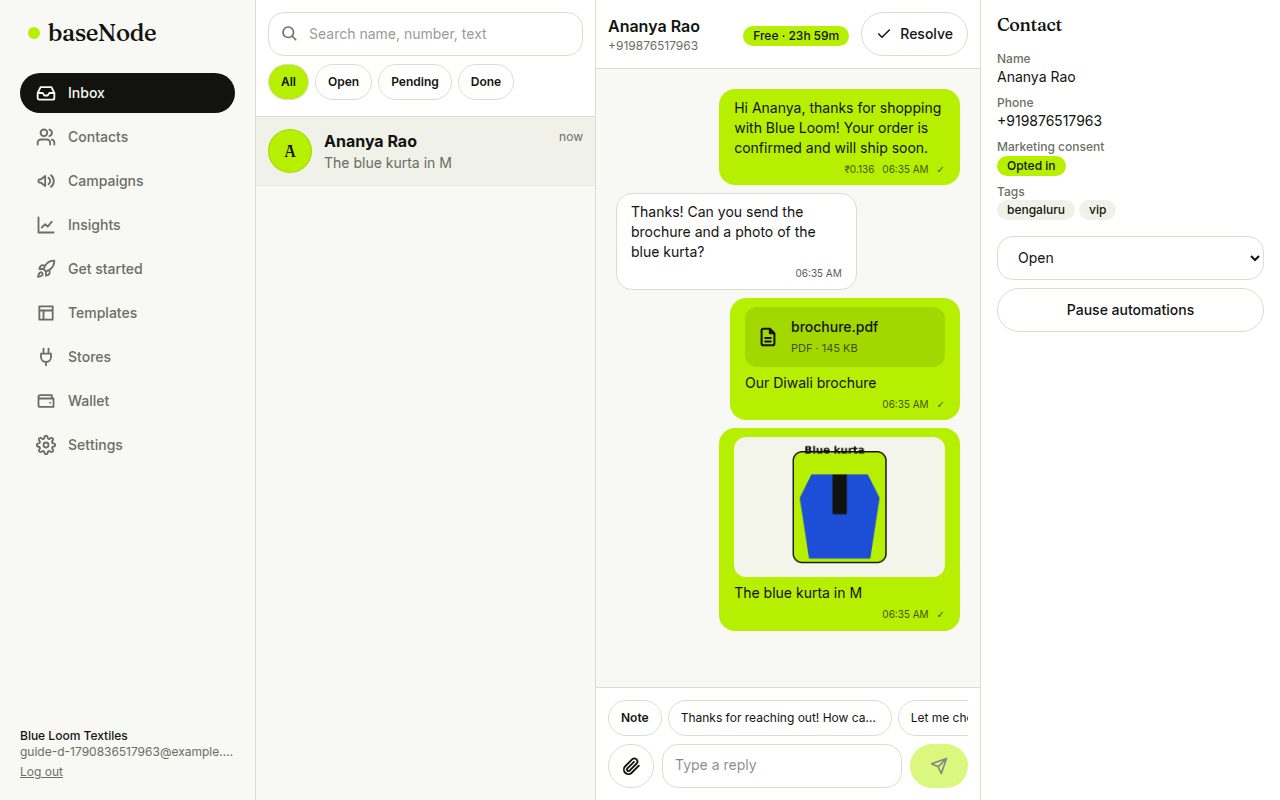
When the customer answers, the chat jumps to the top of your shared inbox with an unread badge, and a timer shows the free 24-hour reply window.
- Assign the chat to a teammate or leave an internal note
- Quick replies save typing
Send a PDF and a photo
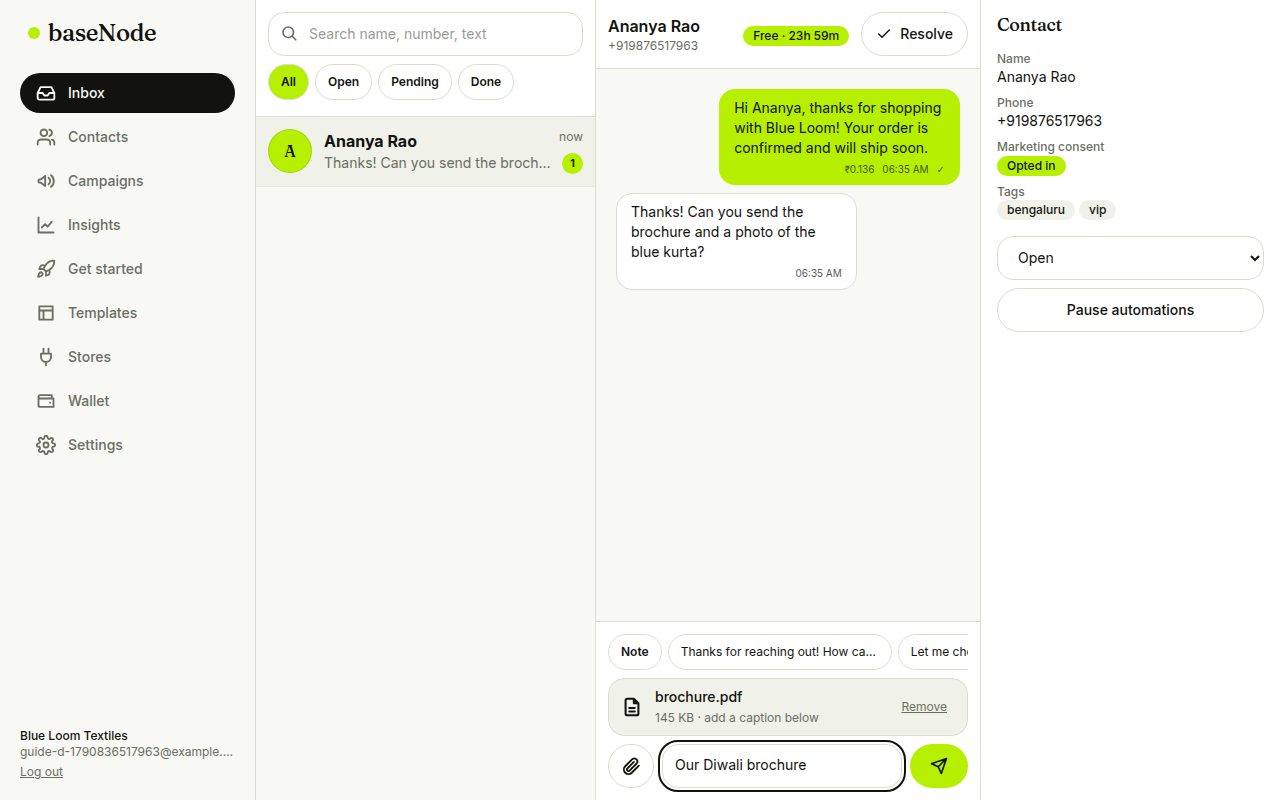
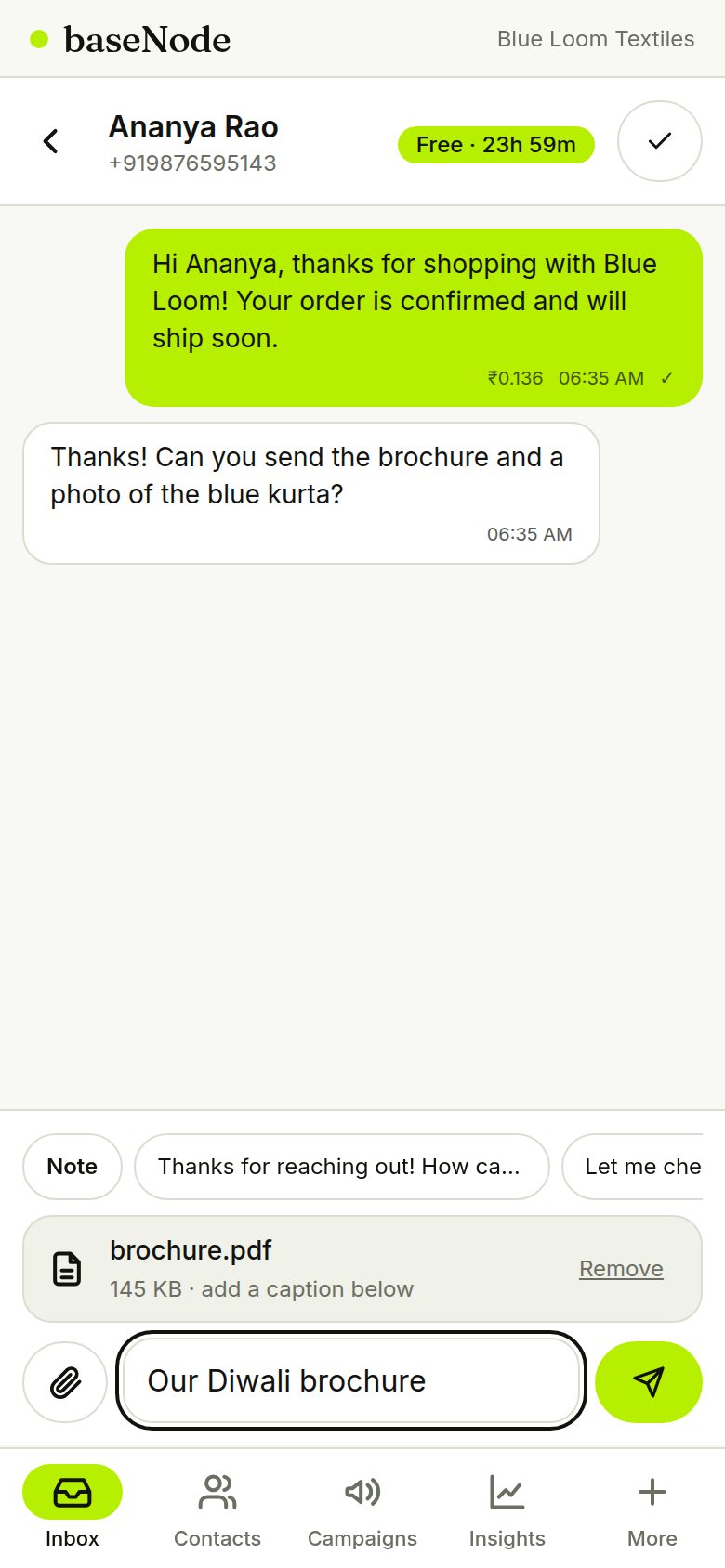
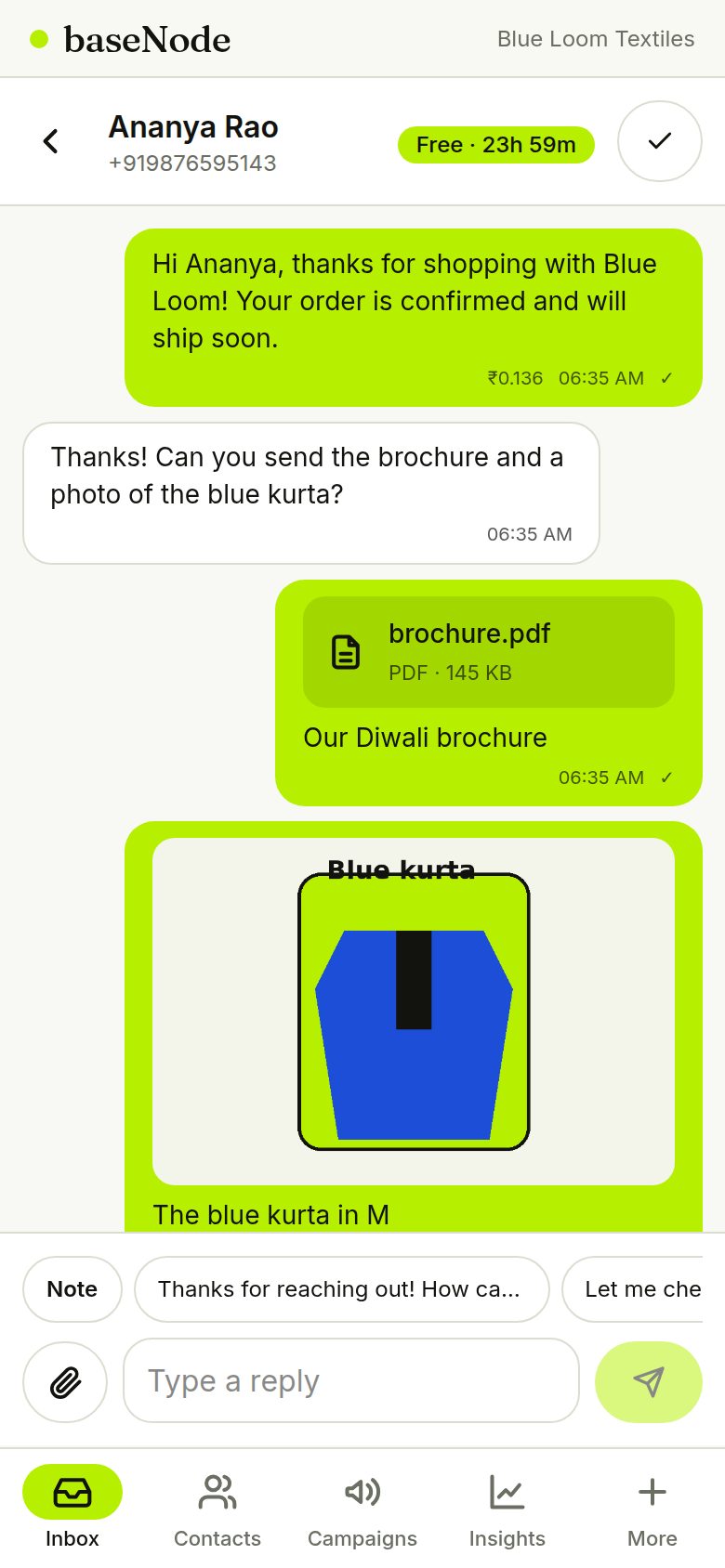
Inside the free window, tap the paperclip to attach a brochure, invoice or product photo. Add a caption and send. Documents appear as cards and photos as thumbnails.
- JPG and PNG up to 5 MB; PDF, Word, Excel, TXT and MP4 up to 10 MB
- Attachments as replies cost nothing from Meta
Run a campaign with a preflight
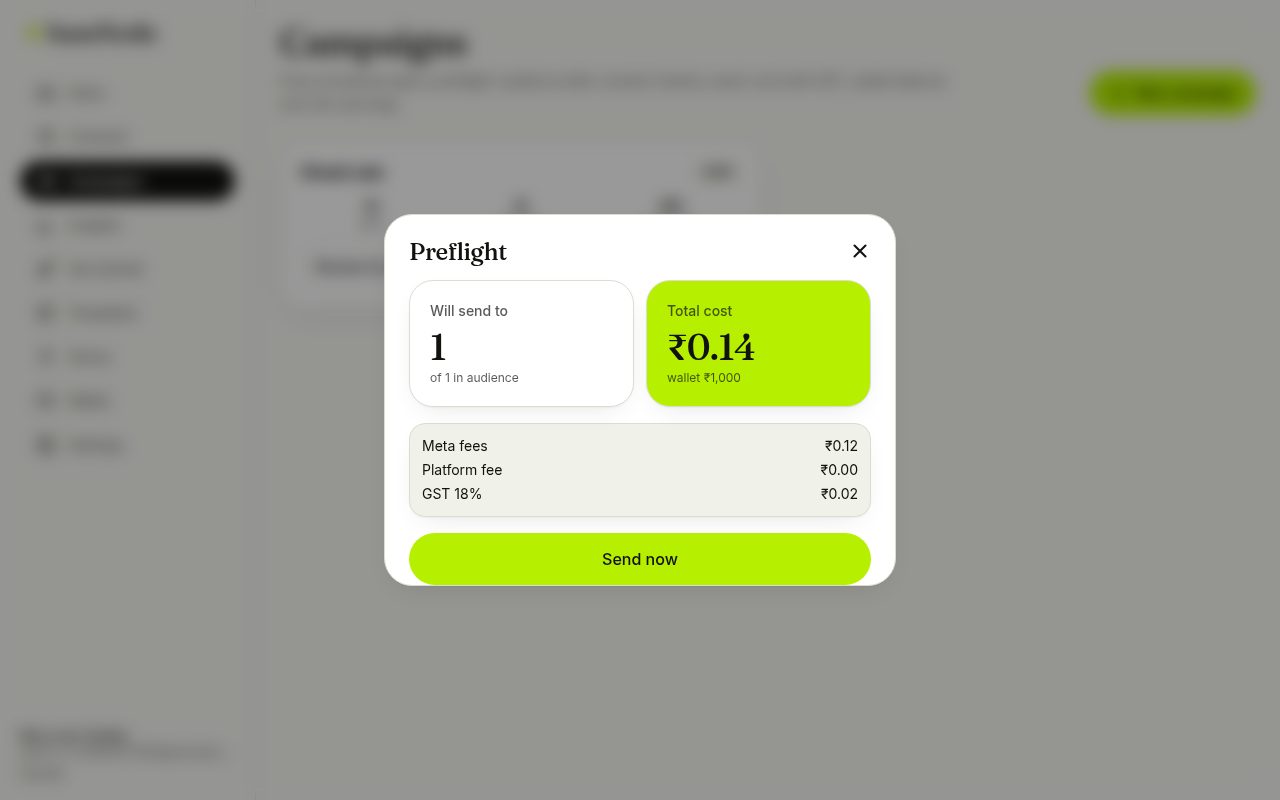
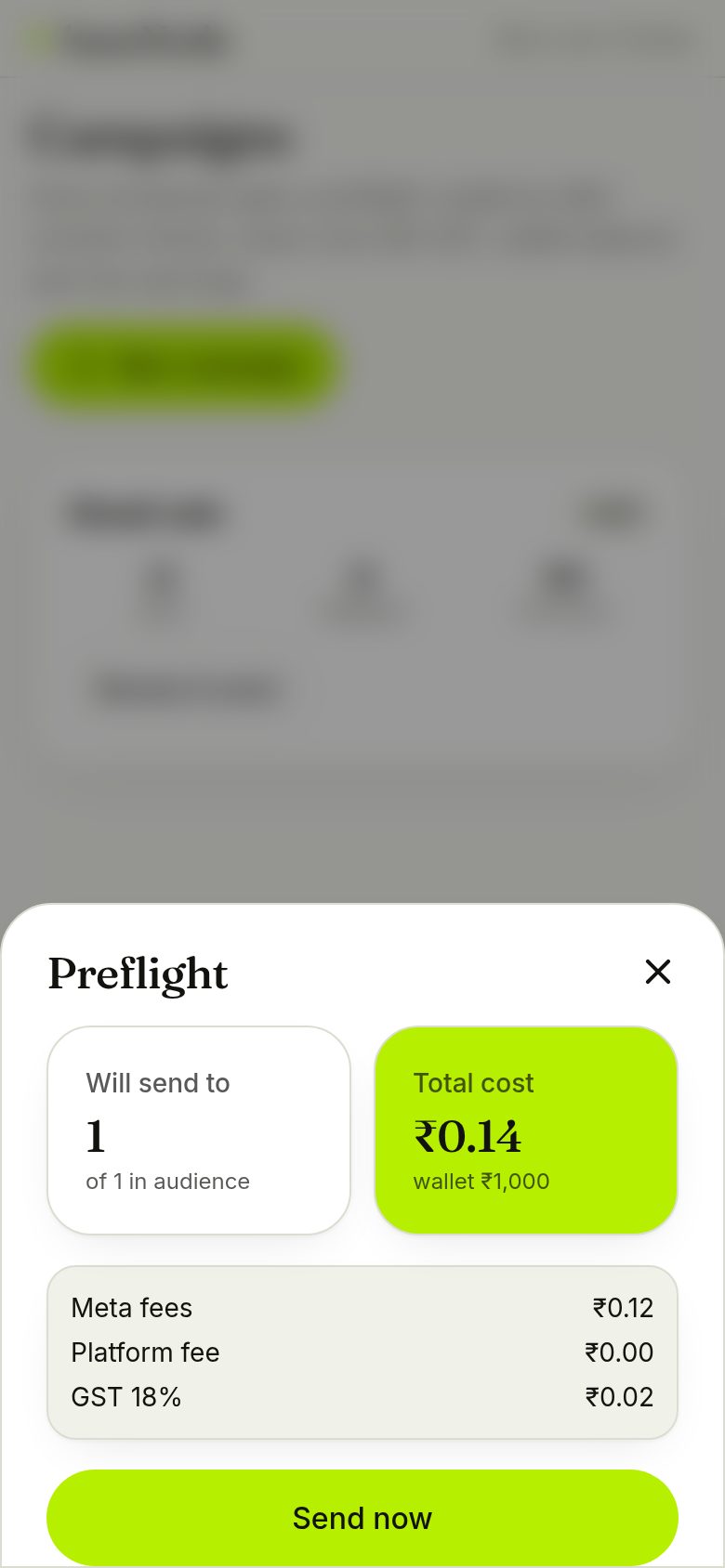
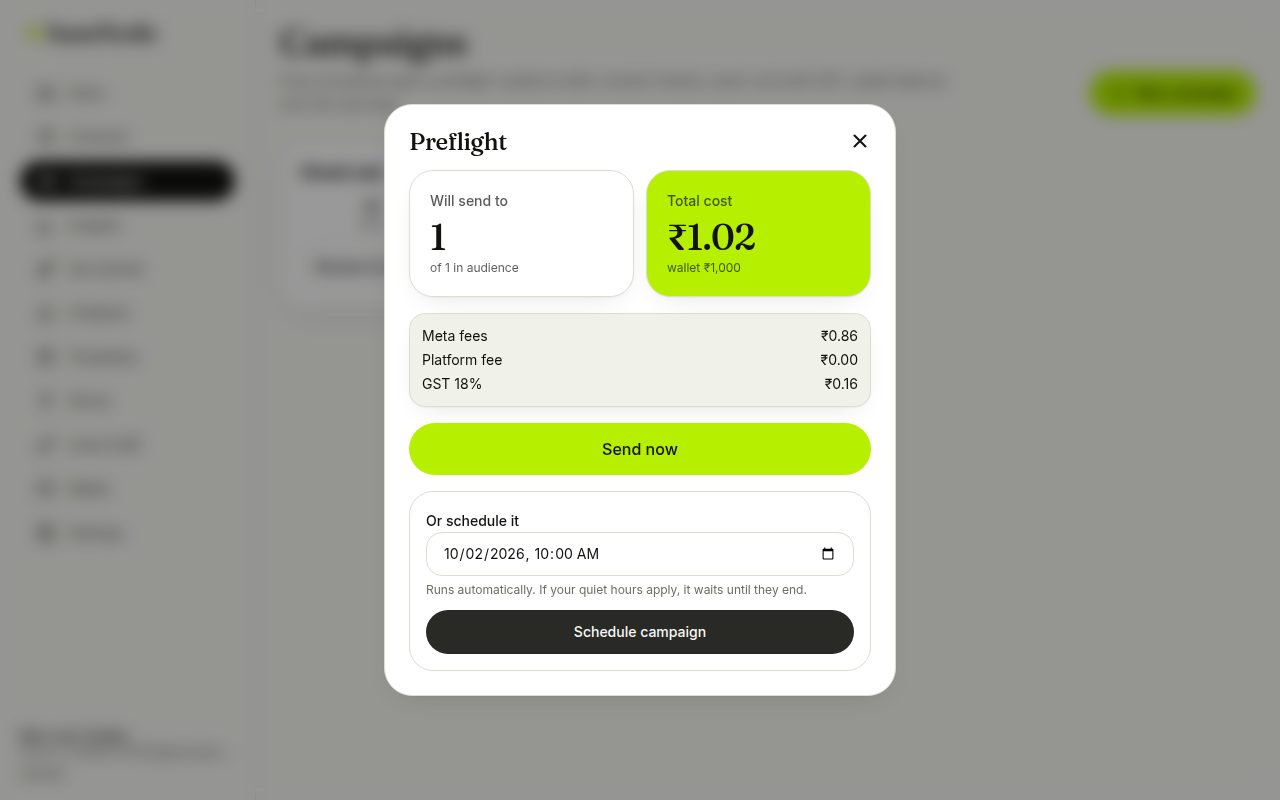
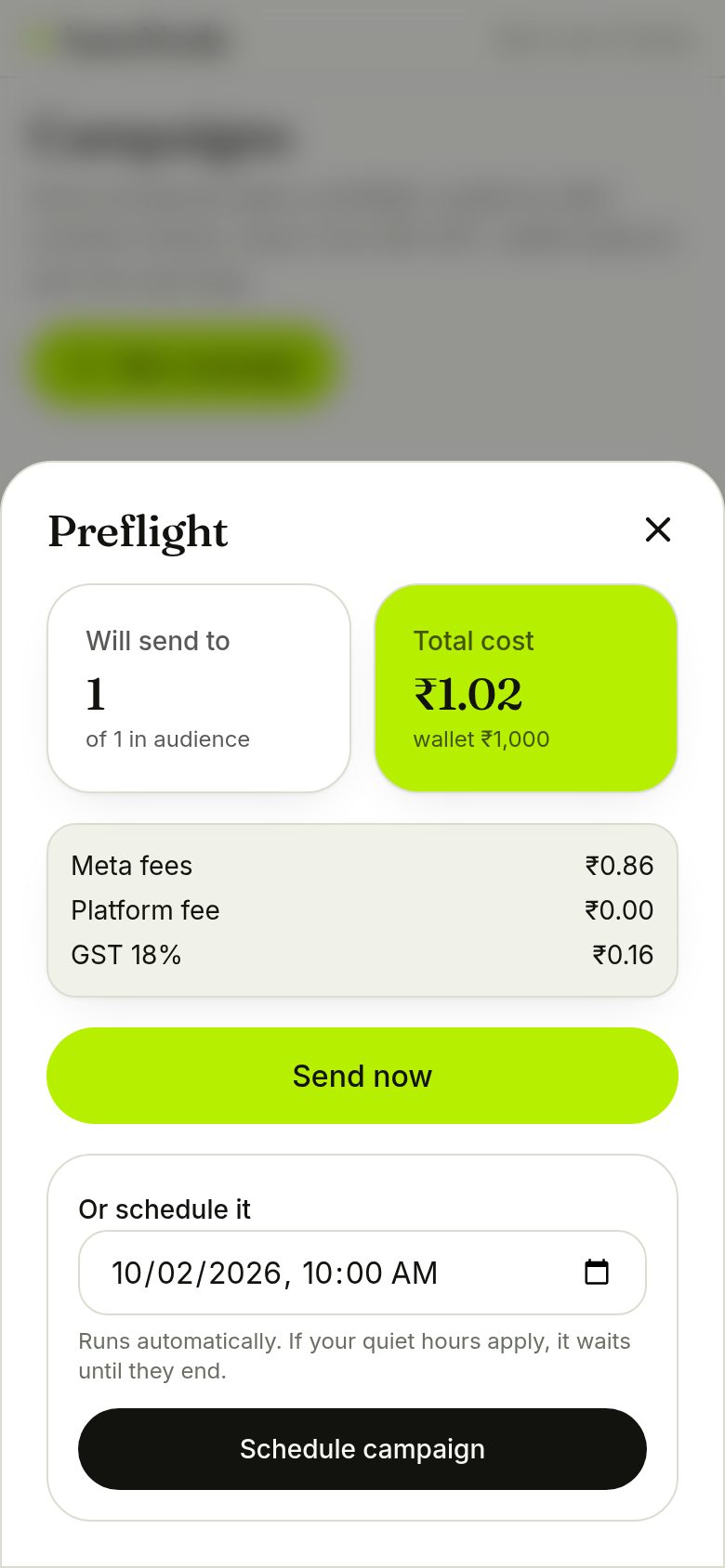
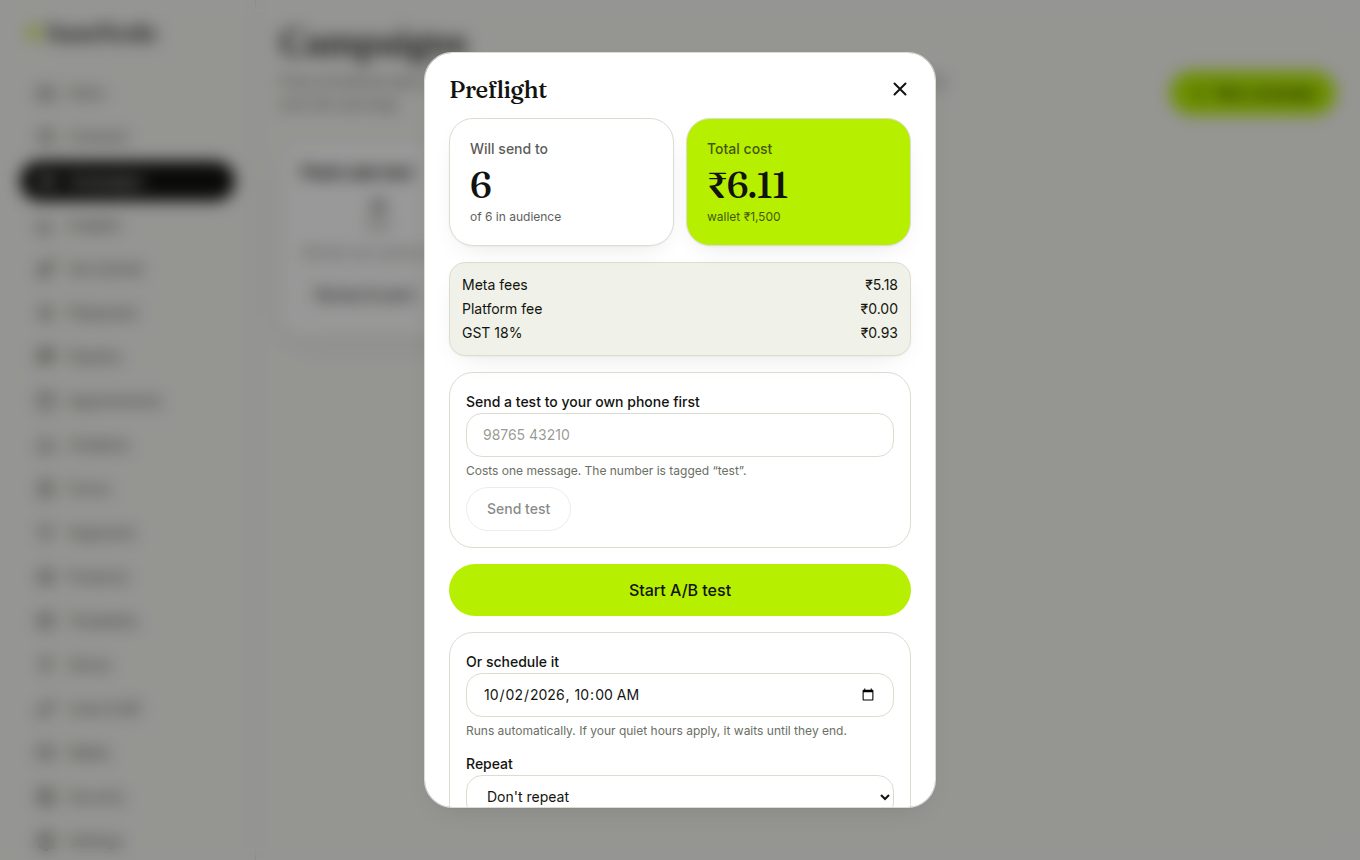
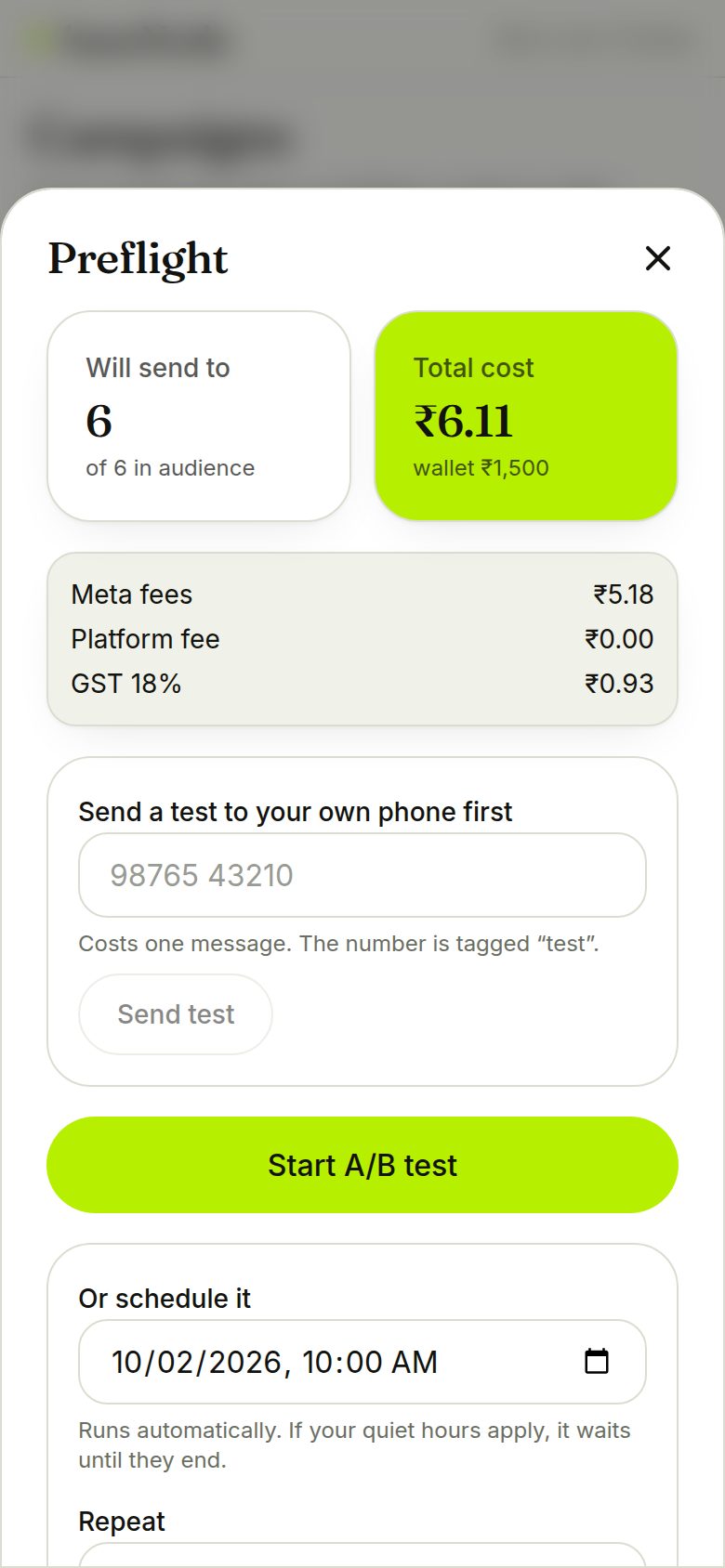
Choose a template and a tag. Before anything is sent, the preflight shows how many people will receive it after consent checks, the exact cost with GST, your wallet balance, and any warnings.
- No contact gets two marketing messages in 24 hours
- After the send, the report credits store orders back to the campaign
2. How a message travels
What happens, in order, when a customer writes to your WhatsApp number, and what happens when you send a campaign or a store order arrives.
- Customer writesOn WhatsApp
- Meta deliversTo our webhook, signature checked
- Saved firstSTOP and START handled, nothing is lost
- Source and ownerLink tag, round-robin assign
- Auto-repliesAway message or greeting
- Chatbot or agentA matching flow runs; or the inbox shows it
- ReplyFree for 24 hours
- Approved template
- AudienceTags or everyone
- Consent filterOpted-in only, 1 marketing message per 24h
- PreflightCost with GST, wallet, warnings
- Send now or scheduleQuiet hours respected
- DeliverySent, delivered, read; failures refunded
- ReportSpend and attributed revenue
- Send the formFrom a chat, a bot or a link
- Customer fills itNative WhatsApp form or web page
- ValidatedRequired fields, emails, numbers
- Contact updatedName, email, custom fields, tags
- Event sentform.submitted to your webhook
- Agent resolves
- Rating asked1 to 5, inside the free window
- Customer tapscsat_1 to csat_5
- SavedReports, contact panel, webhook
- Order or cart eventShopify, WooCommerce, Wix
- Signed webhookSignature verified
- Contact updatedConsent recorded if given
- AutomationInstant or after a delay
- Template sentUtility messages cost least
- Revenue creditedTo the last campaign seen
3. Chatbots and flows
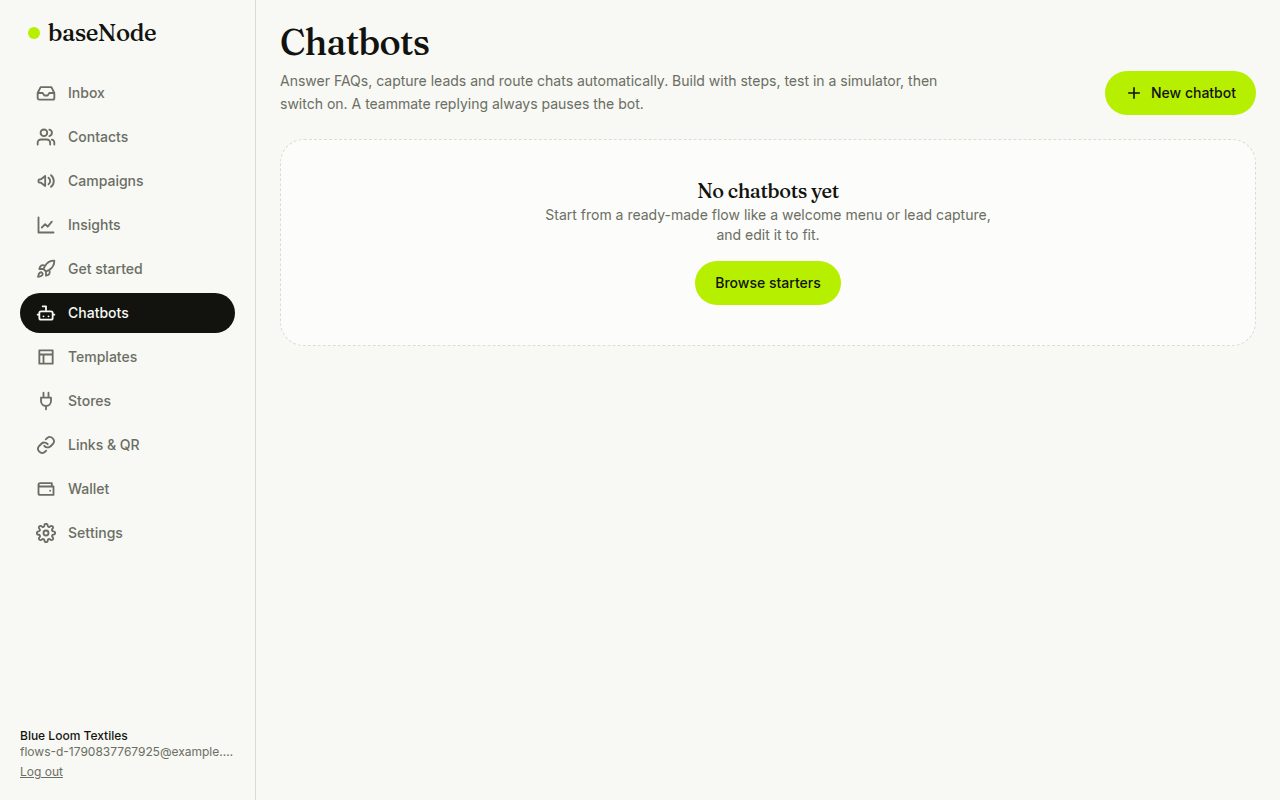
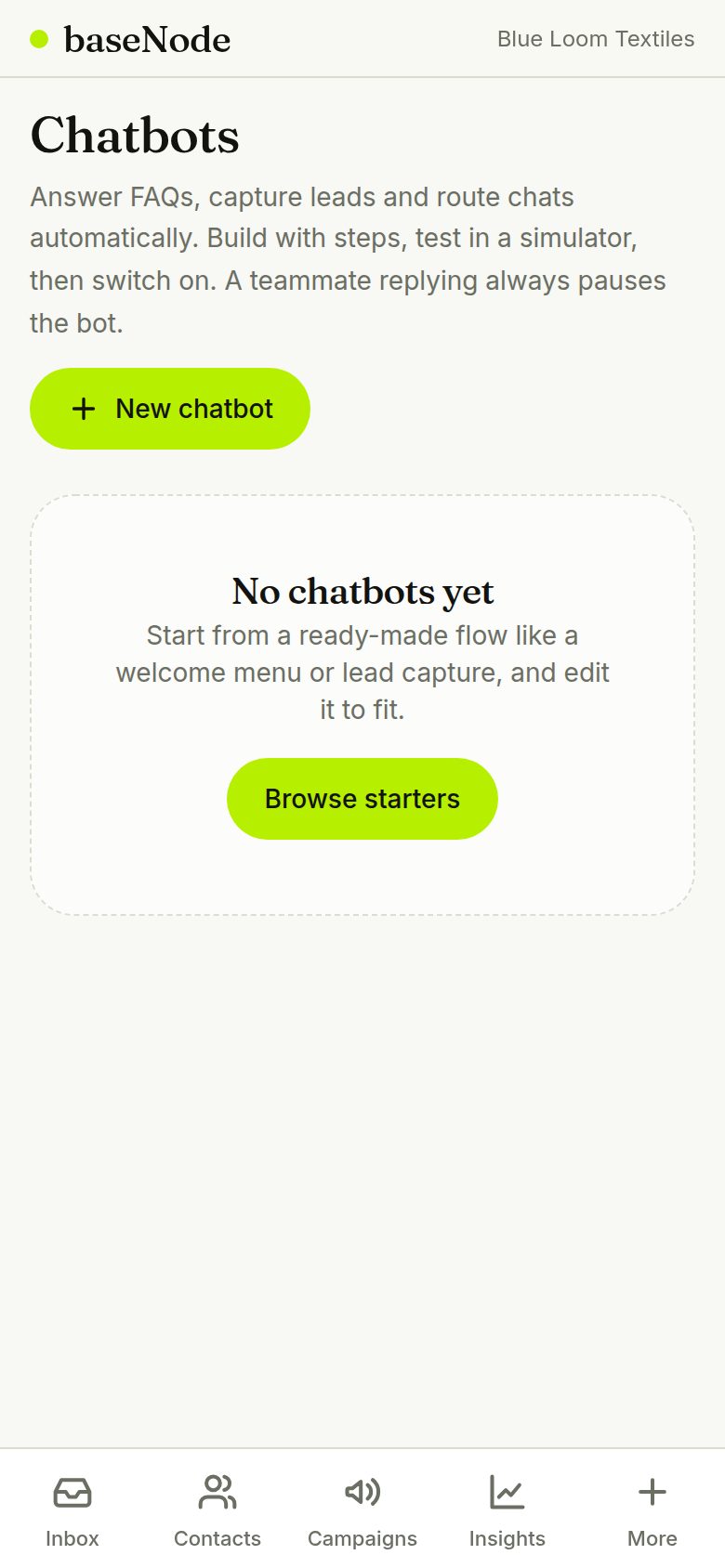
Build an automatic conversation from steps, test it safely, and switch it on. The bot answers instantly, collects details, and hands the chat to your team when a person should take over. A teammate replying always pauses the bot.
- Pick a starterWelcome menu, lead capture, FAQ
- Edit stepsMessages, buttons, questions, forms, conditions
- Arrange on canvasDrag, connect, edit
- TestSimulator, nothing sent
- Go live
Choose a ready-made starter
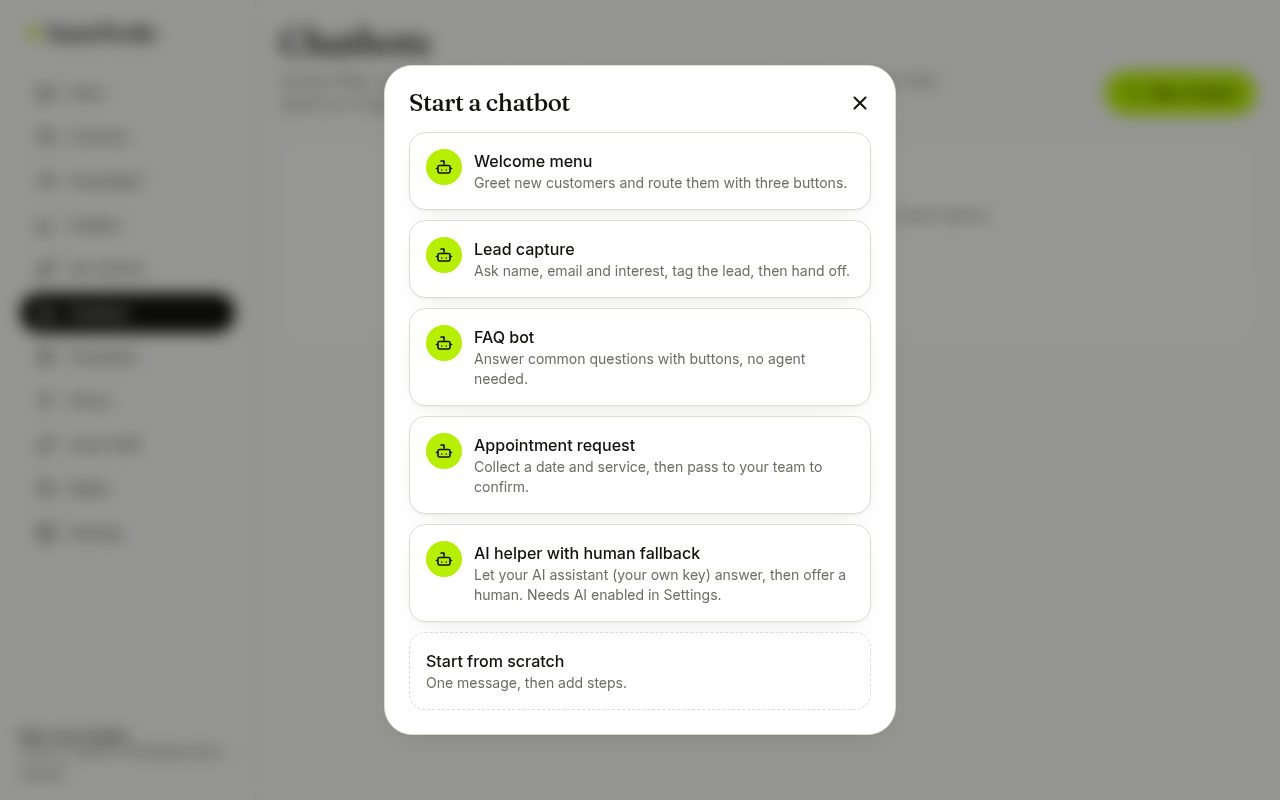
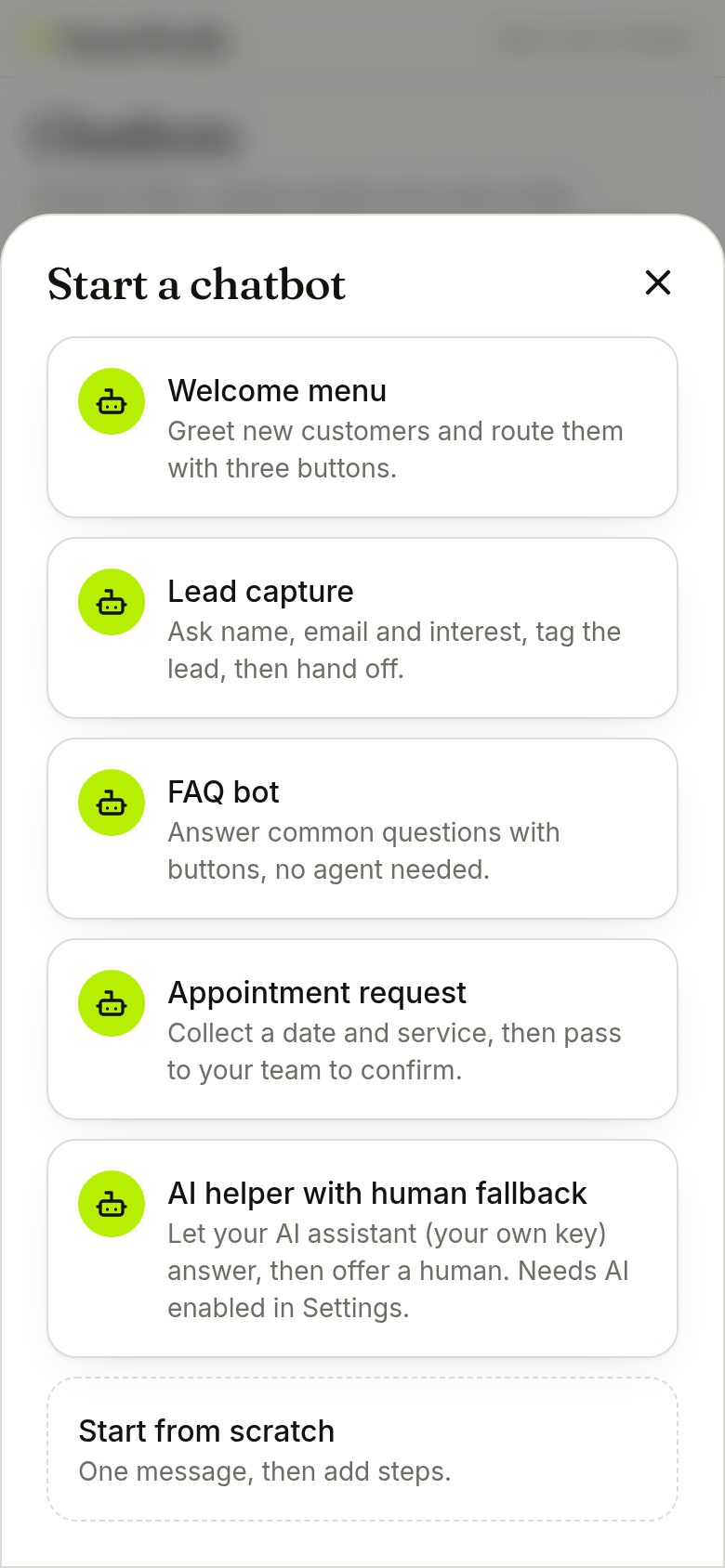
Open Chatbots and tap New chatbot. Pick a starter such as a welcome menu, lead capture, FAQ bot, appointment request or an AI helper, or start from scratch.
- Starters are normal flows you can edit freely
- A chatbot starts on a keyword, on a new customer's first message, or on any message as a fallback
Edit the steps
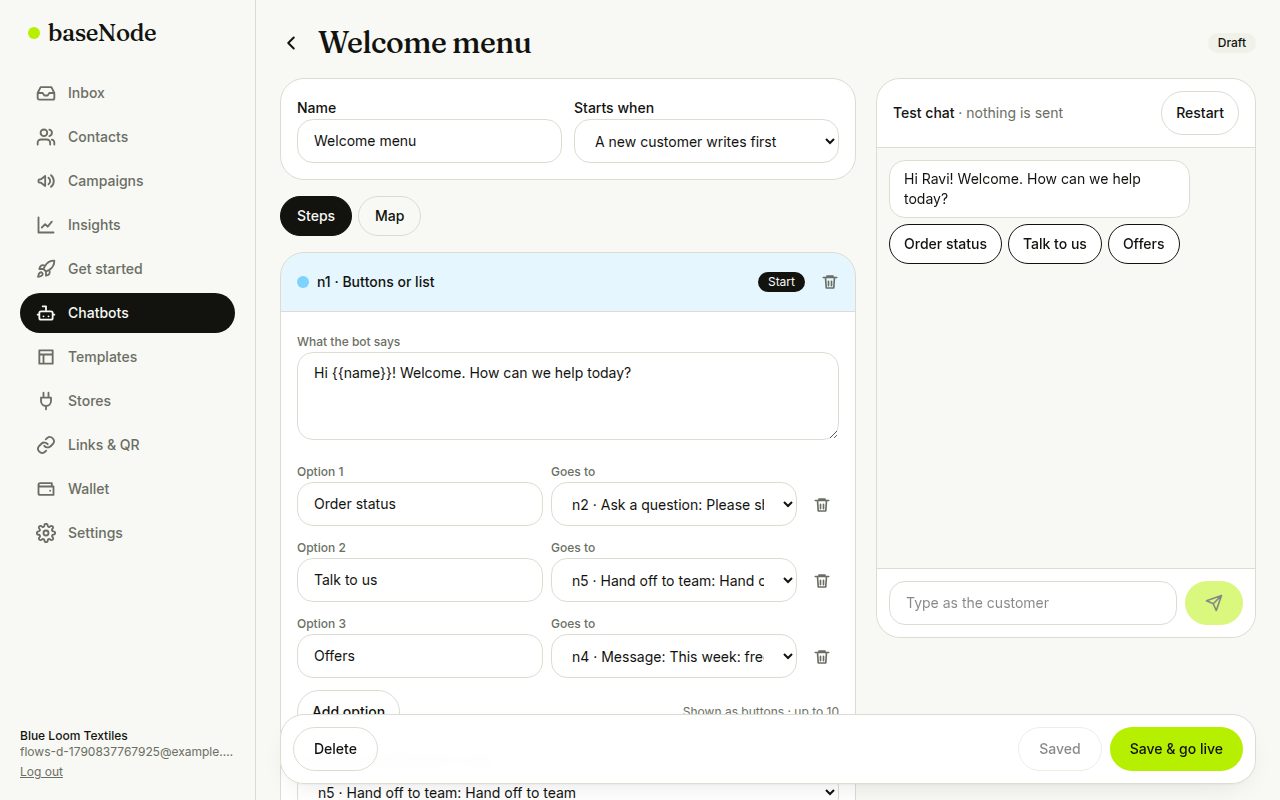
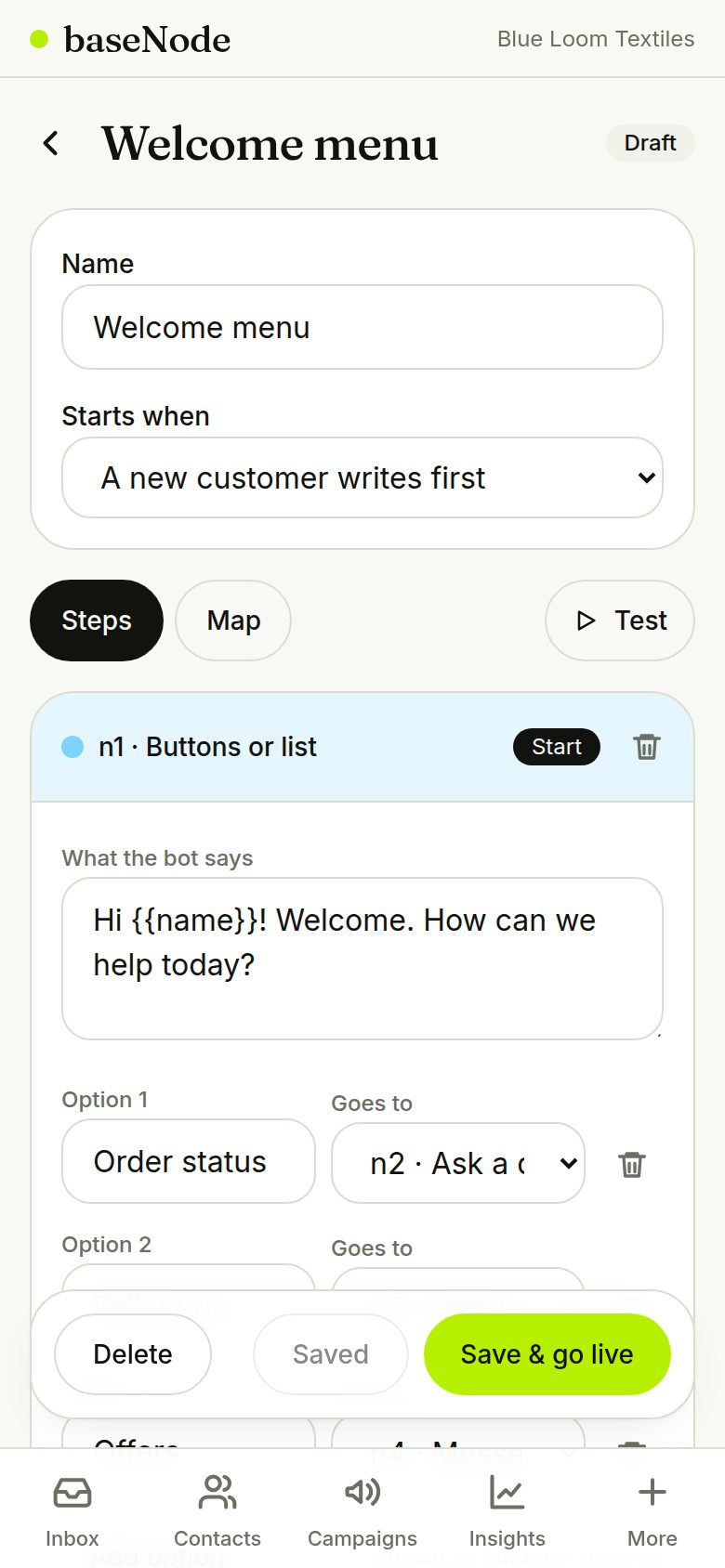
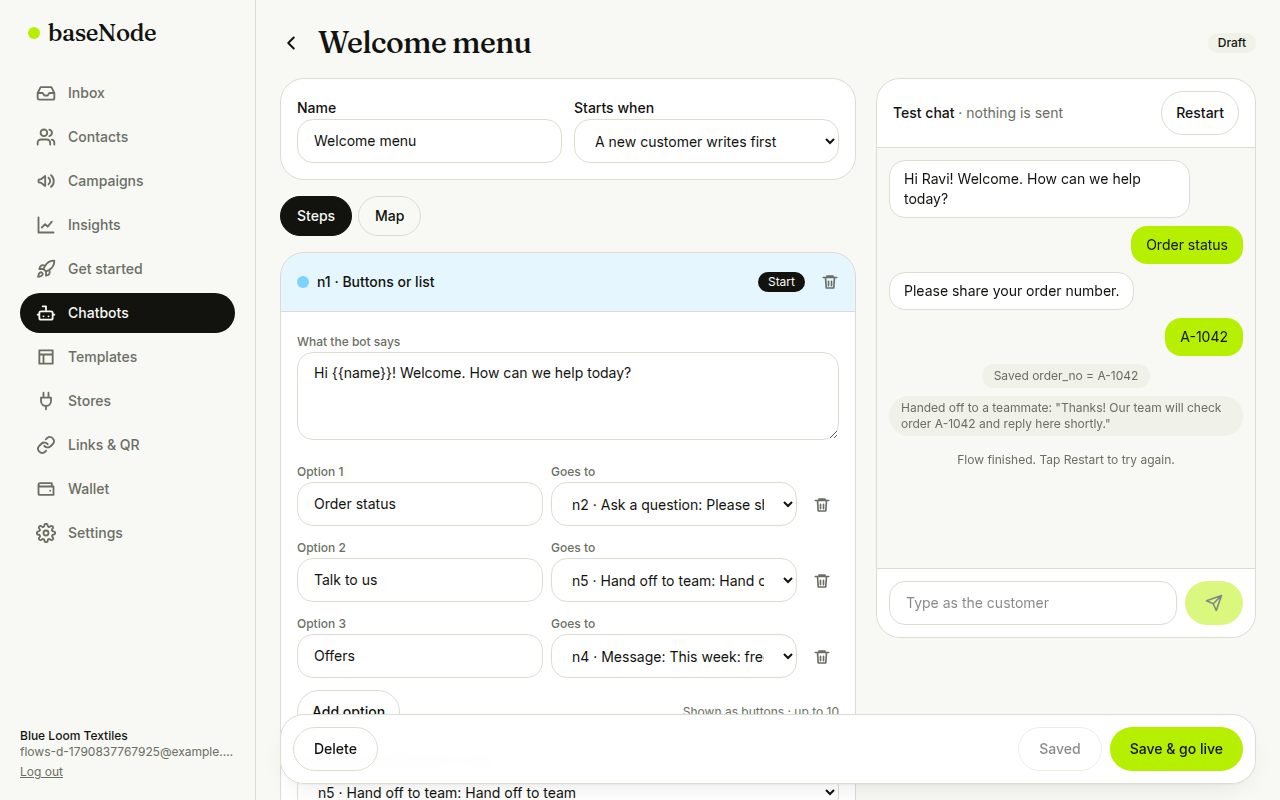
Each step is a card: a message, buttons or a list (up to 10 options), a question that saves the answer on the contact, a condition, a tag, an AI answer, a hand-off to your team, or an end. Every option says which step comes next.
- Use {{name}} for the customer's name
- Buttons are shown for up to 3 options and a list for 4 to 10
- Problems that would break the flow are flagged before you can go live
Arrange it on the canvas
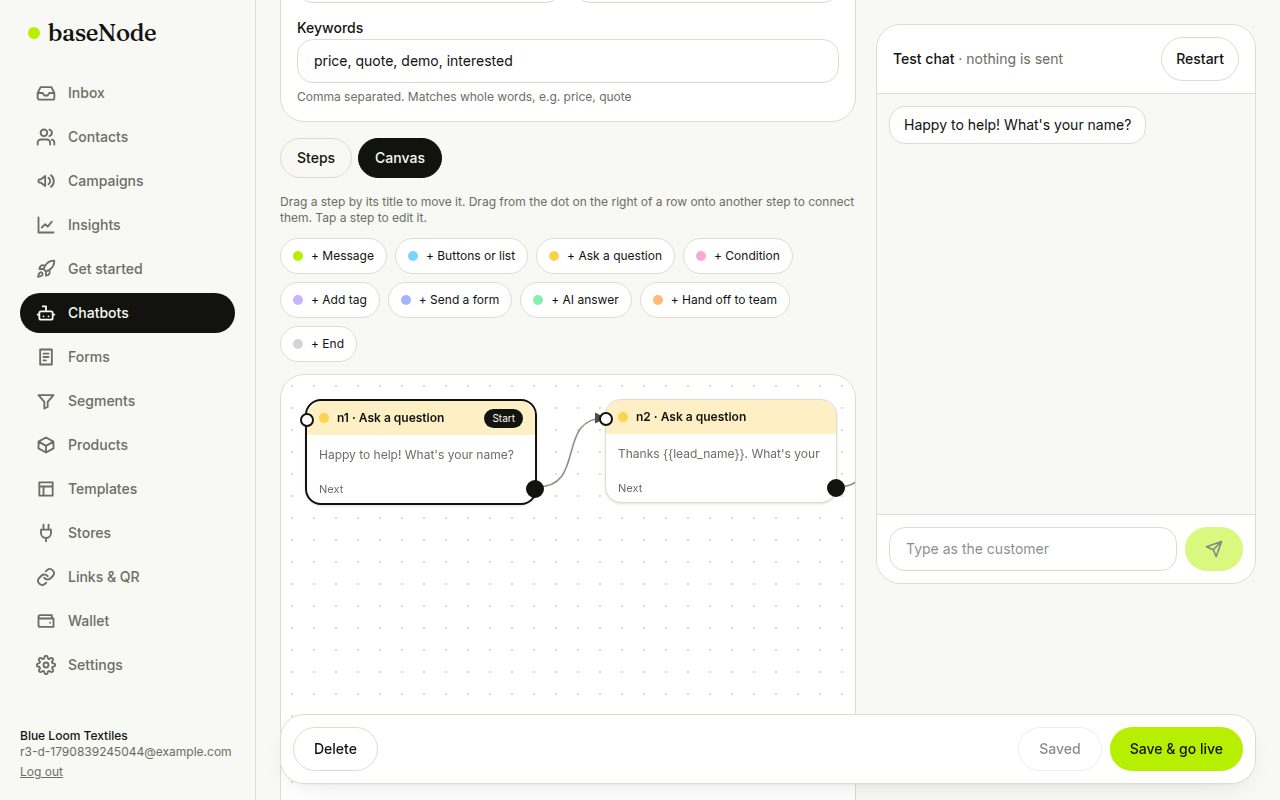
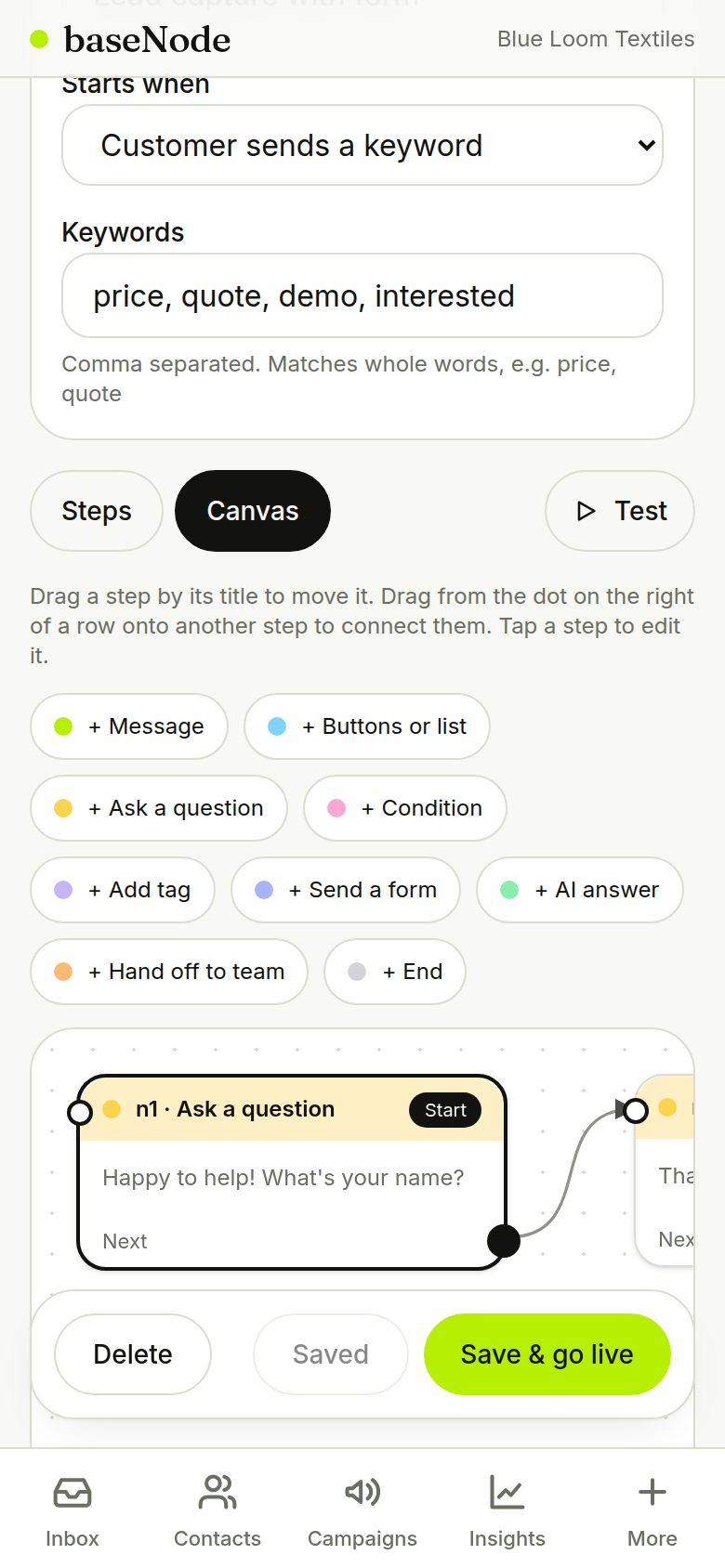
The Canvas tab shows every step as a card you can drag around. Drag from the dot beside an option onto another step to connect them, tap a step to edit it, and add new steps from the toolbar. Dead ends and unconnected steps are easy to spot.
- Positions are saved with the flow
- Works with touch on phones too
Test it in the simulator
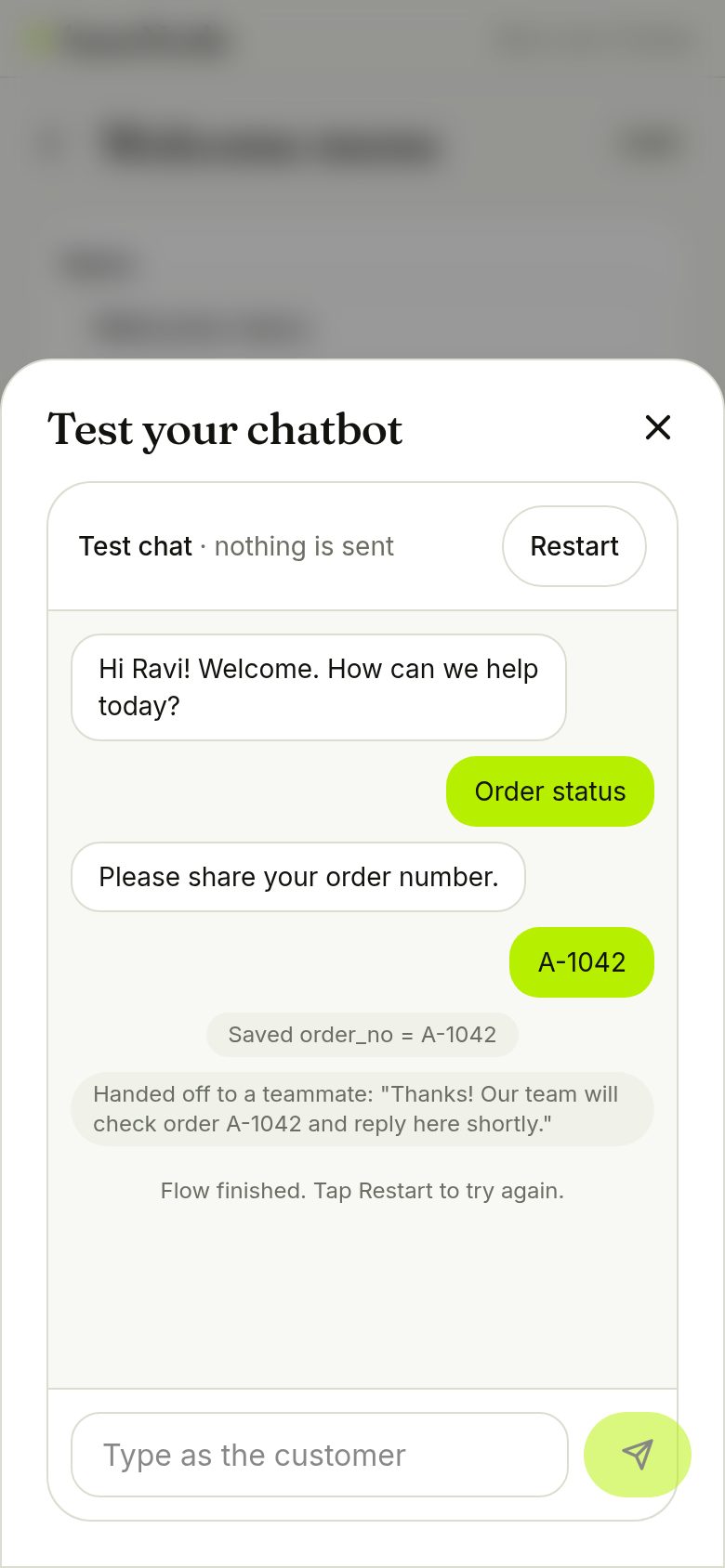
Chat with your own bot exactly as a customer would, using the buttons or typing. Collected answers, tags and hand-offs are shown as small notes. Nothing is sent to WhatsApp.
- Works on unsaved changes
- Press Restart to try another path
Go live
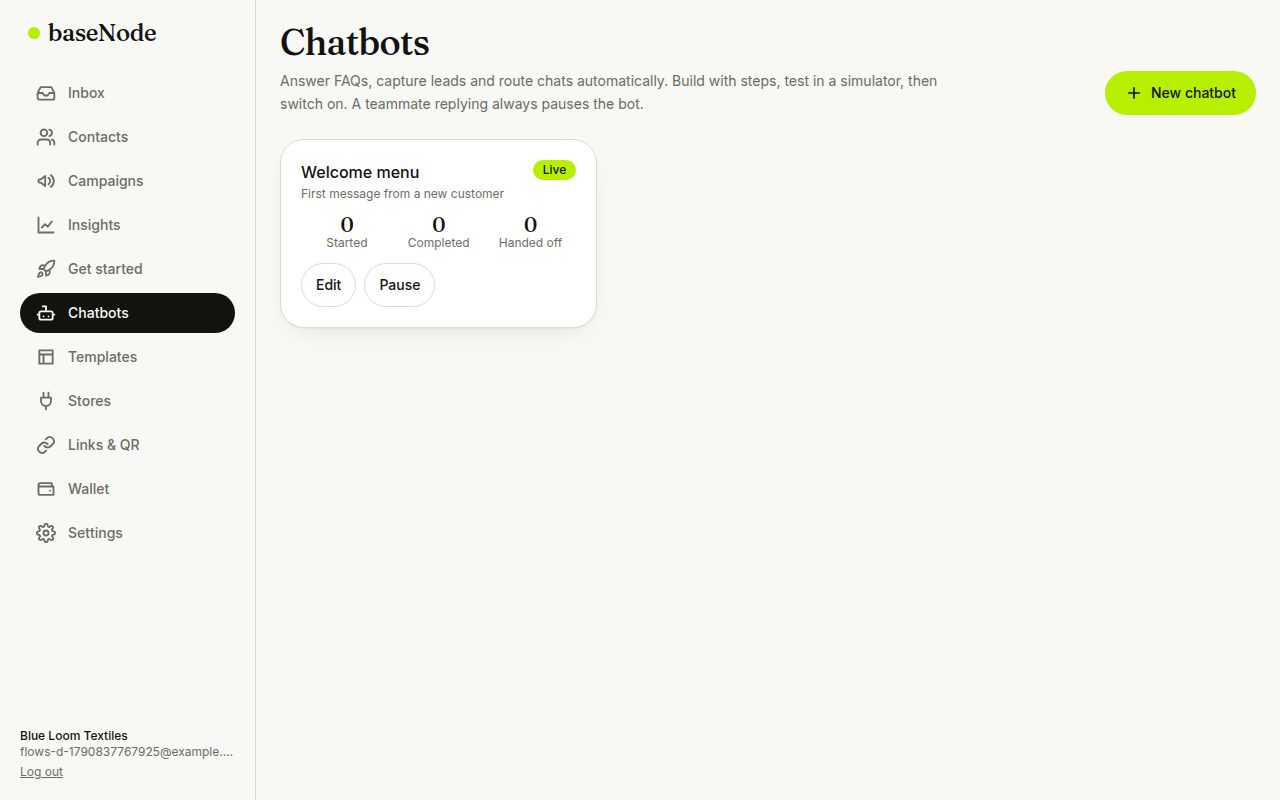
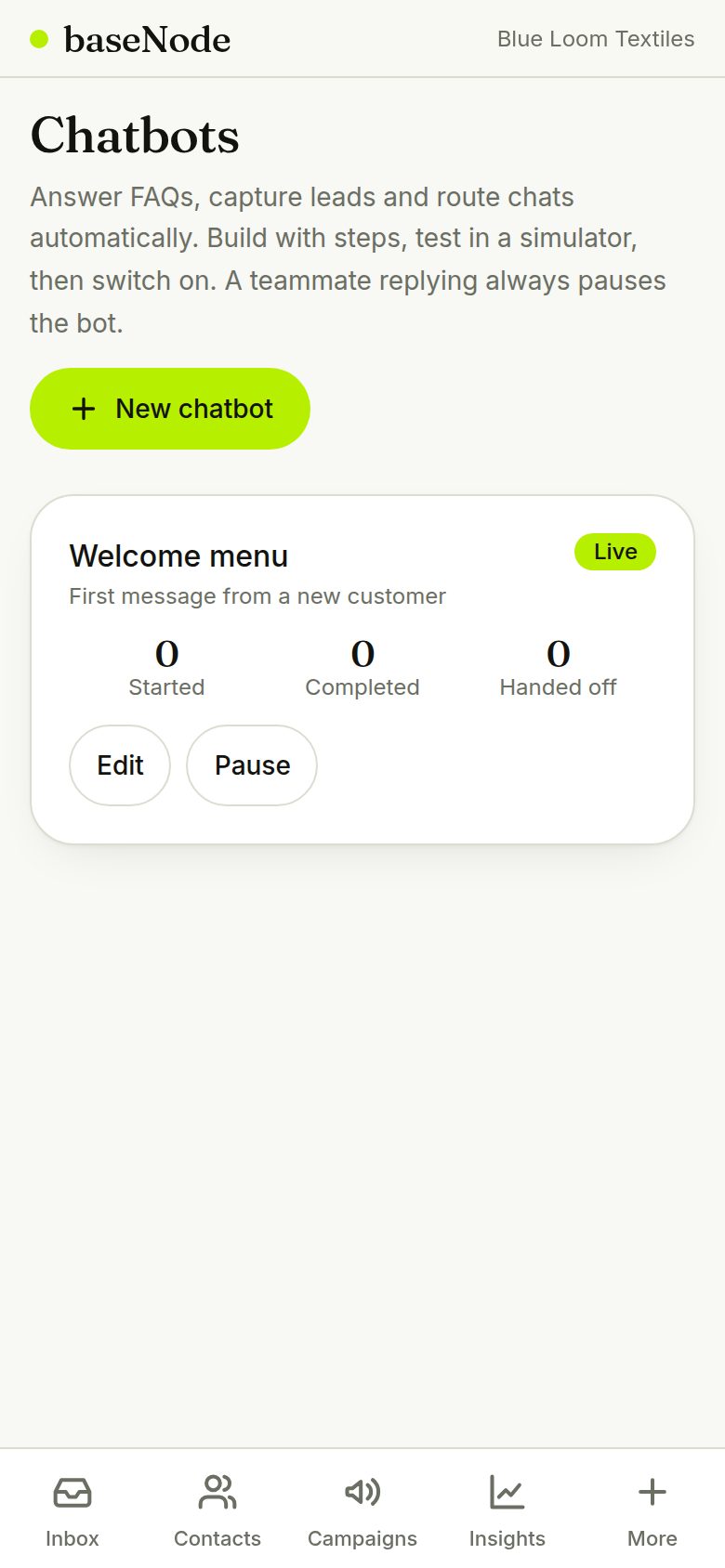
Tap Save & go live. The chatbot shows as Live with counters for started, completed and handed-off conversations. Pause it any time.
- Only one chatbot answers a given message: keyword flows win, then first-message flows, then fallbacks
See it work in the inbox
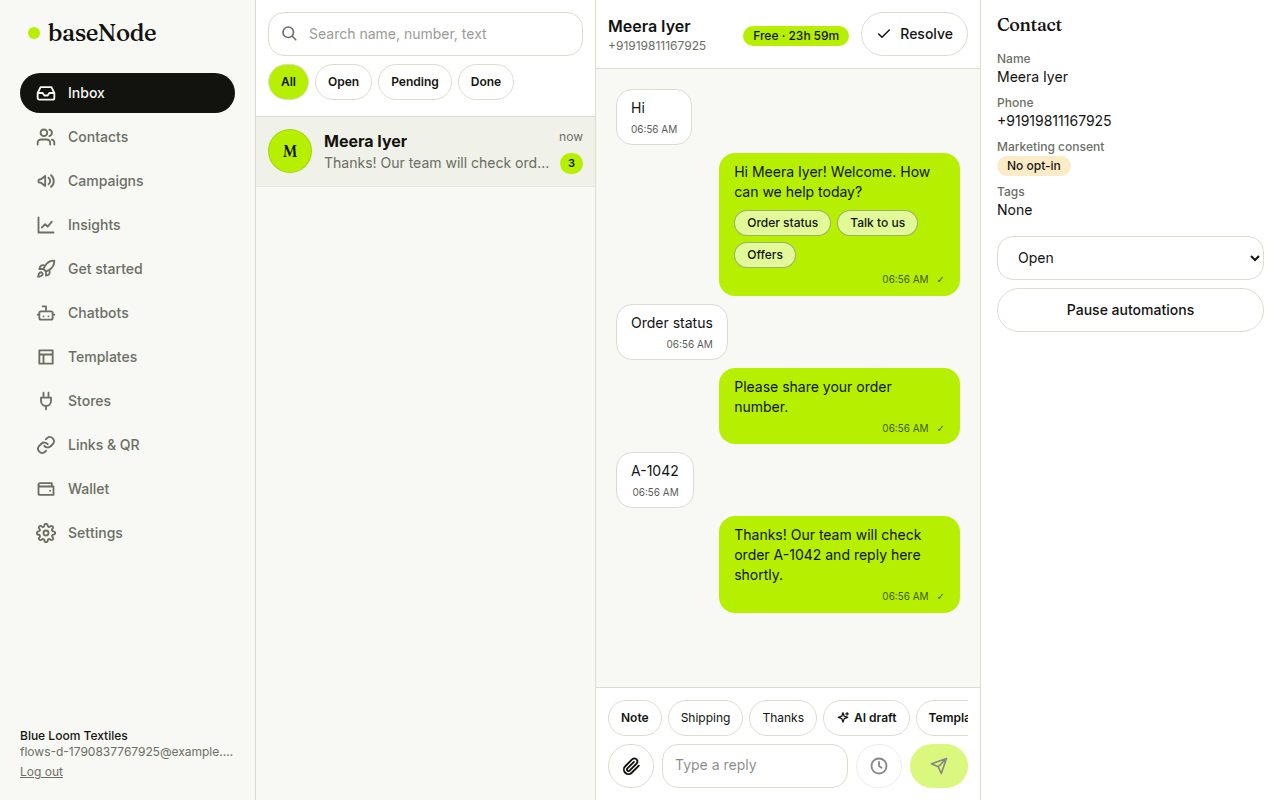
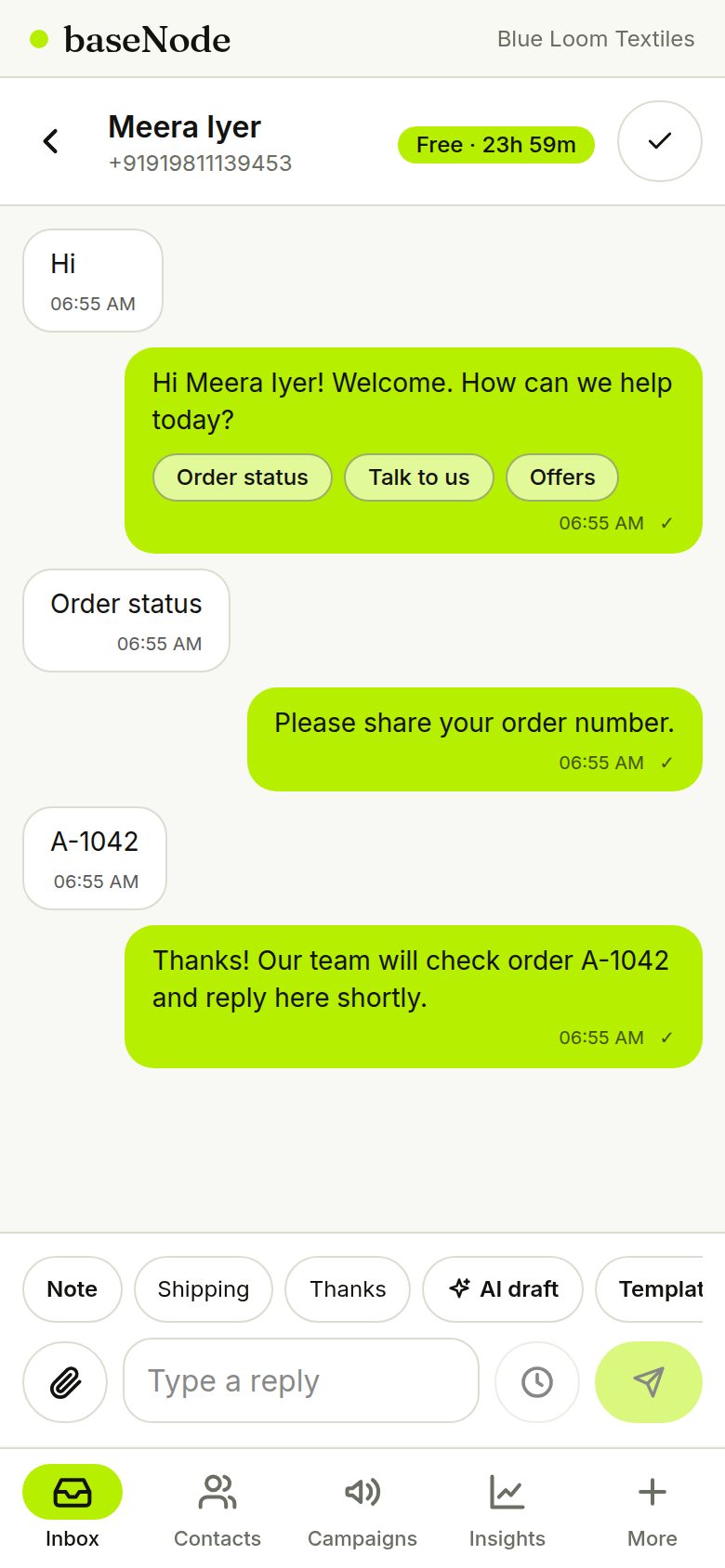
When a customer writes, the bot replies with buttons, asks for an order number, saves it on the contact, and hands the chat to a teammate. The chat shows the whole exchange and a Bot paused chip once a human owns it.
- A teammate's reply pauses the bot; resolving the chat resumes it
- Messages sent by the bot are free inside the 24-hour window
4. Scheduling, quick replies and business hours
Send at the right time, answer faster, and stay in control when you are closed.
- PreflightAudience and cost
- Pick a timeOr send now
- WaitsQuiet hours hold it
- Sends onceClaimed atomically
- Report
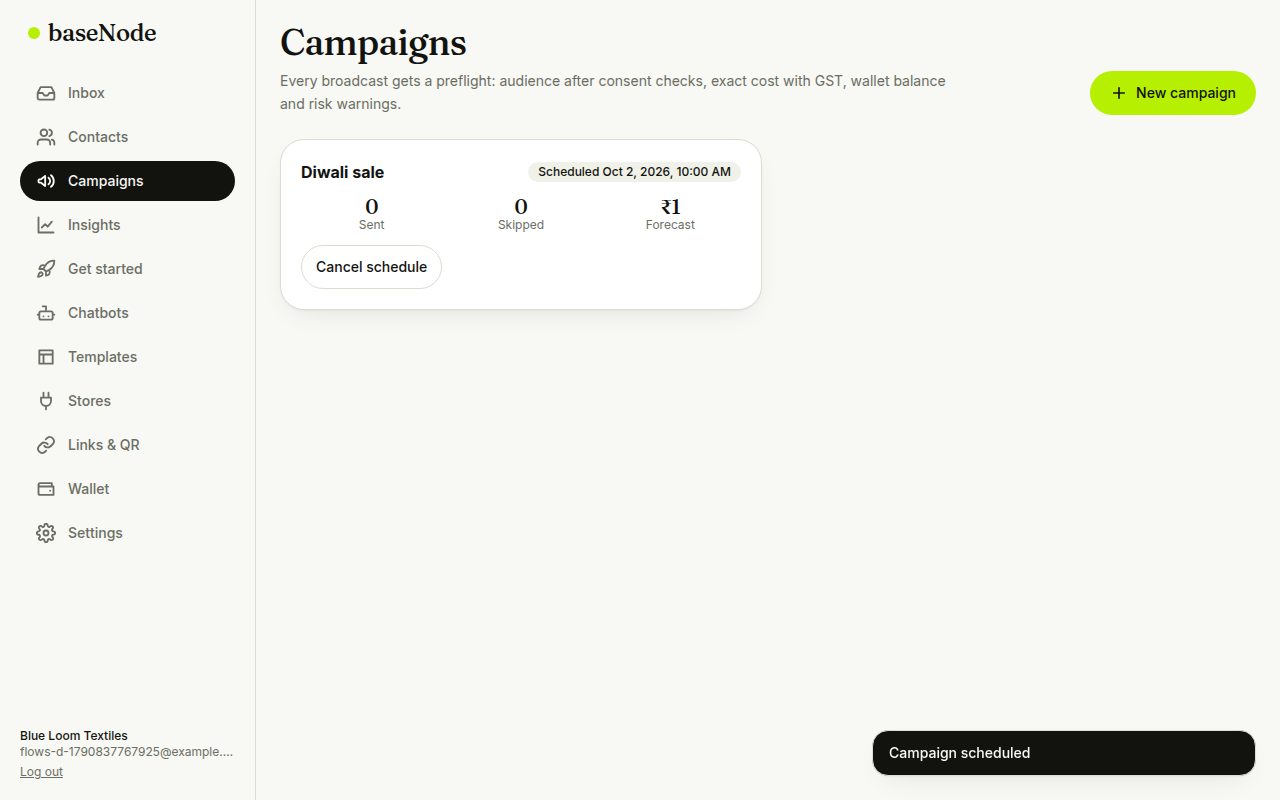
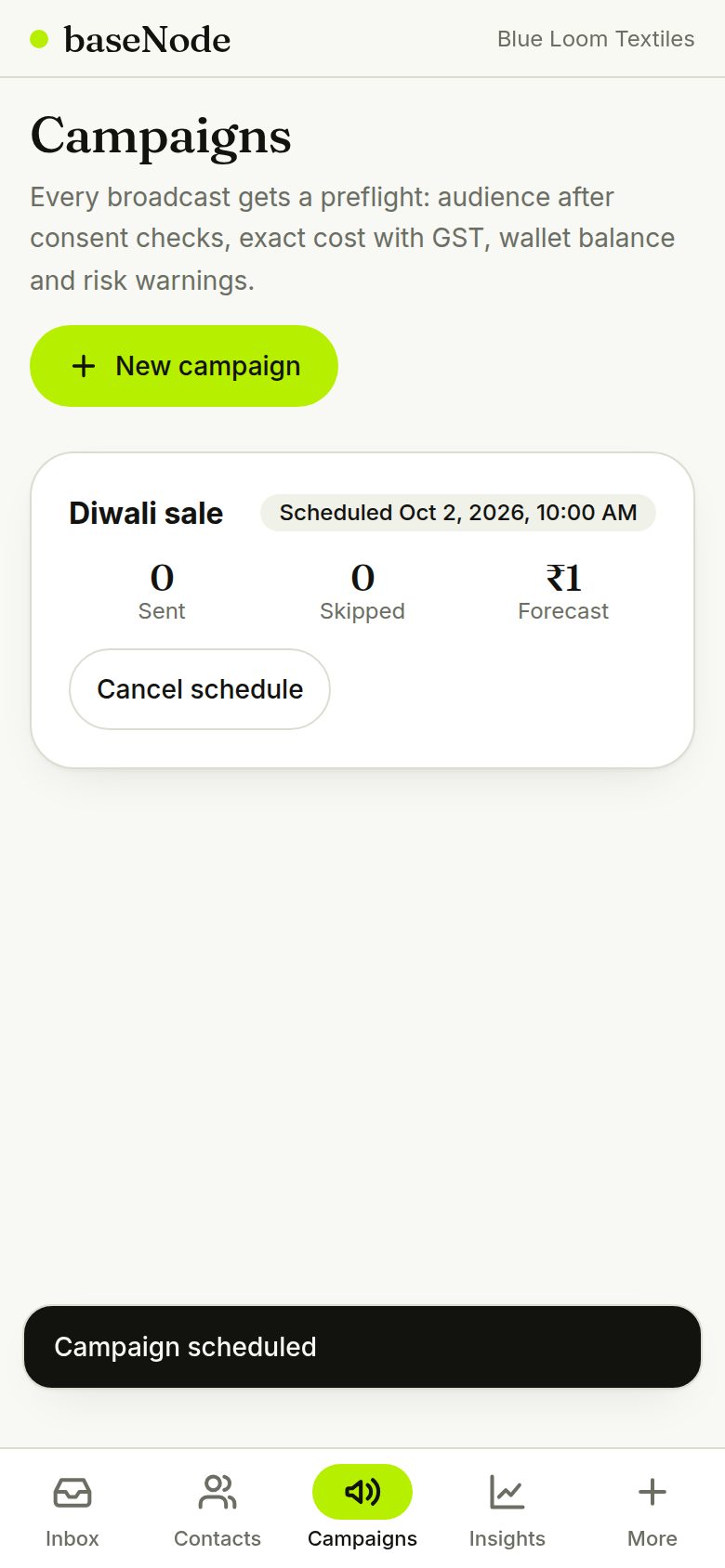
Schedule a campaign
After the preflight, choose a date and time instead of sending now. The campaign shows as Scheduled and can be cancelled until it starts.
- Consent and frequency checks run again when it sends
- If quiet hours apply, it waits until they end
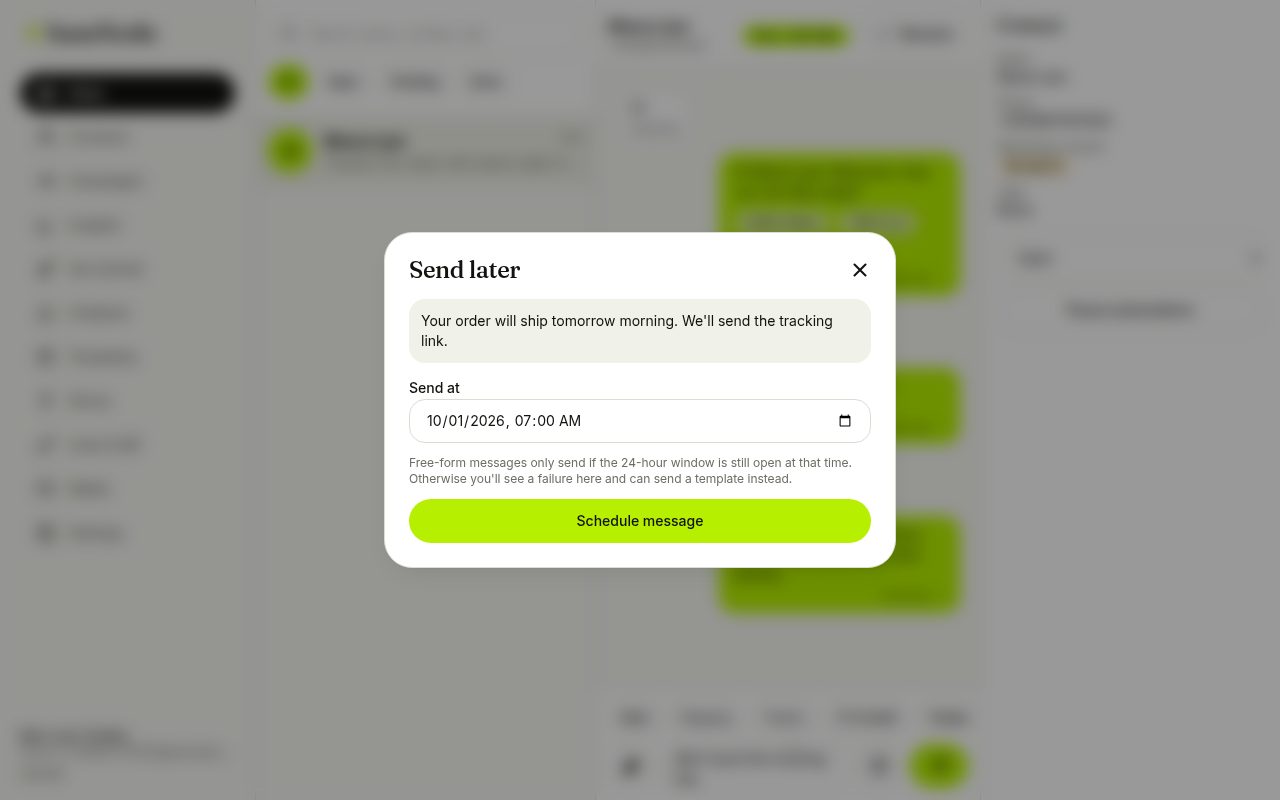
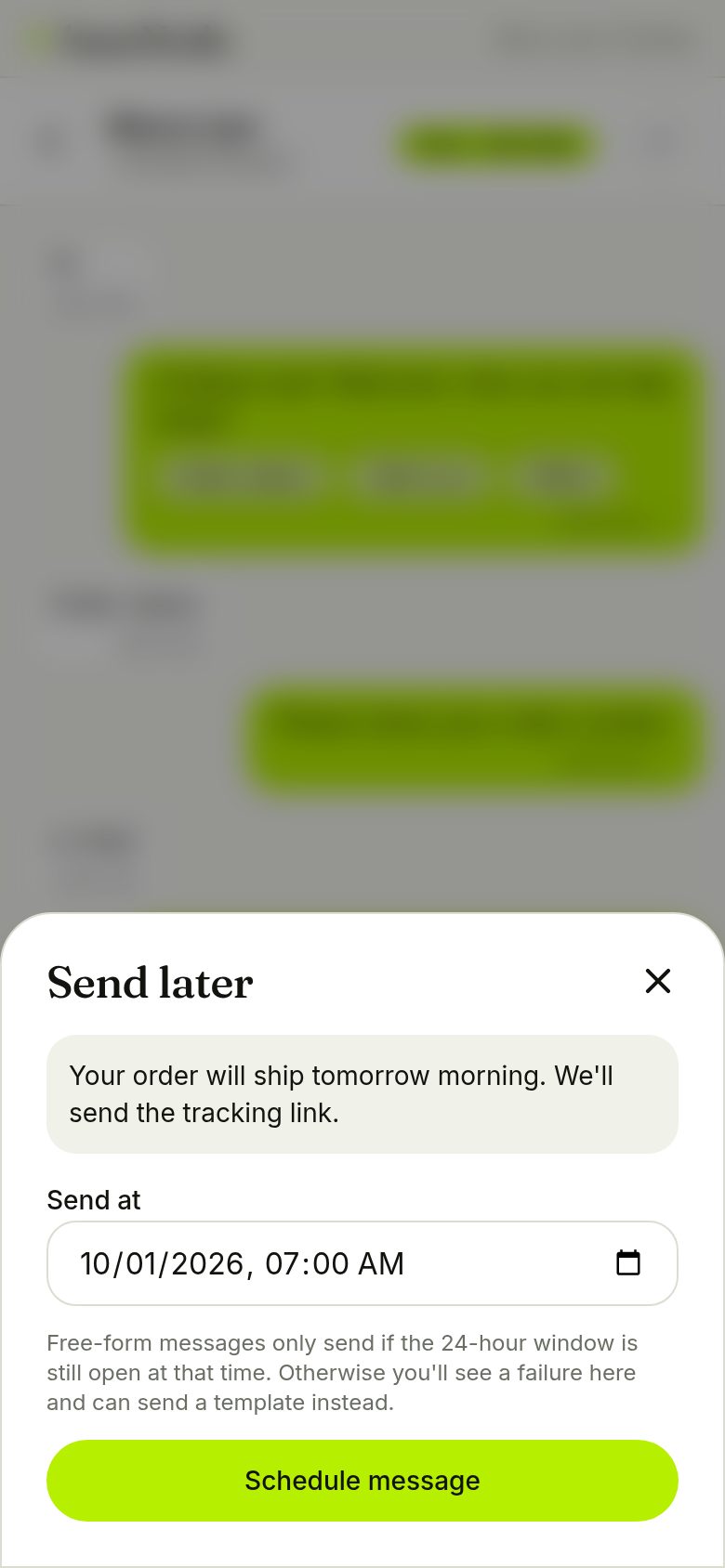
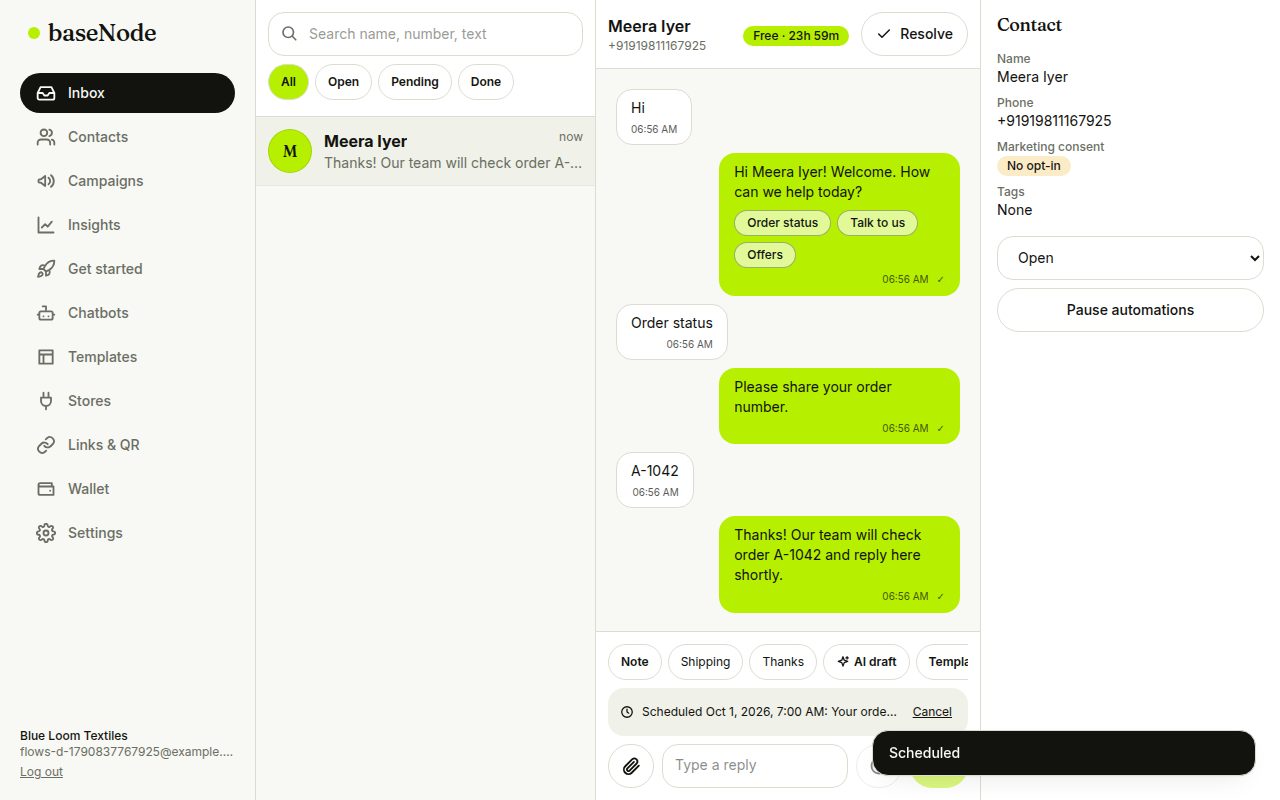
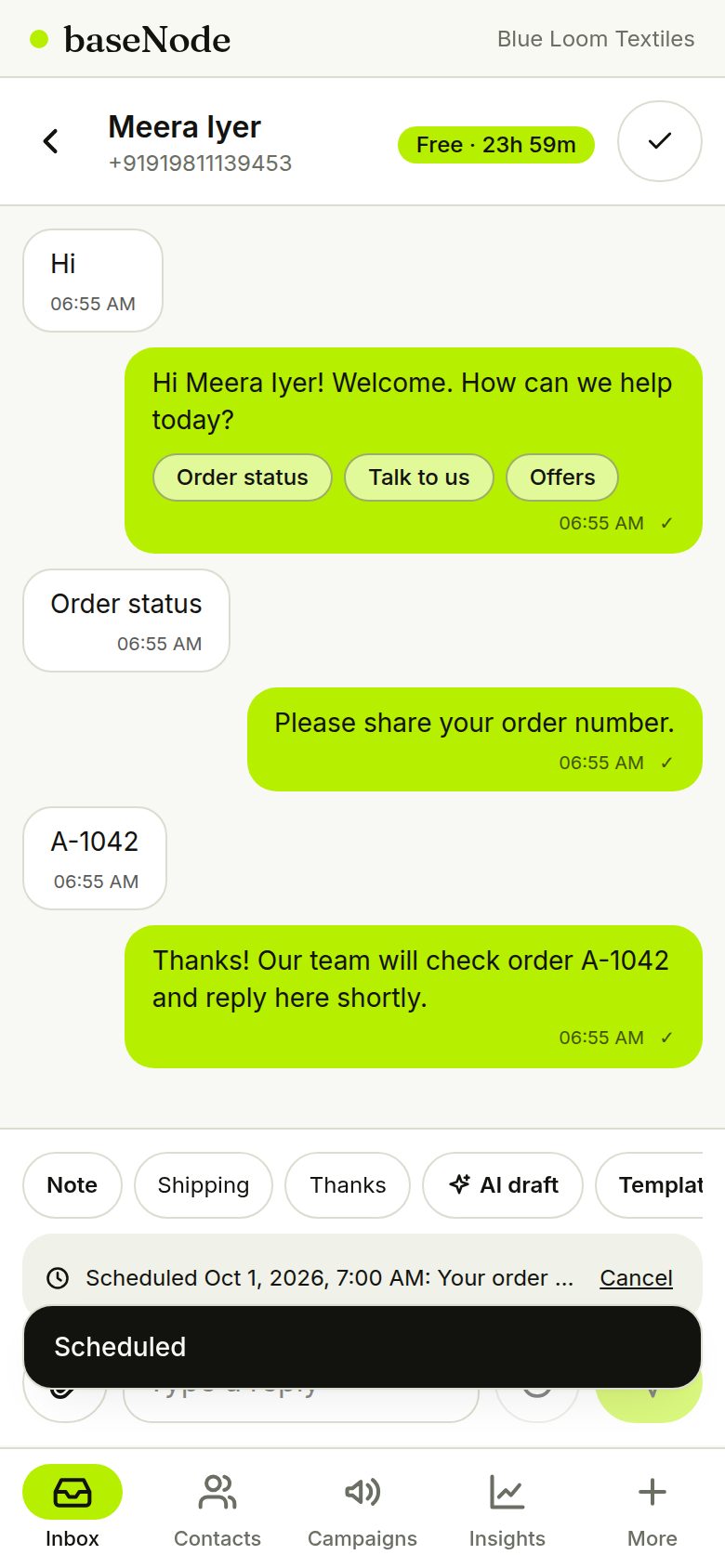
Send a follow-up later
Write a reply, tap the clock and pick a time. It appears under the chat and can be cancelled. Free-form messages only send if the 24-hour window is still open; otherwise you see why it failed.
- Use a template for follow-ups after the window closes
Use quick replies
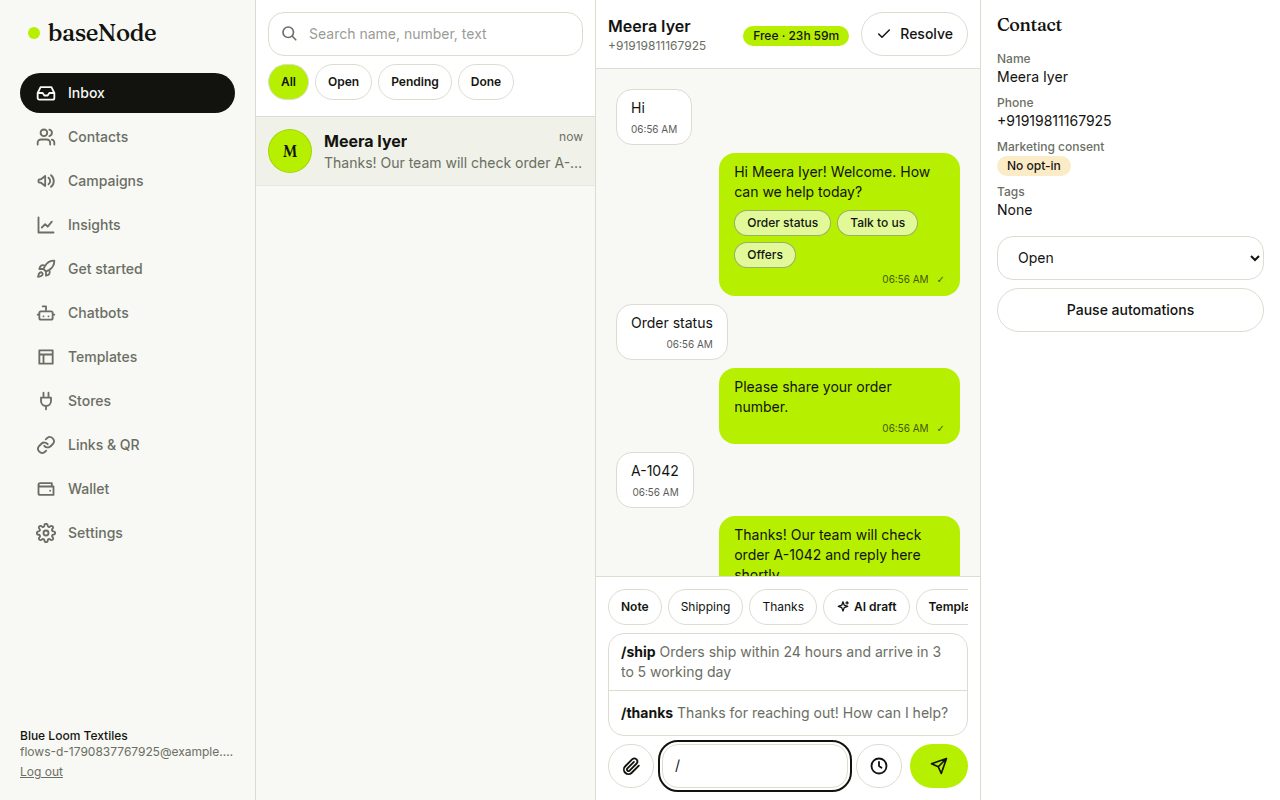
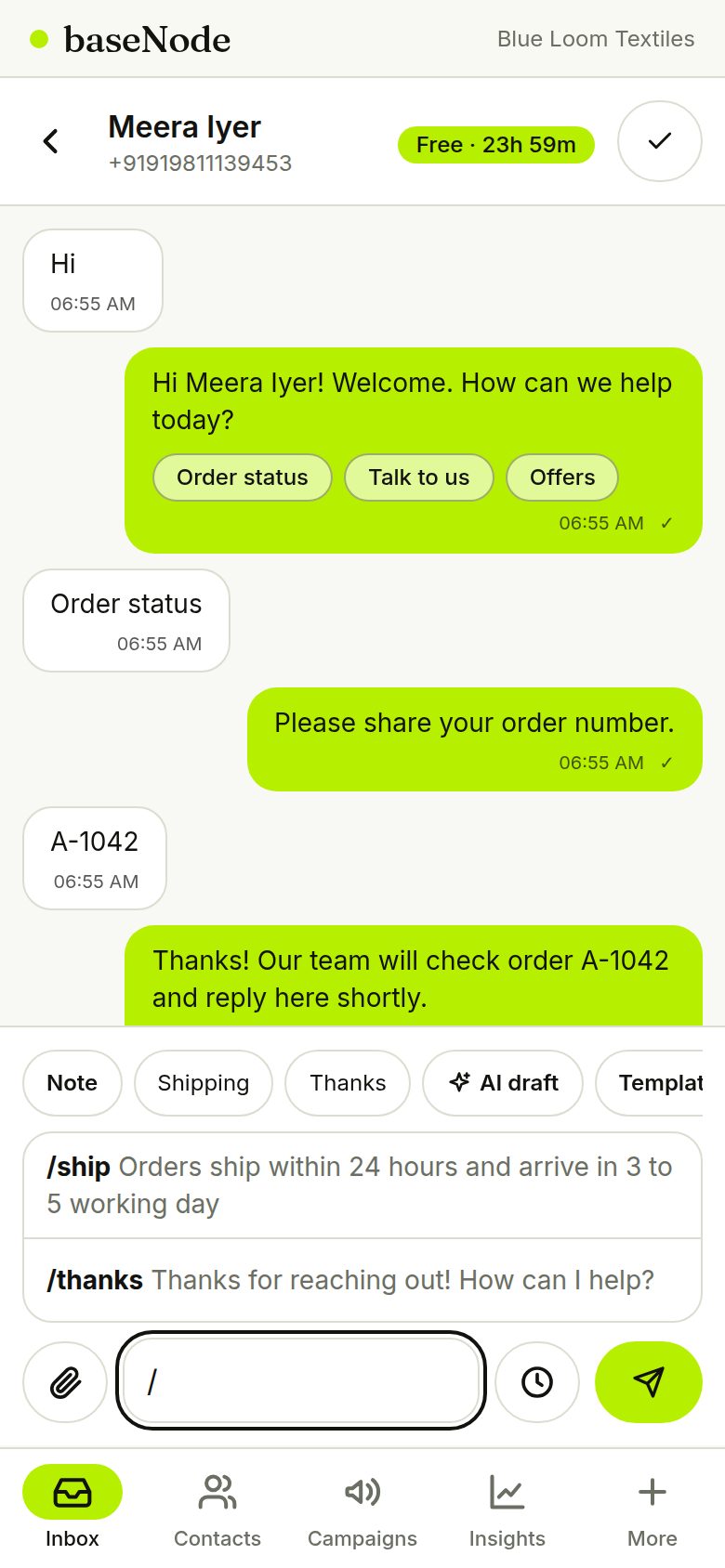
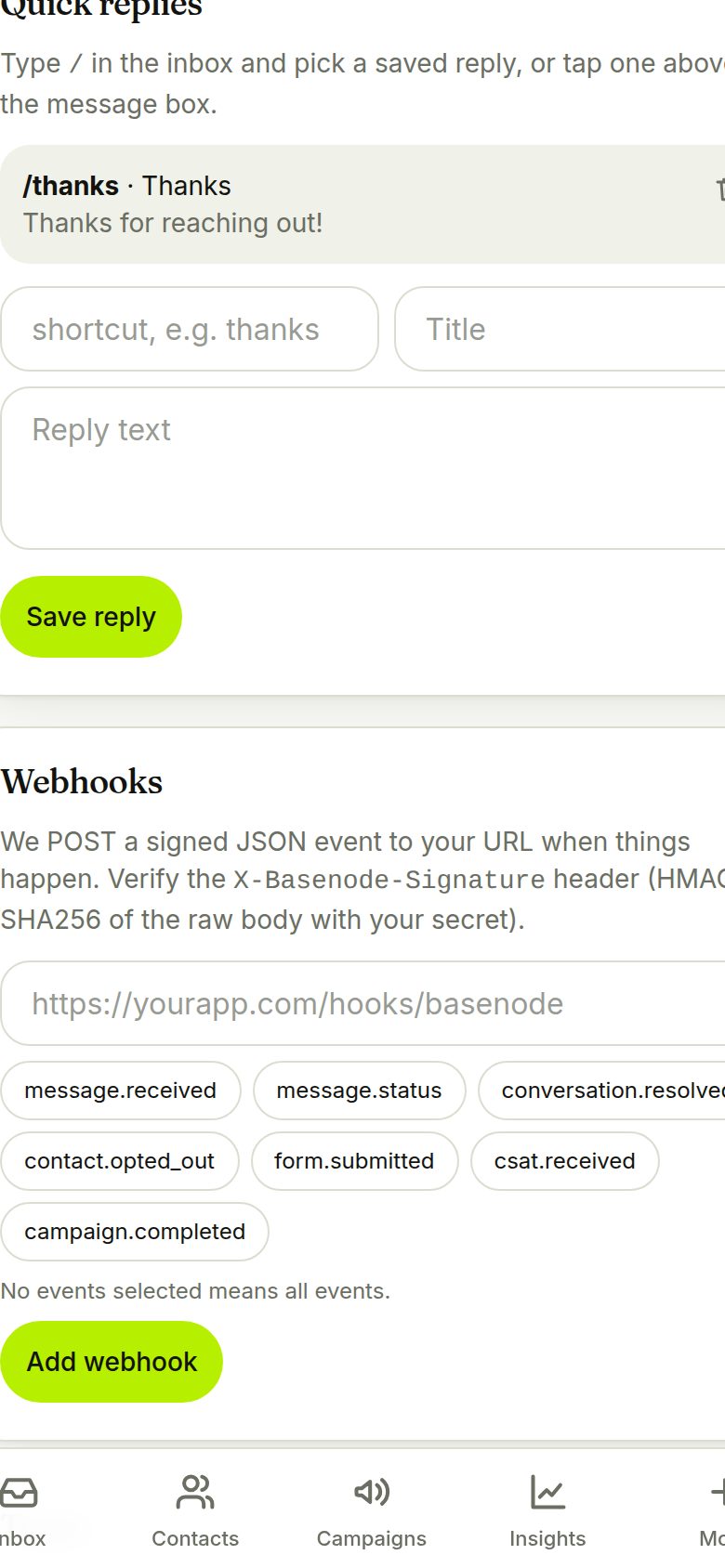
Type a slash in the message box to search saved replies, or tap one above the box. Manage them in Settings.
- Shortcuts are lowercase, like /thanks or /ship
Set business hours and auto-replies
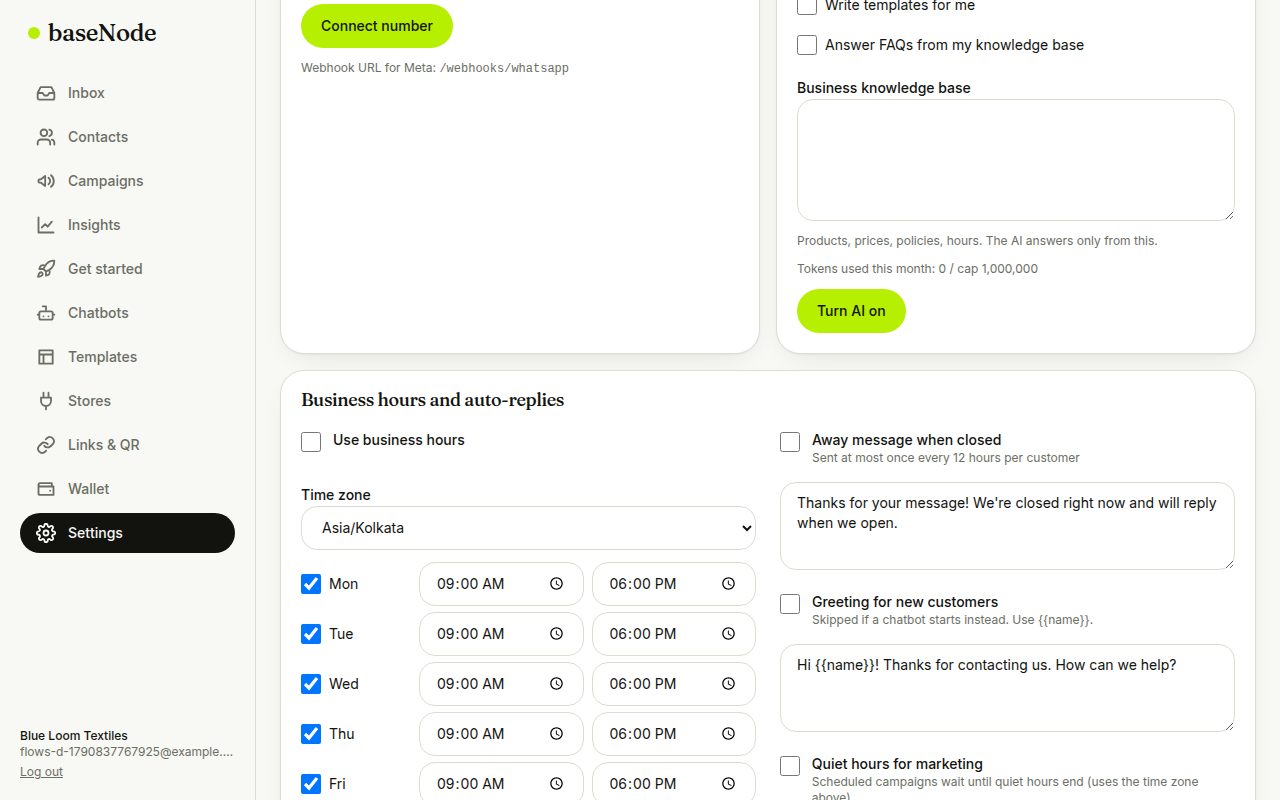
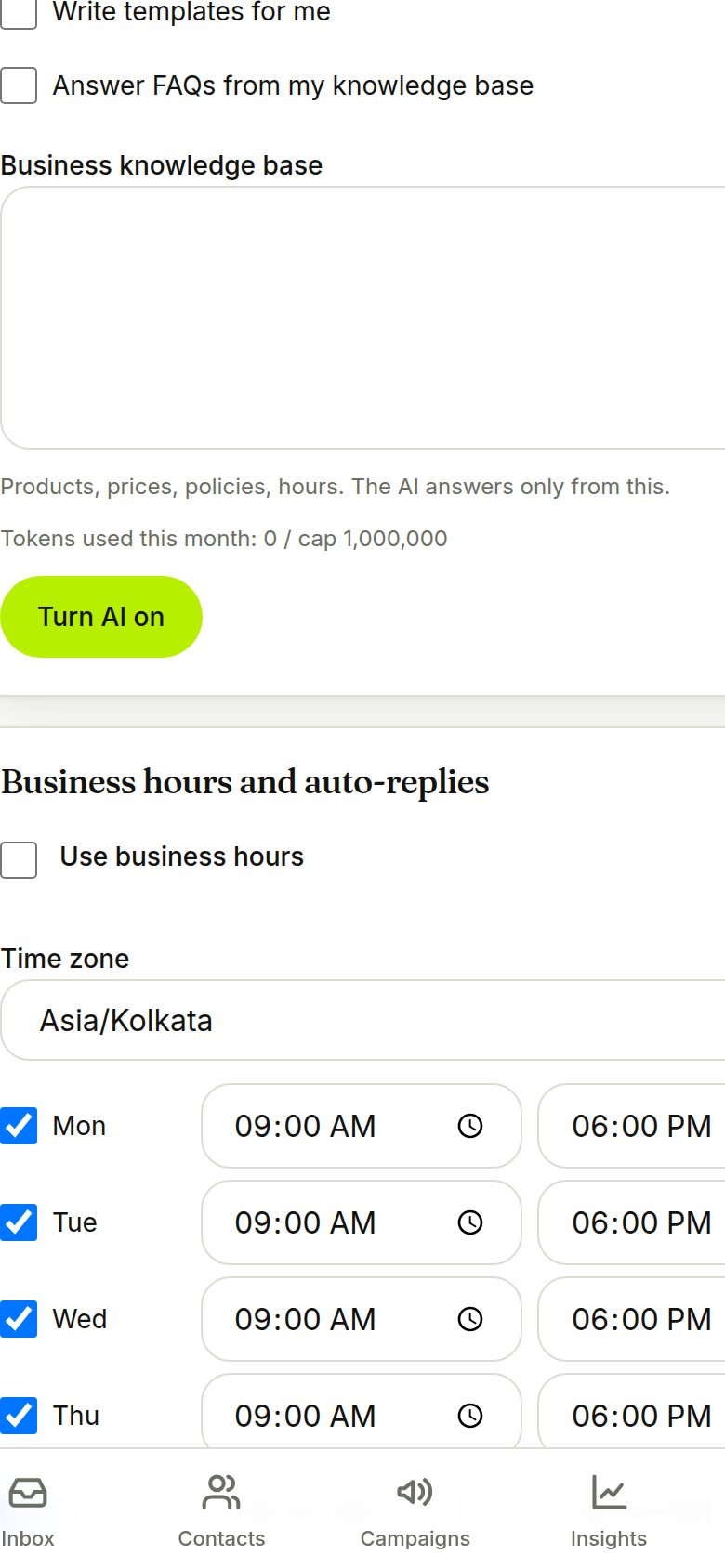
In Settings, set opening hours per day and a time zone. Turn on an away message (sent at most once every 12 hours), a greeting for new customers, quiet hours for marketing and round-robin assignment.
- A chatbot that starts on a new customer's first message replaces the greeting
5. Click-to-chat links and QR codes
Turn posters, packaging, ads and bios into conversations, and see which one works.
- Create a linkName and prefilled message
- Print the QROr share the link
- Customer scansWhatsApp opens with the message
- Chat startsSource tag added
- Counts updateOpens and new chats
Create a link and download the QR
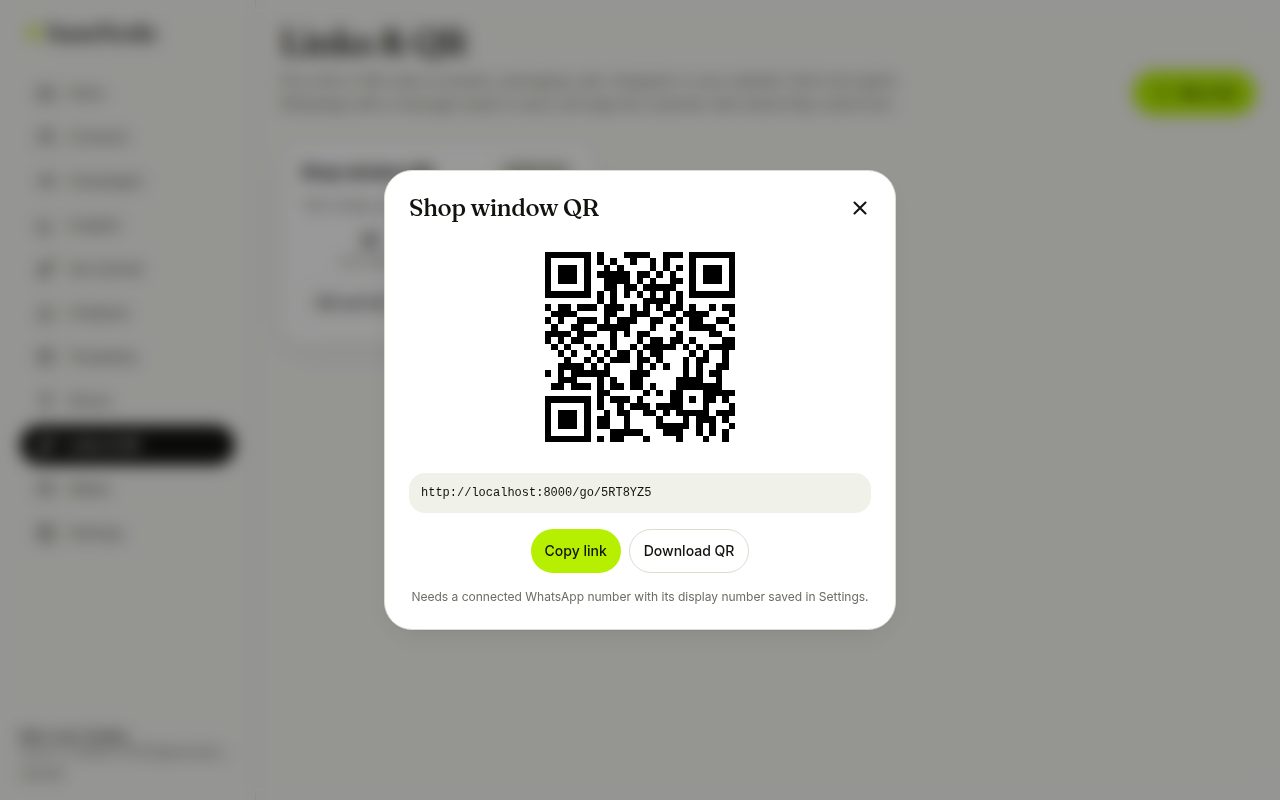
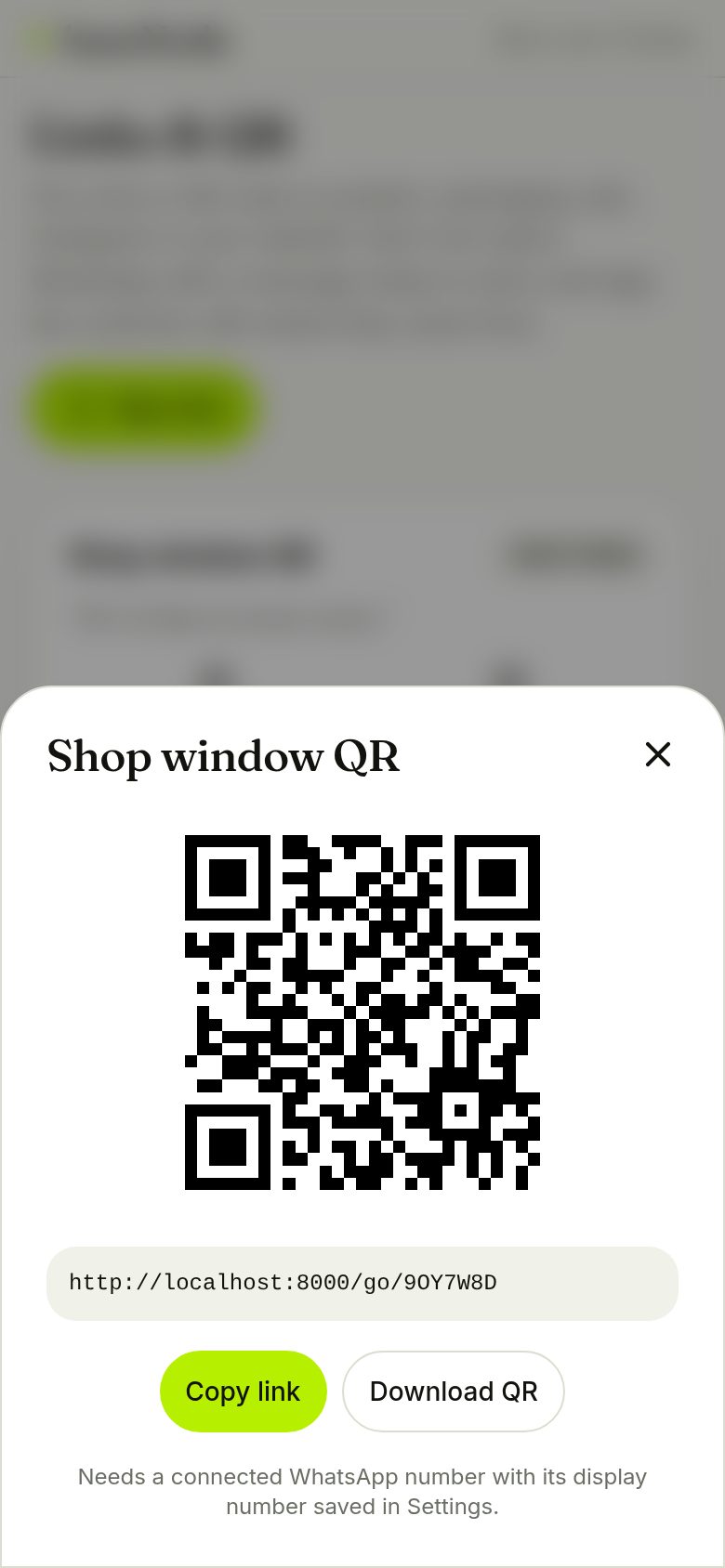
Name the link after where you will use it, write the message customers will send, and add optional tags. Copy the link or download a print-ready QR.
- A short code at the end of the message tracks the source
- Needs your WhatsApp display number saved in Settings
6. Store integrations and automations
Connect Shopify, WooCommerce, Wix or your own backend so orders and carts message customers by themselves and revenue is credited to campaigns.
Connect a store
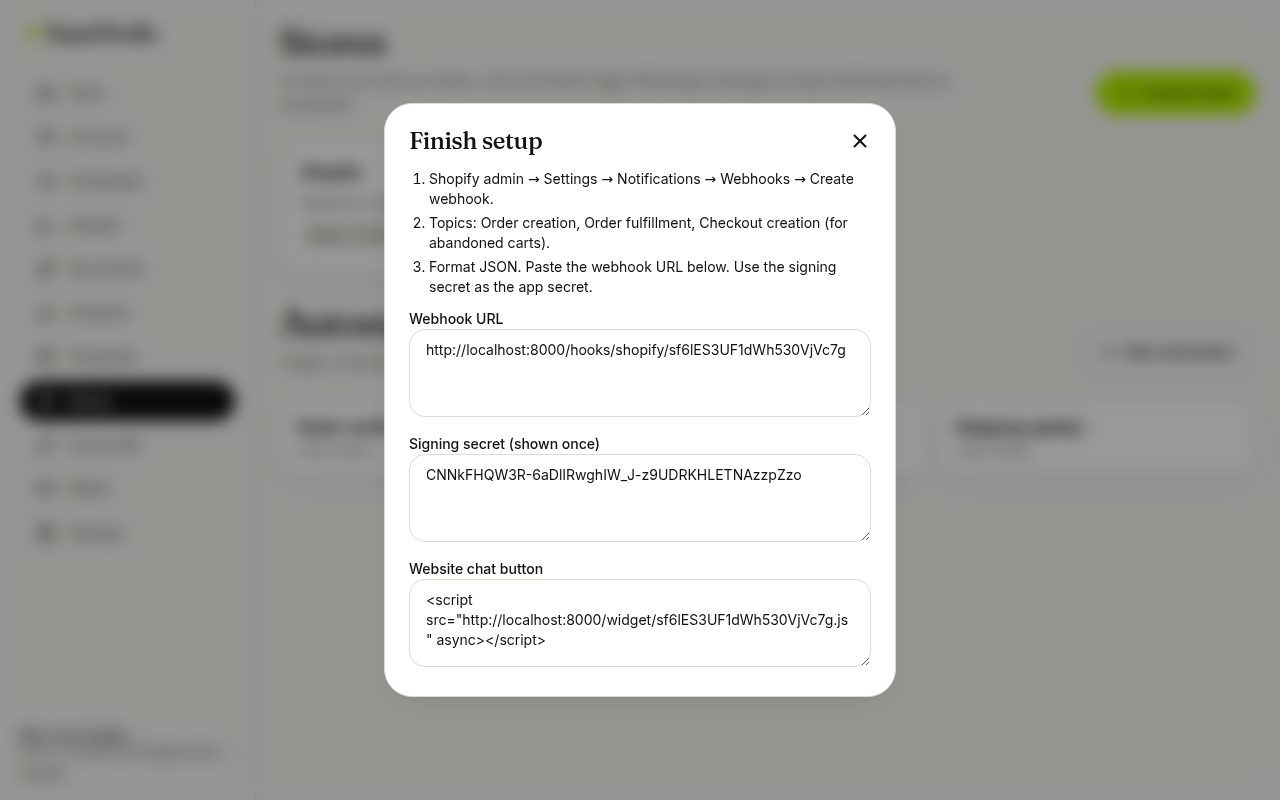
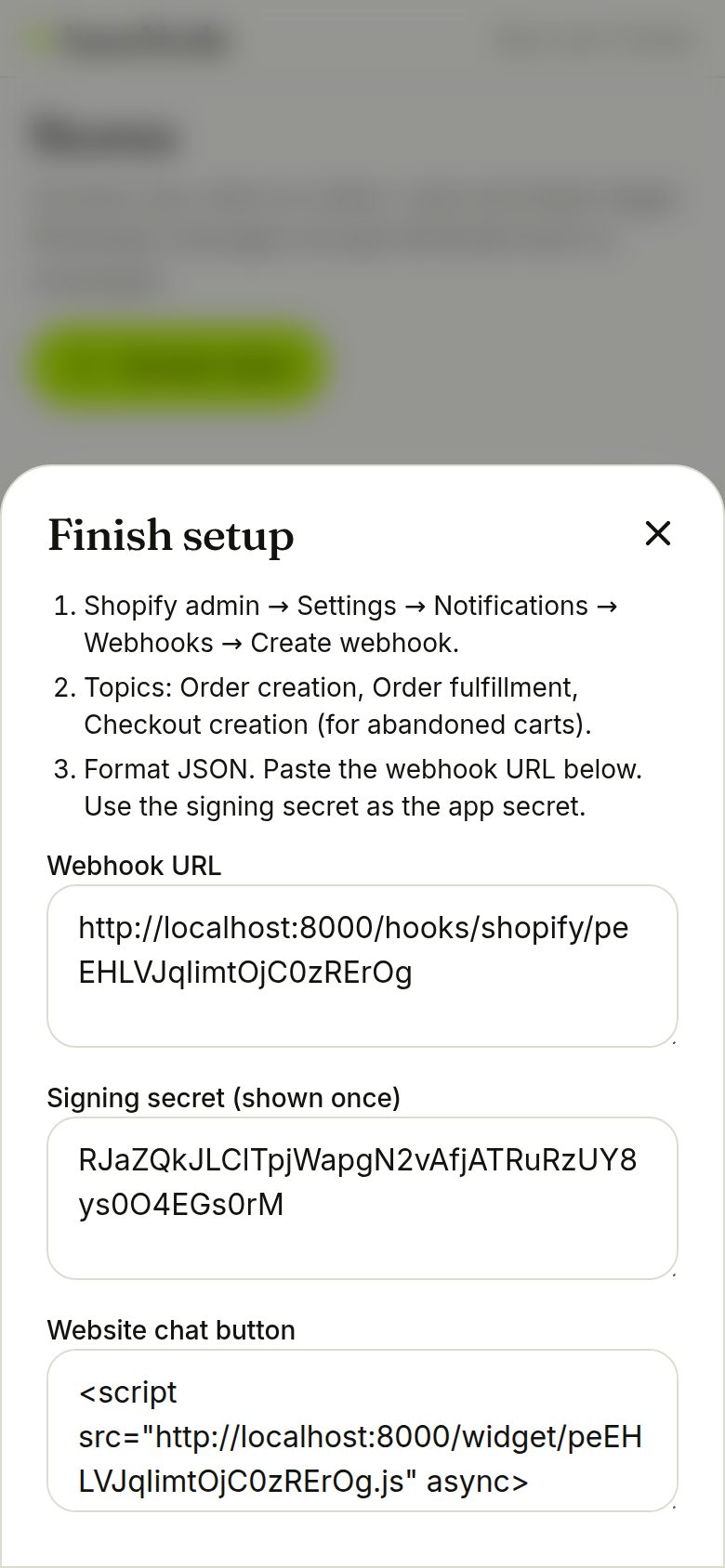
Choose the platform and copy the webhook URL and signing secret into your store. Add automations for order confirmation, cart recovery and shipping updates.
- The signing secret is shown once
- A one-line script adds a WhatsApp chat button to any website, including Wix
7. Forms and segments
Collect details inside the chat, then target exactly the right people.
Build a form
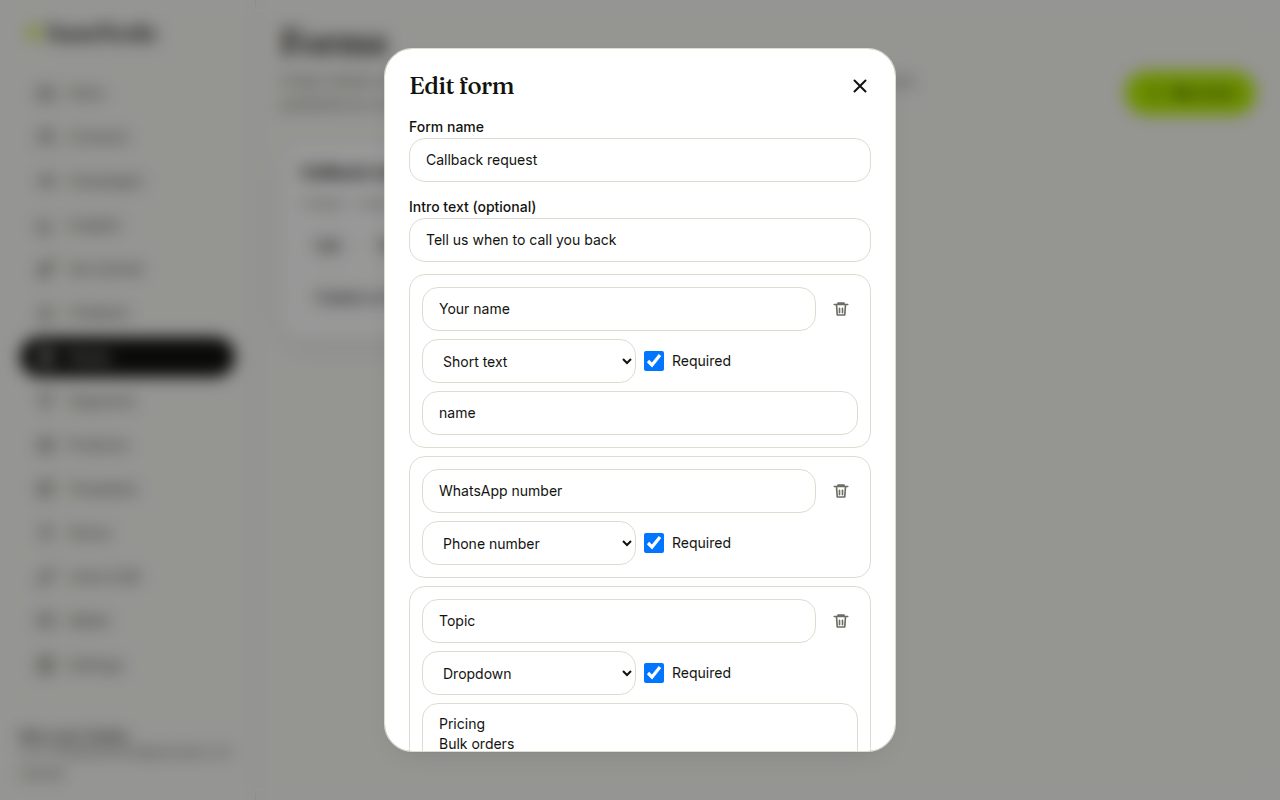
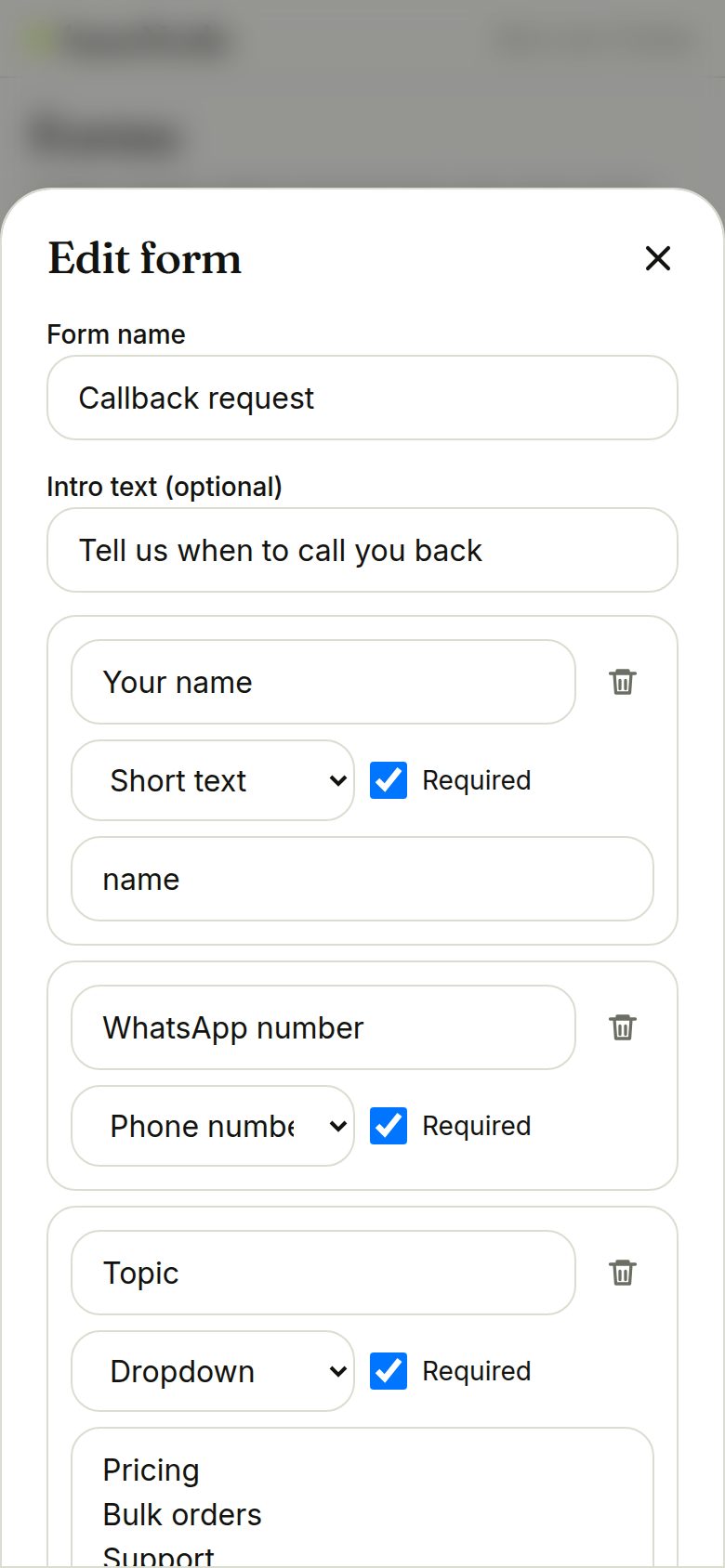
Add fields (text, email, phone, number, dropdown, single and multiple choice, date), mark which are required, and say where each answer should be saved on the contact. Add a thank-you message and tags.
- Answers can fill name, email or your own custom fields
- Publishing to WhatsApp makes it a native in-chat form; until then it works as a web page
Share it as a link or in a chat
Every form has a mobile web page. Send it from the inbox with the Form button, from a chatbot step, or print it on a QR. A link sent in a chat already knows who the customer is, so it skips the phone question.
- Responses appear in a table and download as CSV
- Each submission adds a form tag and a timeline entry
Save a segment
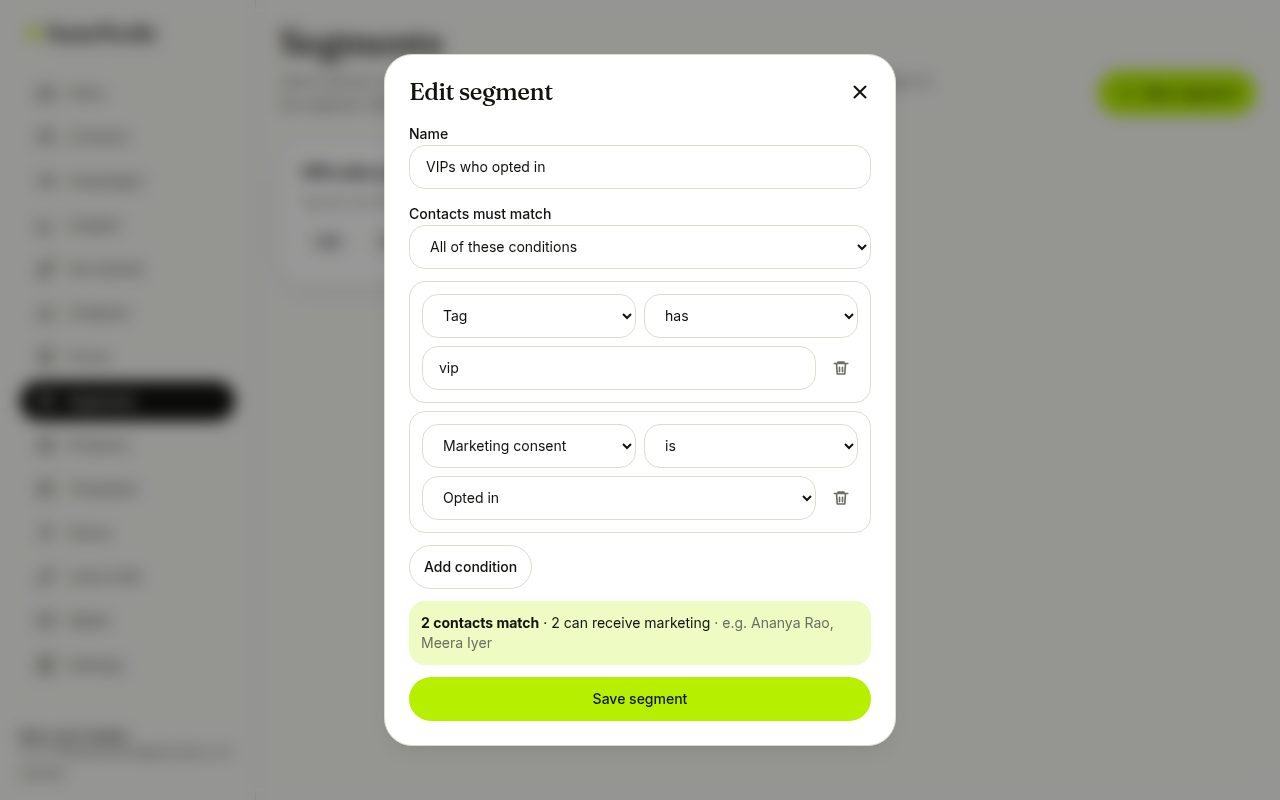
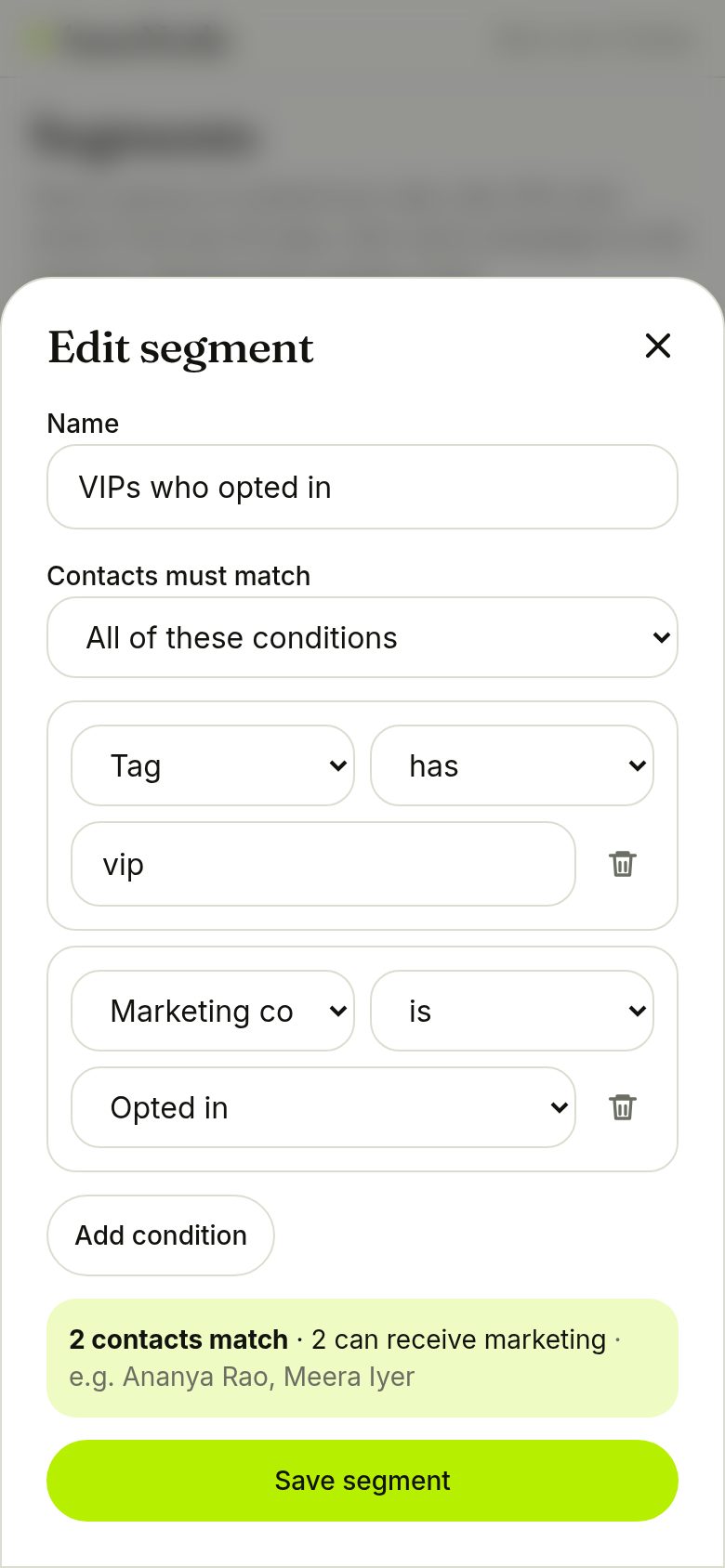
Combine rules, such as tag has VIP and consent is yes, and watch the live count and a sample of matching contacts. Use the segment as a campaign audience instead of typing tags.
- Rules: tags, consent, name, phone, custom fields, last activity, sign-up date
- Match all or any conditions
8. Catalogue, customer photos, reply times and ratings
Sell from the chat, see what customers send, and keep an eye on how fast and how well you reply.
Add products
Add a product with a photo, price, description and link. No Meta commerce approval is needed.
- JPG or PNG up to 5 MB
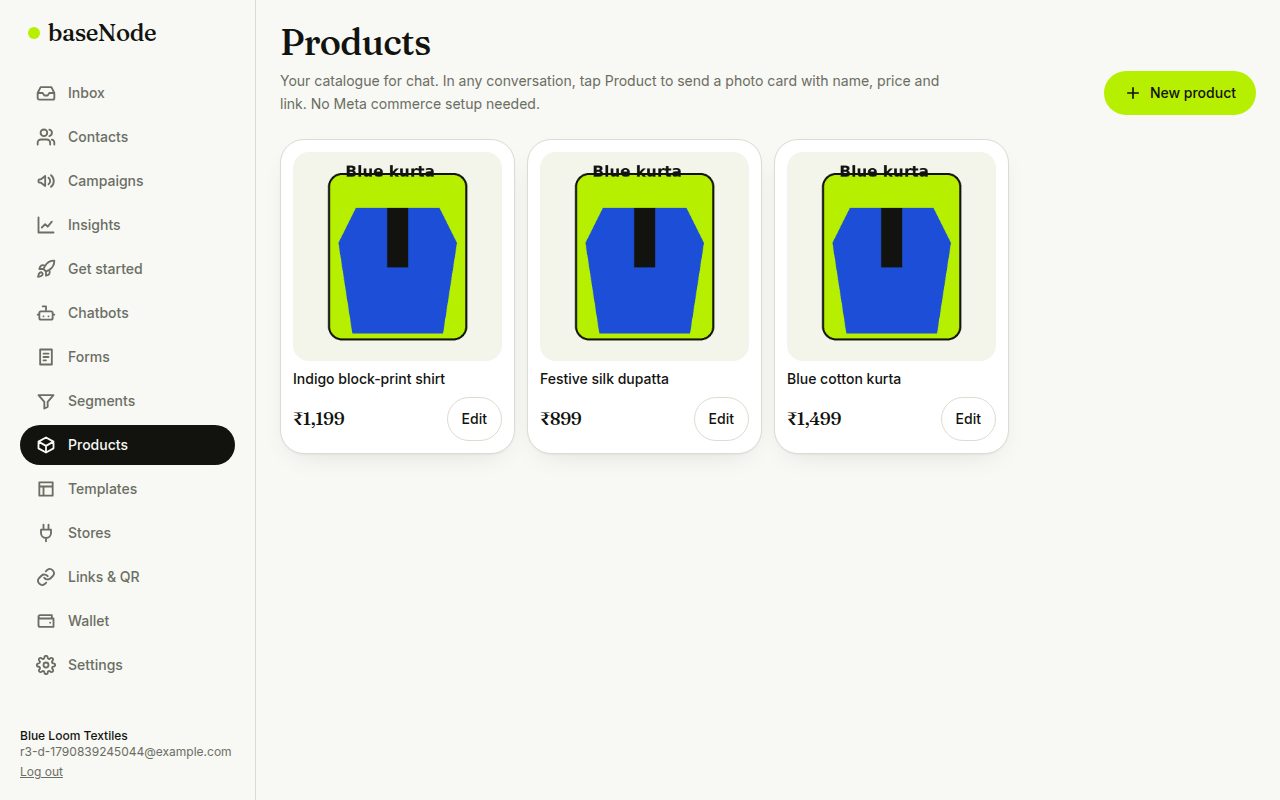
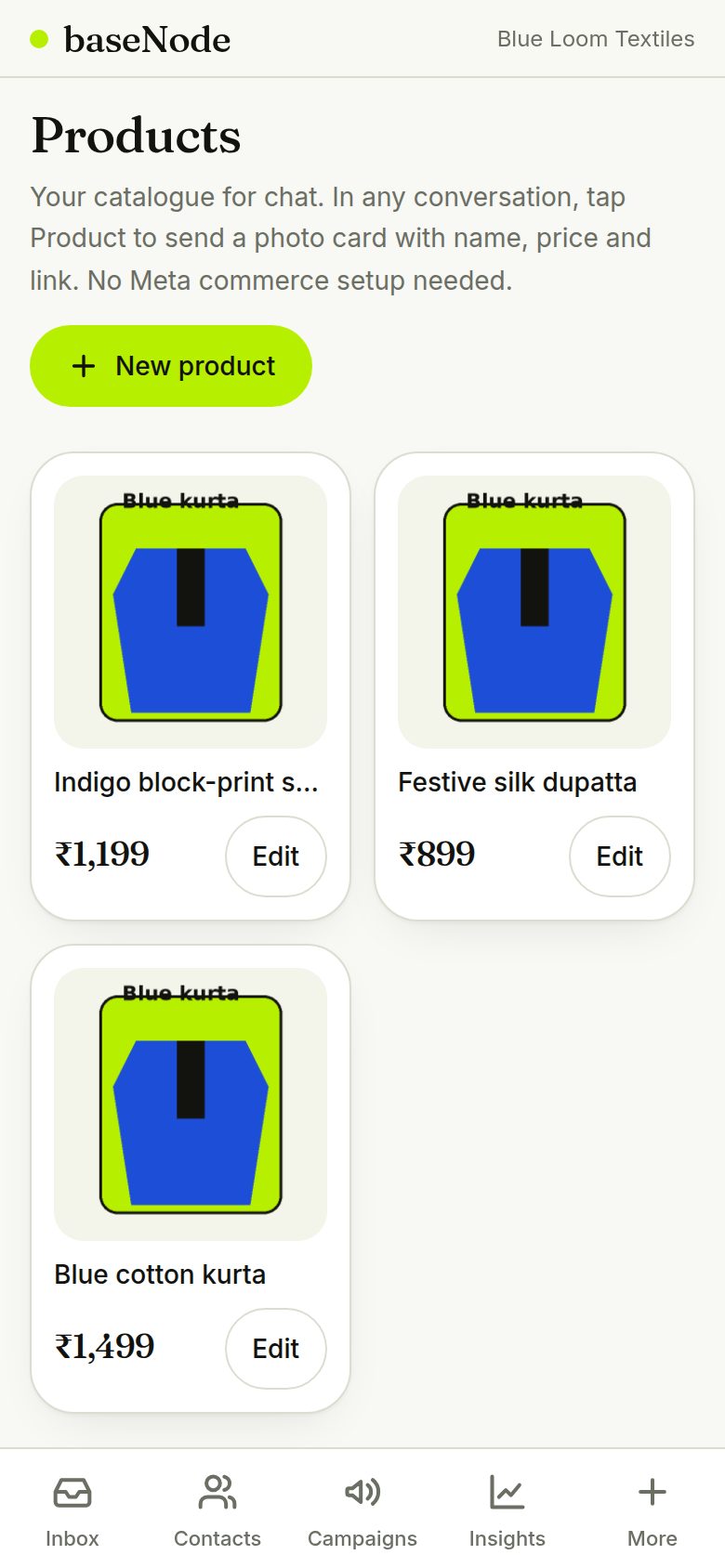
Send a product card
Inside an open chat, tap Product and pick one. The customer receives the photo with the name, price, description and link. Needs the free 24-hour window.
- Forms are sent the same way from the Form button
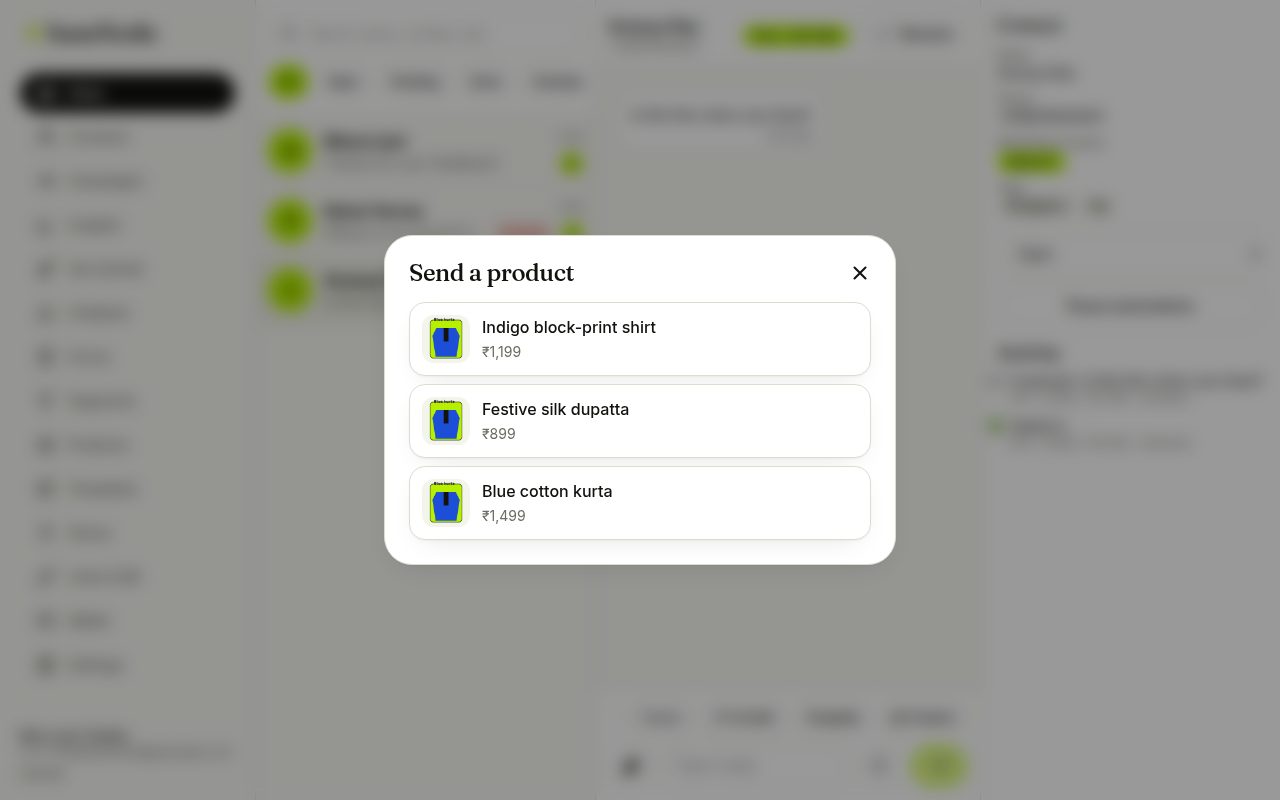
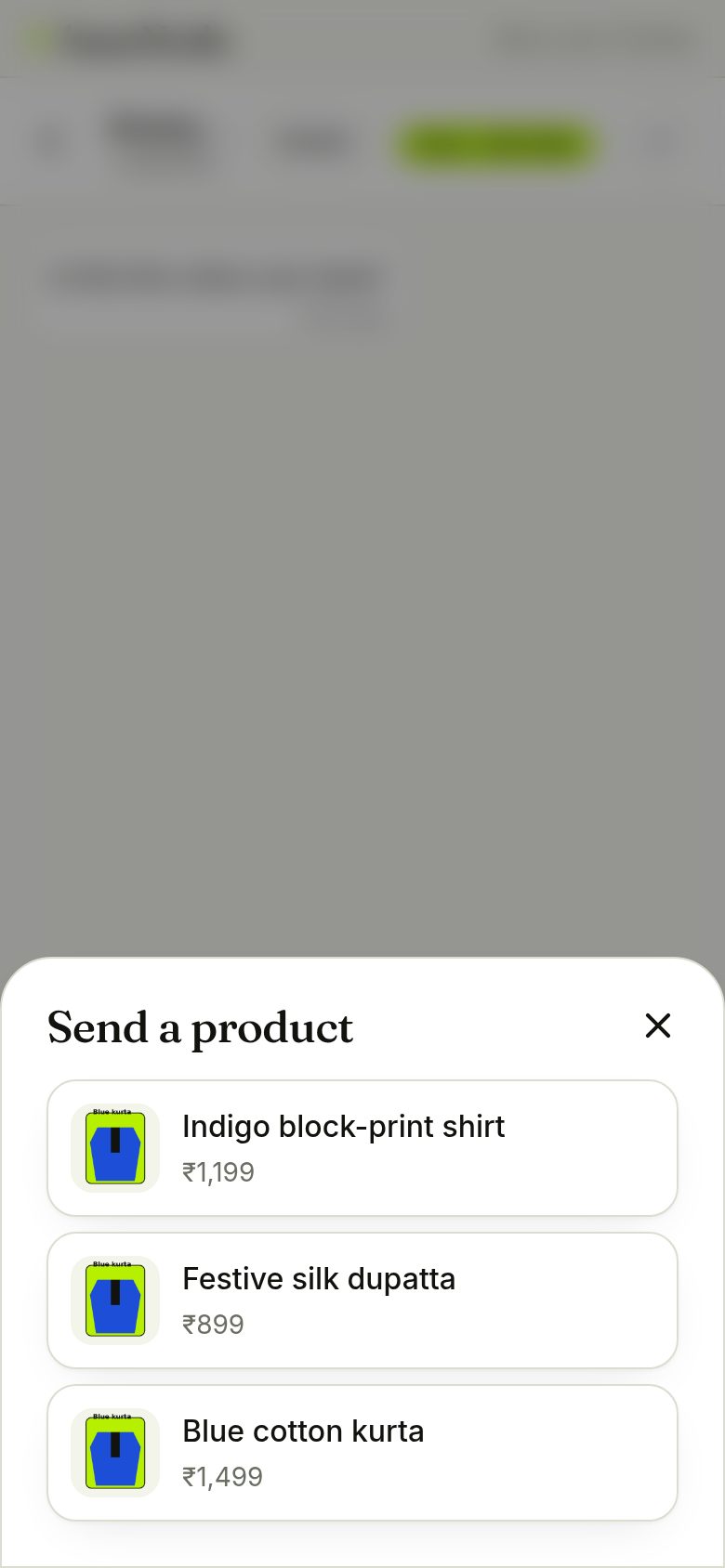
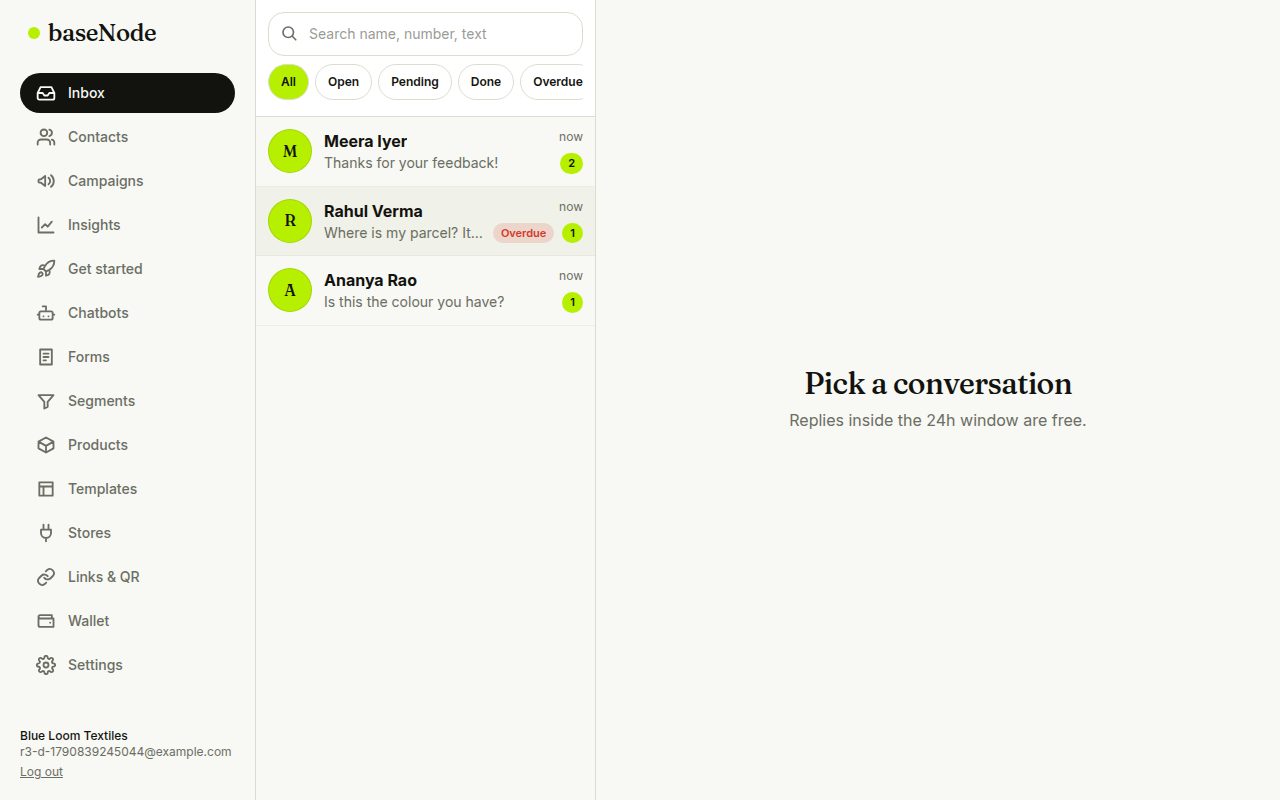
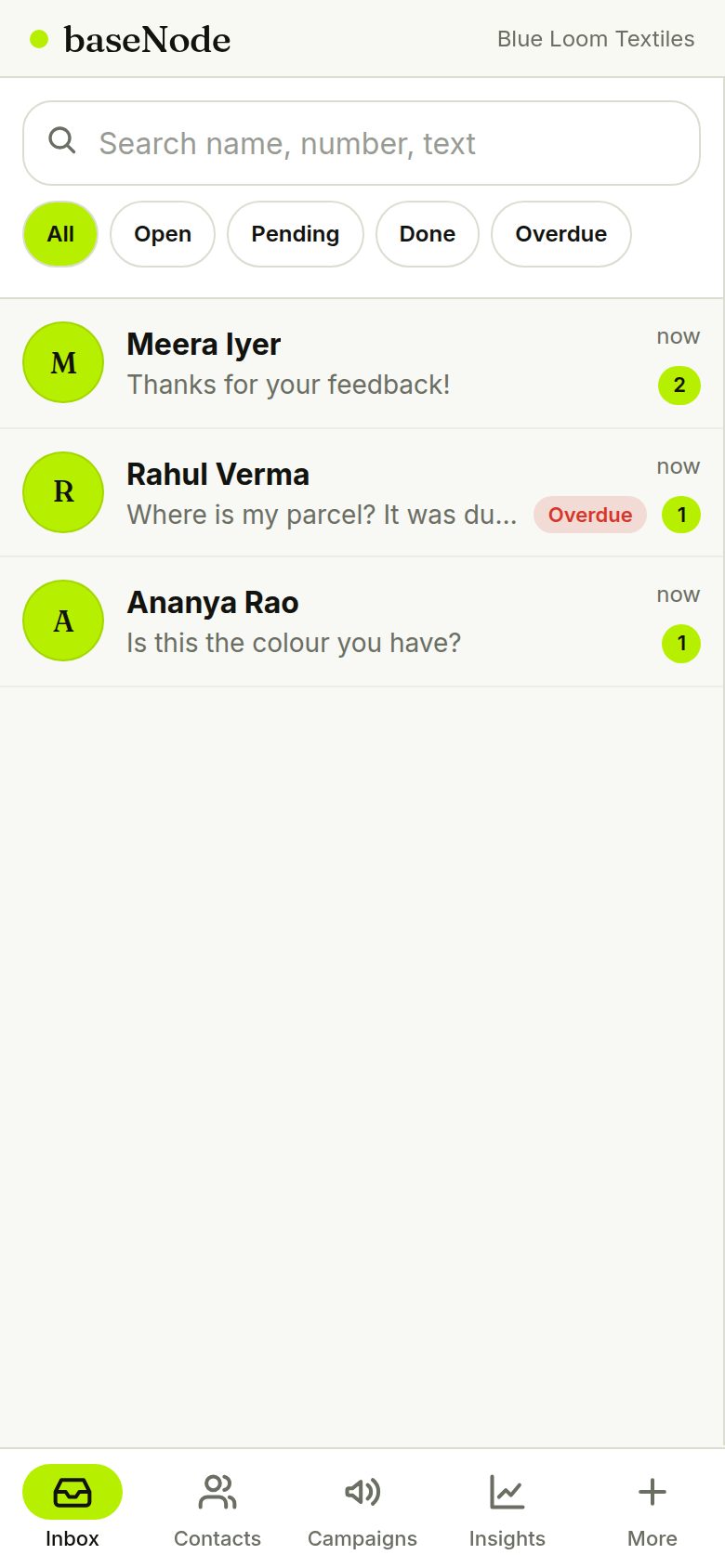
Spot overdue chats
Customer photos, documents and voice notes show in the chat. Chats unanswered for longer than your reply-time goal get an Overdue tag and a filter in the inbox.
- Set the goal in Settings
- Customer files are fetched from WhatsApp on demand
See the whole customer
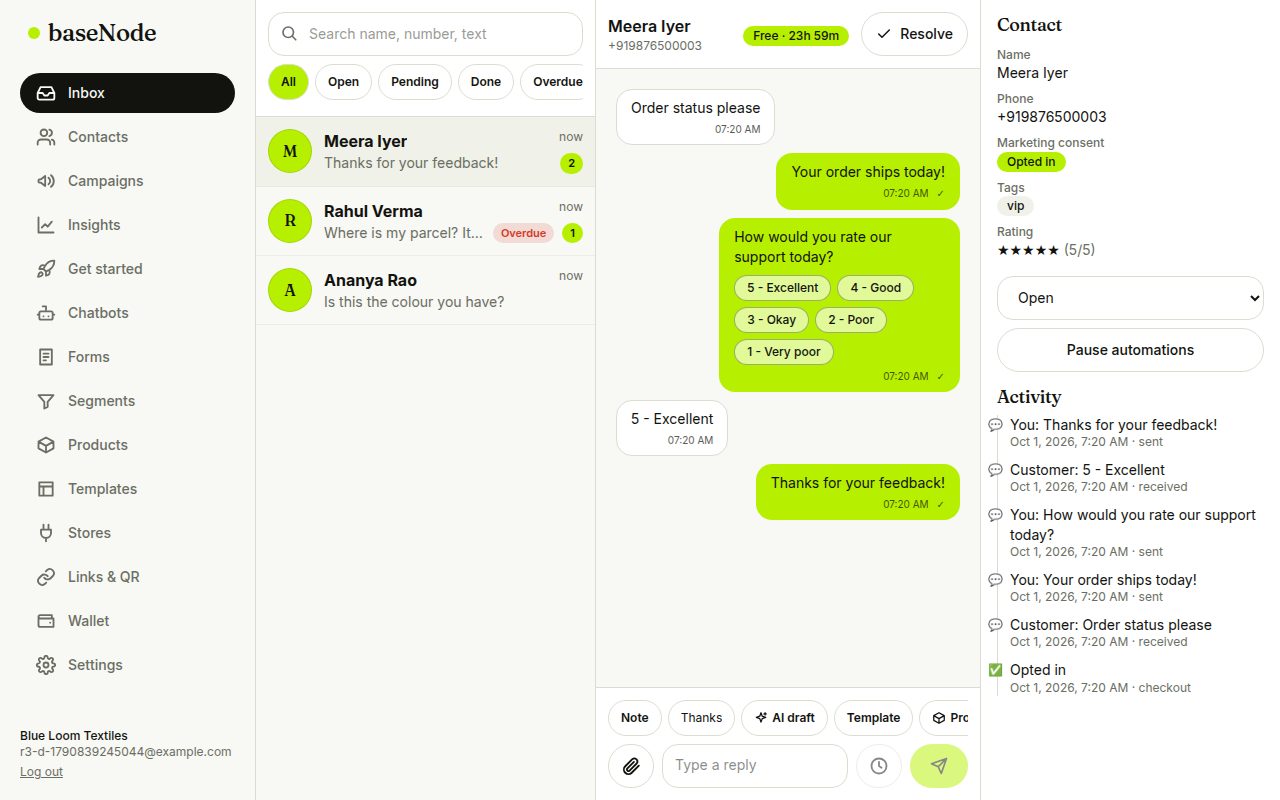
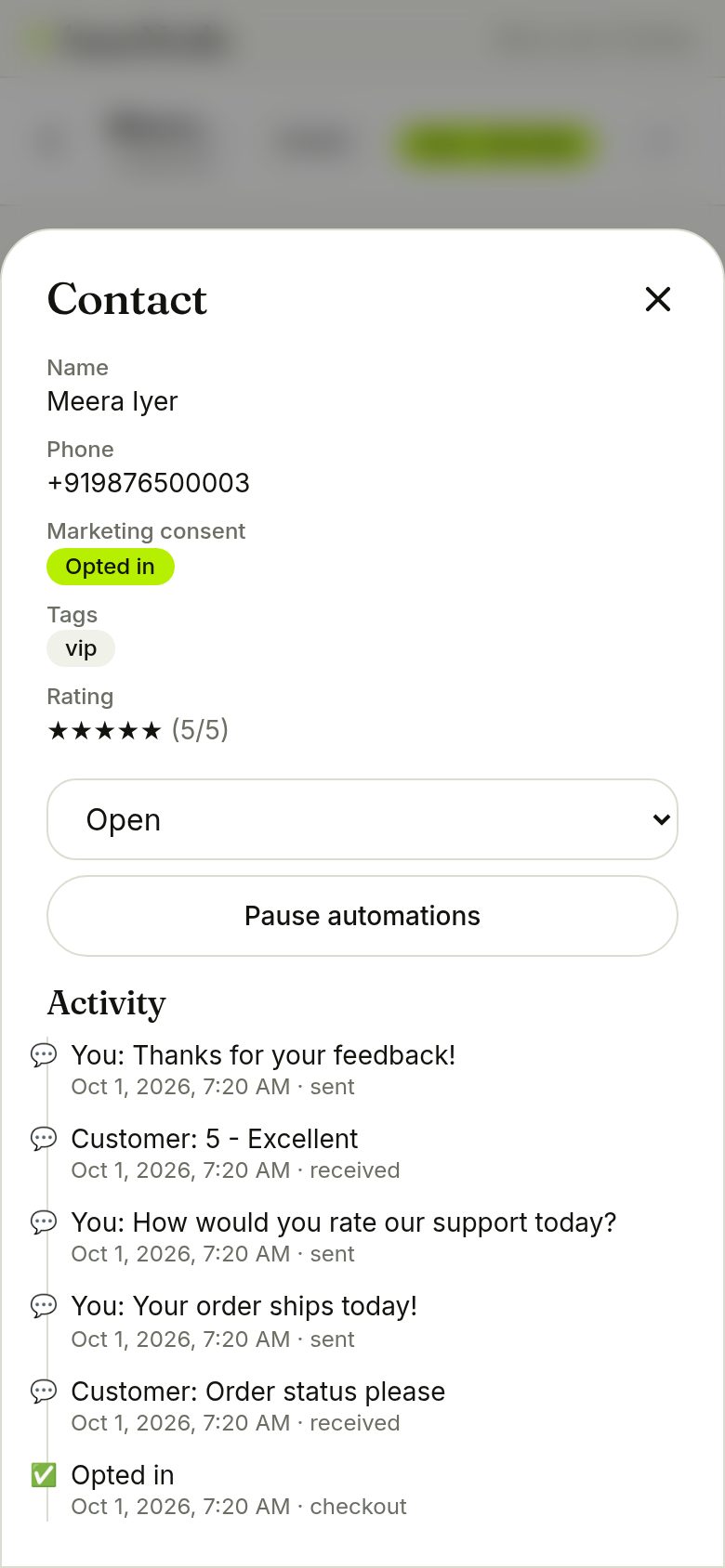
The contact panel shows consent, tags, rating and a timeline of messages, campaigns, orders, forms and consent changes. On a phone, tap Details.
- After a chat is resolved, an optional 1 to 5 rating is requested
Review team performance
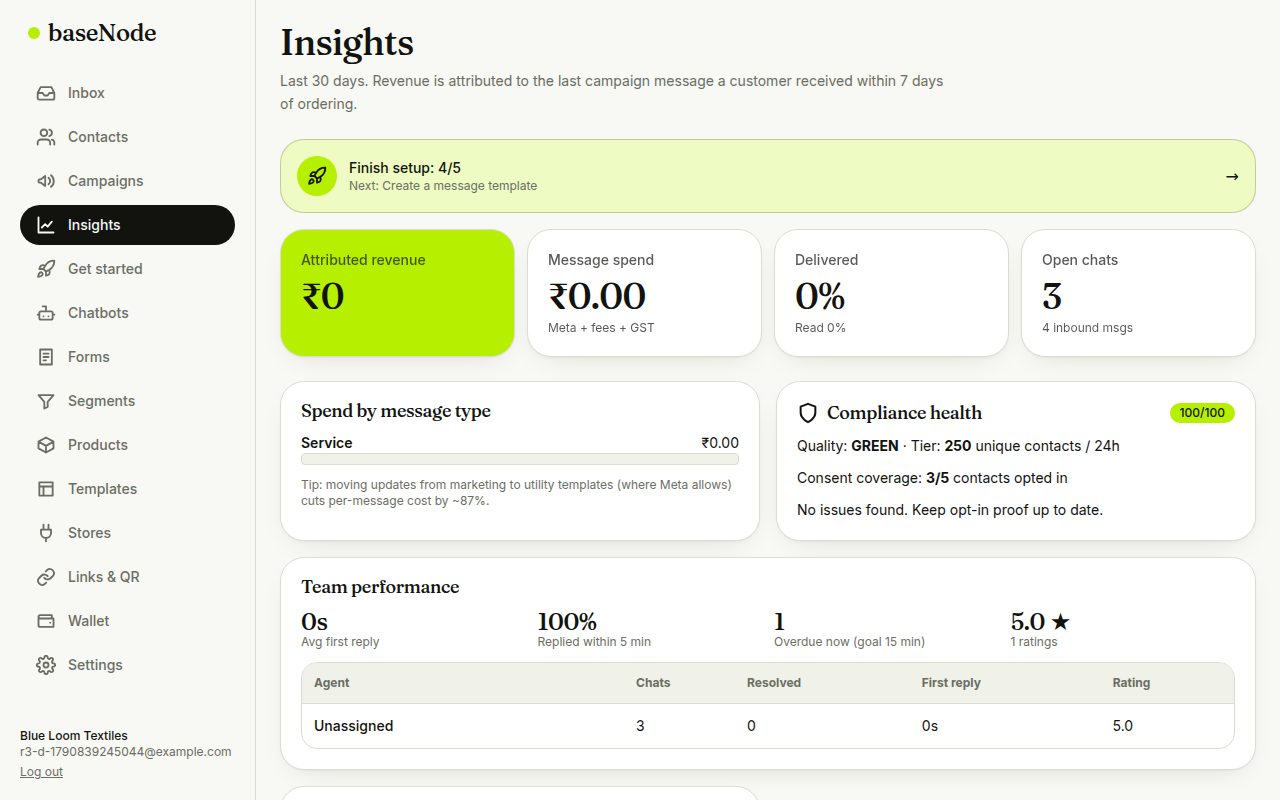
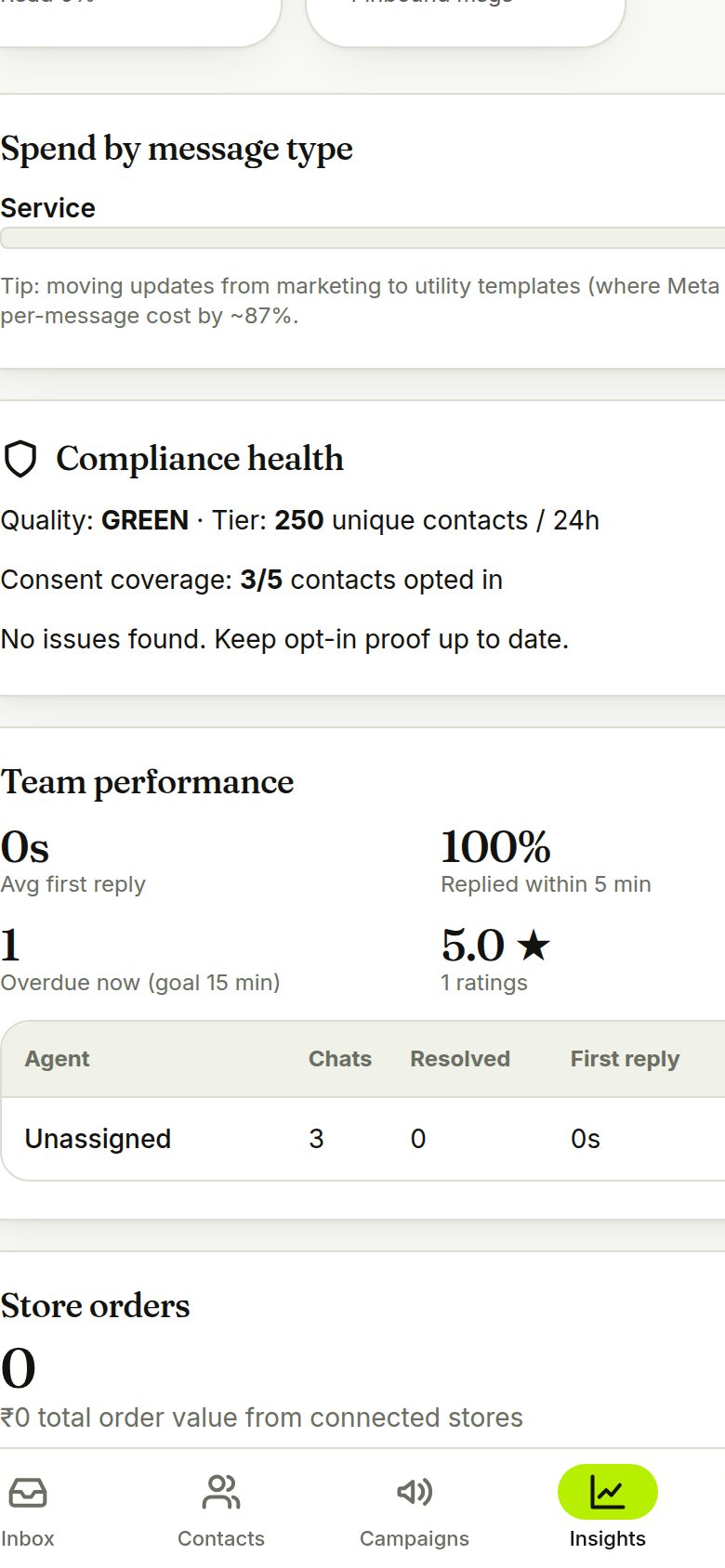
Insights shows first-reply time, the share answered within five minutes, chats overdue right now, average rating and a per-agent table.
- First reply counts bot and human replies
9. Webhooks and tracked links
Connect baseNode to your own systems and measure what people click.
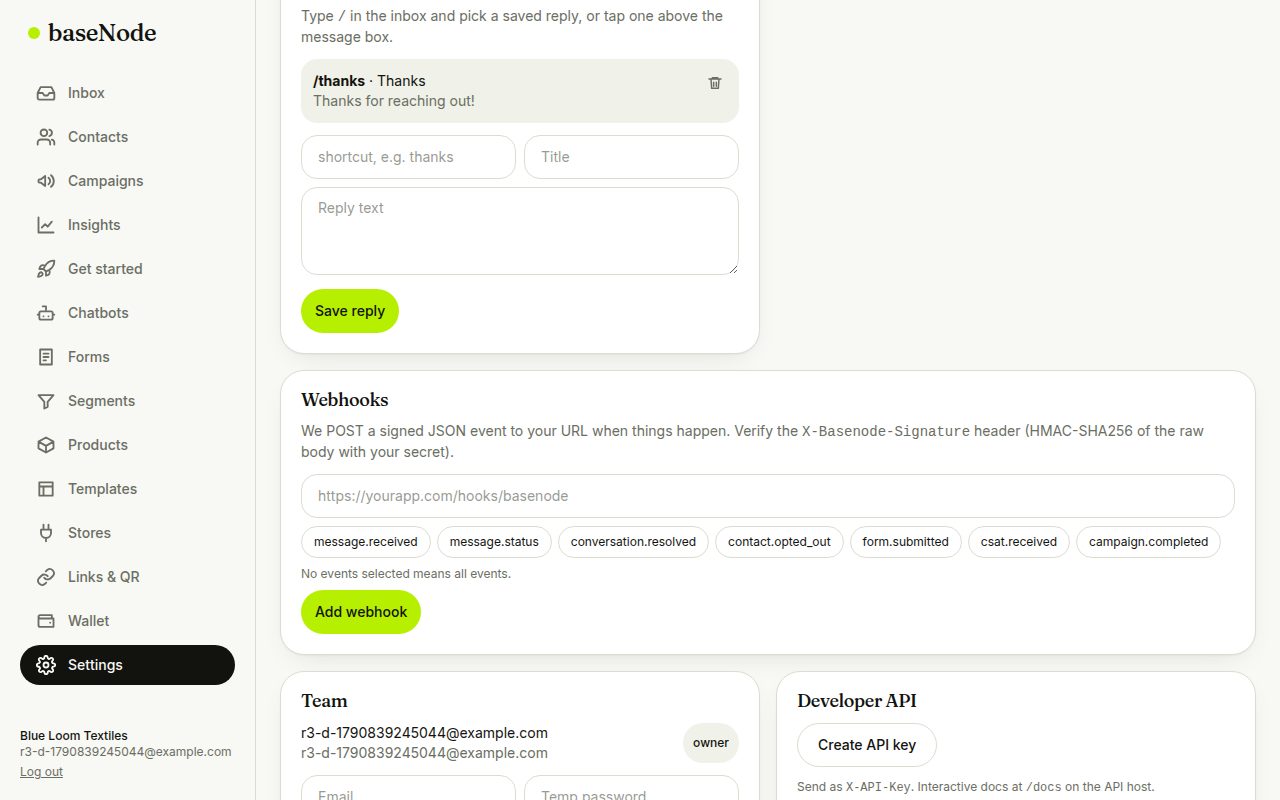
- Event happensMessage, status, opt-out, form, rating, campaign
- Signed JSONHMAC-SHA256 in X-Basenode-Signature
- Your URLPublic addresses only
- LoggedRetries, status and errors shown
Add a webhook
Paste your https URL, choose events (or leave empty for all), and copy the signing secret that is shown once. Send a test and watch the delivery log.
- Internal and private addresses are refused
- Failed deliveries are retried and a down endpoint never loses a customer's message
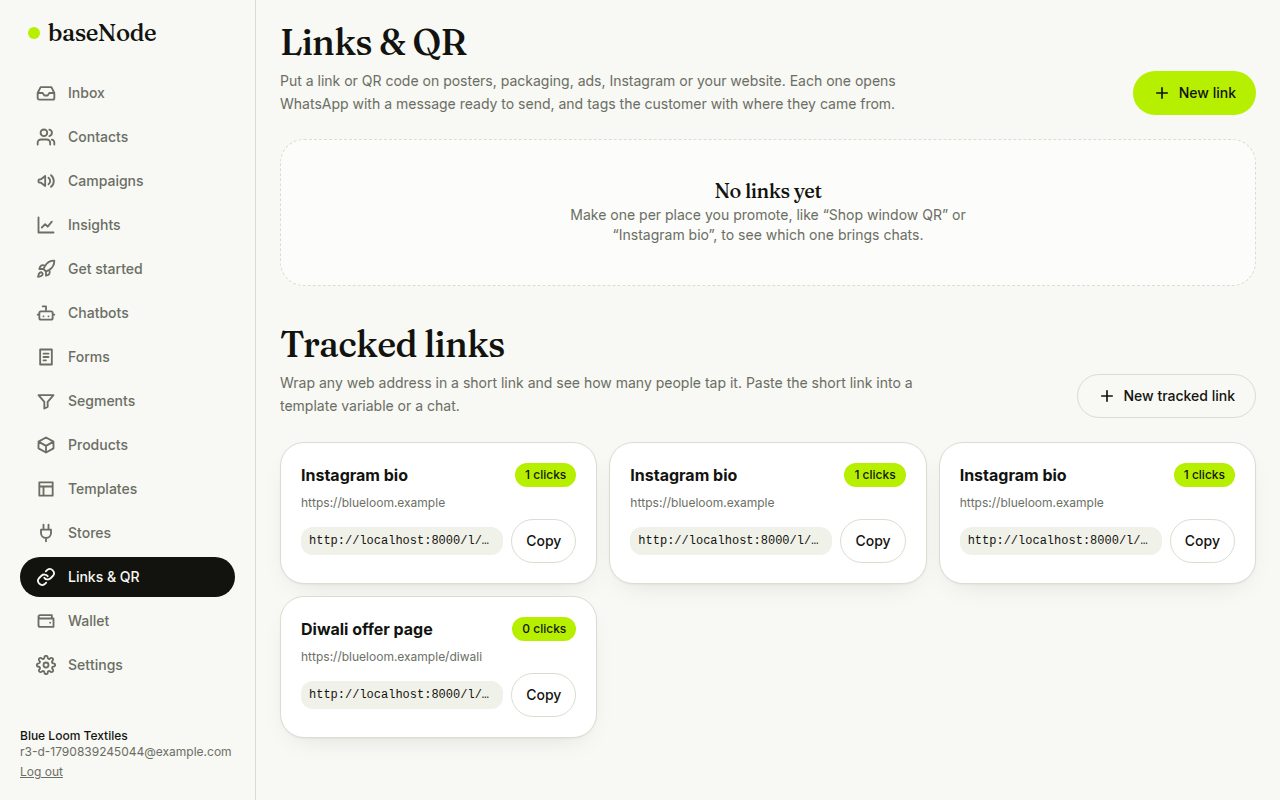
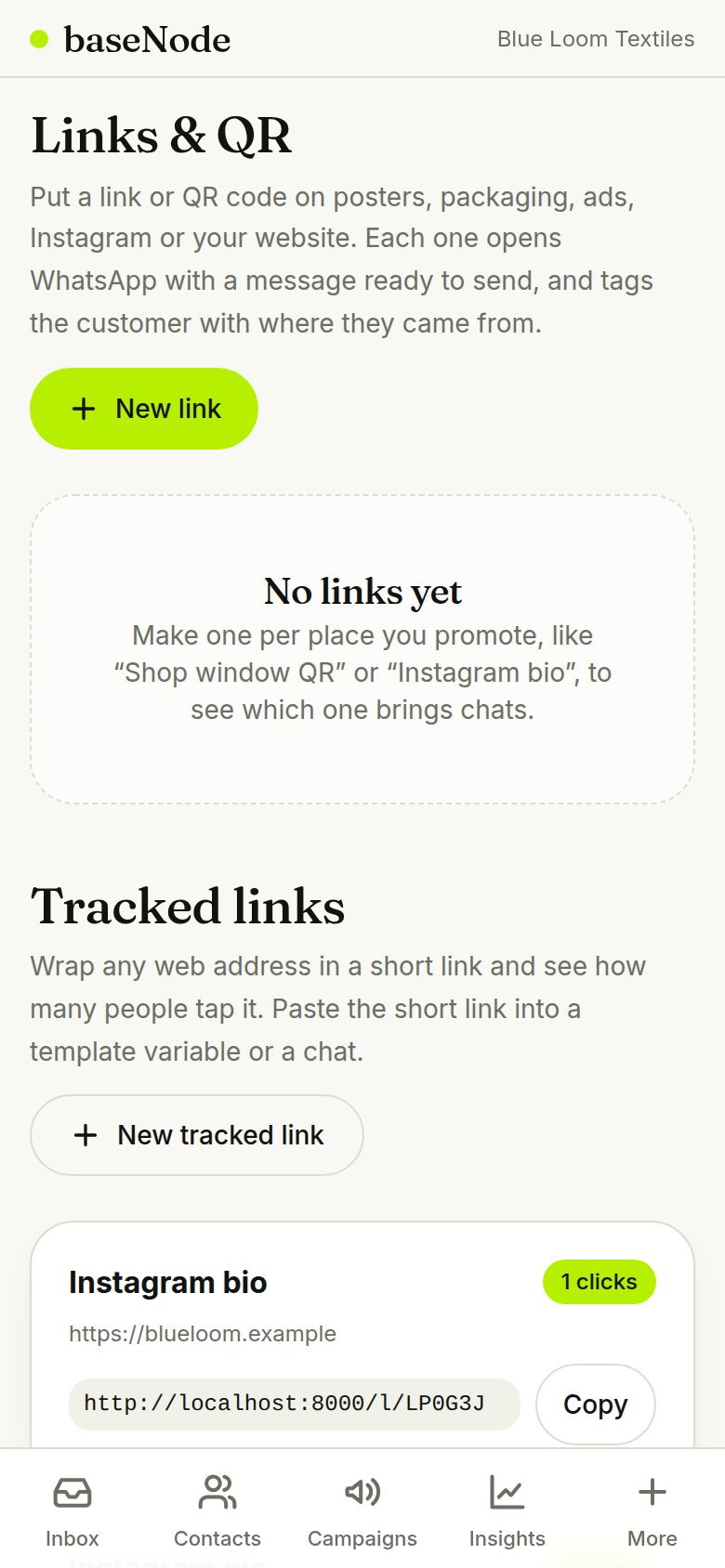
Track link clicks
Wrap any web address in a short link, paste it into a template variable or a chat, and see how many people tapped it.
- Only http and https targets are accepted
10. Agencies, plans and the admin panel
For agencies running several clients, and for the platform team that sets prices.
- Agency accountOne login
- Client workspacesOwn wallet, numbers, data
- Your marginPer message, per client
- Clients top upMeta fee + your margin + GST
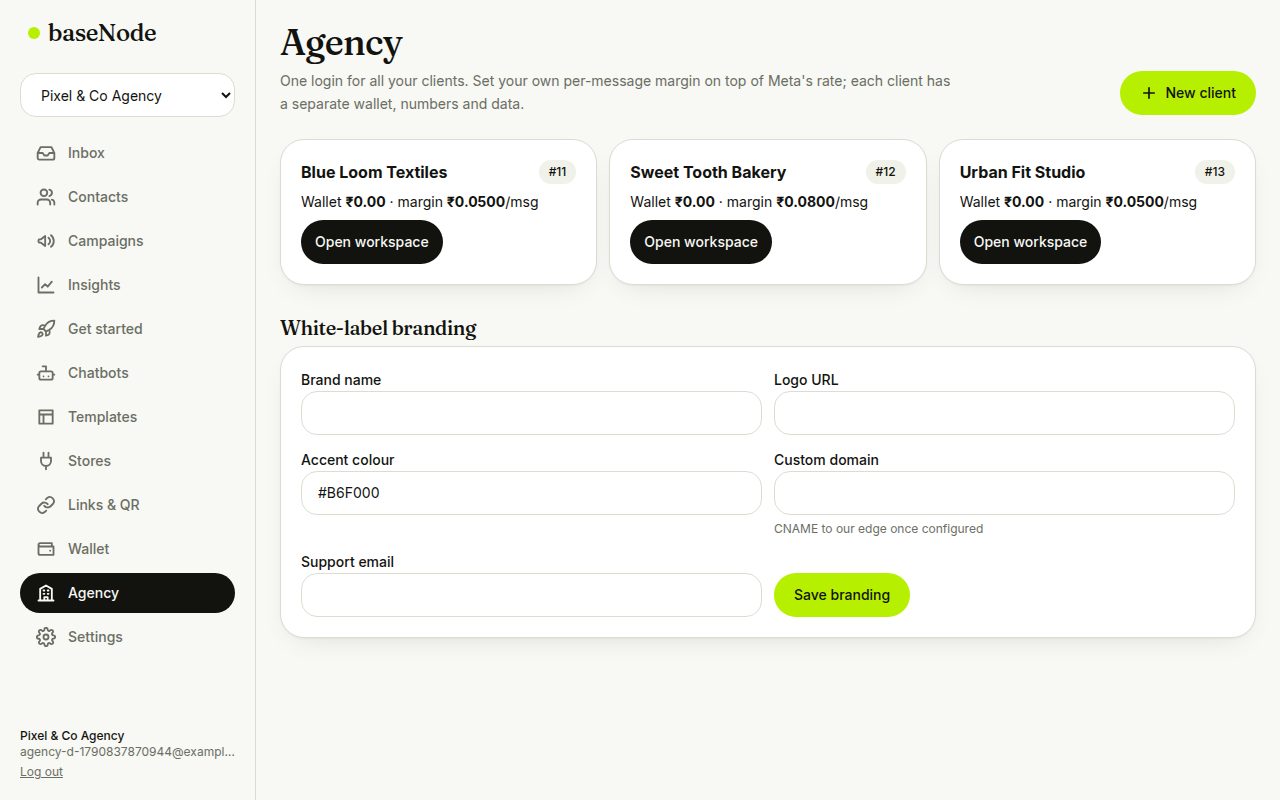
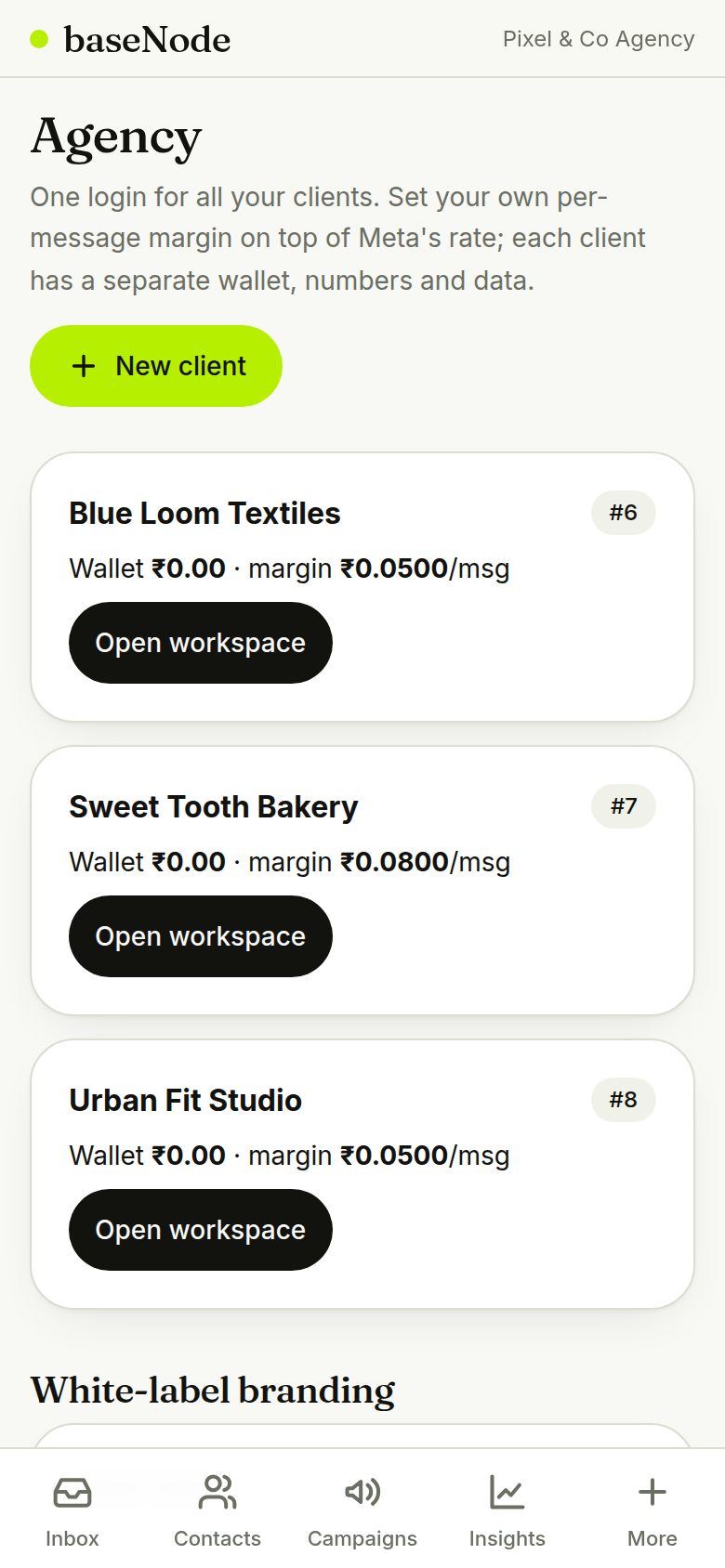
Run clients from one login
Create a workspace per client with your own per-message margin. Open any client in one tap. Brand name and colour can be set for white-label.
- Clients see Meta's rate and your fee on separate lines
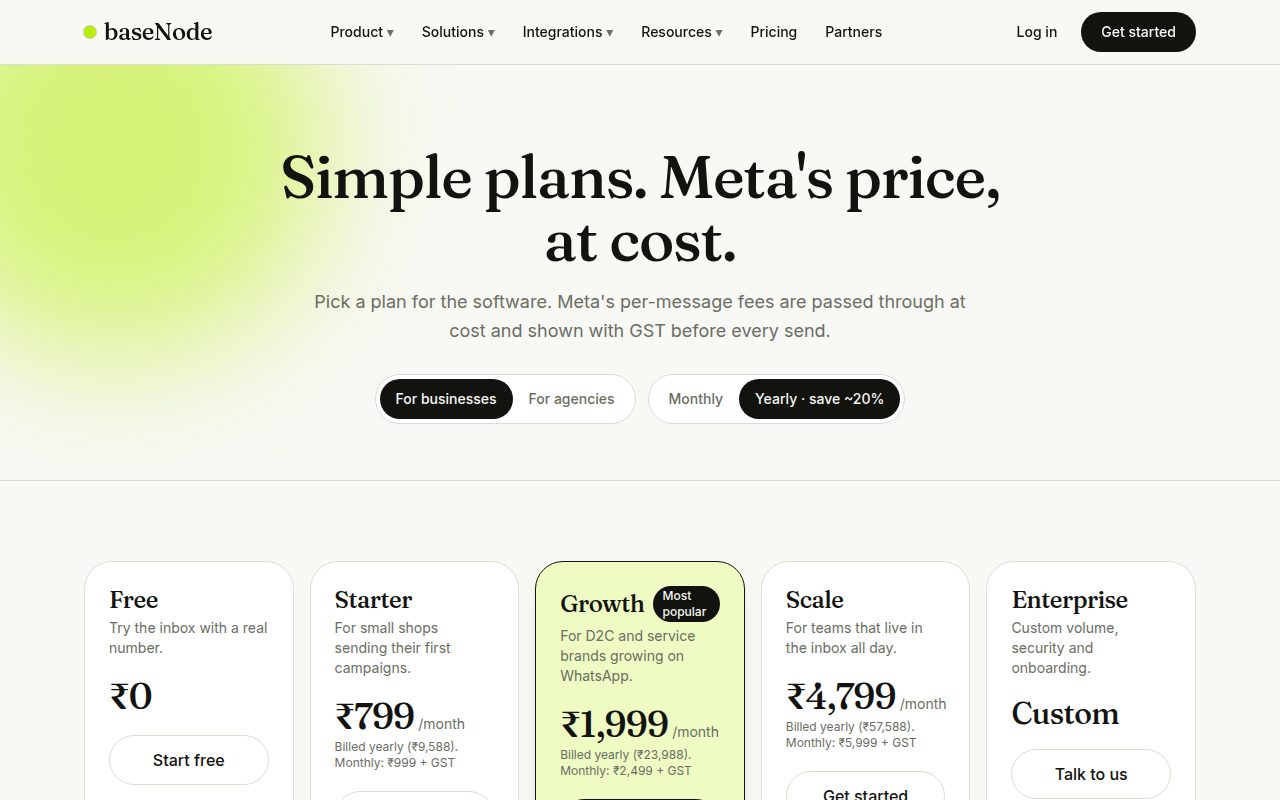
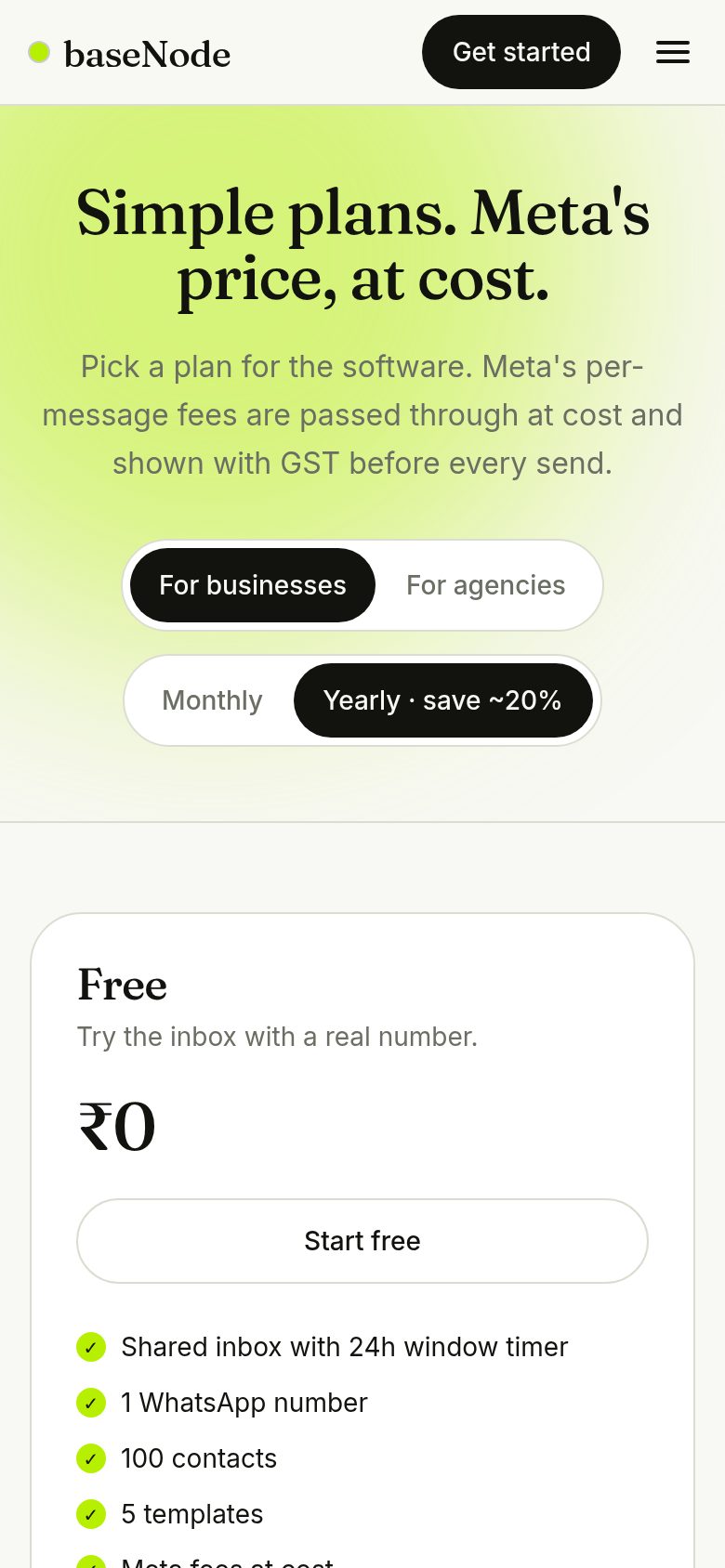
Show prices on the website
The public pricing page reads plans and add-ons from the database, with a monthly and yearly toggle for businesses and agencies.
- Plans can be hidden instead of deleted when customers use them
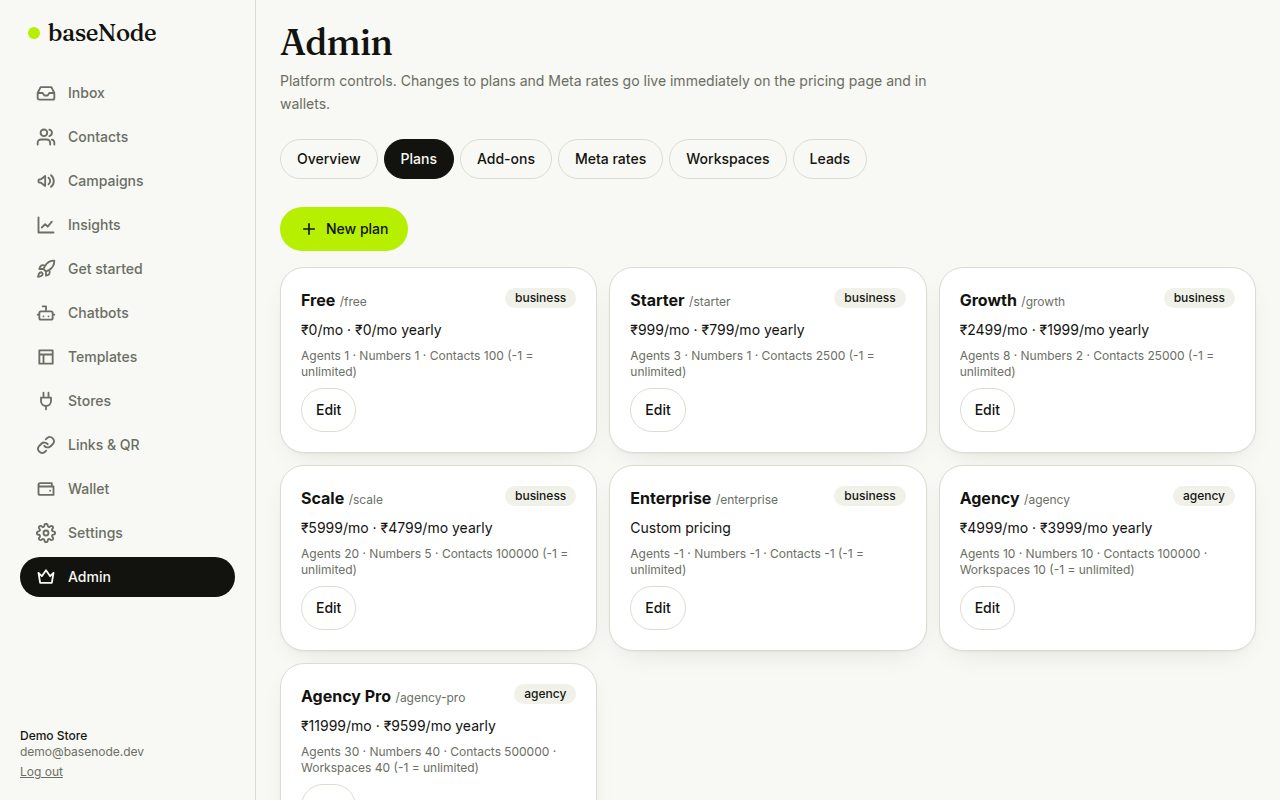
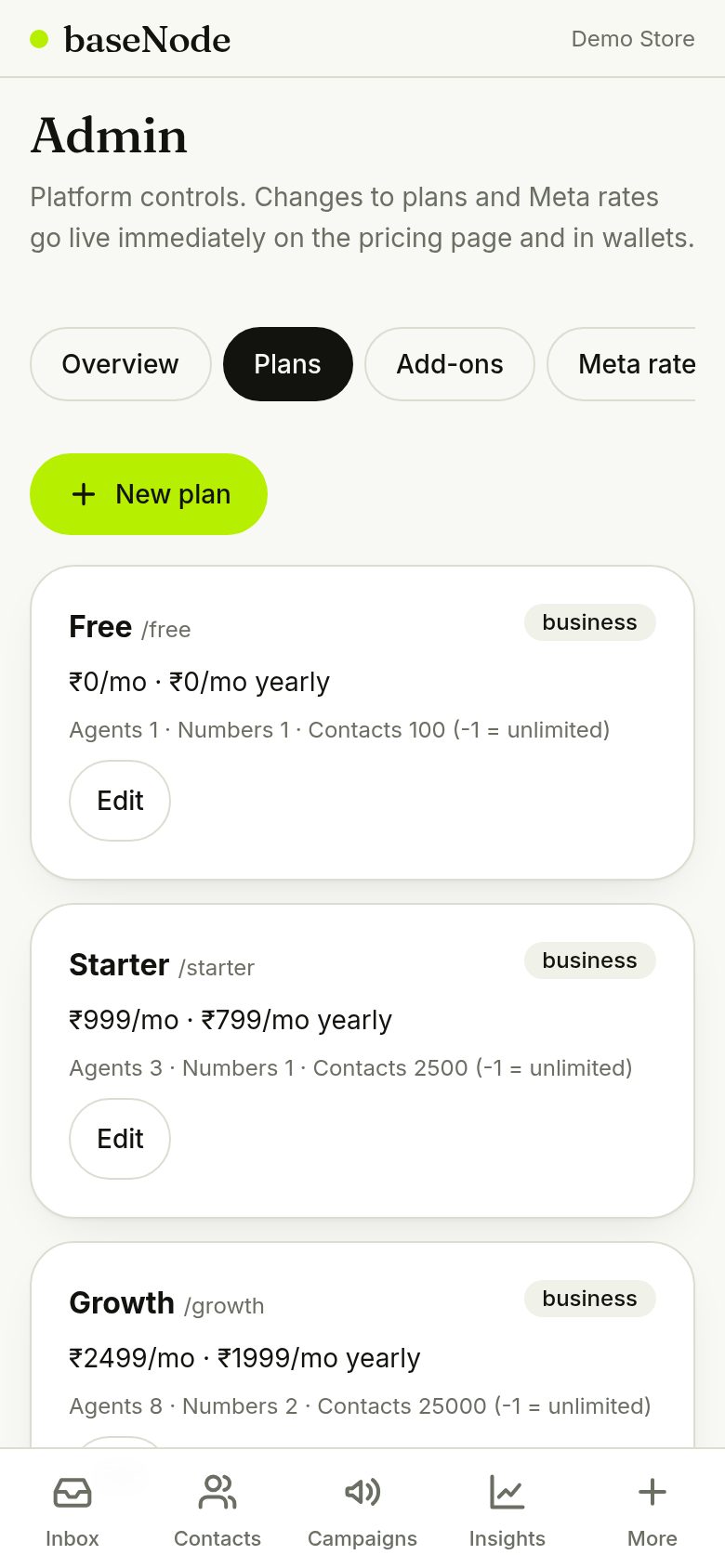
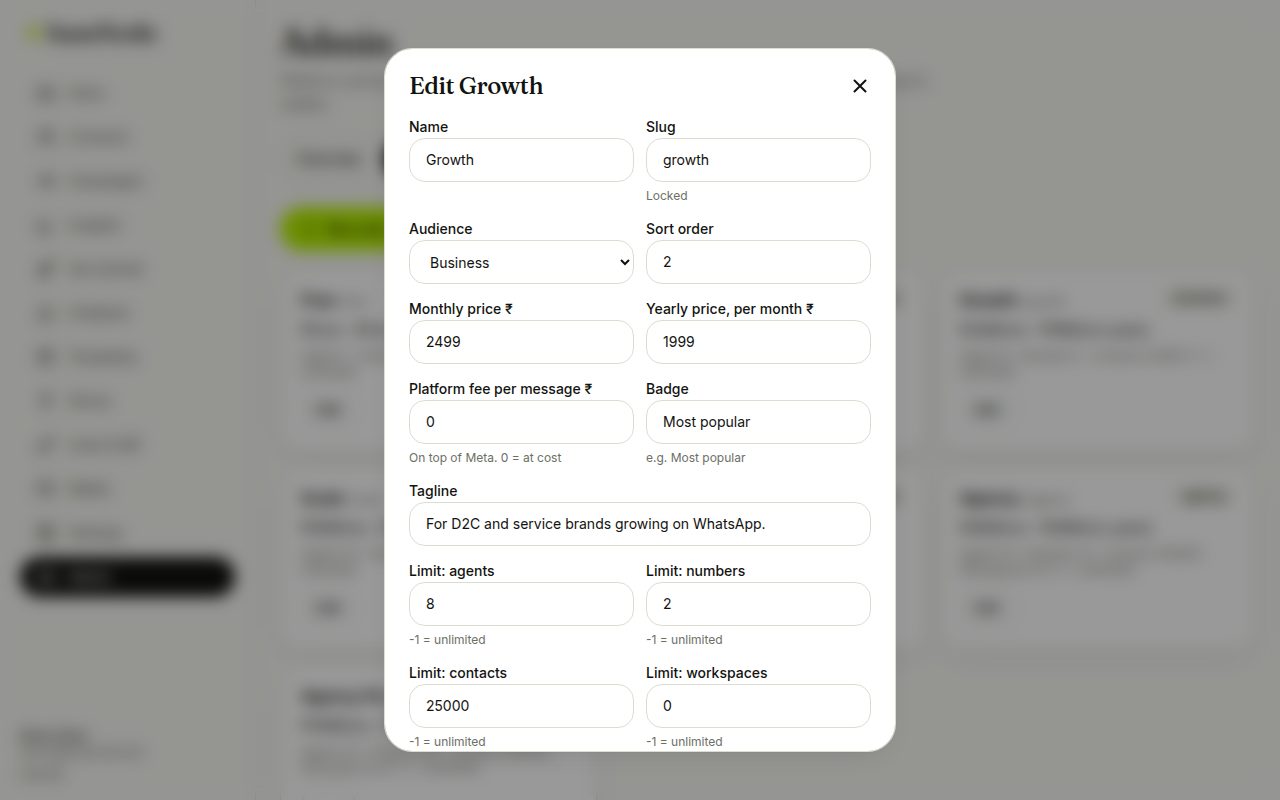
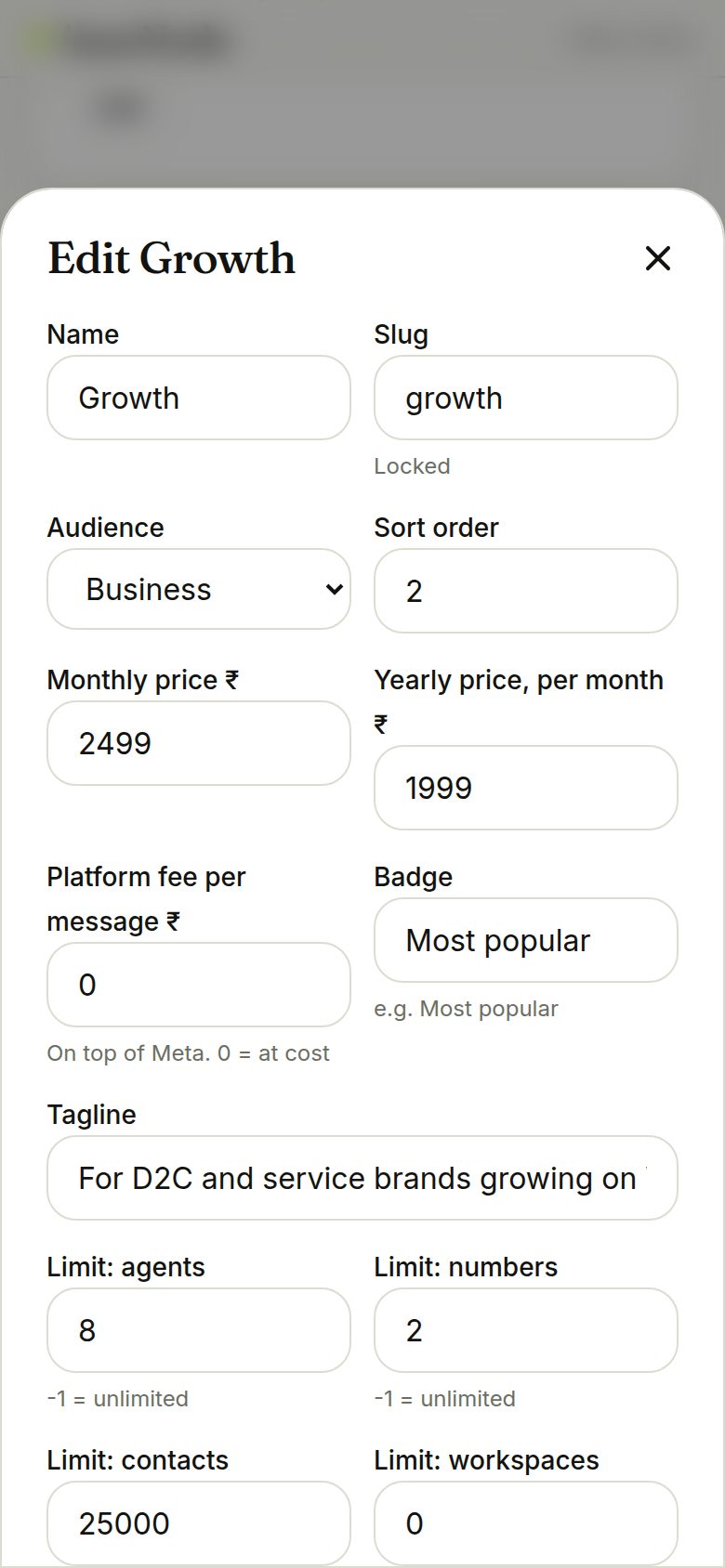
Edit plans from the admin panel
Change prices, limits, features, badges and the per-message fee. Changes go live straight away on the pricing page.
- Slugs are locked because workspaces reference them
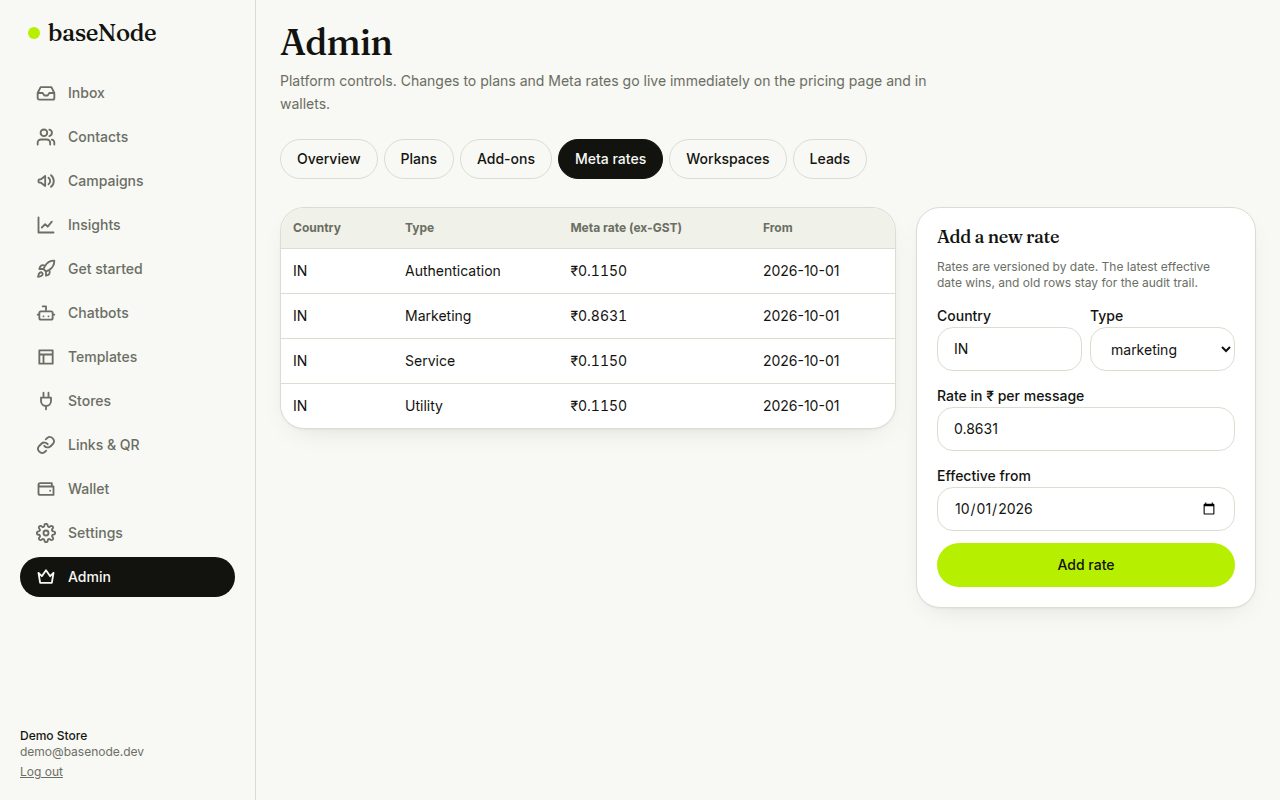
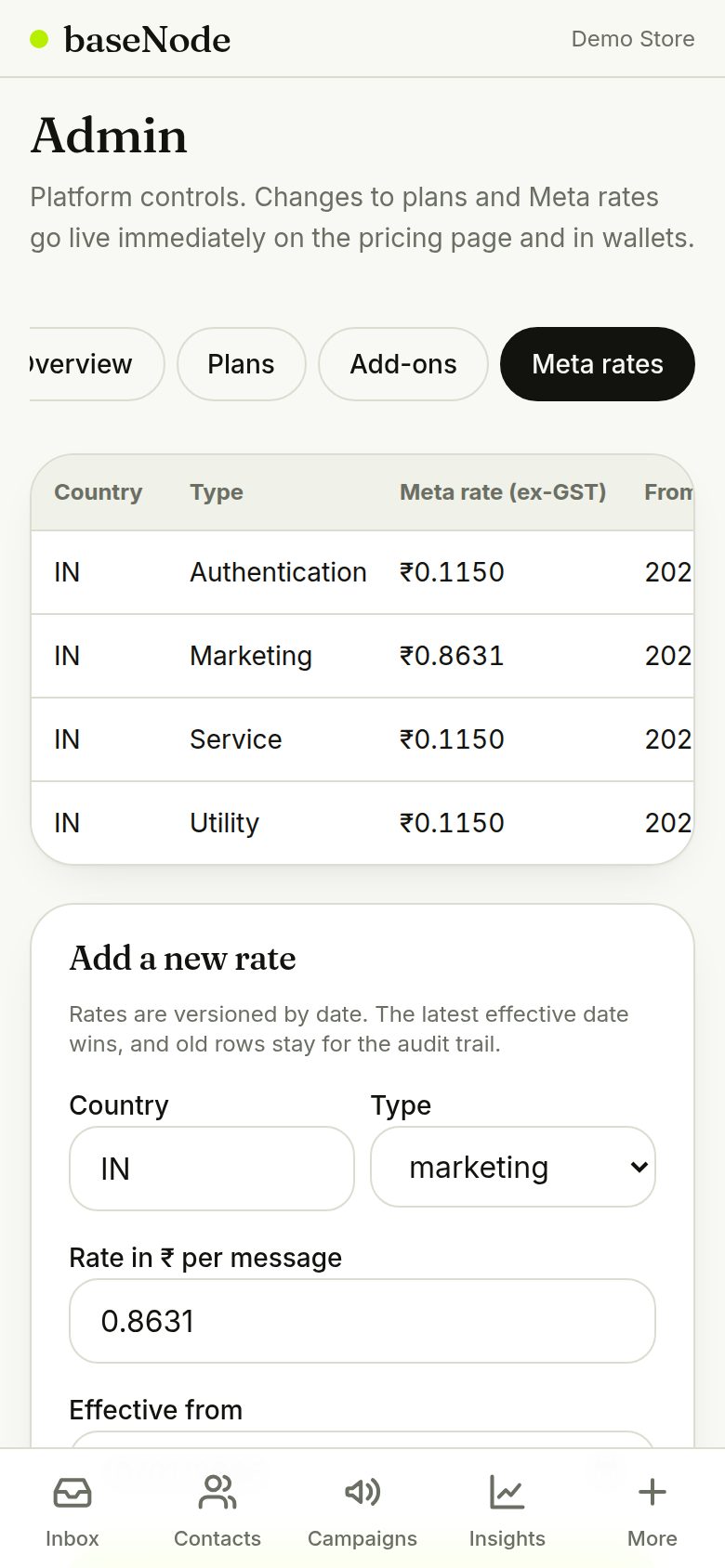
Keep Meta's rates current
When Meta changes a price, add a new rate with an effective date. The newest date wins and old rates stay for the record.
- Wallets, preflight and the price tables use the new rate immediately
11. Payments and invoices
Top up the wallet and buy a plan online with Razorpay. Amounts are worked out on our server, every payment is verified by signature before anything is credited, and each payment gets a printable invoice.
- Choose amount or planServer works out the price
- Razorpay checkoutUPI, cards, netbanking
- Signature verifiedBrowser result alone is never trusted
- Credited onceEven if the webhook also arrives
- InvoicePrintable, GST itemised
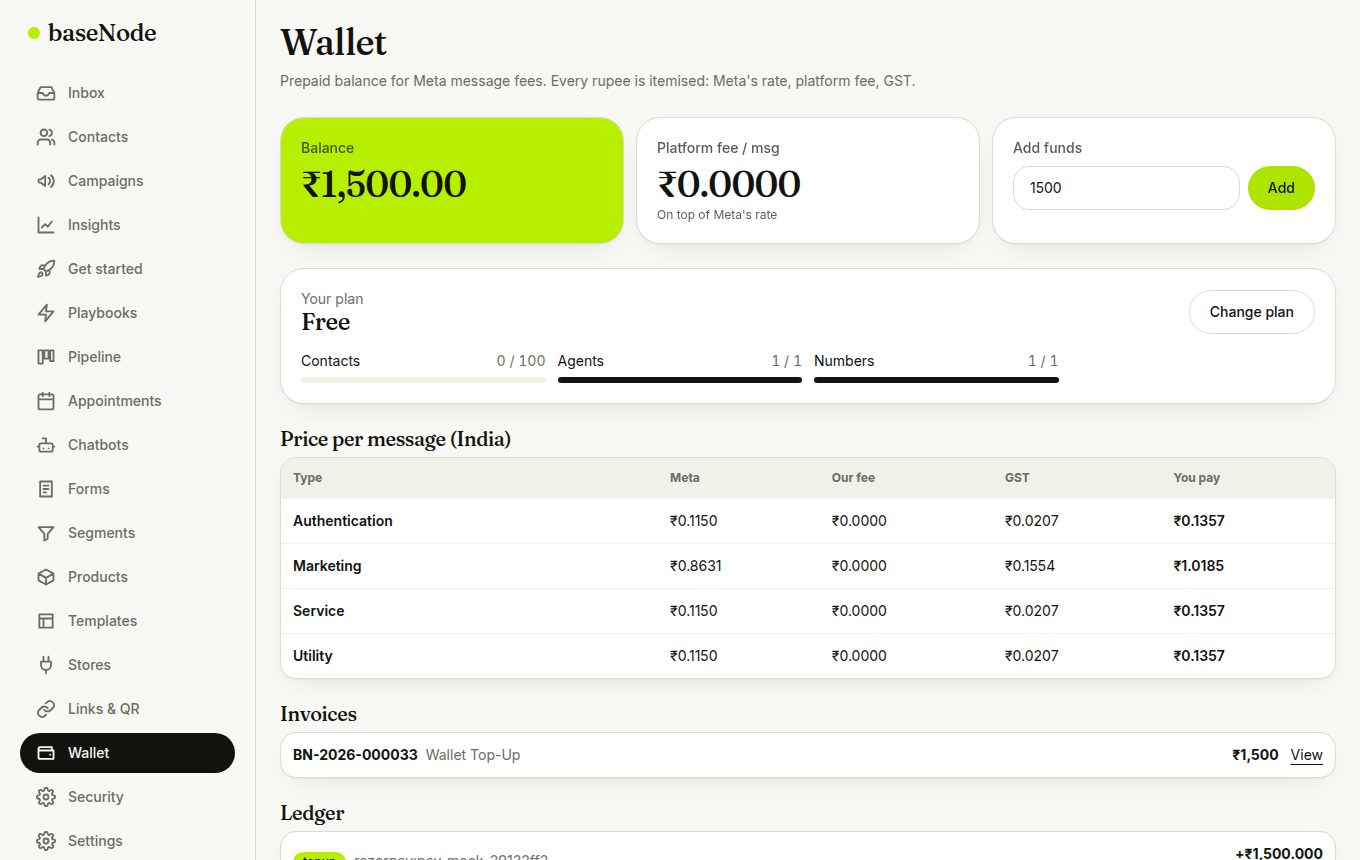
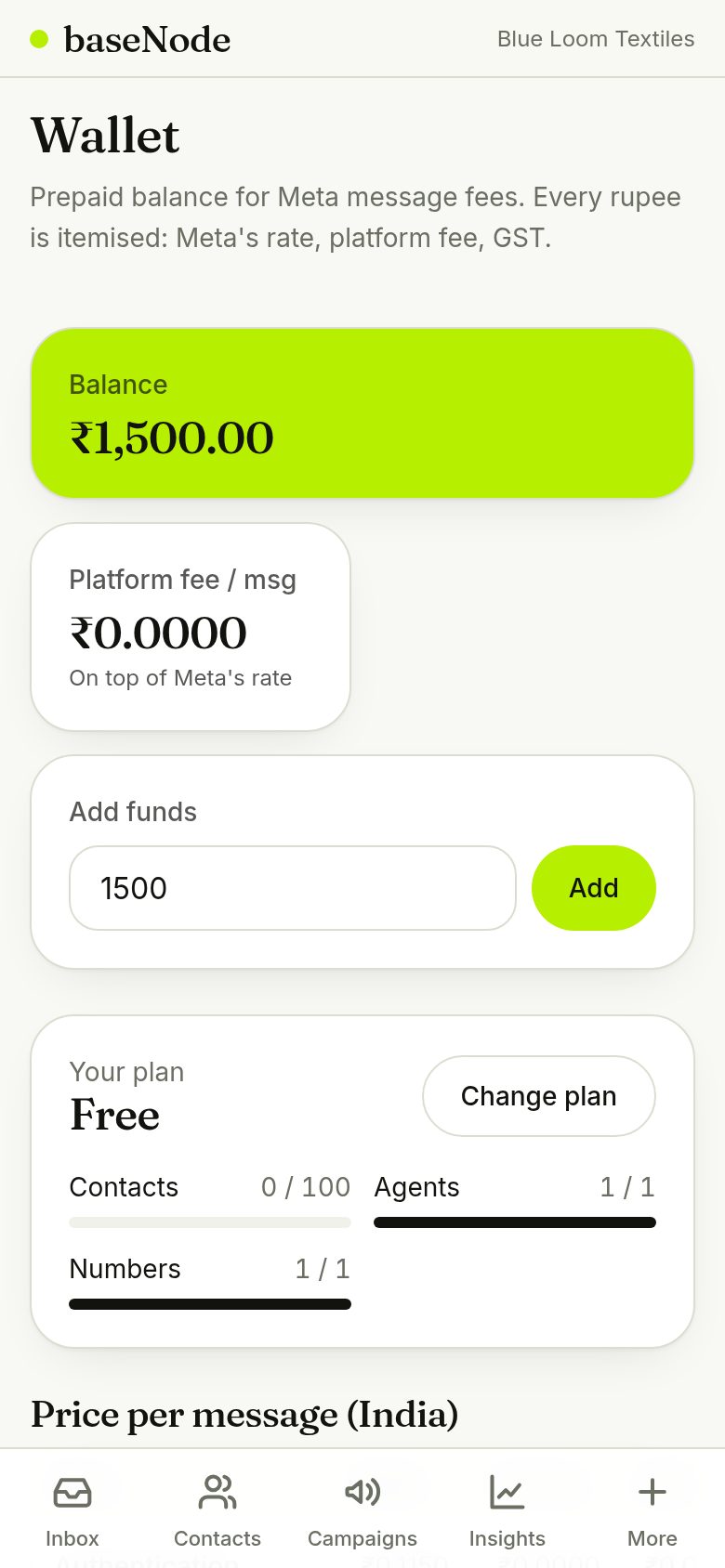
Add funds to the wallet
Enter an amount (from ₹100) and tap Add. The Razorpay window opens; pay by UPI, card or netbanking. The wallet is credited the moment the payment is verified.
- Wallet credit is 1:1. GST is charged on each message and itemised in the ledger
- Until live keys are added, a built-in test gateway lets you try the whole flow
Download the invoice
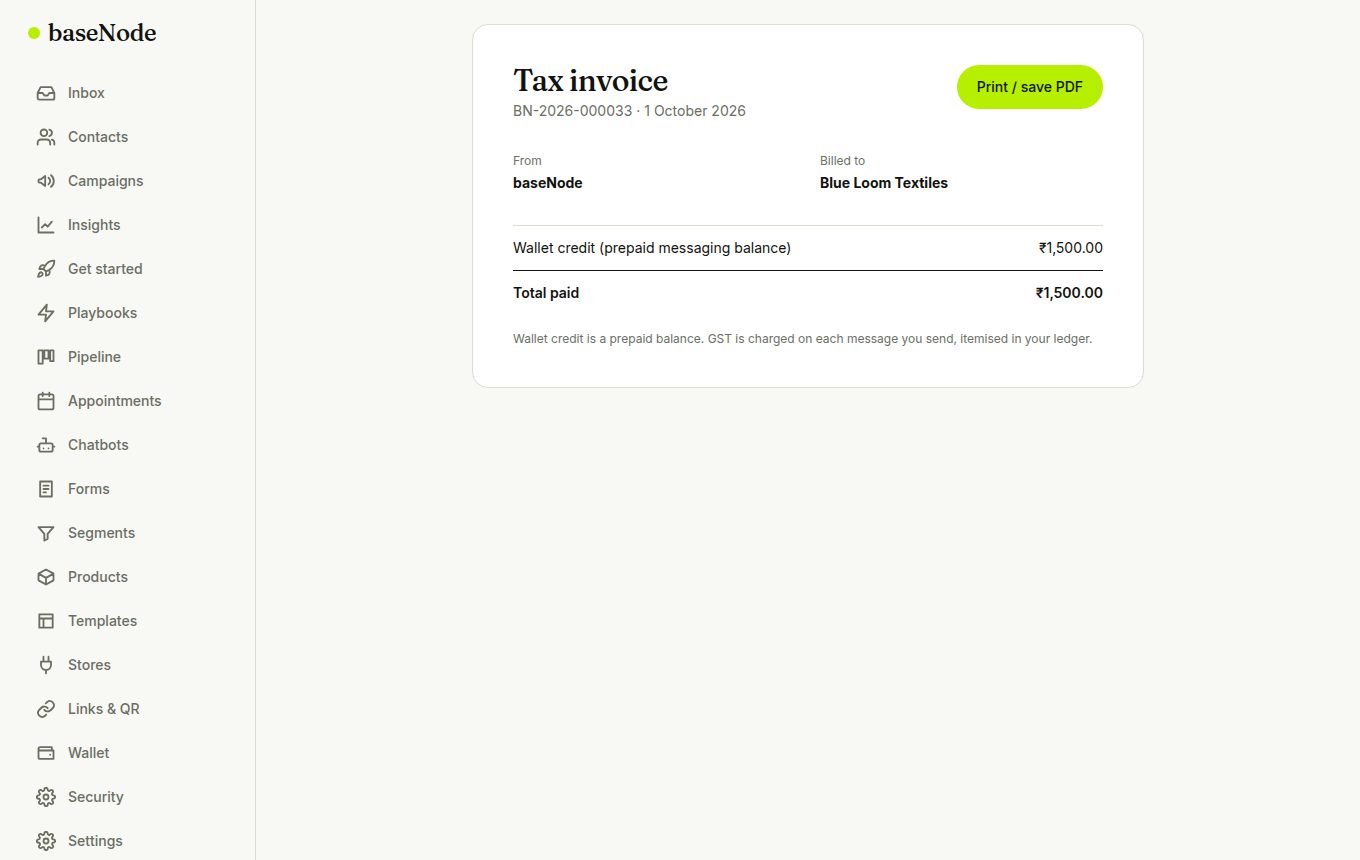
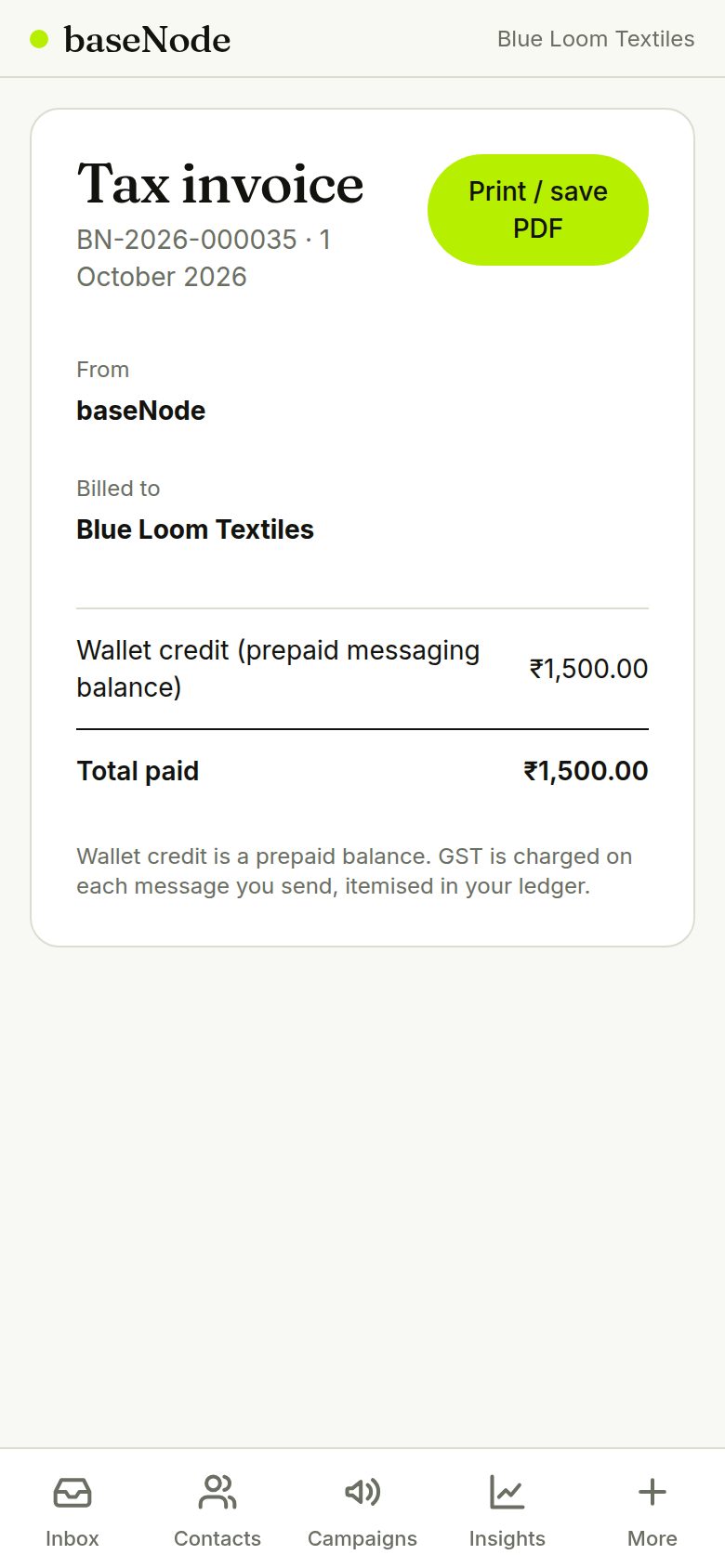
Every paid order appears under Invoices on the Wallet page. Open it to print or save as PDF.
- Seller name, GSTIN and address come from server settings, and are blank until the business details are confirmed
Buy a plan
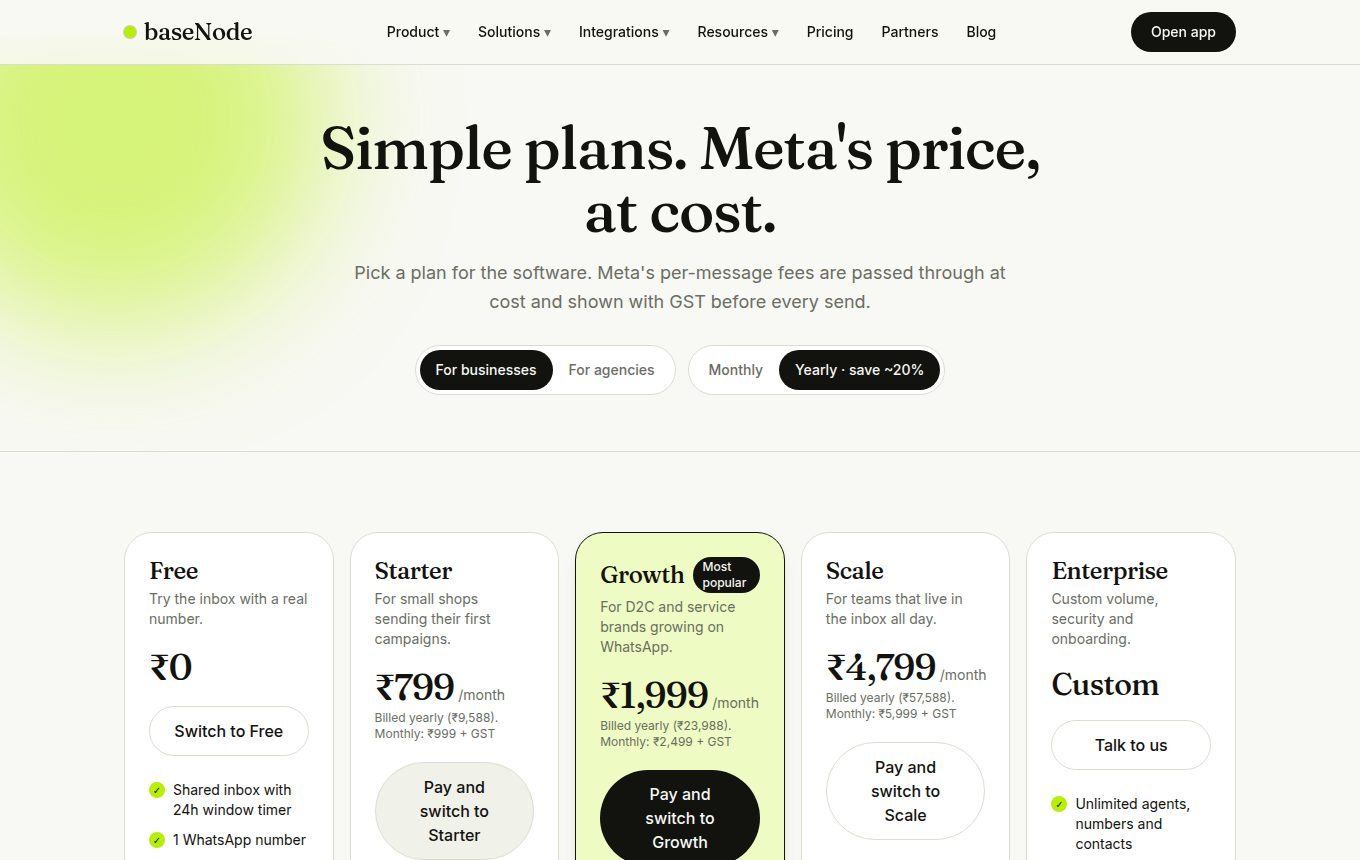
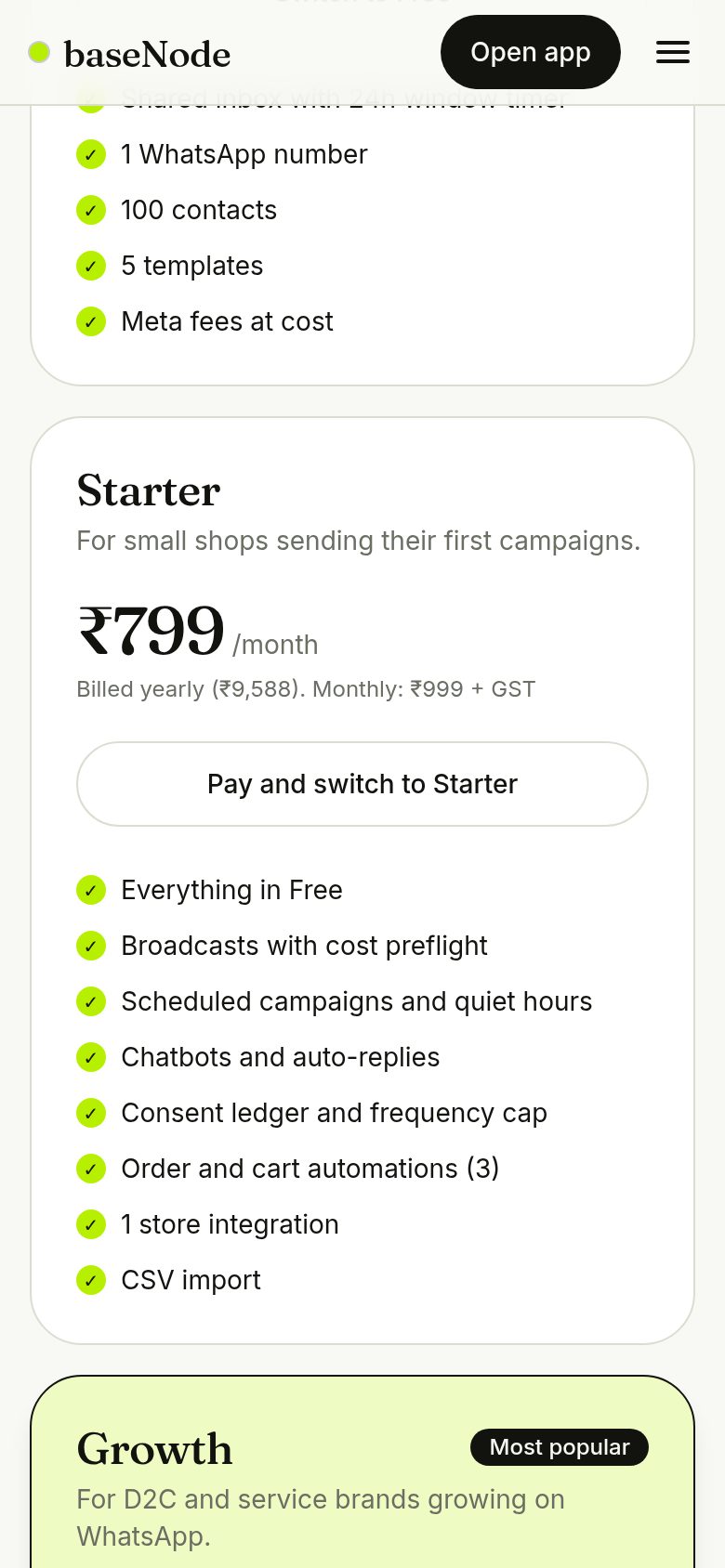
On the pricing page, choose a paid plan and pay. The plan switches on after payment and renews every month or year. If a renewal is not paid, the workspace drops to Free after a short grace period, and nothing is deleted.
- Annual billing shows the discounted monthly rate
- Plan prices come from the admin panel
12. Security and privacy
Protect accounts with two-step login, control what each person can see, keep an activity log and meet DPDP expectations with export, erase and retention tools.
- Set upScan QR in an authenticator app
- Confirm a codeTurns it on
- Save recovery codesShown once
- Log inPassword then 6-digit code
Turn on two-step login
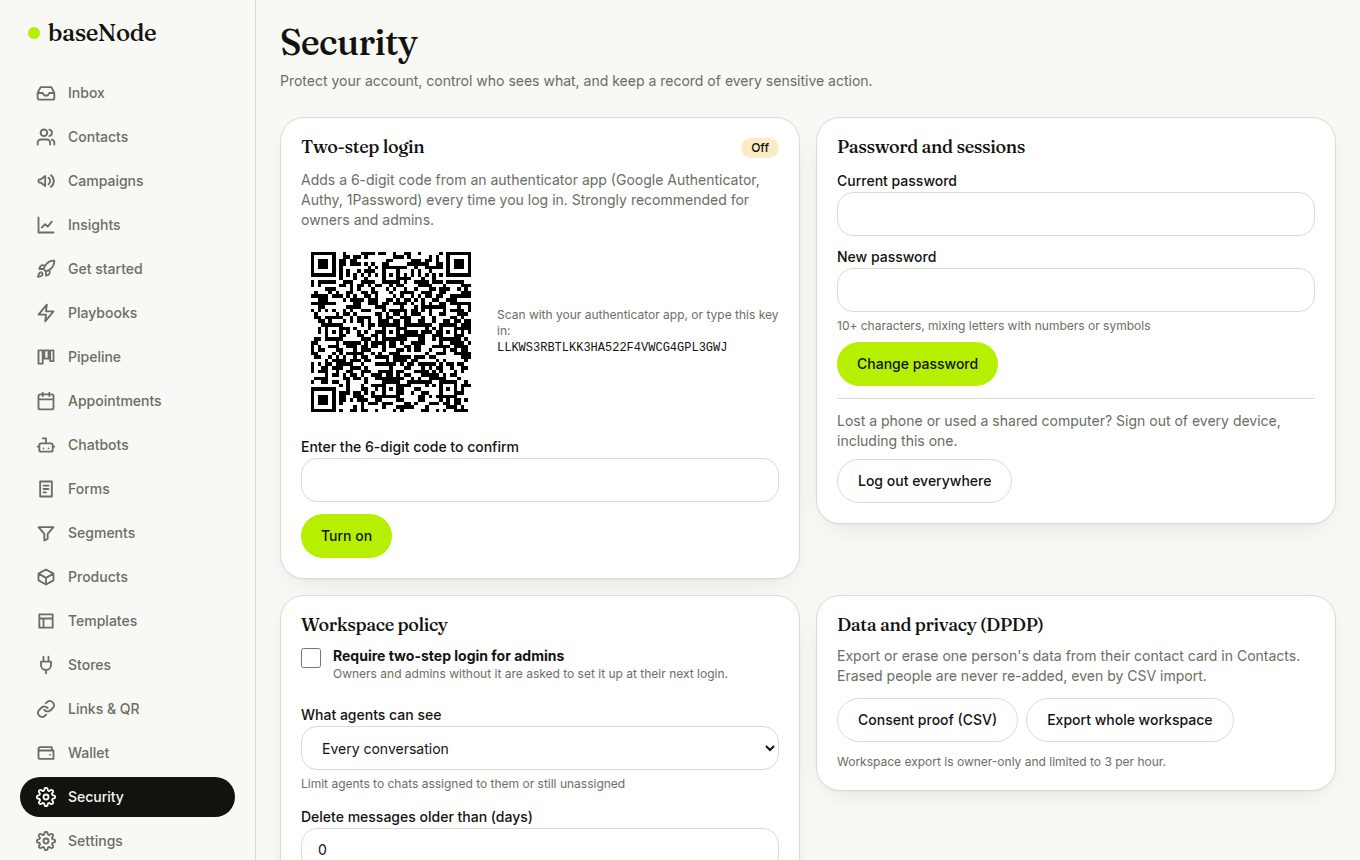
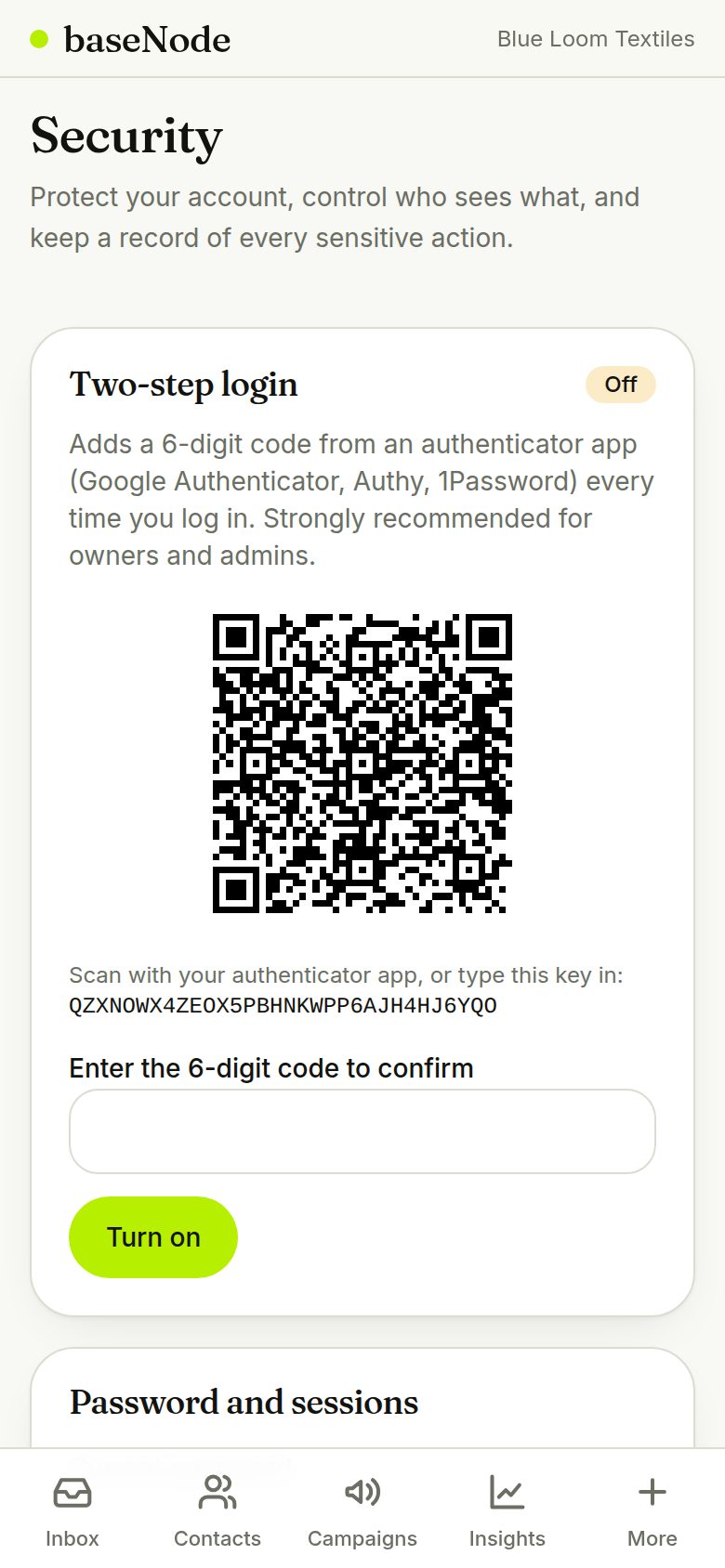
Open Security, tap Set up two-step login, scan the QR code with Google Authenticator, Authy or 1Password, and enter the 6-digit code to confirm.
- Owners can require it for every admin in Workspace policy
- The secret is stored encrypted
Save your recovery codes
Ten single-use codes are shown once. Save them somewhere safe; each one lets you in if you lose your phone.
- Used codes are removed automatically
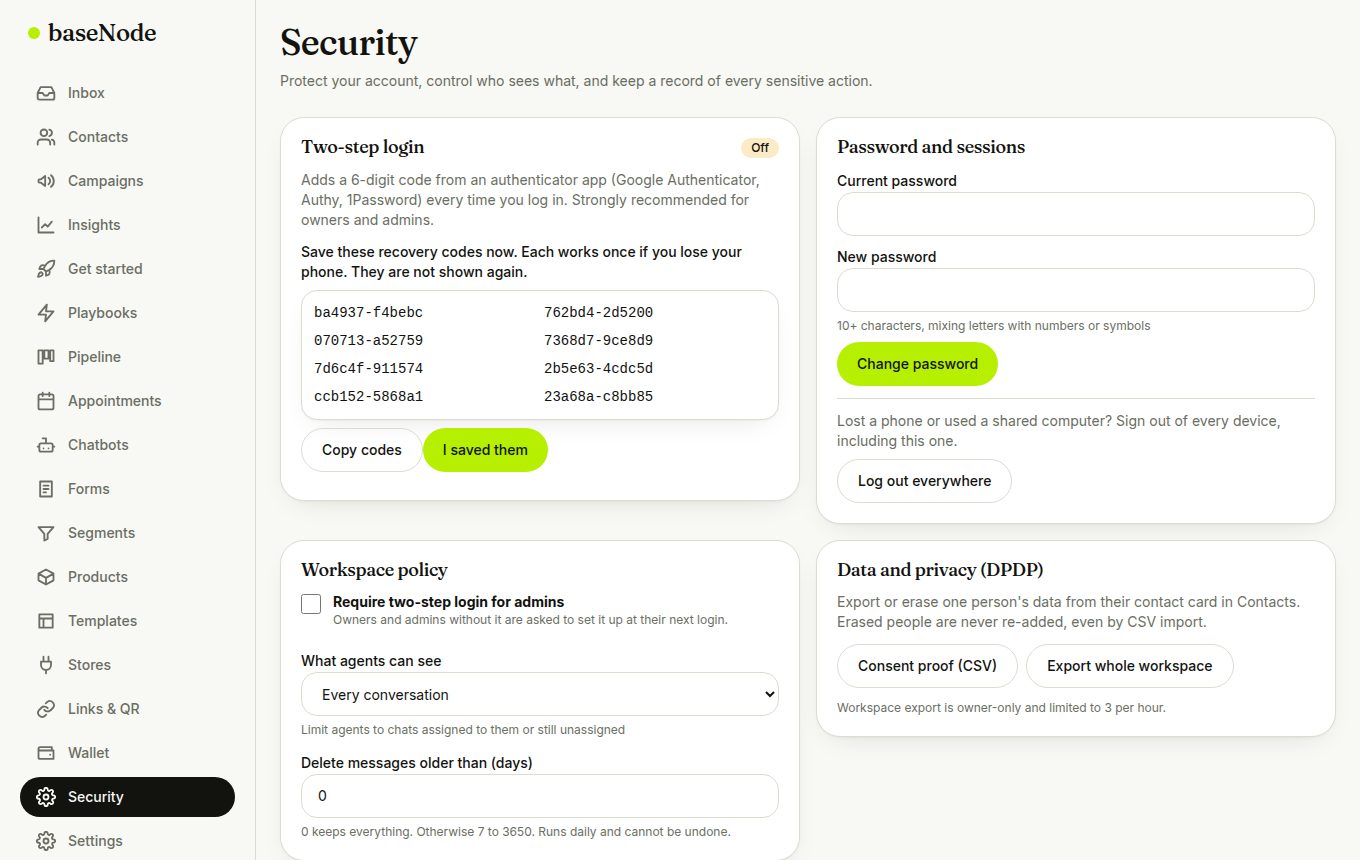
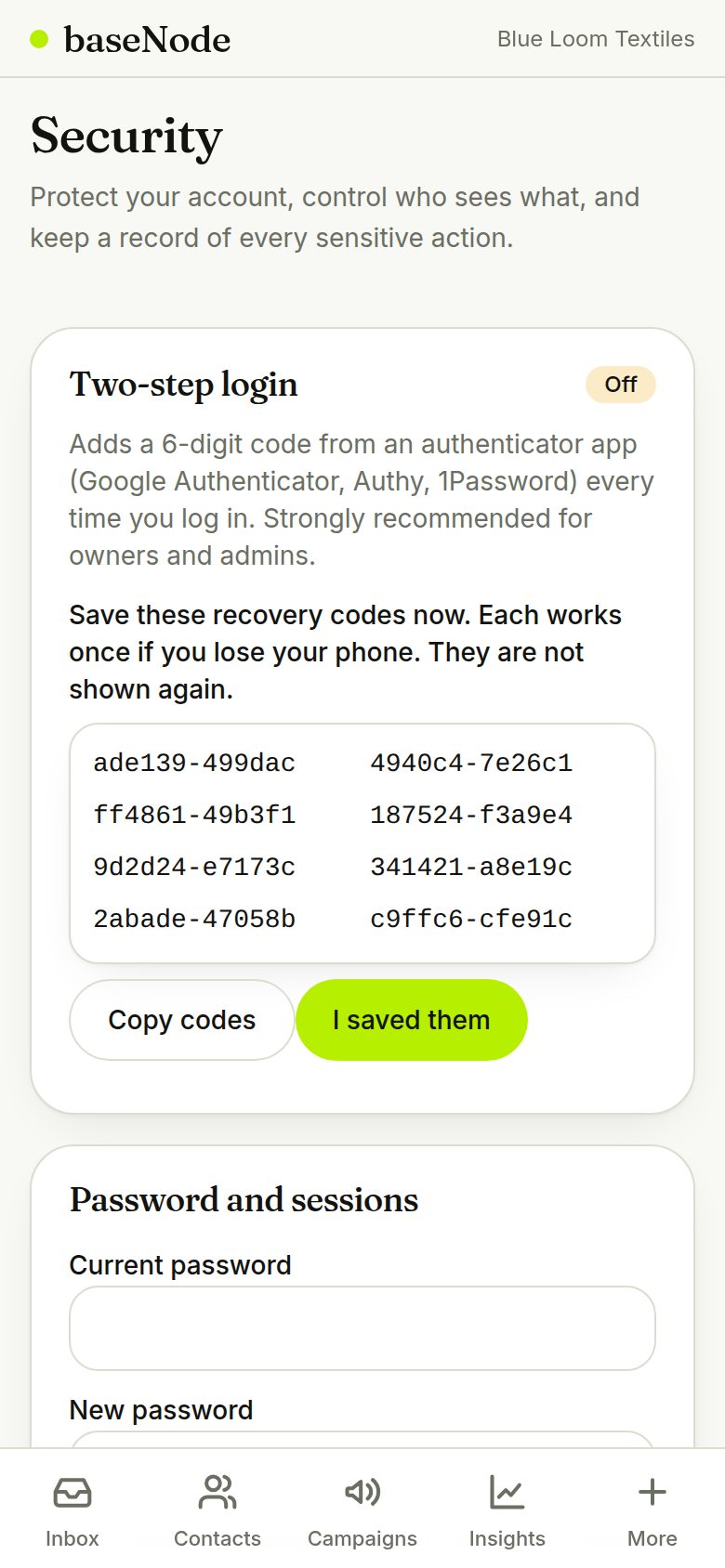
Review security settings
Change your password, sign out of every device, limit agents to their own chats, set message retention, download consent proof and read the activity log of sensitive actions.
- Changing your password signs out all other devices
- The activity log exports as CSV
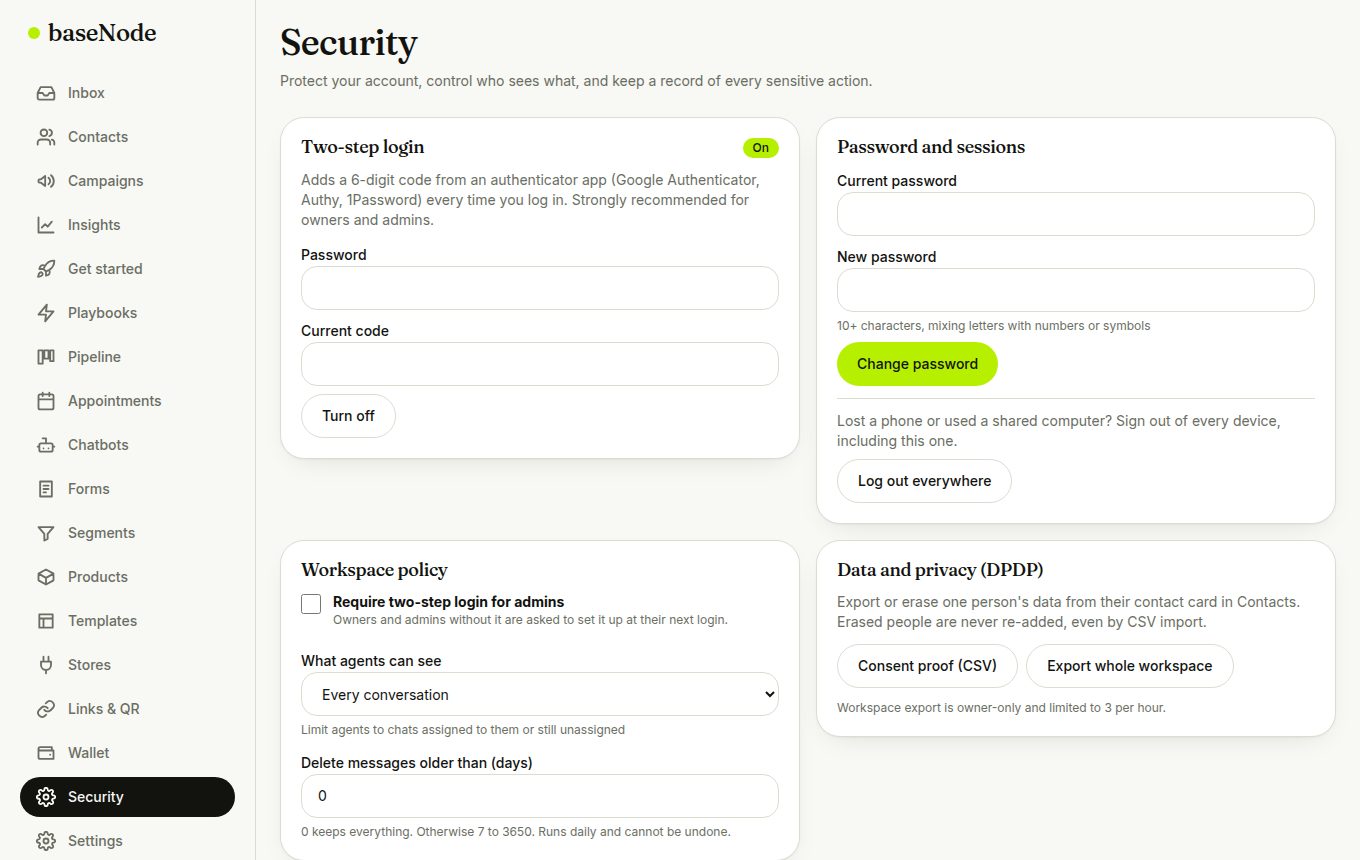
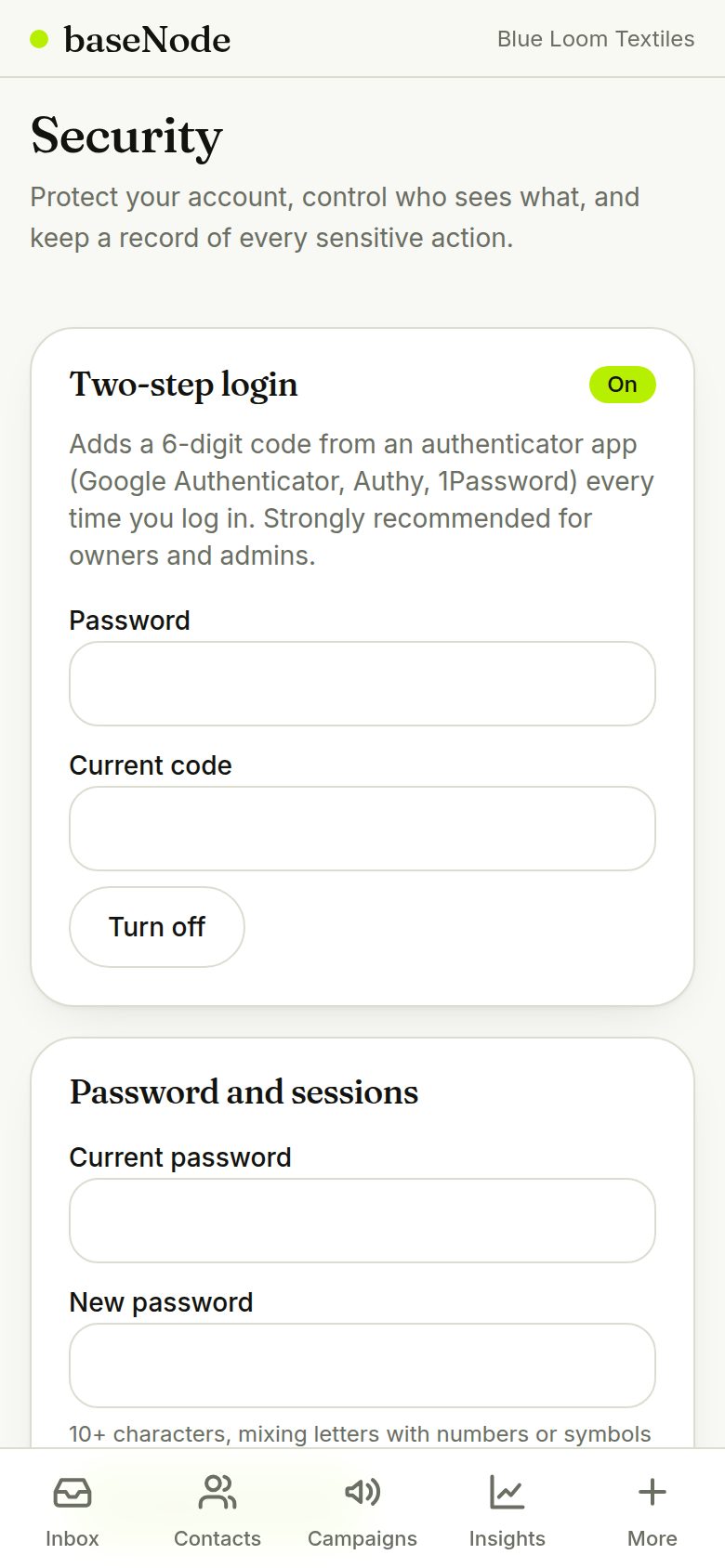
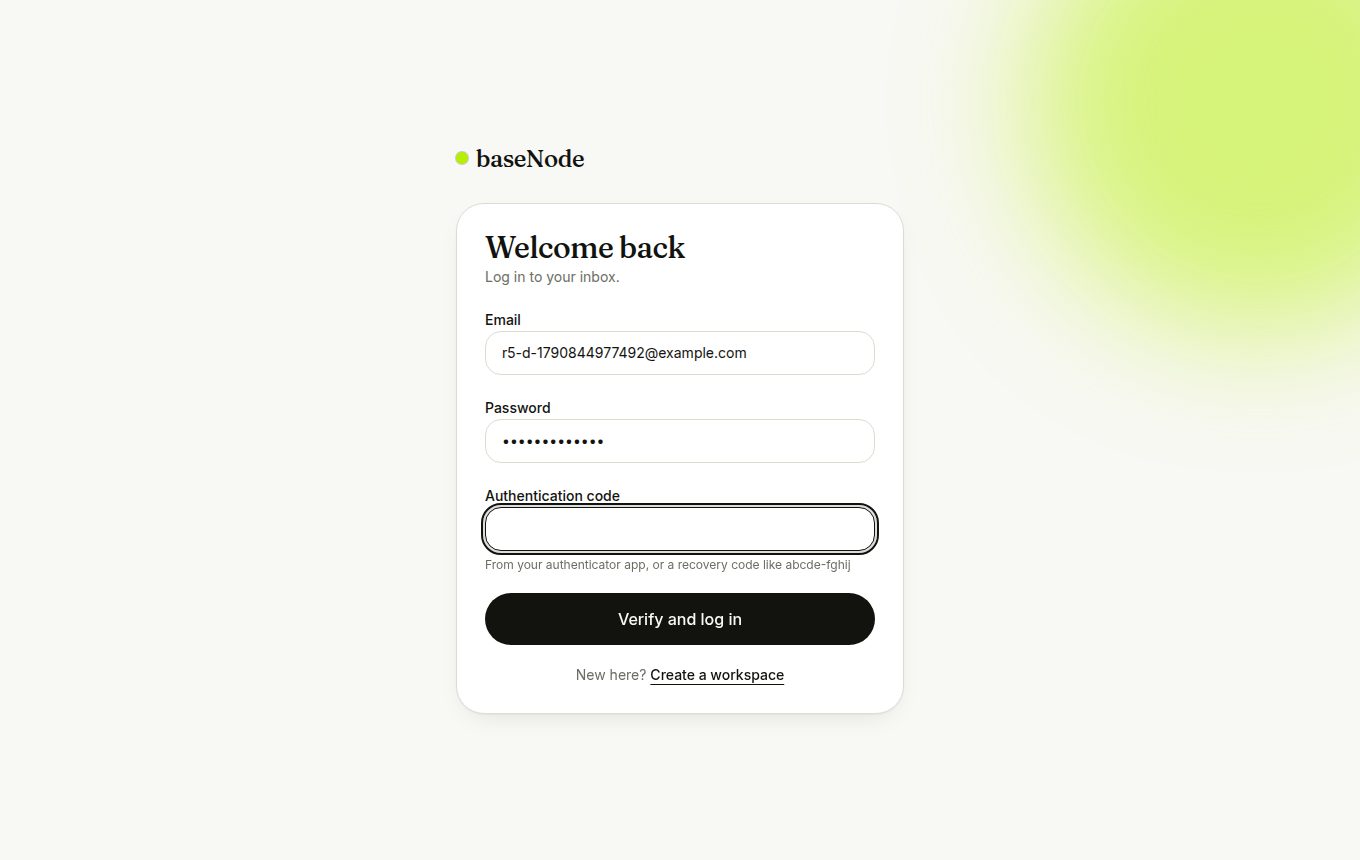
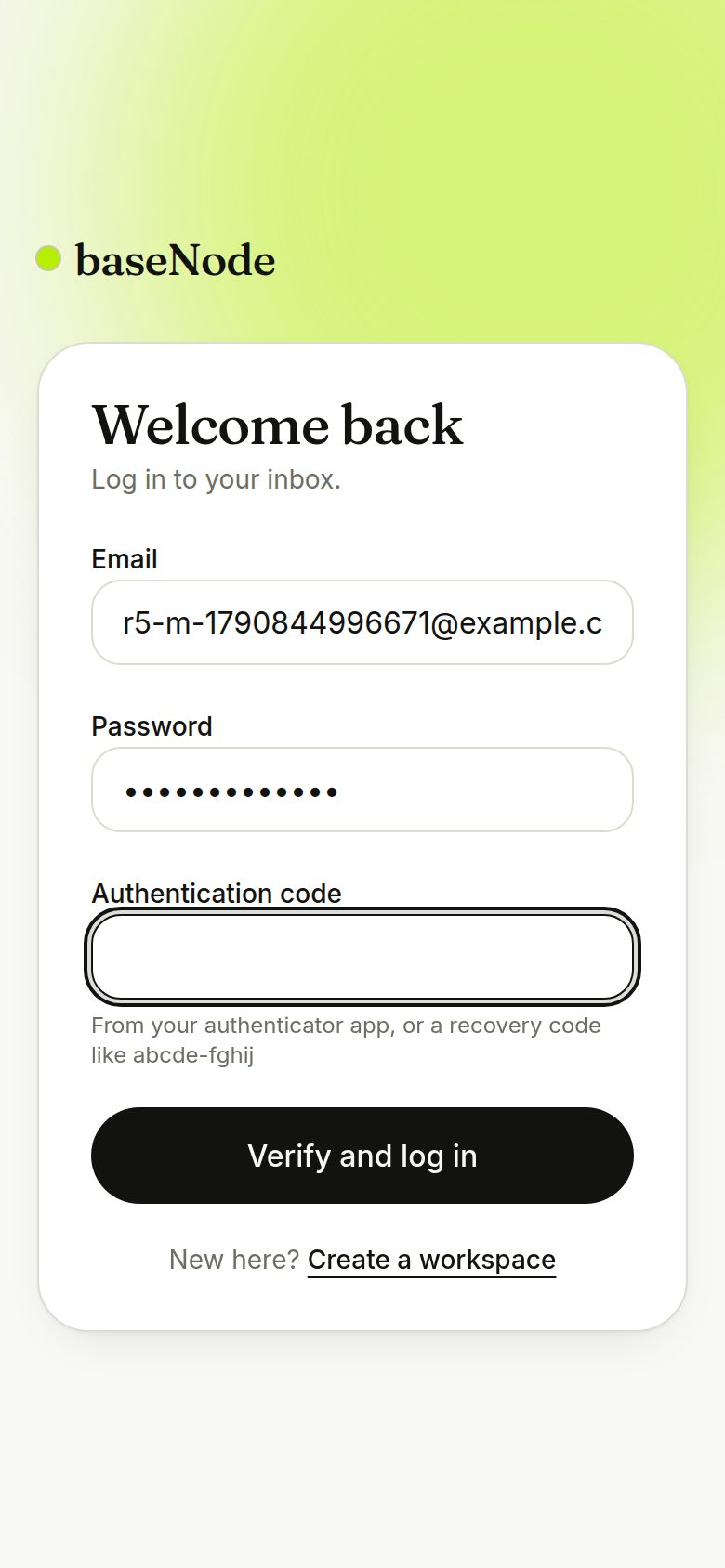
Log in with a code
After your password, enter the 6-digit code (or a recovery code). Repeated wrong attempts lock the account for a short time.
- Passwords need 10+ characters and are checked against common ones
13. Templates, A/B tests and a faster inbox
Start from a library of ready-made templates, add images and buttons, test two versions of a campaign, and clear the inbox in bulk.
- Pick from the library30 ready-made, by industry
- Add header and buttonsImage, PDF, video, reply, link, call
- PreviewWhatsApp-style bubble
- Submit to MetaStatus syncs back automatically
- Approved or rejectedReason shown on the card
- Two templatesSame category
- Small test group10 to 50%, split evenly
- WaitYou choose the hours
- Winner pickedRead rate, then reply rate
- Sent to the rest
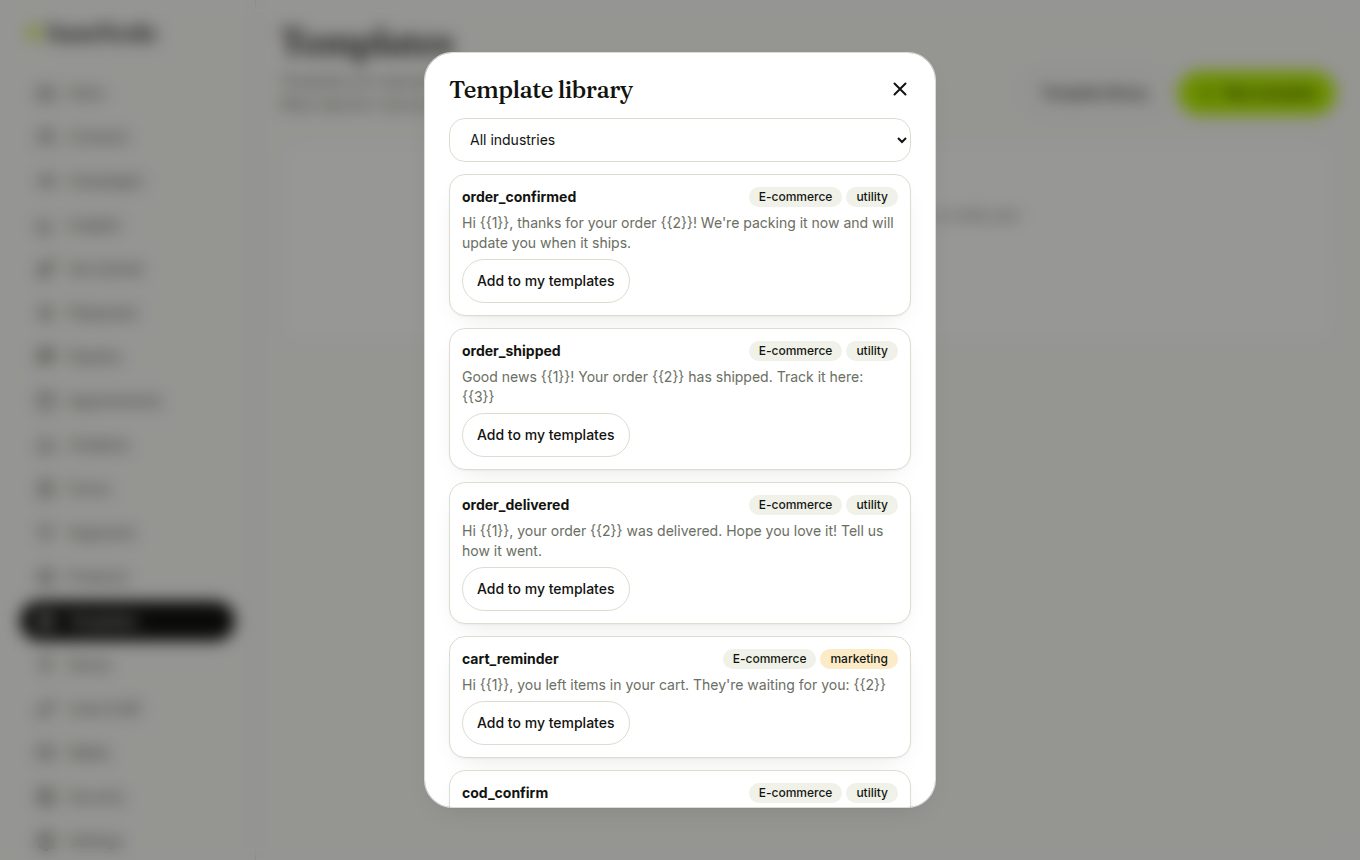
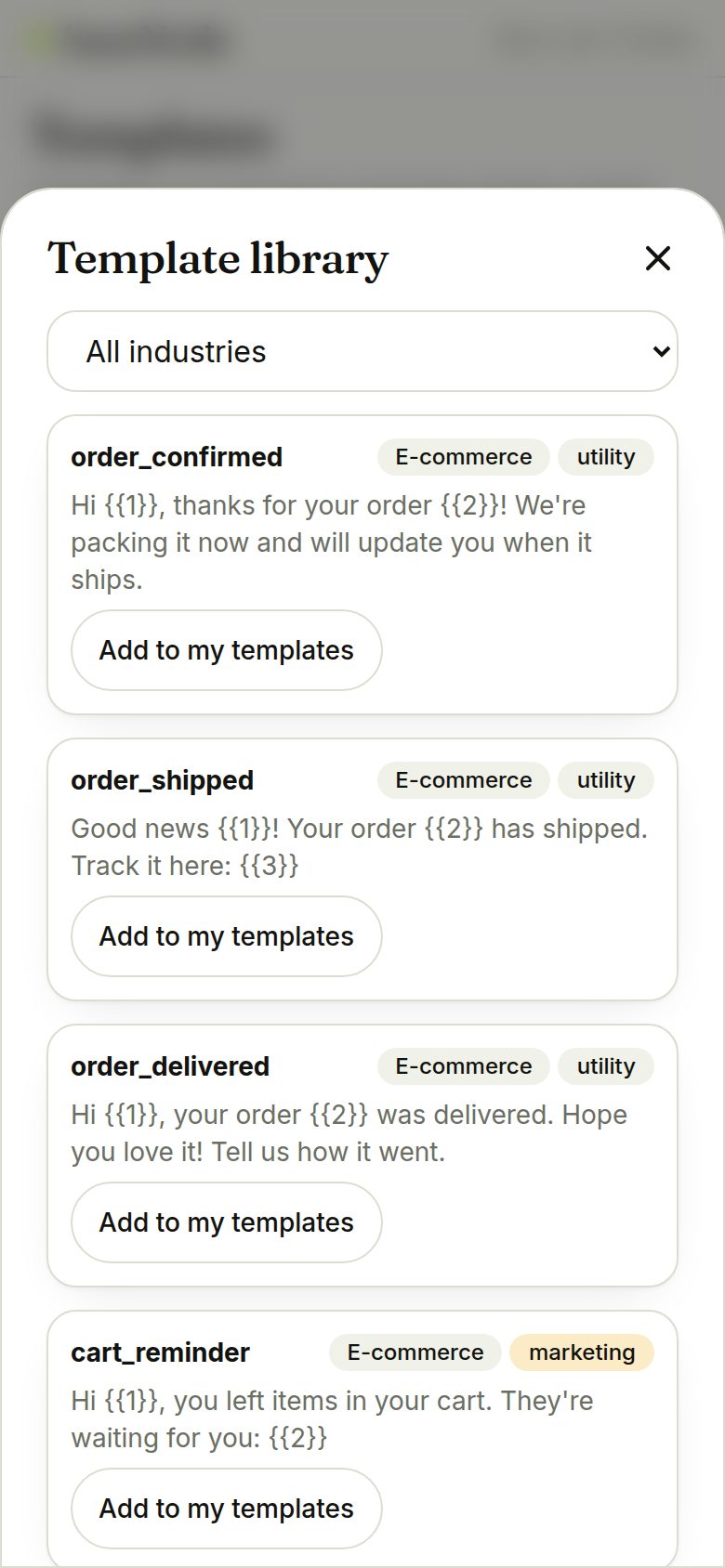
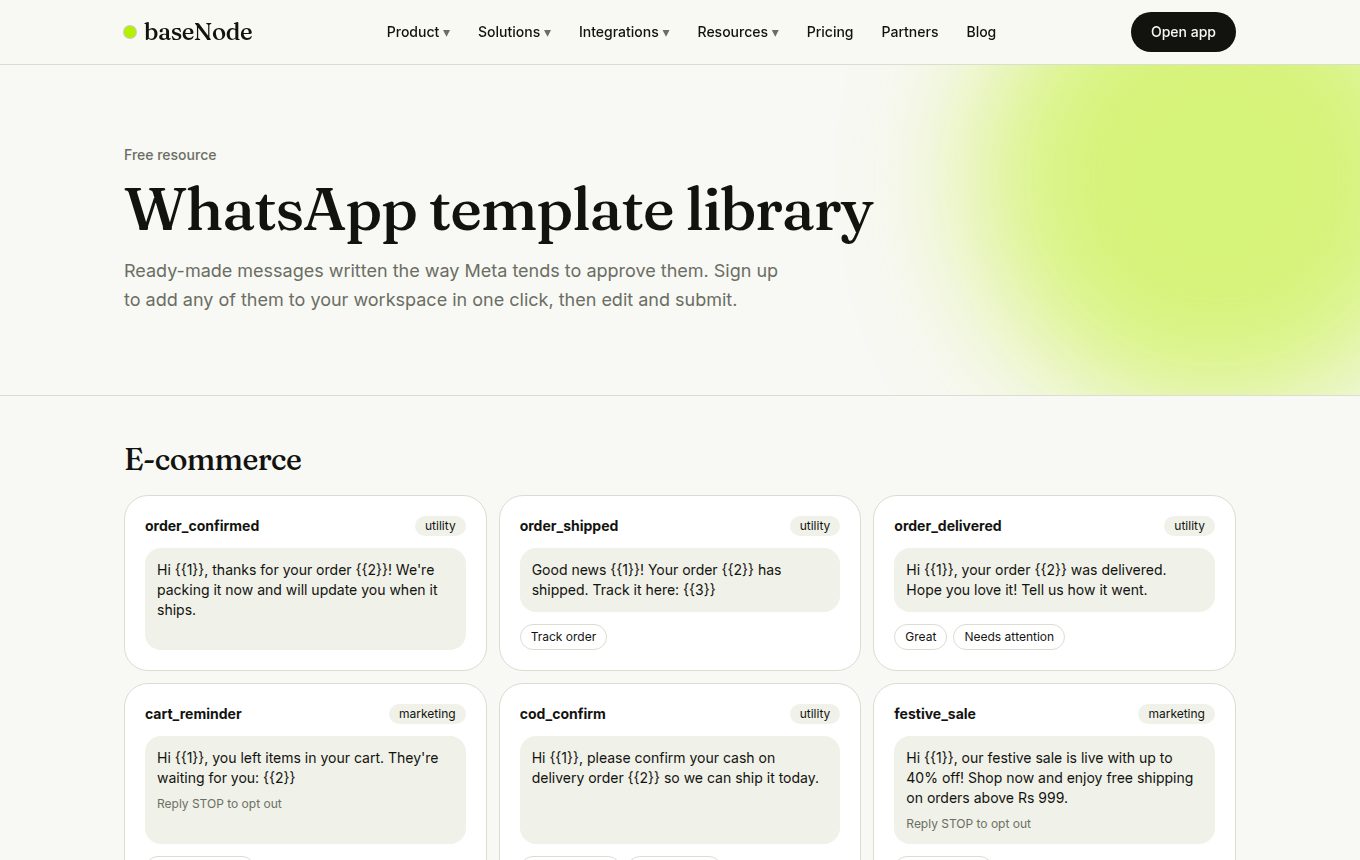
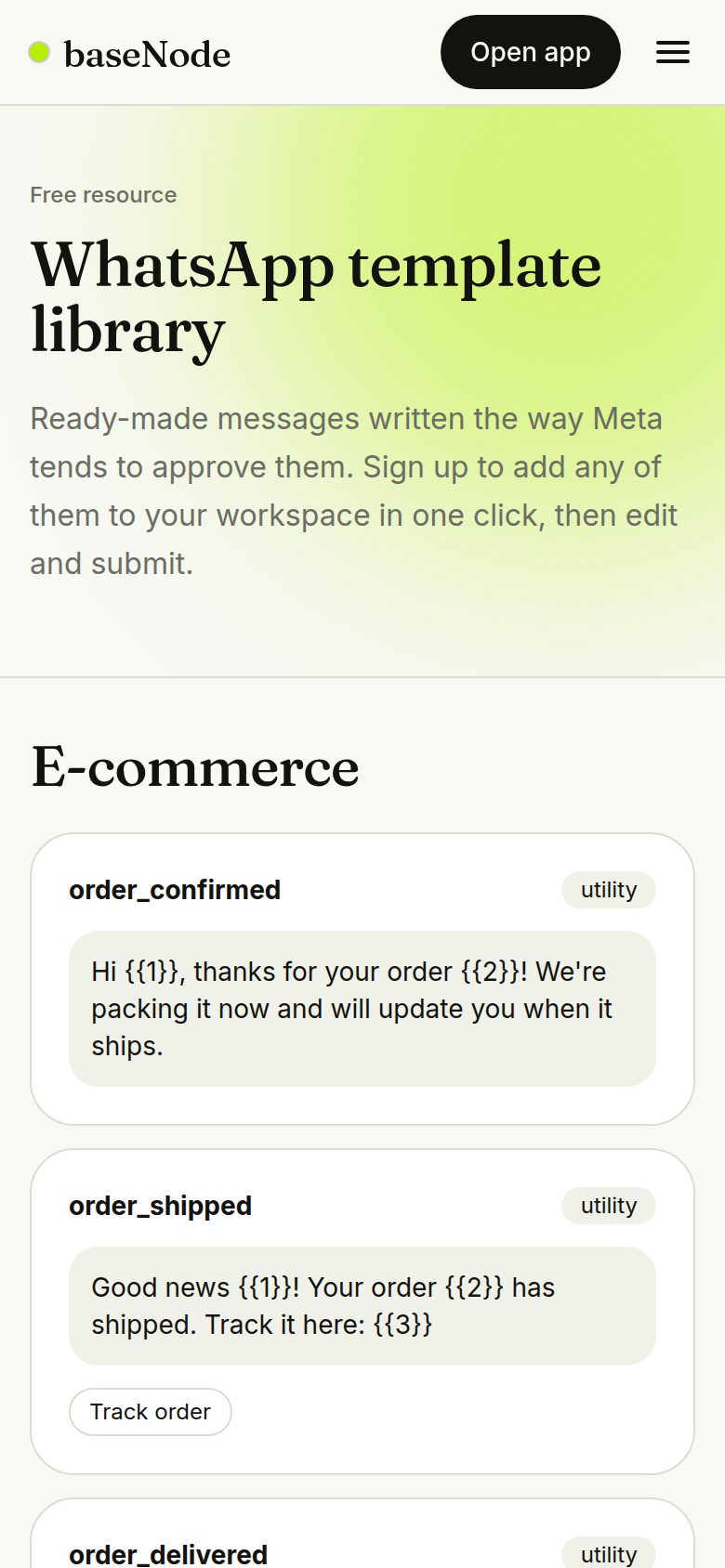
Use the template library
In Templates, tap Template library, filter by industry and add any template to your workspace as a draft. Edit it and submit it for review.
- Library templates are also public at /template-library
Build with a header and buttons
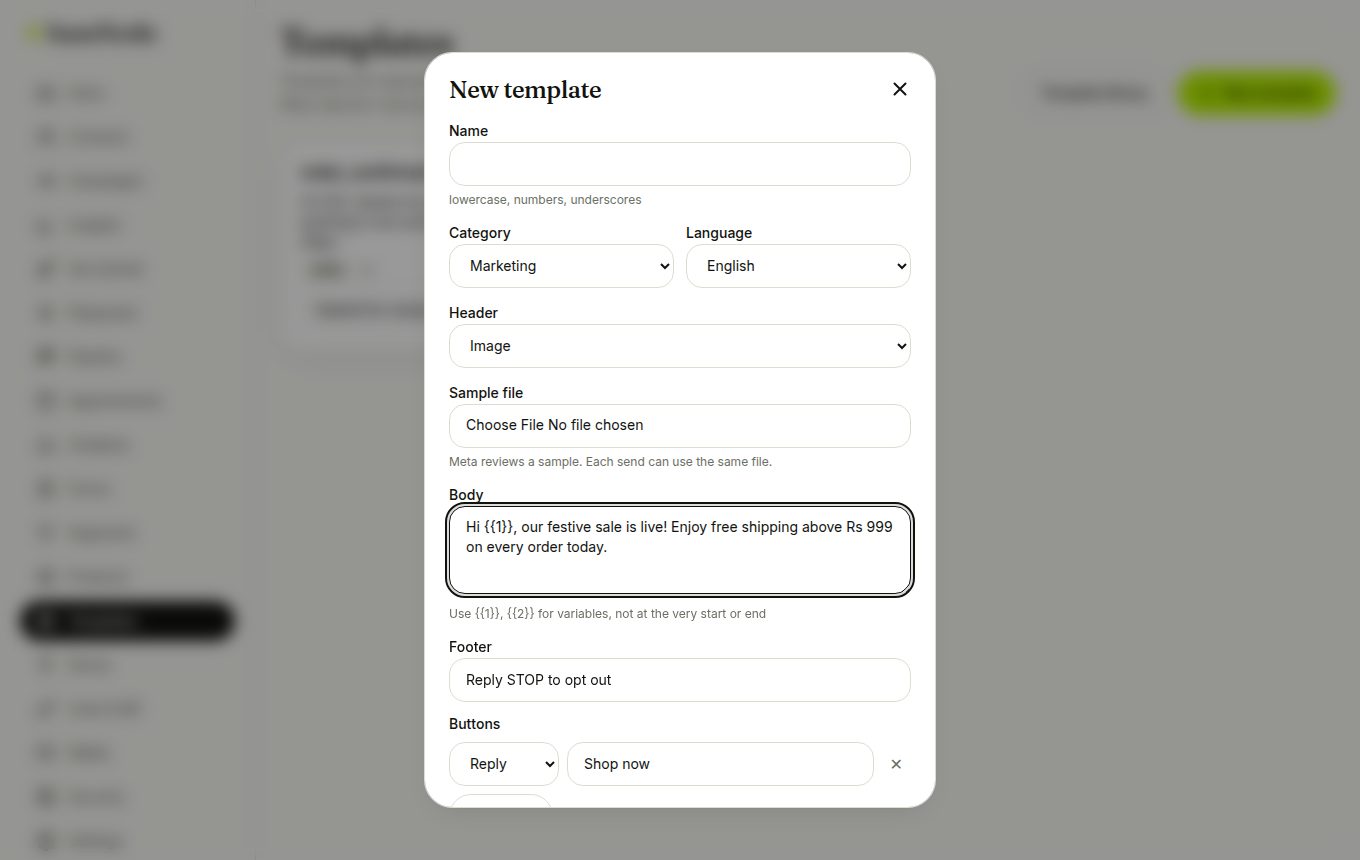
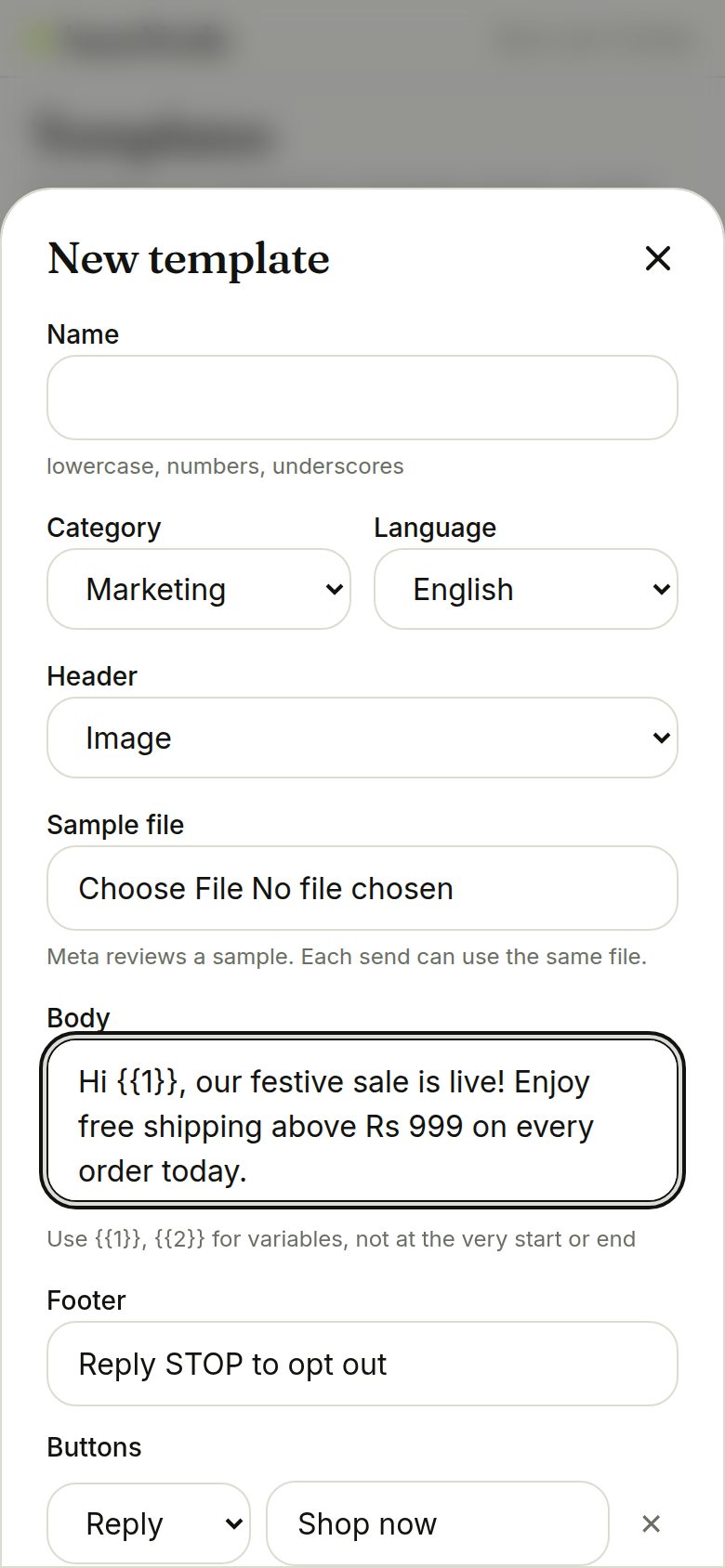
Add an image, PDF or video header with a sample file, up to three quick-reply buttons, link buttons and a call button. The preview shows what customers see. Fix any warnings before submitting.
- Meta reviews the sample file
- Quick-reply taps arrive as normal messages and can start chatbots
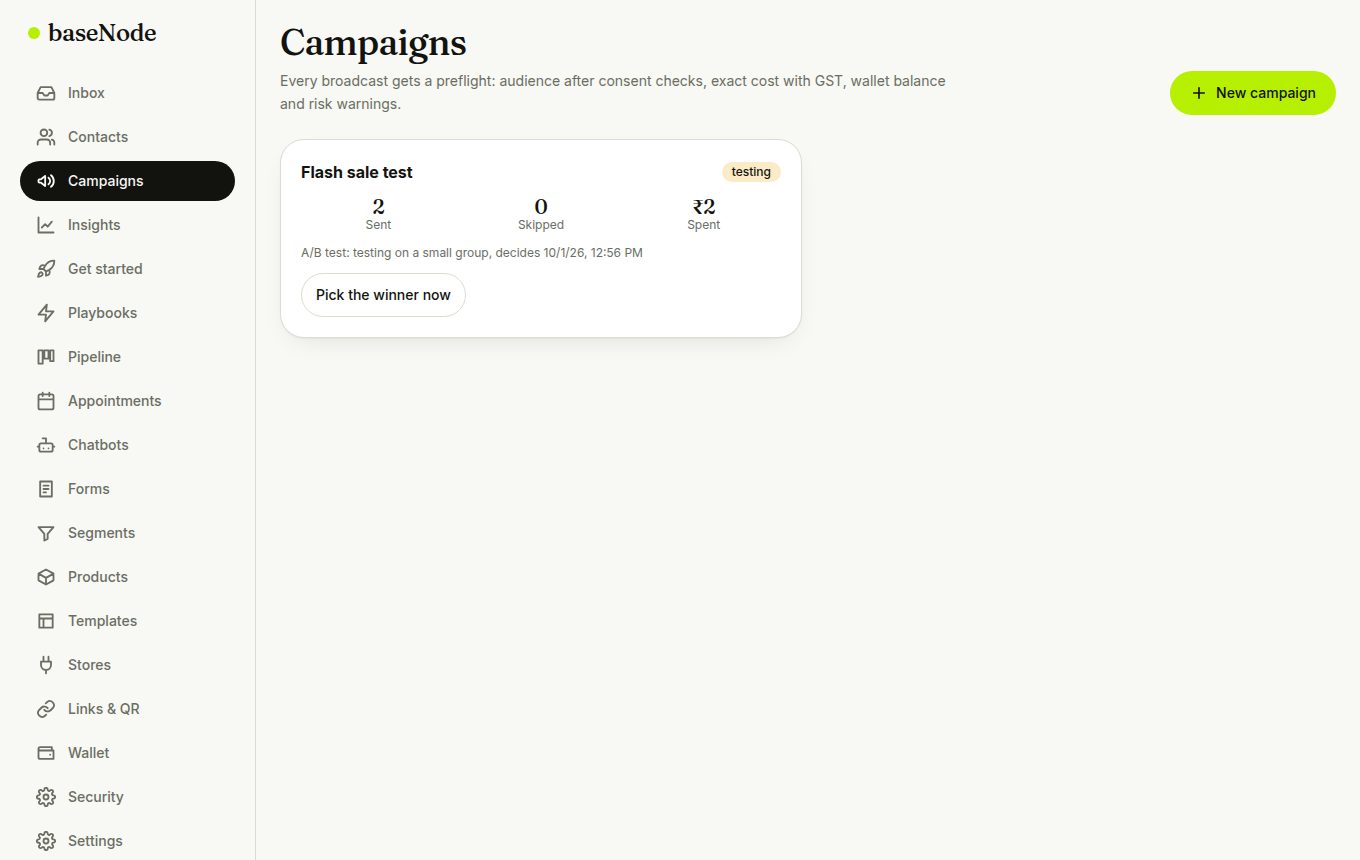
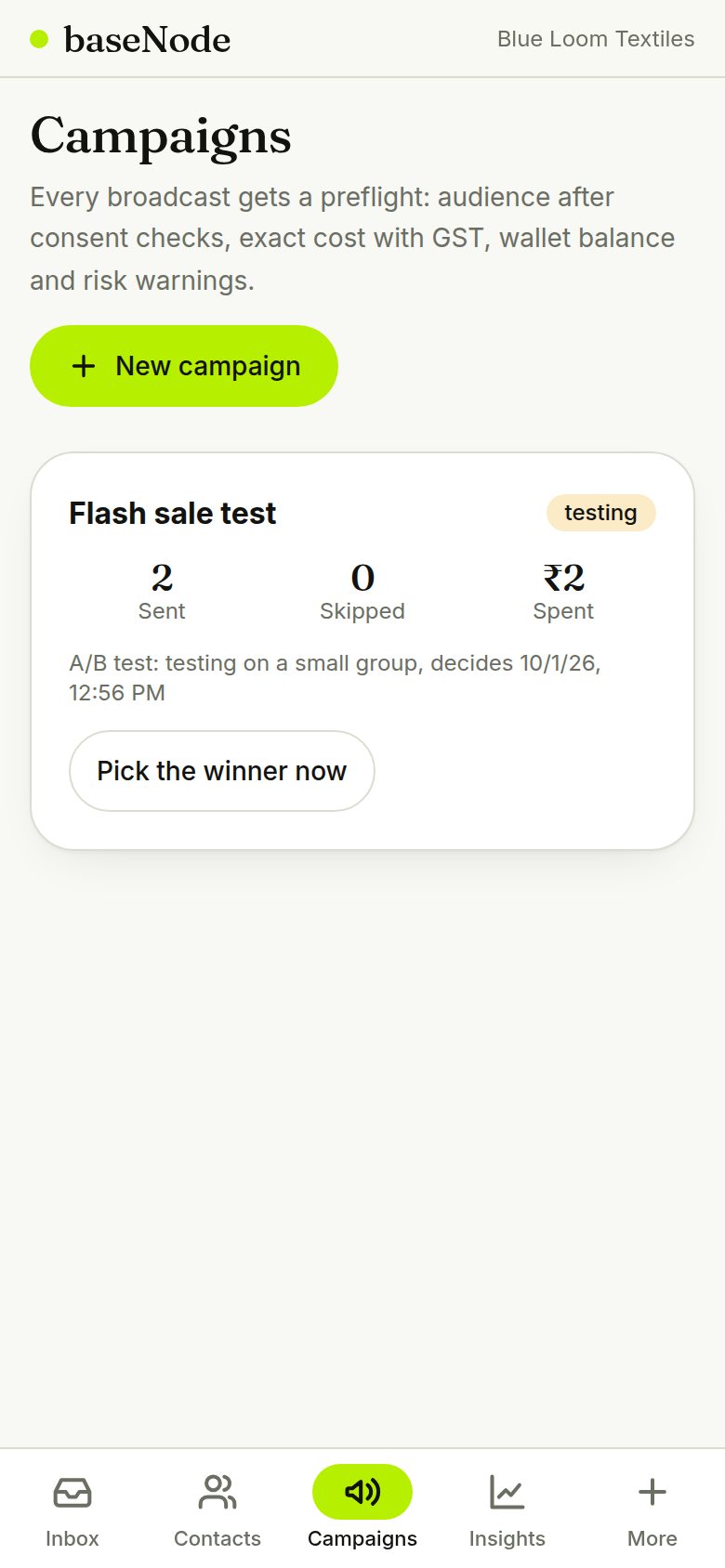
Run an A/B test
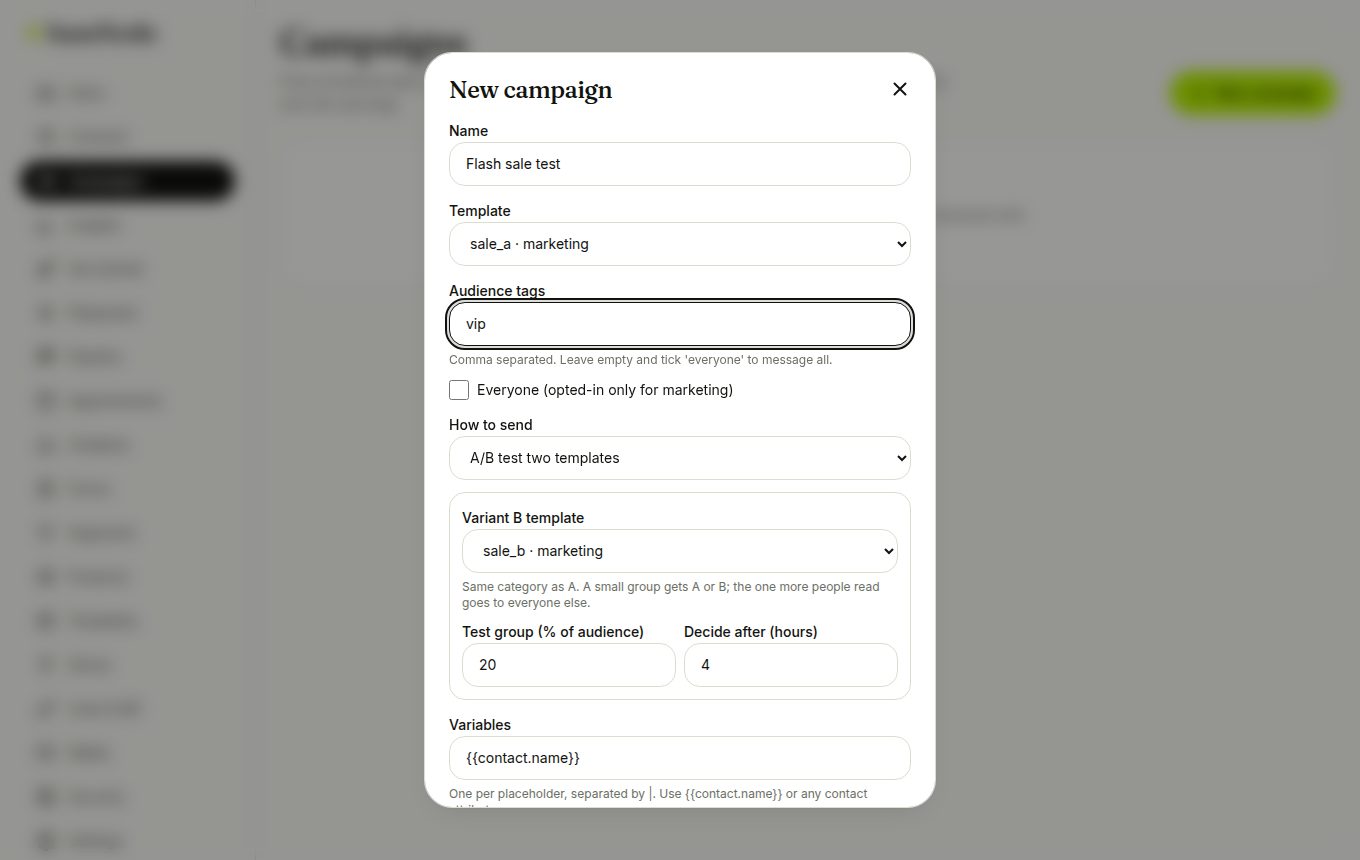
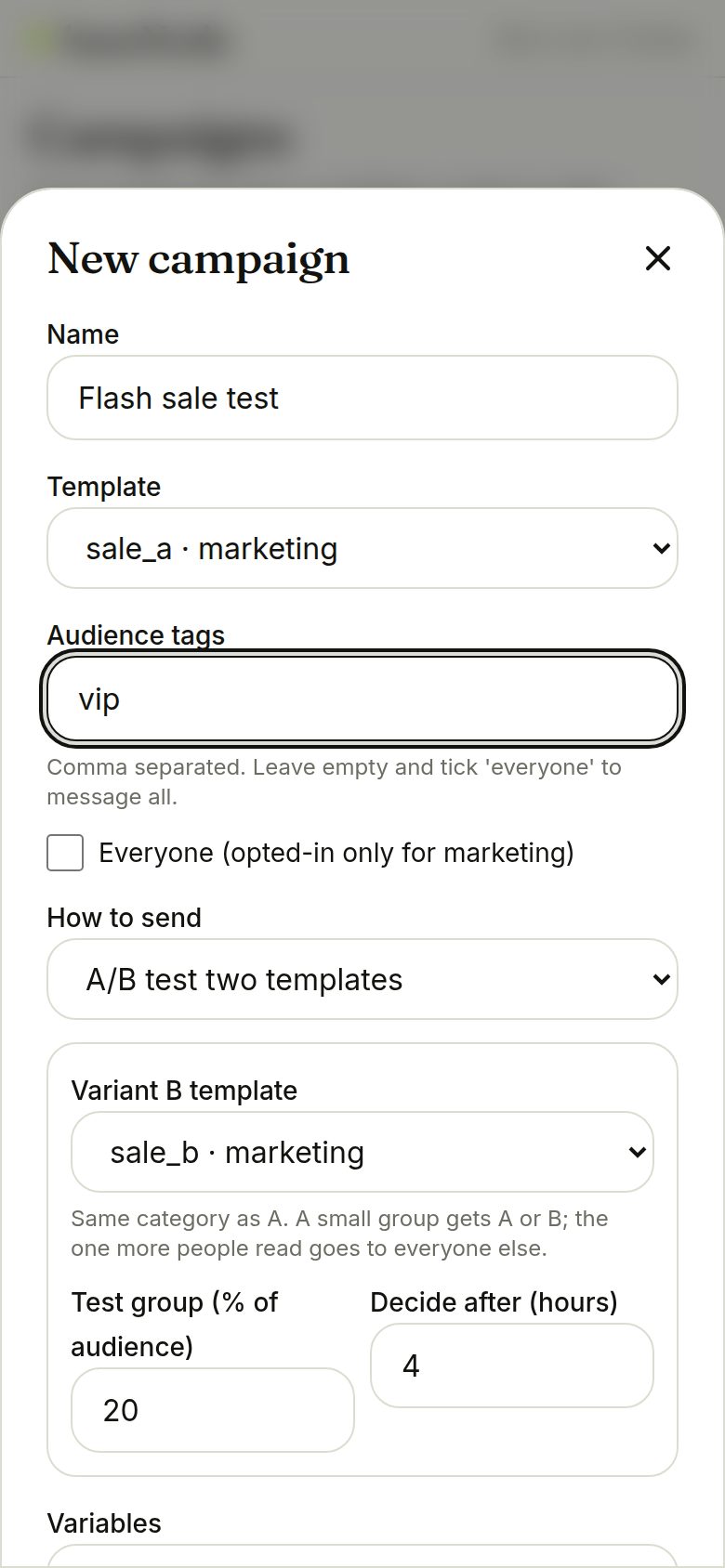
When creating a campaign, choose A/B test, pick a second template, the size of the test group and how long to wait. You can also pick the winner early. Smart send-time instead delivers to each person at the hour they usually write to you.
- Both templates must be the same category so they cost the same
Send yourself a test first
In the preflight, send the template to your own number before the real thing. It costs one message, and the number is tagged test.
- Limited to 10 per minute
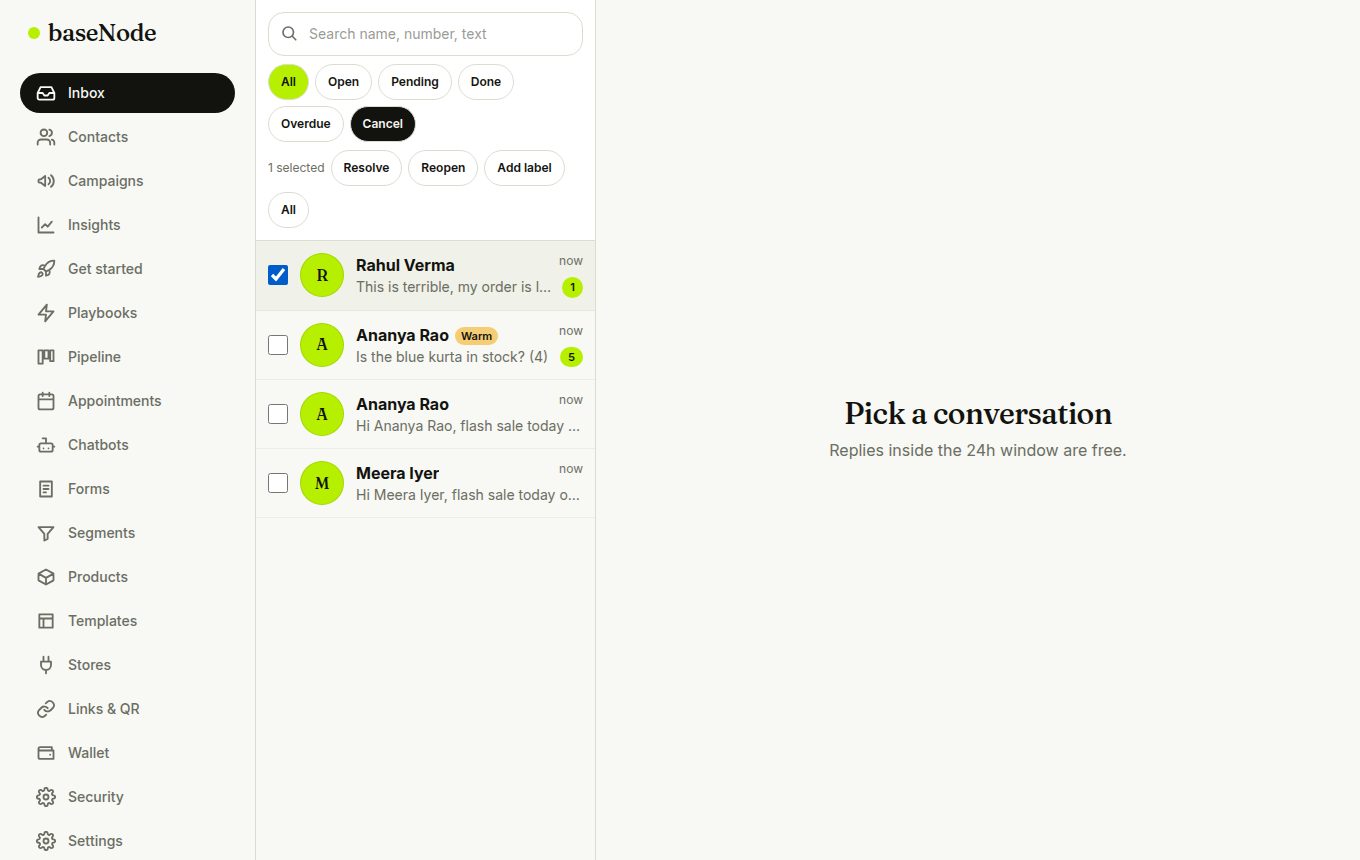
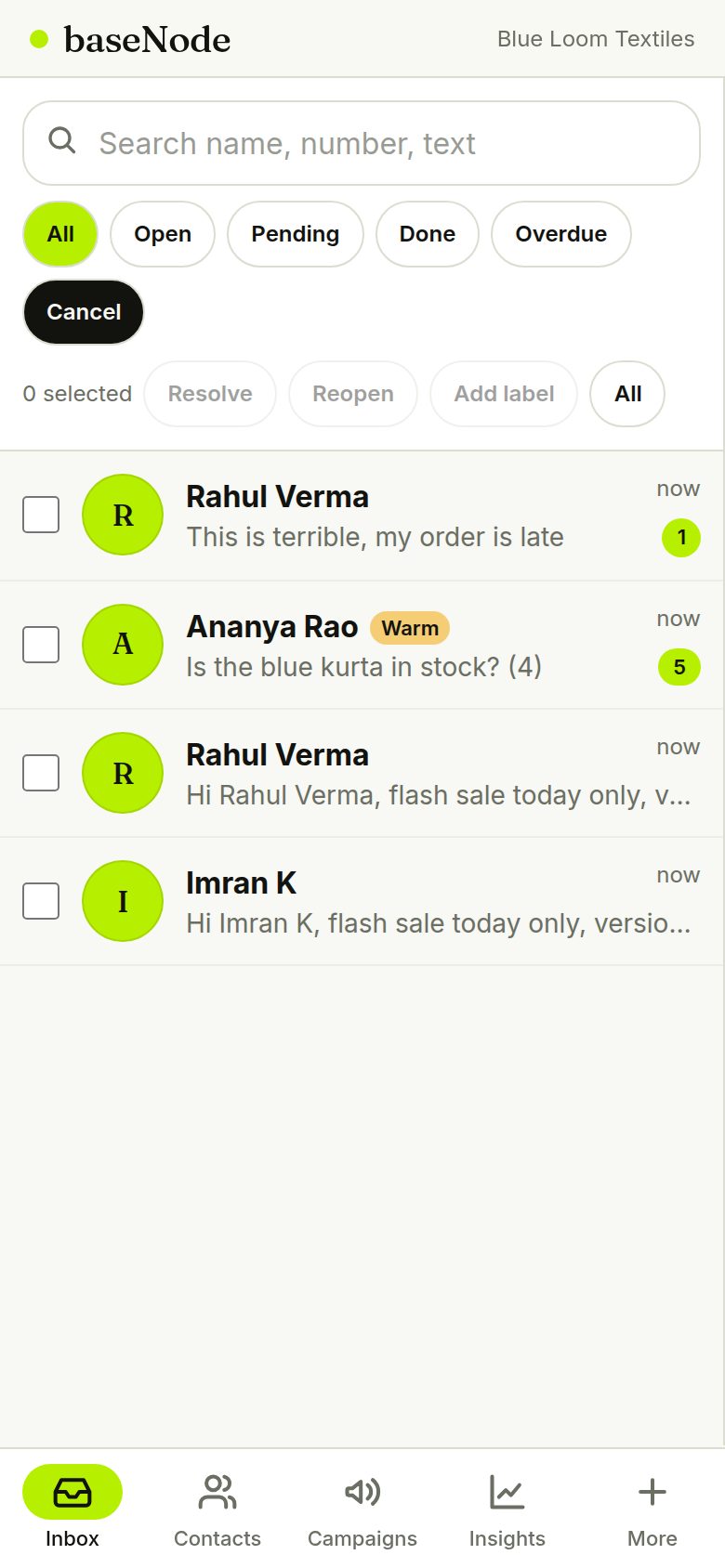
Work the inbox in bulk
Tap Select, tick conversations and resolve, reopen or label them together. Hot and warm leads are marked from their activity, and ad leads show which ad they came from.
- Lead score rises with replies, forms and orders and fades daily
- With AI switched on you also get Translate and Mood buttons
Notifications, theme and shortcuts
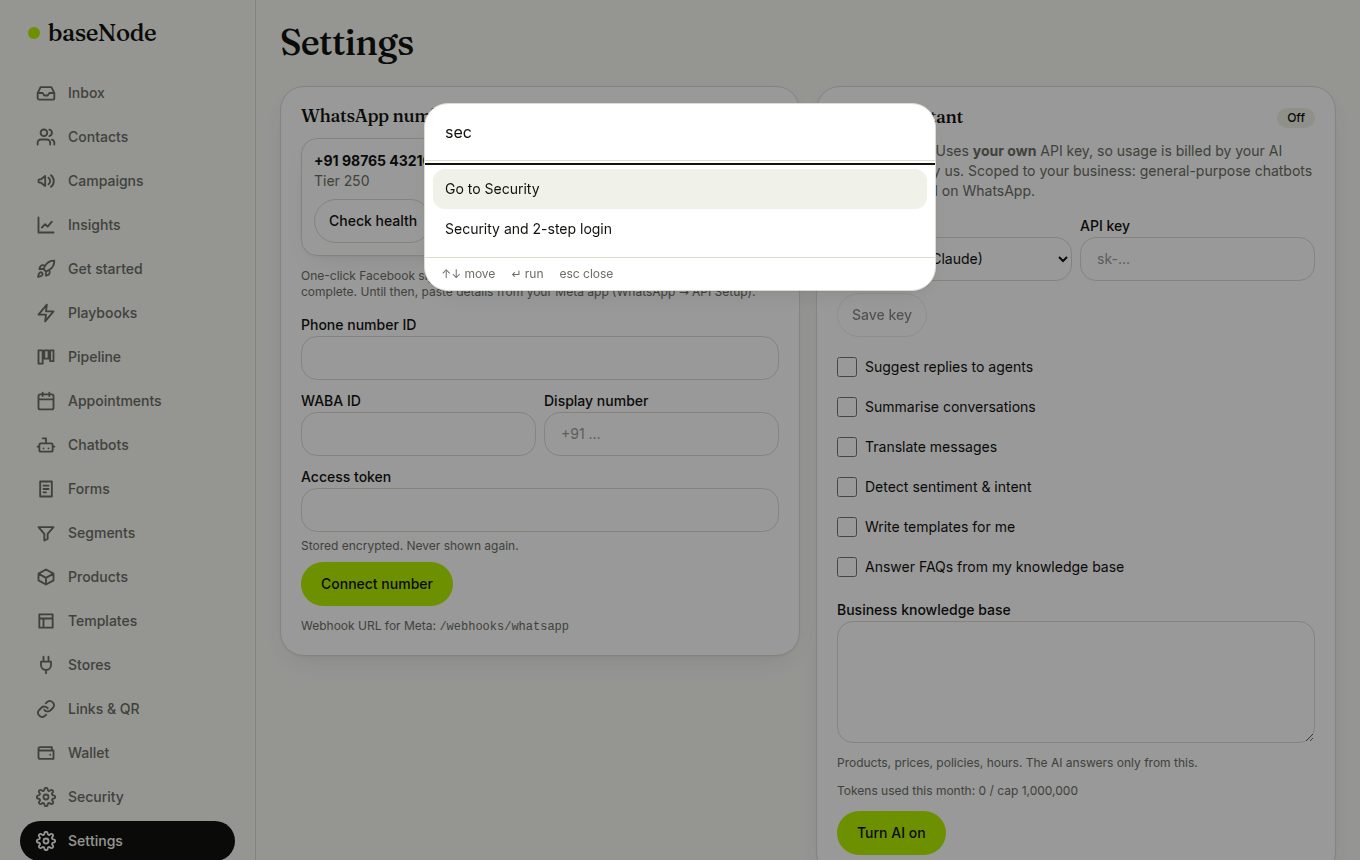
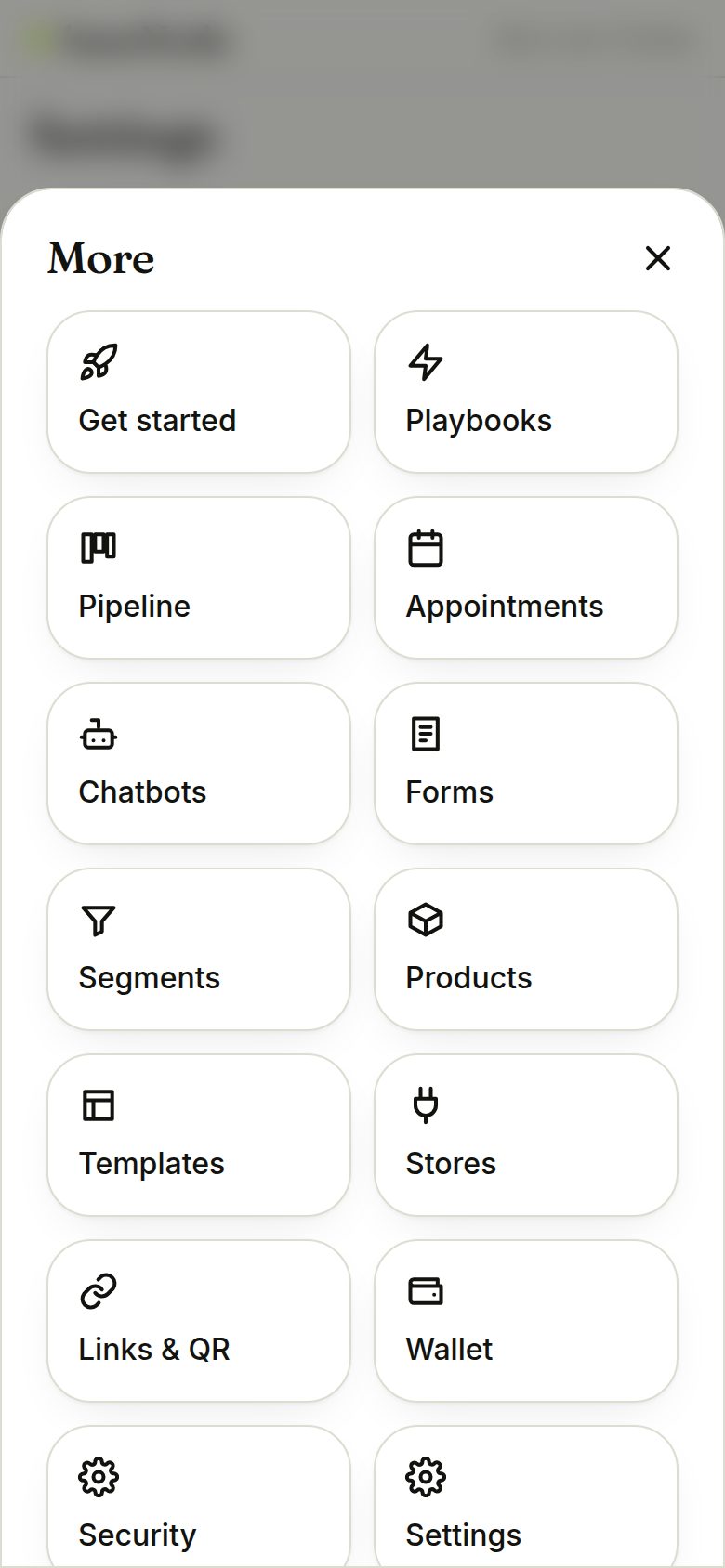
In Settings turn on new-message notifications for this device, install baseNode as an app, and choose light, dark or automatic. On a laptop press Ctrl or ⌘ + K to jump anywhere.
- On iPhone, add baseNode to the Home Screen first
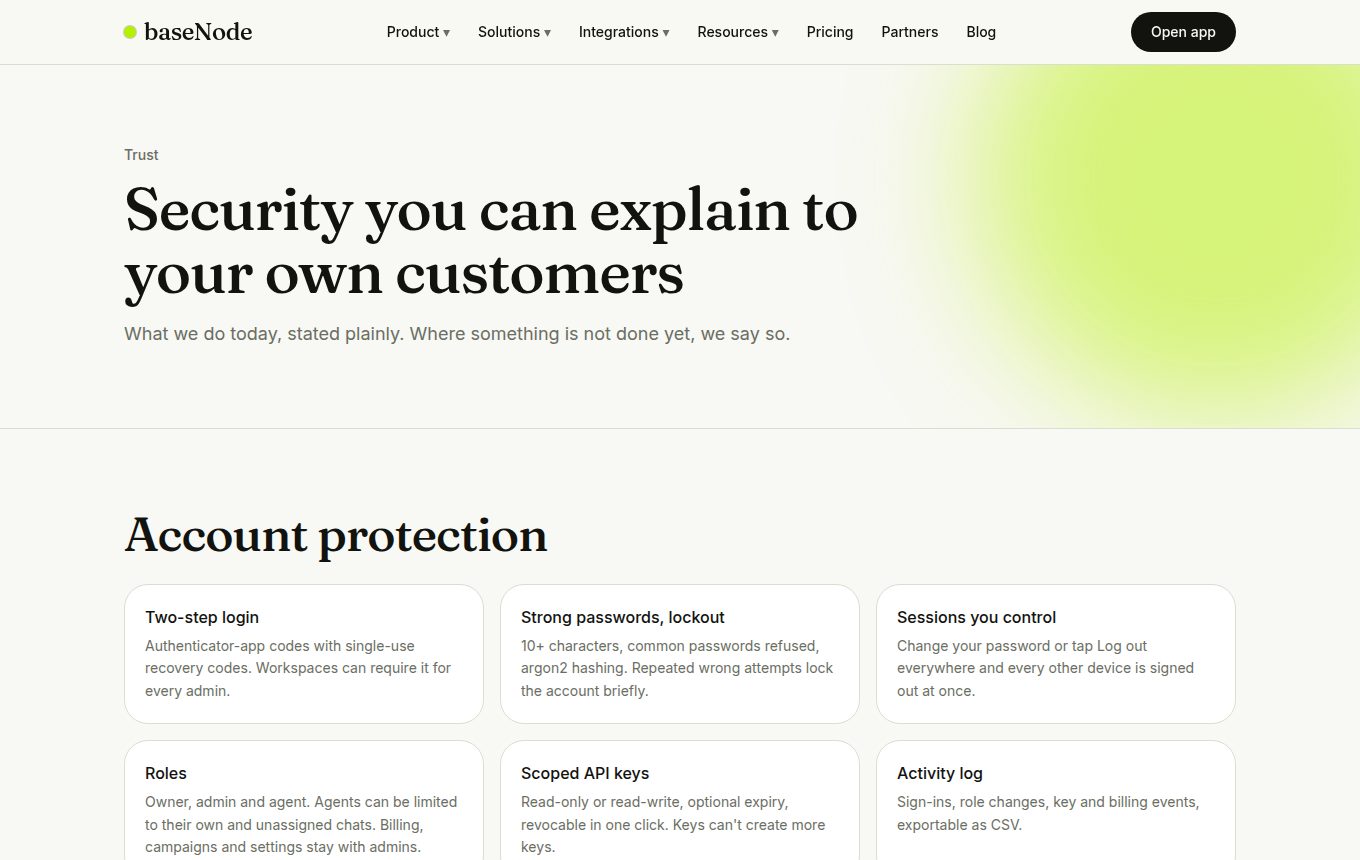
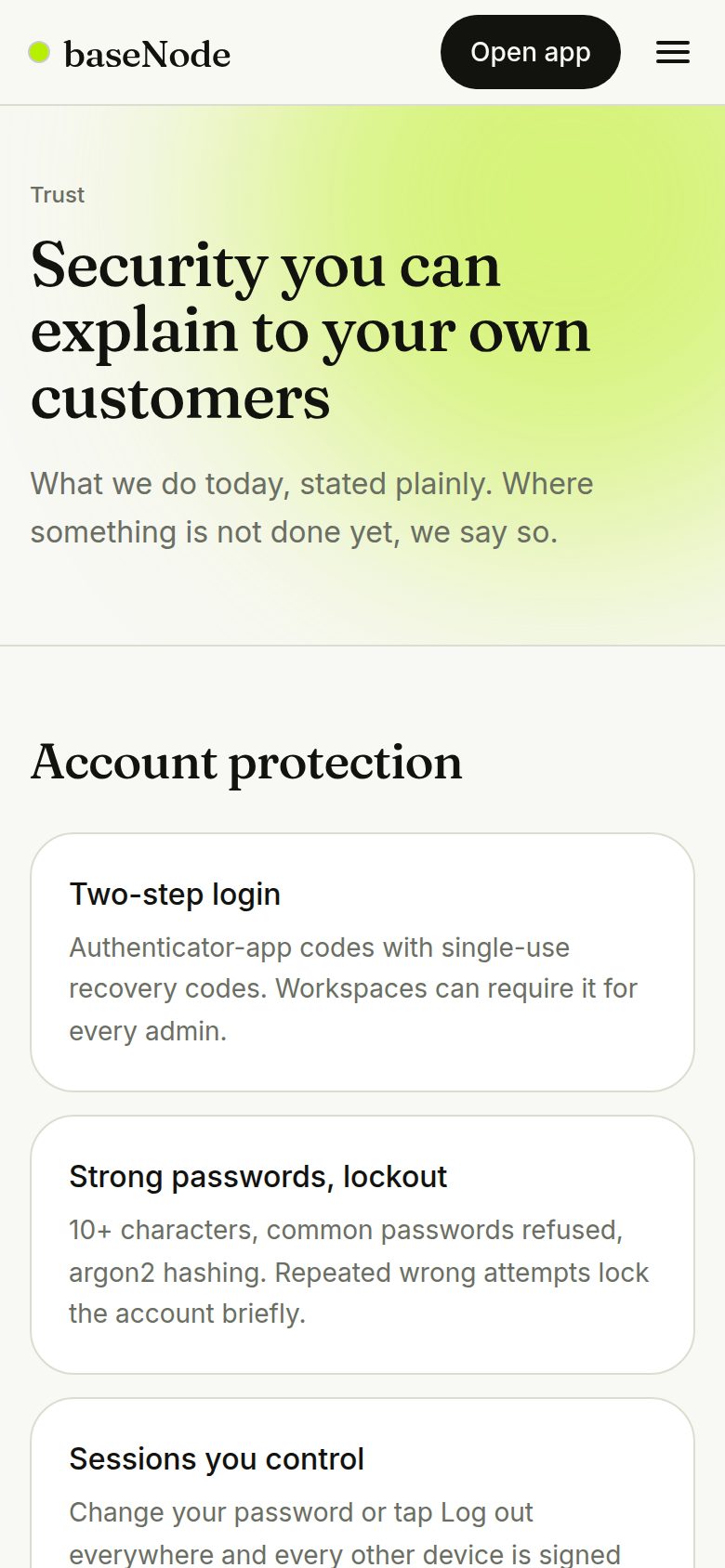
Share trust and learning pages
Public pages cover security and privacy, the template library and short guides, so customers and your security team can check how you work.
- Security page lists what is done and what is not yet
14. Playbooks, appointments, pipeline and getting paid
The shortcuts that remove everyday work: set up a whole use case in one tap, book appointments that remind people by themselves, track every lead on a board, and collect payment inside the chat.
- BookCustomer, what for, when
- ConfirmationSent now if possible
- Reminder 24h before
- Reminder 2h before
- Reschedule or cancelOld reminders vanish automatically
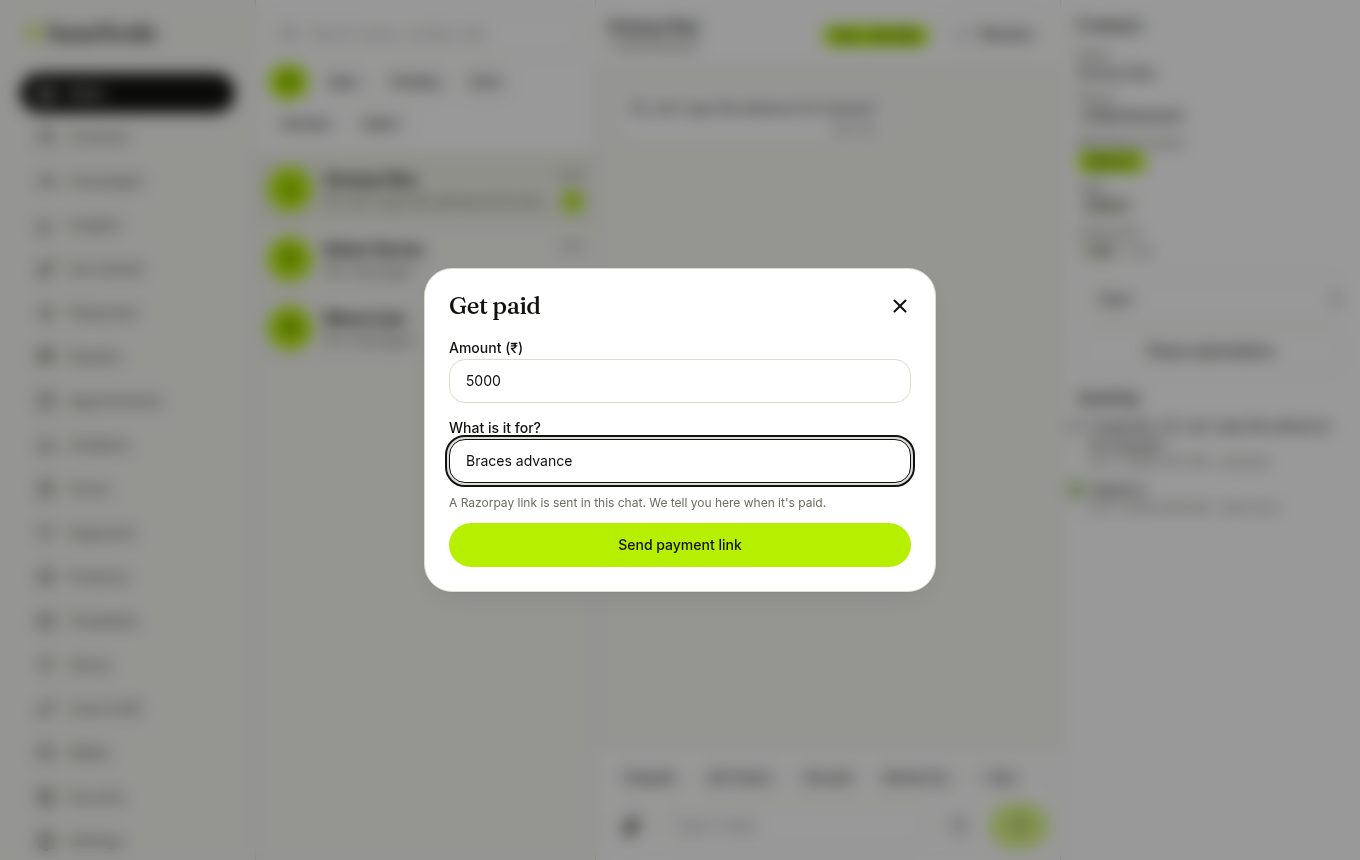
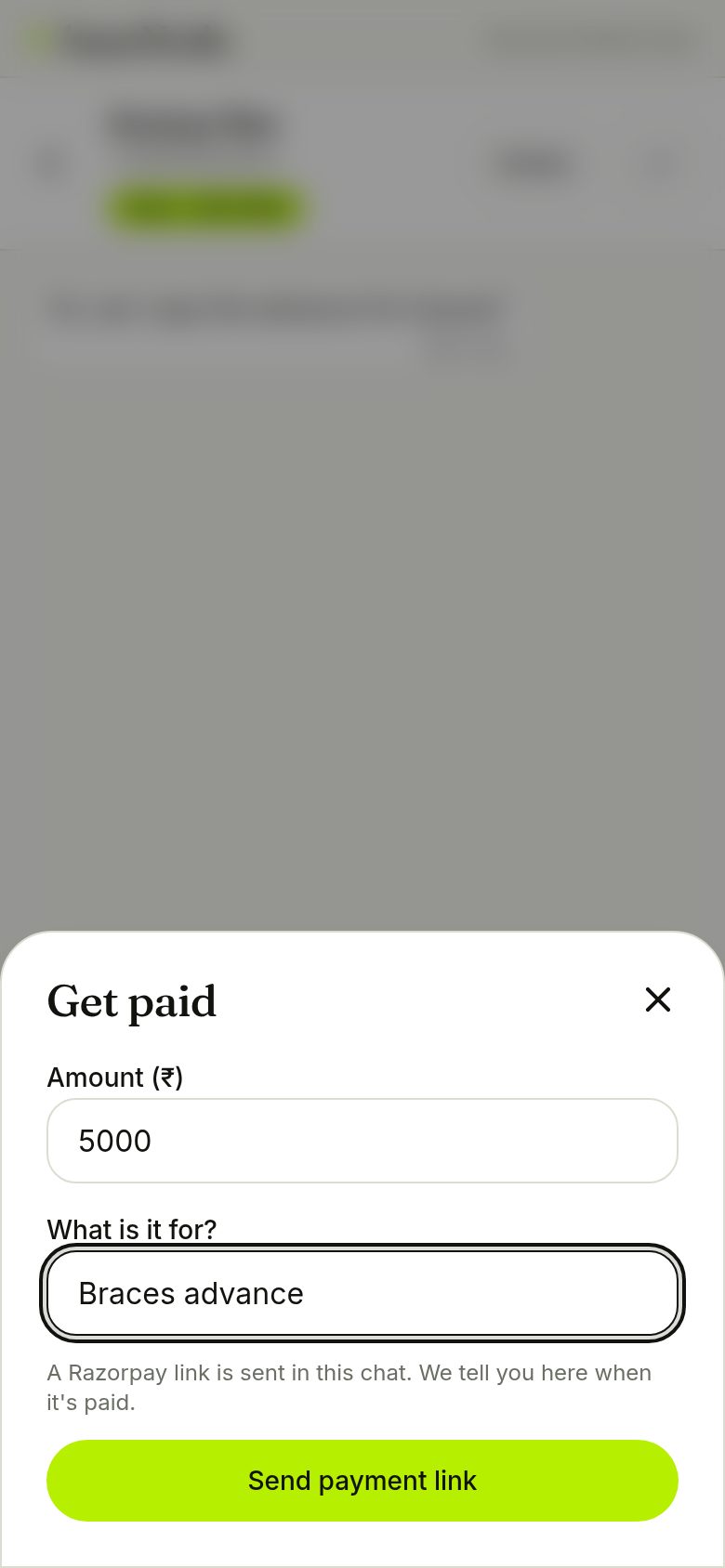
- Tap Get paidAmount and reason
- Razorpay link sentYour own Razorpay account
- Customer paysUPI, card, netbanking
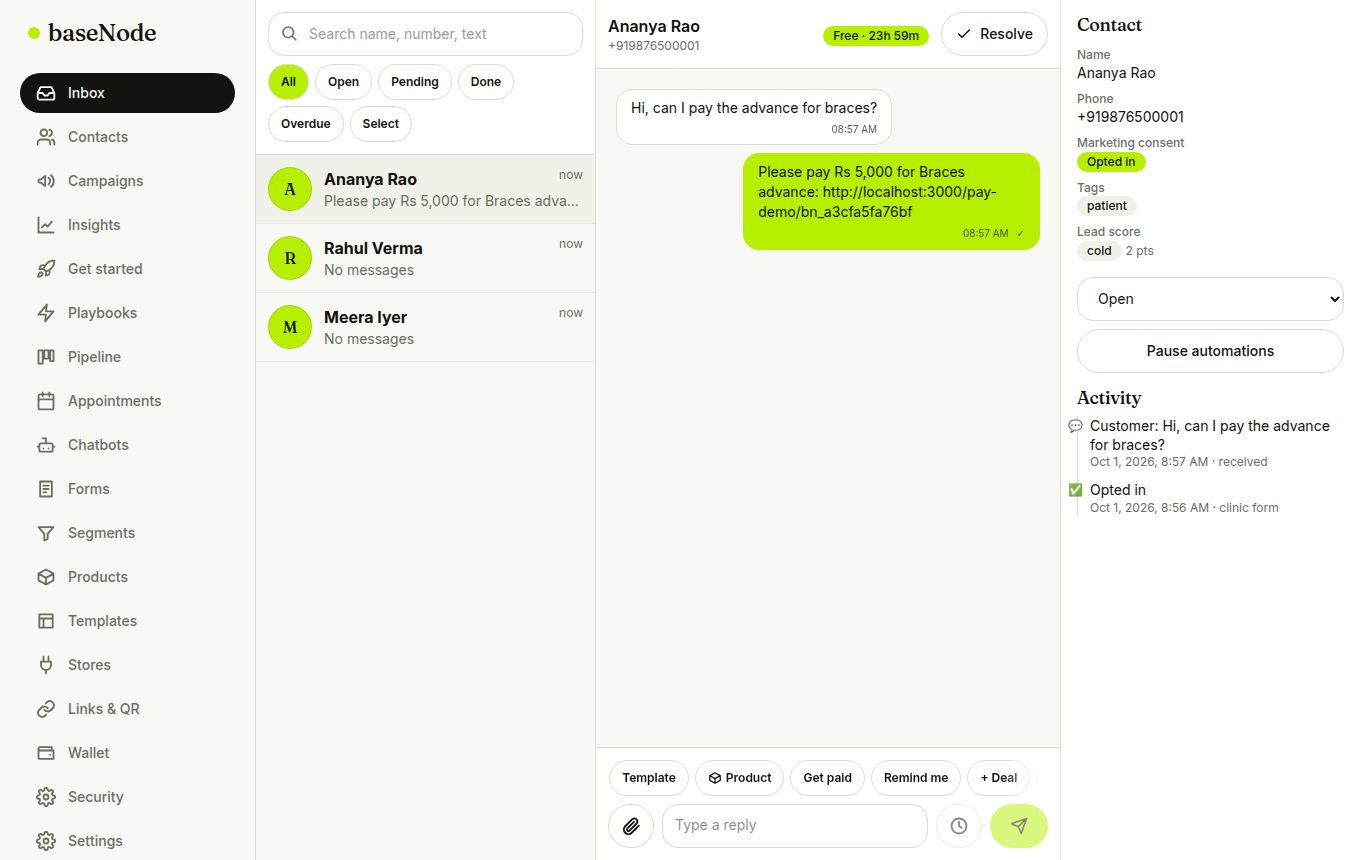
- You are told in the chatPlus tag, lead score, webhook
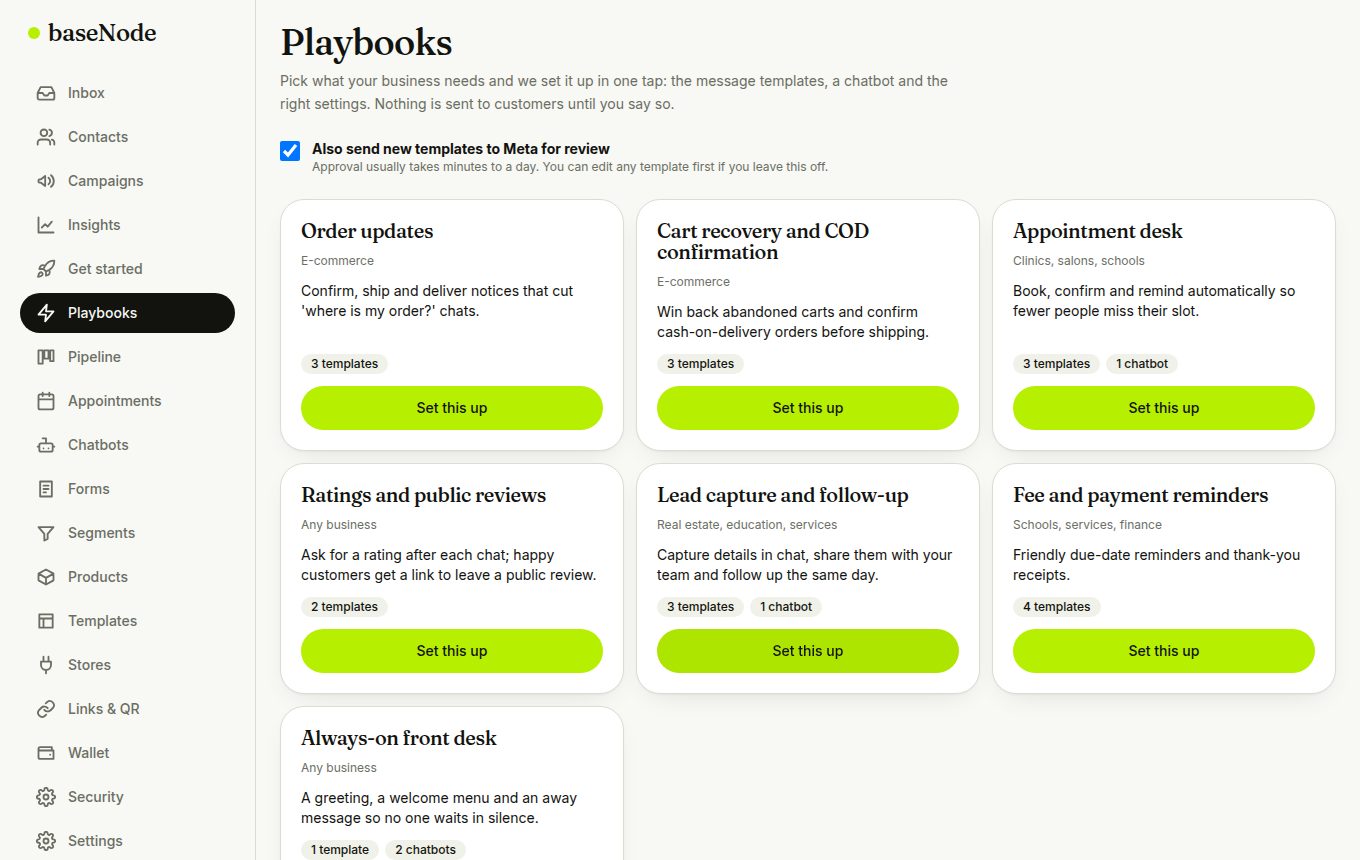
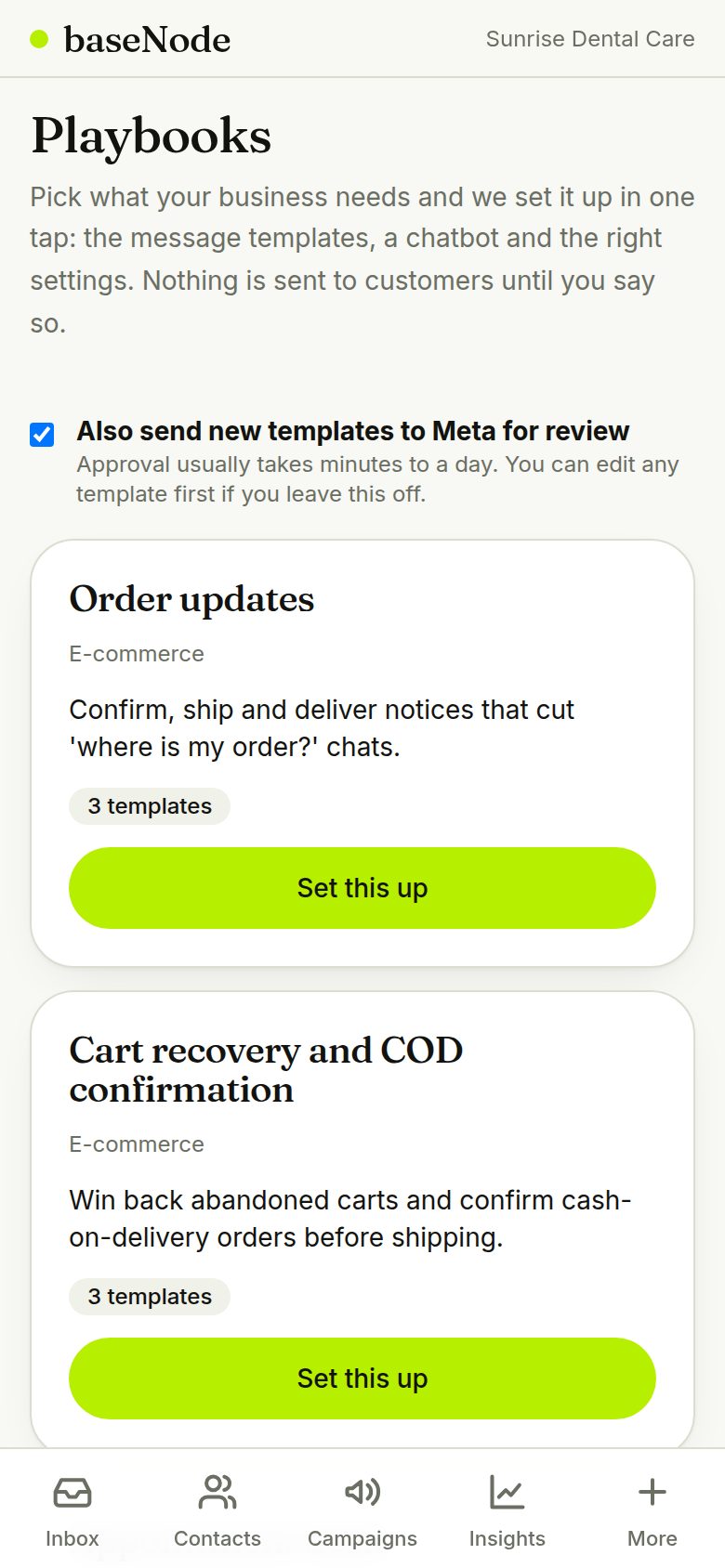
Set up a playbook
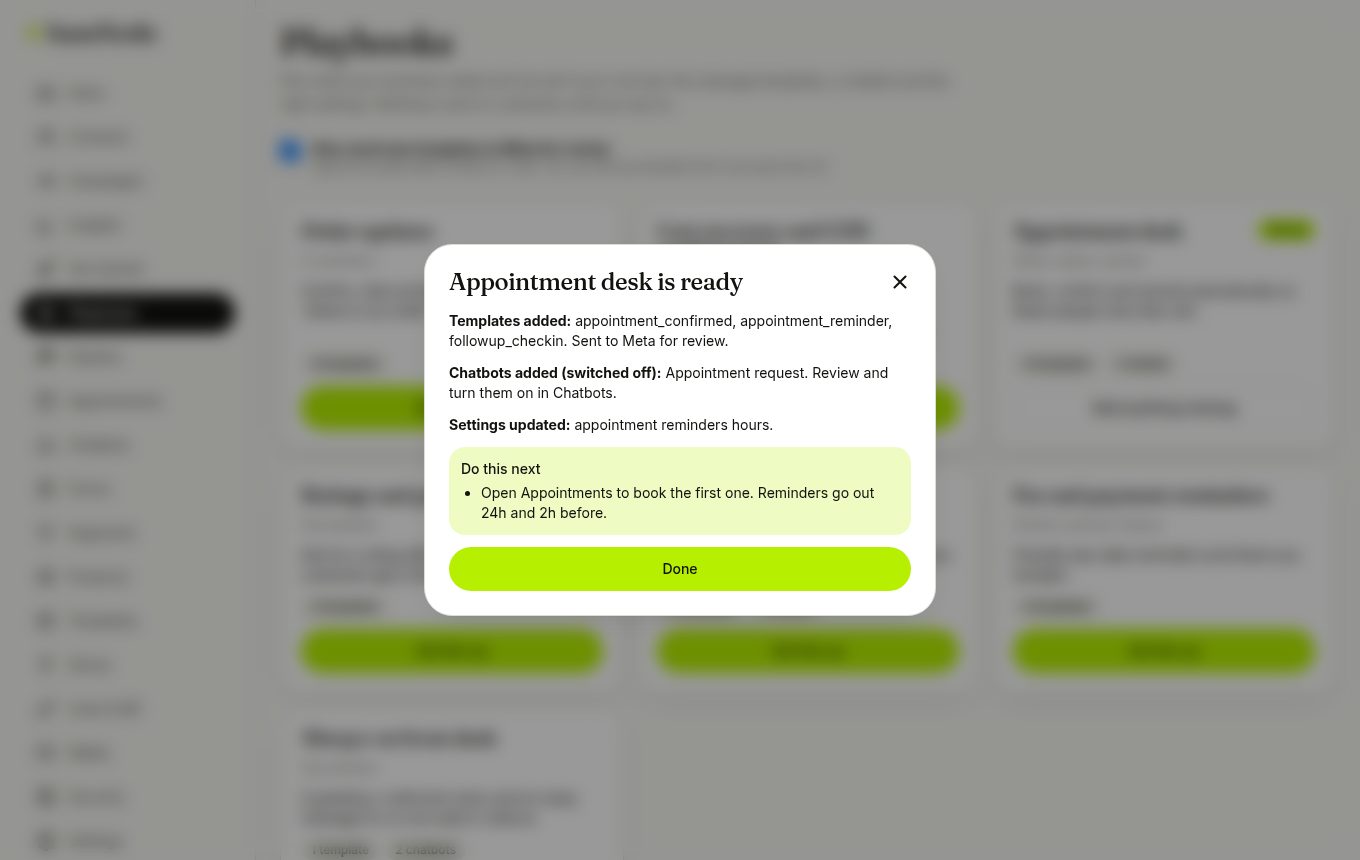
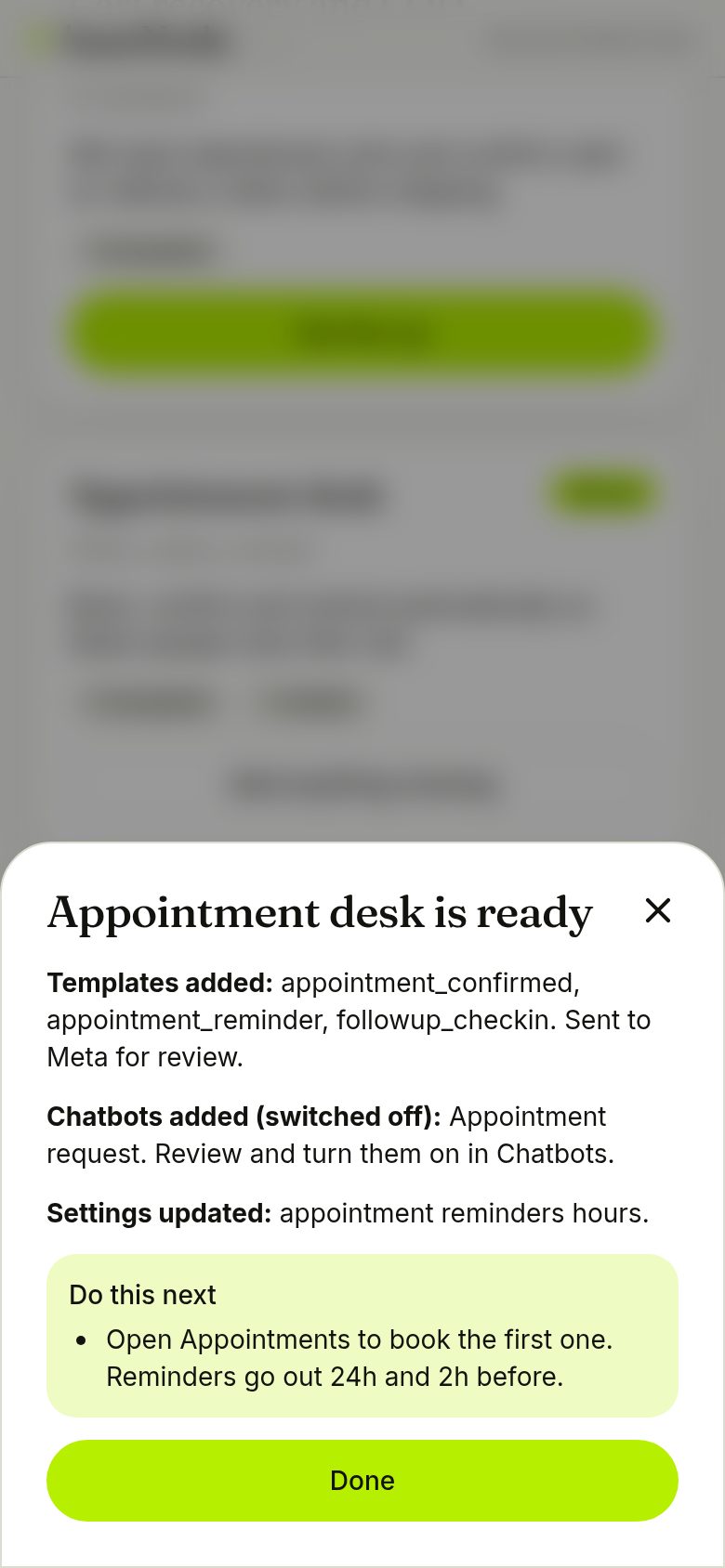
Open Playbooks and tap Set this up on the one that fits: order updates, cart recovery, appointment desk, reviews, lead follow-up, fee reminders or an always-on front desk. We add the templates, chatbots and settings, and optionally send the templates to Meta. Running it again only adds what is missing.
- Chatbots are added switched off so you can review them
- A short list of next steps is shown at the end
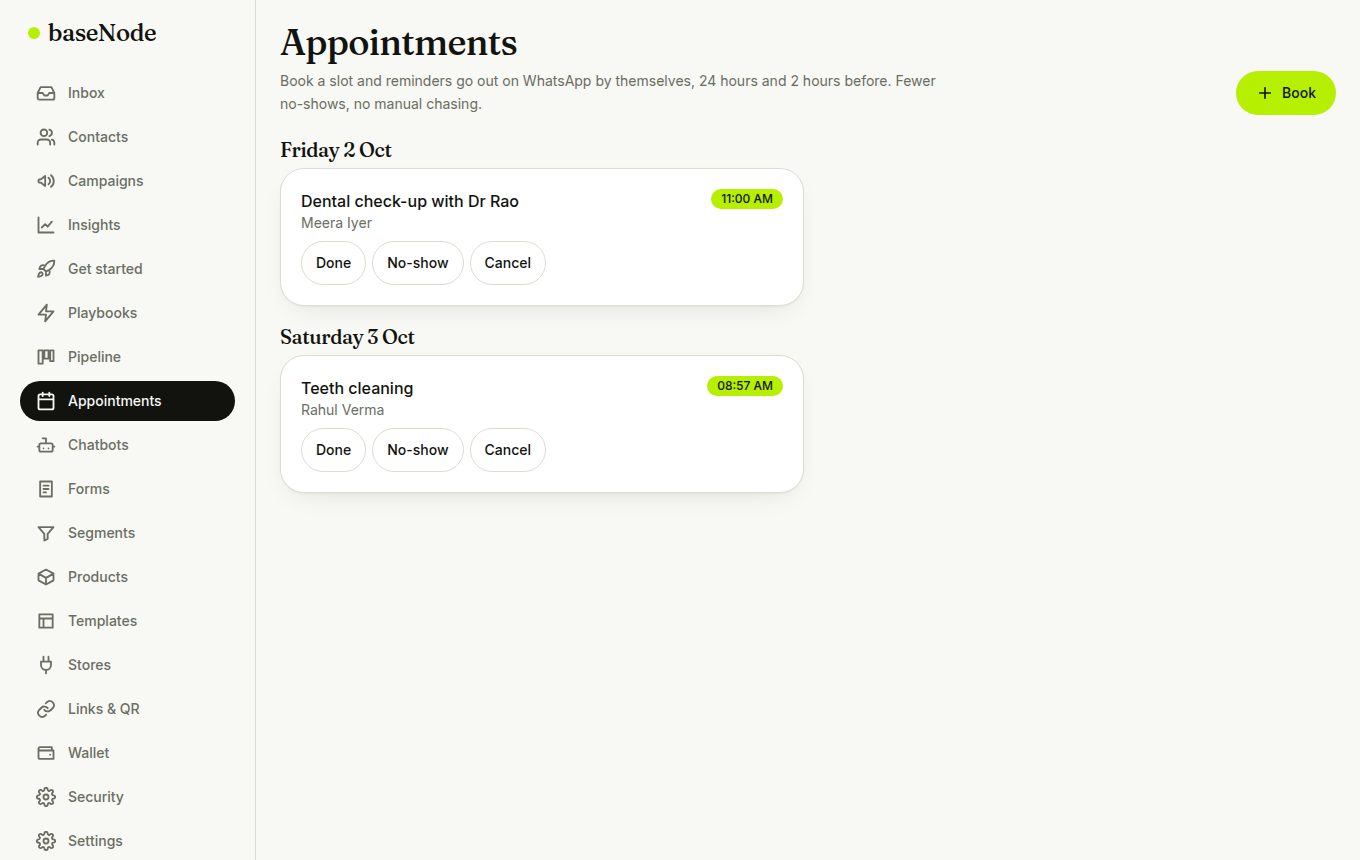
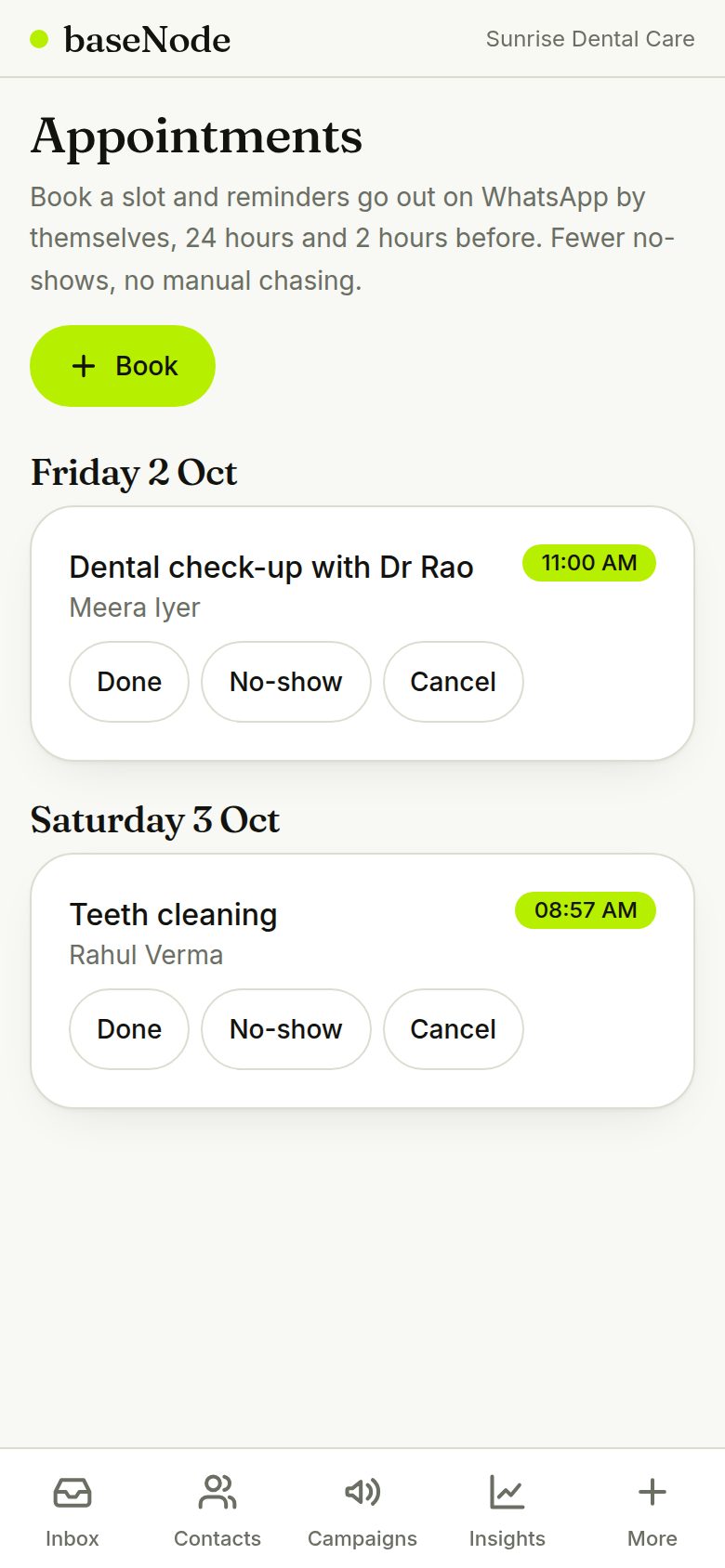
Book an appointment
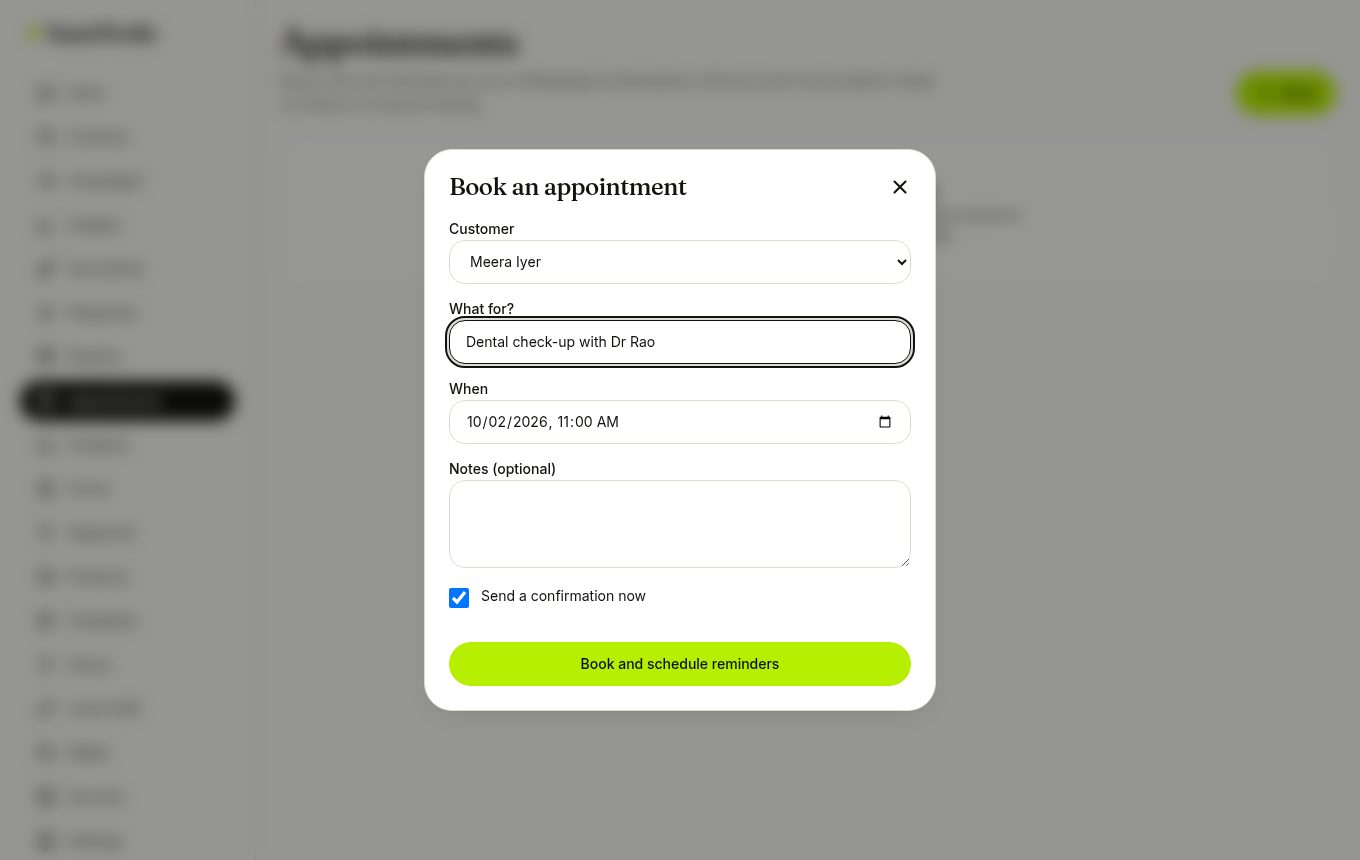
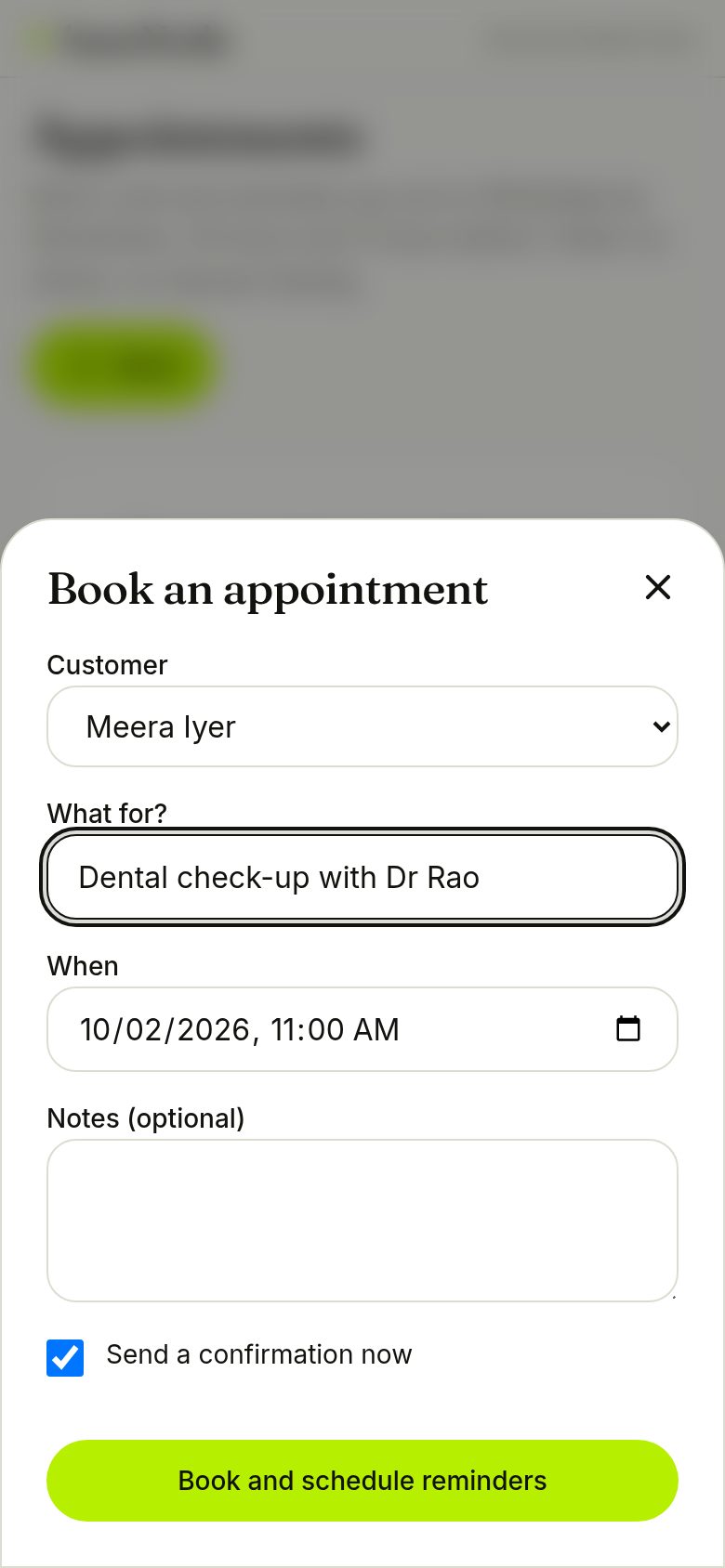
Choose the customer, what it is for and when. Reminders are scheduled 24 and 2 hours before (change this in Settings), and a confirmation goes out straight away when the chat is open or an approved confirmation template exists.
- Rescheduling or cancelling removes the old reminders
- Without an approved reminder template, reminders send as plain text only if the 24-hour window is open
Track deals on the pipeline
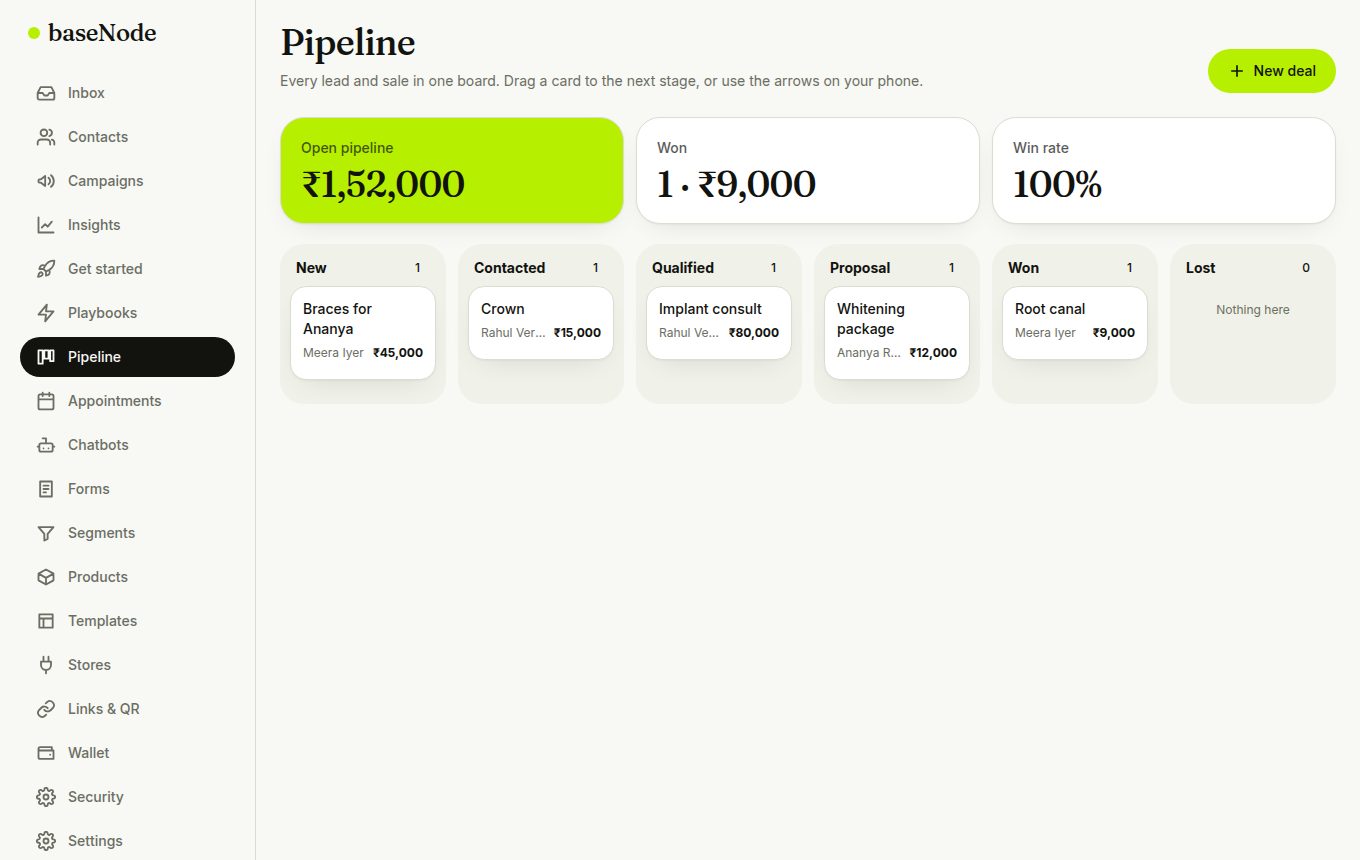
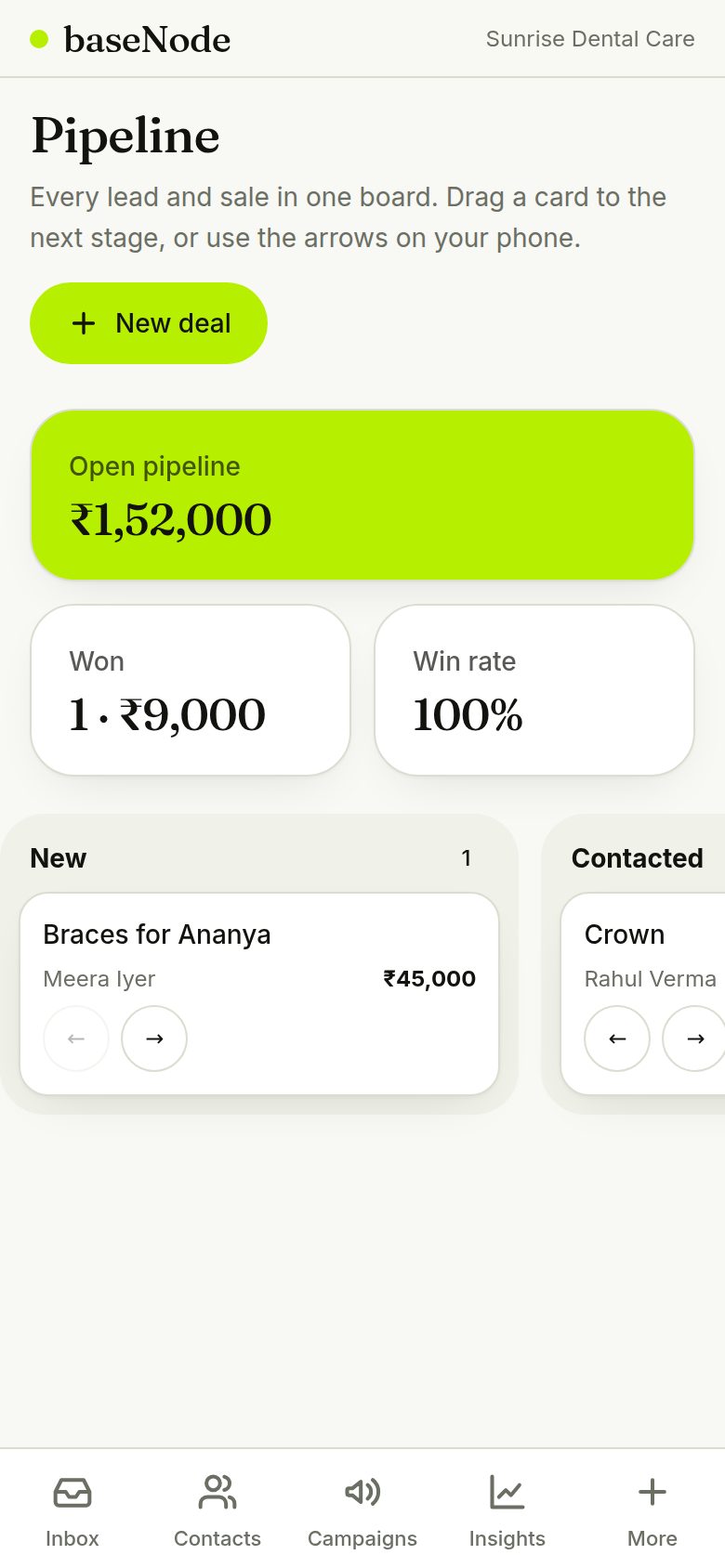
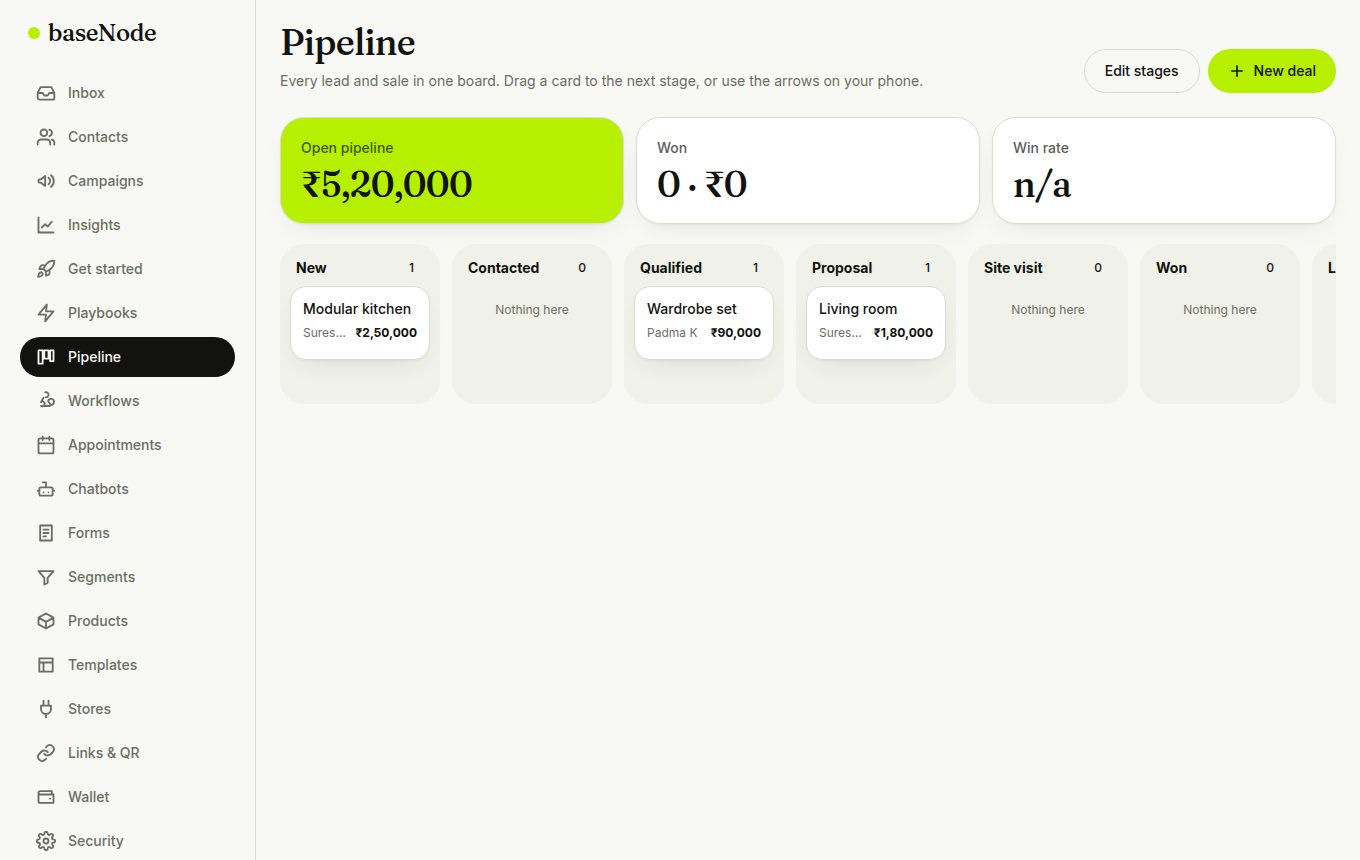
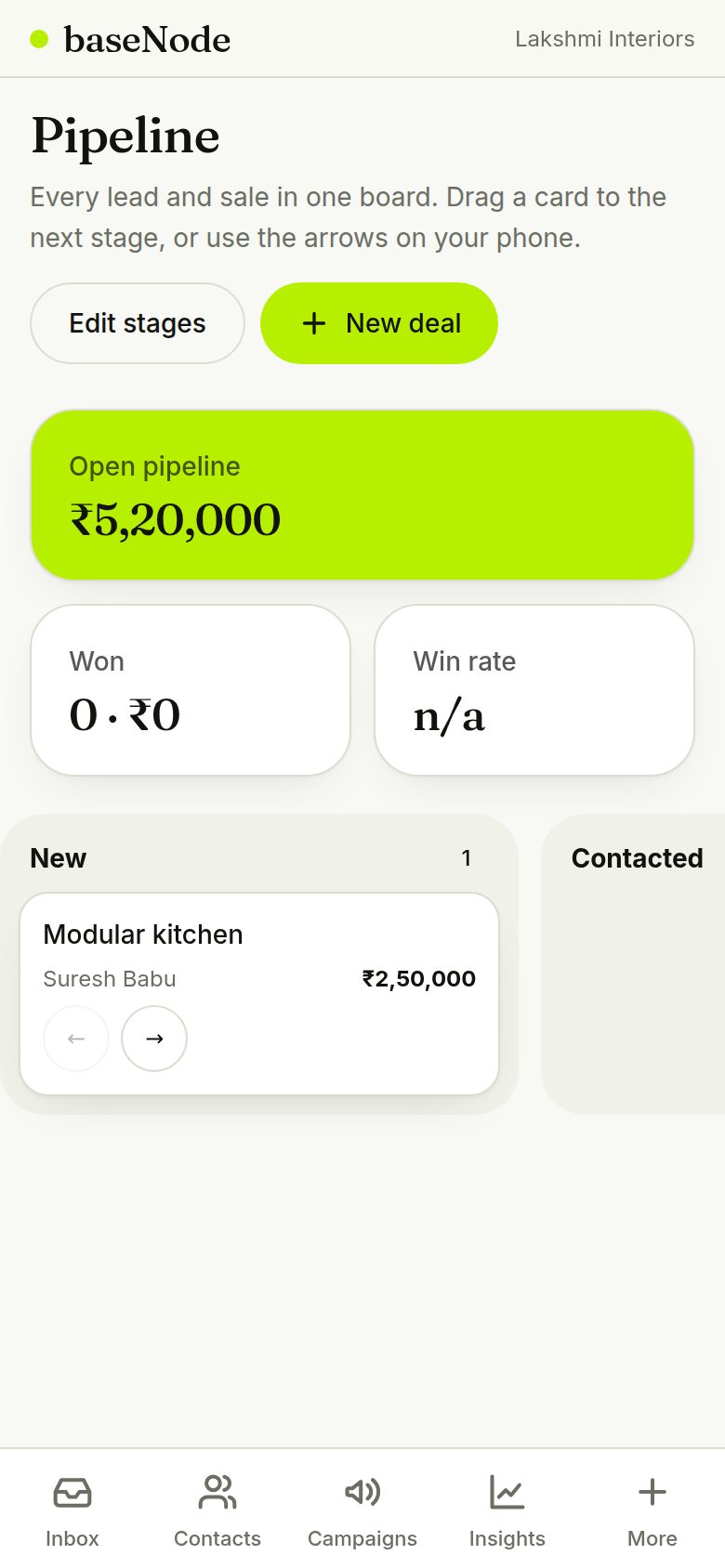
Every lead gets a card. Drag it across New, Contacted, Qualified, Proposal, Won and Lost, or use the arrows on a phone. The top shows open value and win rate. Add a deal from any chat with the + Deal chip.
- A deal.stage_changed event goes to your webhook
- Agents can work deals; only admins delete
Send a payment link
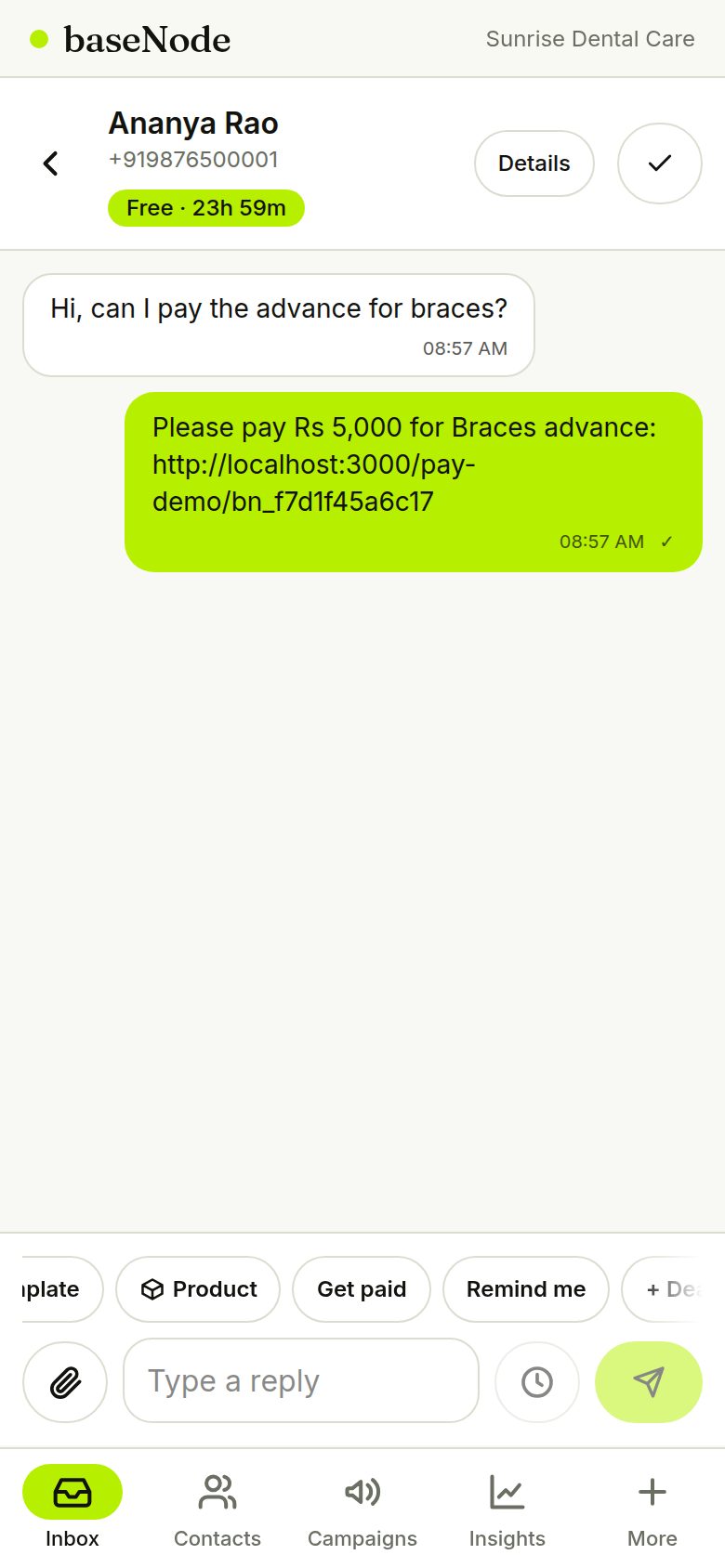
In a chat tap Get paid, enter an amount and a reason. The customer receives a Razorpay link. Add your own Razorpay keys in Settings so the money goes straight to you; without keys it runs in demo mode.
- When paid, the chat shows a note, the contact is tagged customer and the lead score rises
- Needs the 24-hour window; otherwise the link is created but not sent
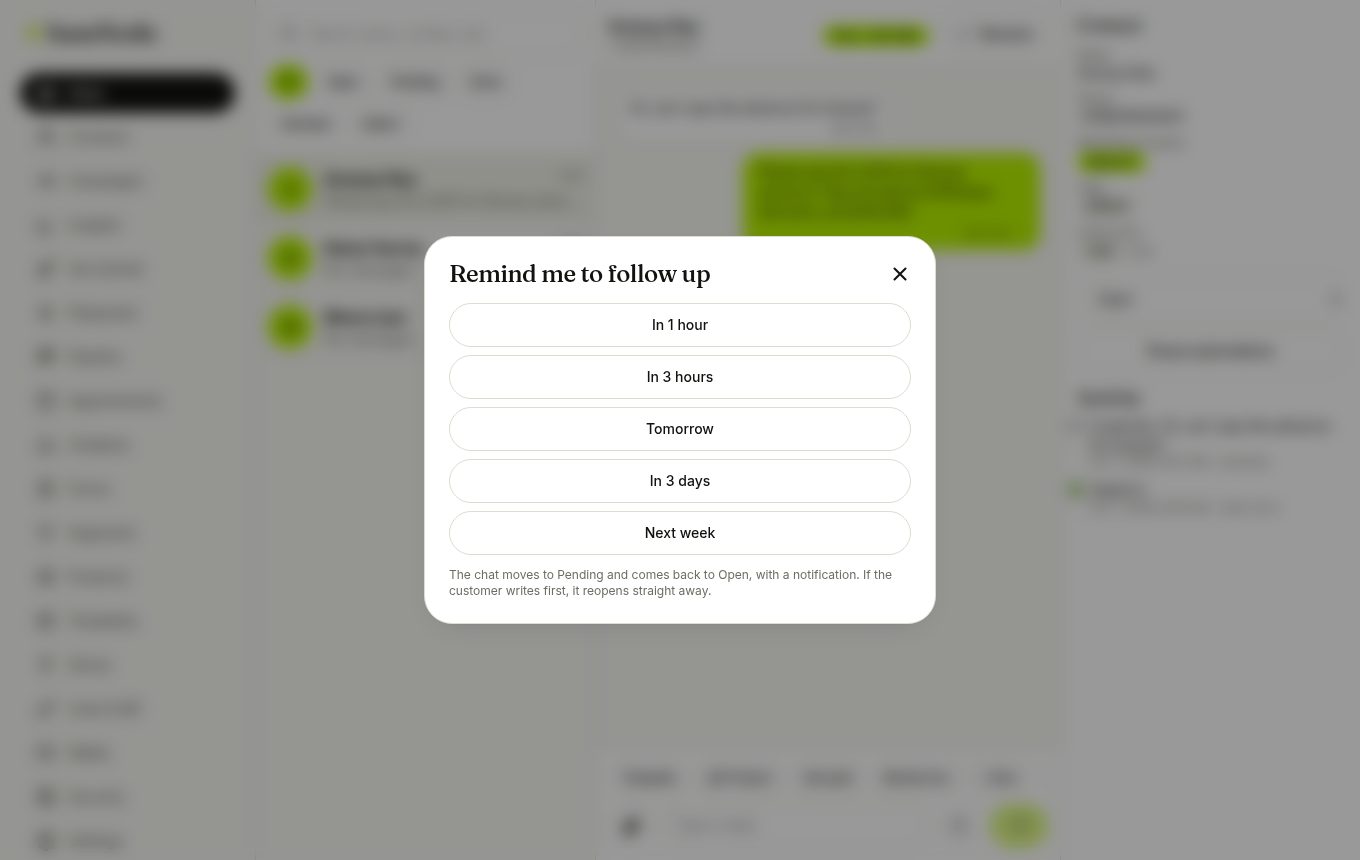
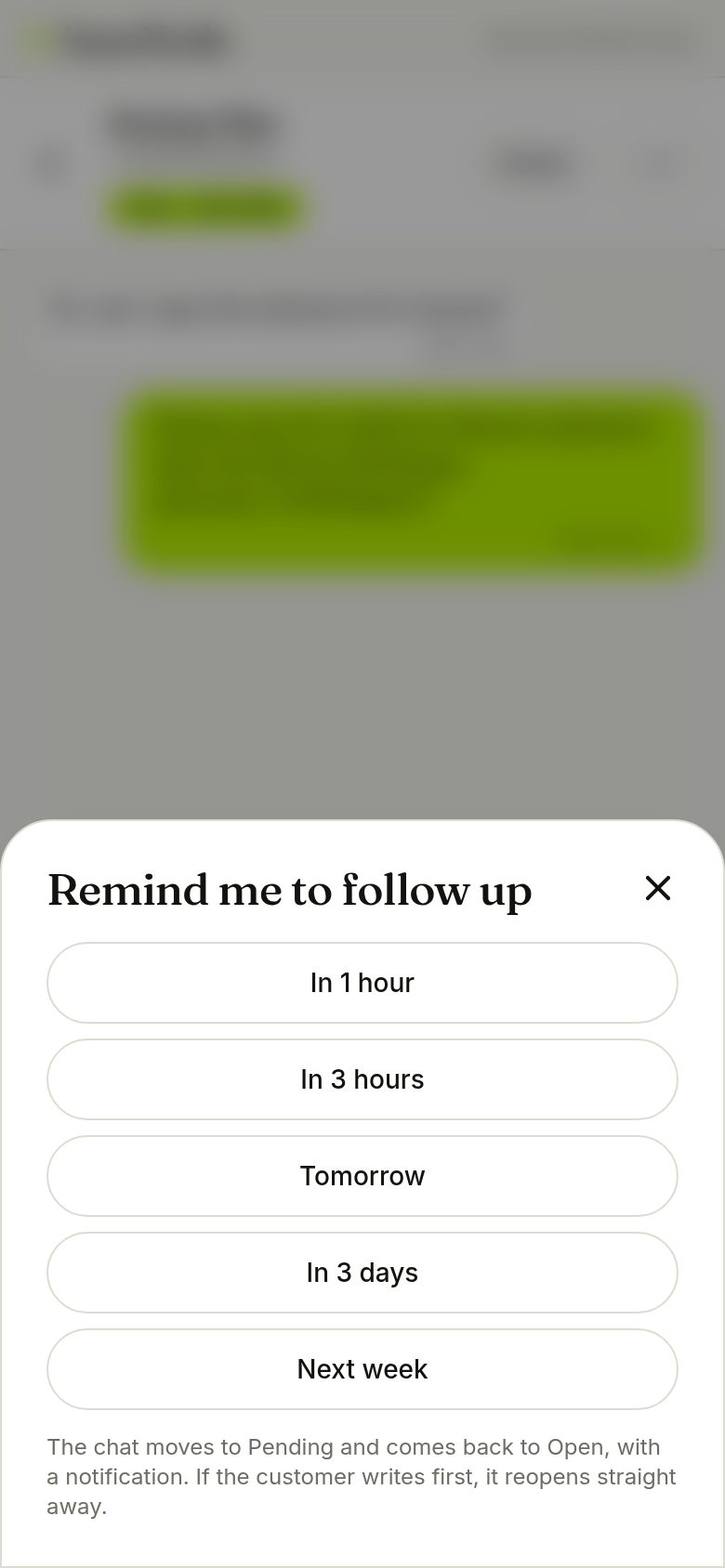
Remind yourself to follow up
Tap Remind me in a chat and choose when. The chat moves to Pending and returns to Open with a notification. If the customer writes first, it reopens straight away.
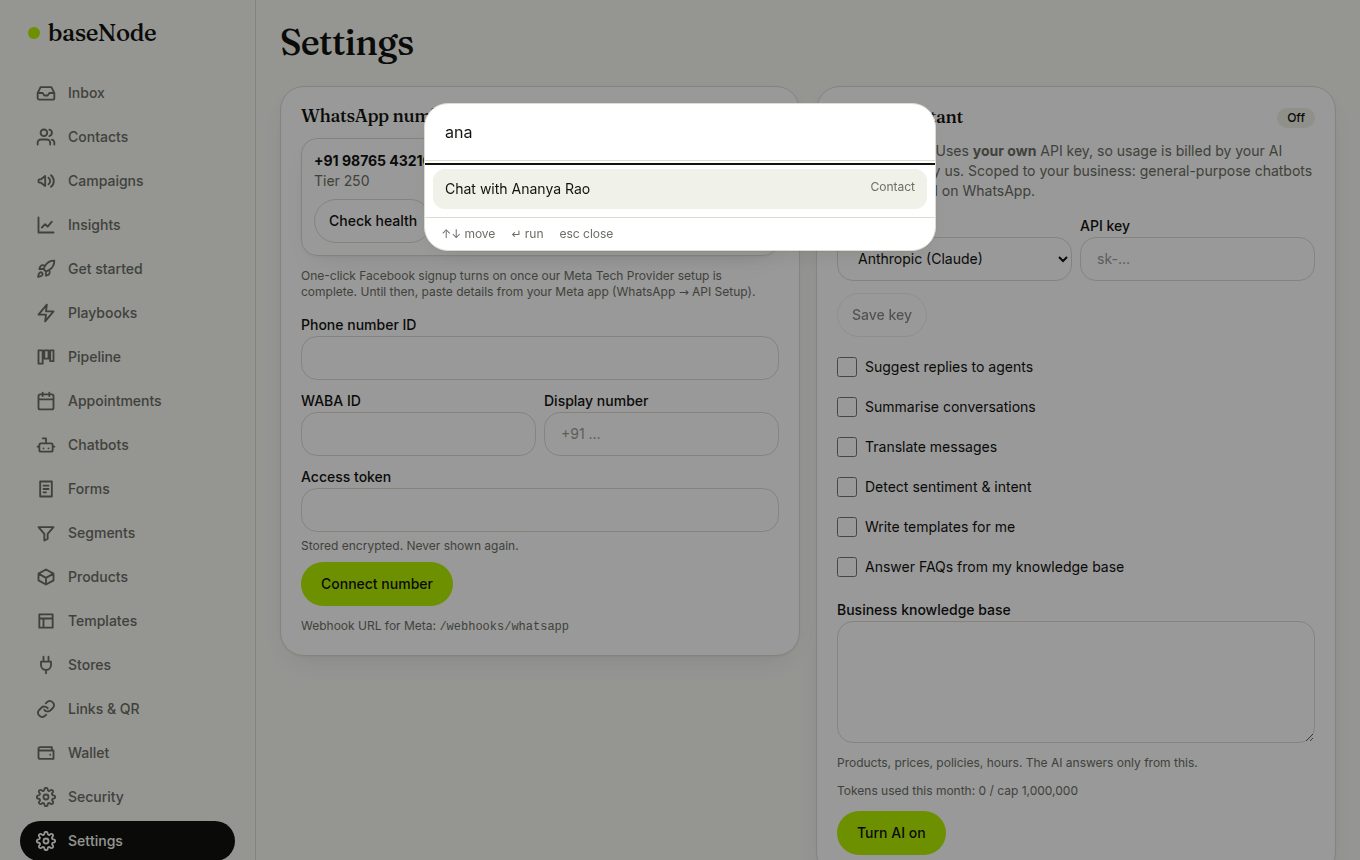
- Press Ctrl or ⌘ + K and type a name to jump to a chat quickly

15. Workflows, custom stages, duplicates and email summaries
Automate the repetitive parts, shape the pipeline to your business, keep your contact list clean and get a short email each morning with what needs you.
- Something happensForm, new chat, payment, deal moved, rating, appointment
- Filters matchOptional: tag, stage, form, rating
- Actions runTag, assign, add to pipeline, message, notify, remind
- History recordedEvery run, step by step
Make the pipeline yours
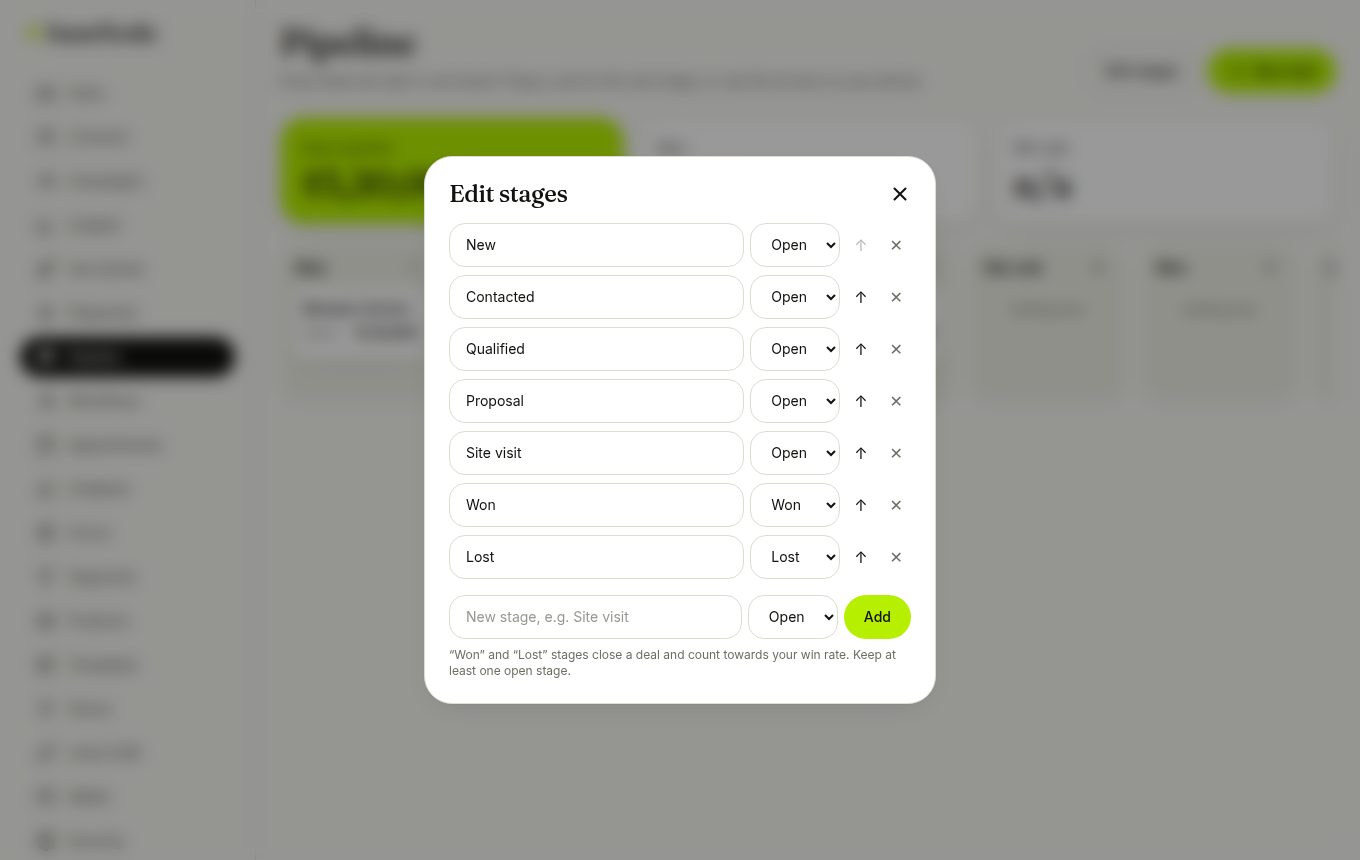
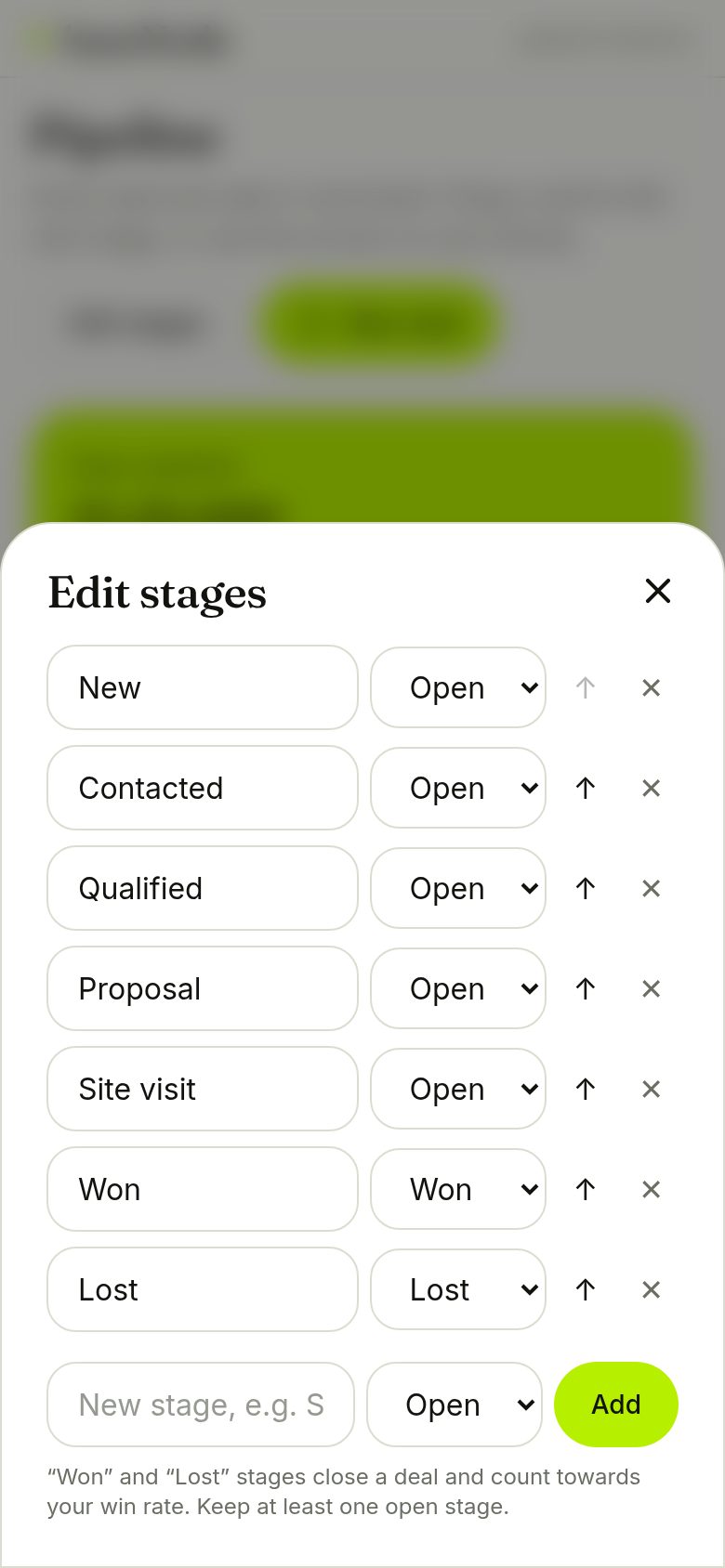
On Pipeline tap Edit stages. Rename, reorder, add (for example Site visit) or delete stages, and mark each as Open, Won or Lost. Won and Lost close the deal and drive your win rate. Deleting a stage that holds deals moves them where you choose.
- Up to 12 stages, at least one open
- Set a follow-up date on a deal and we nudge you when it arrives
Start a workflow from an example
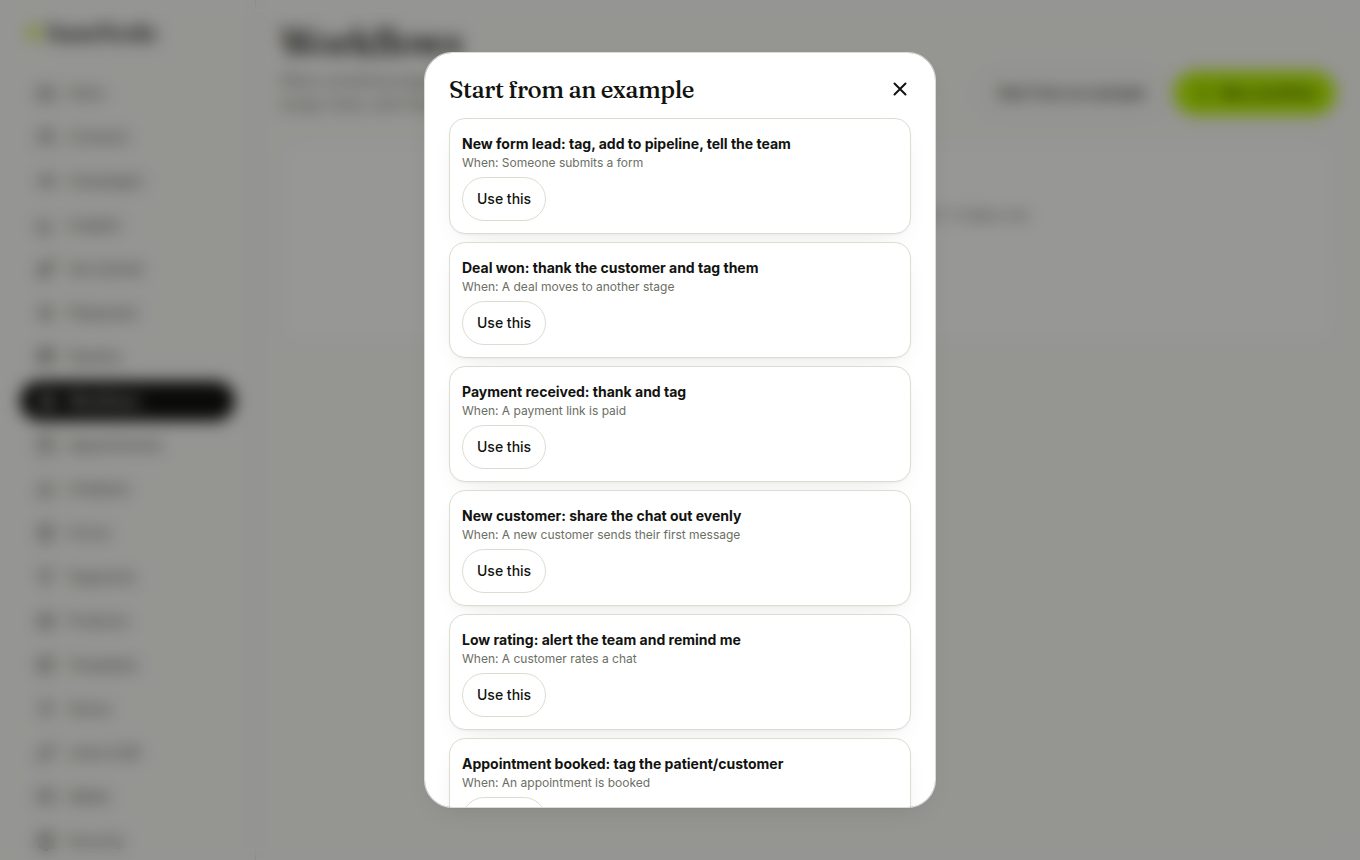
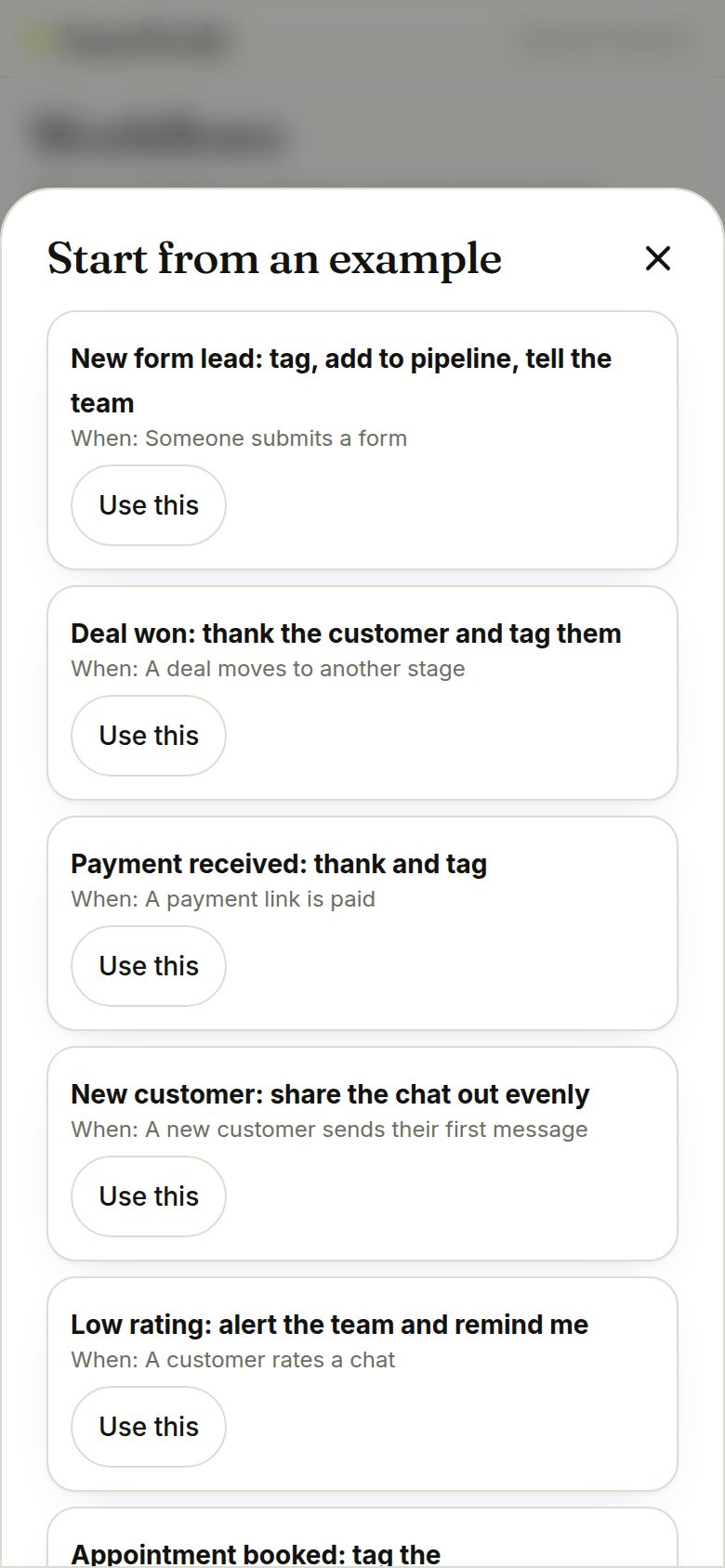
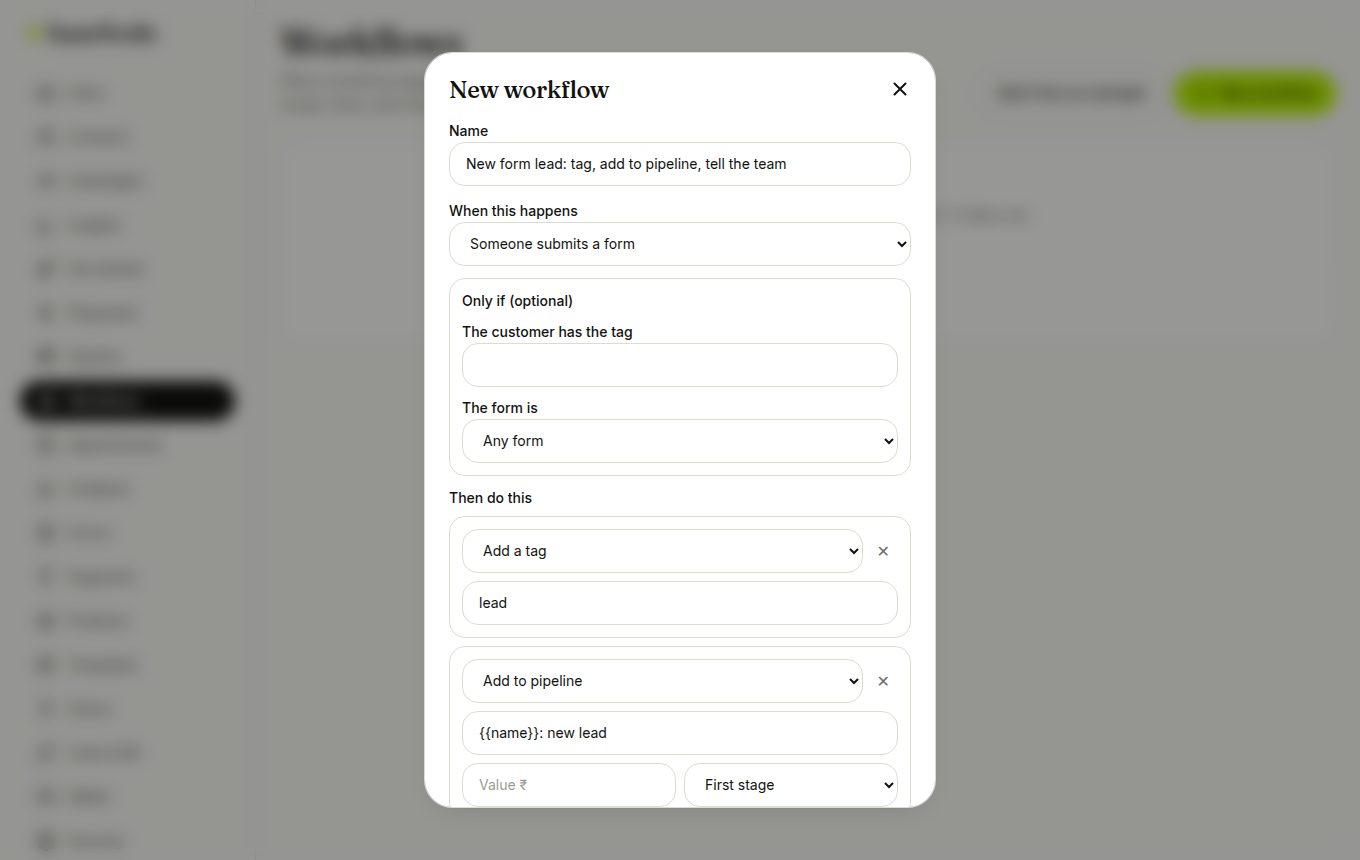
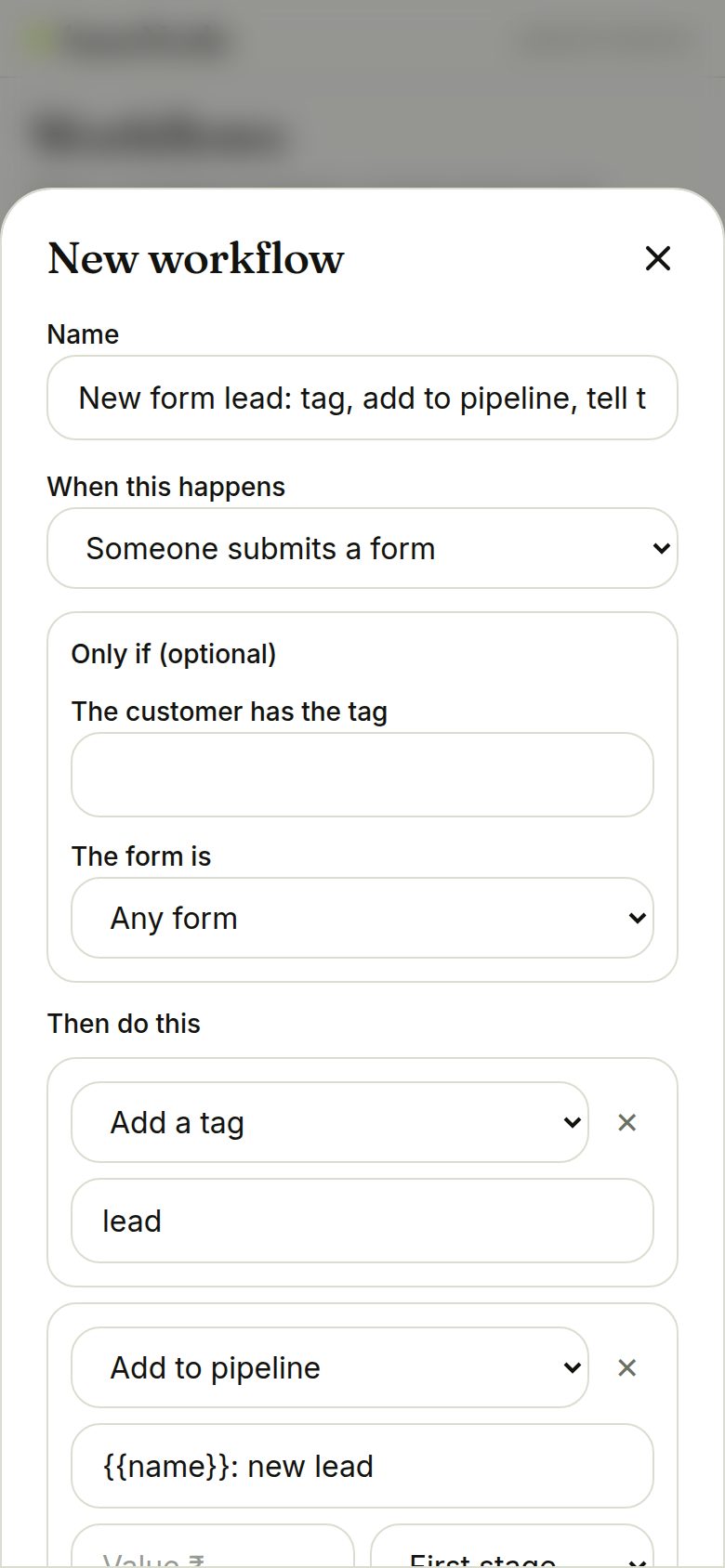
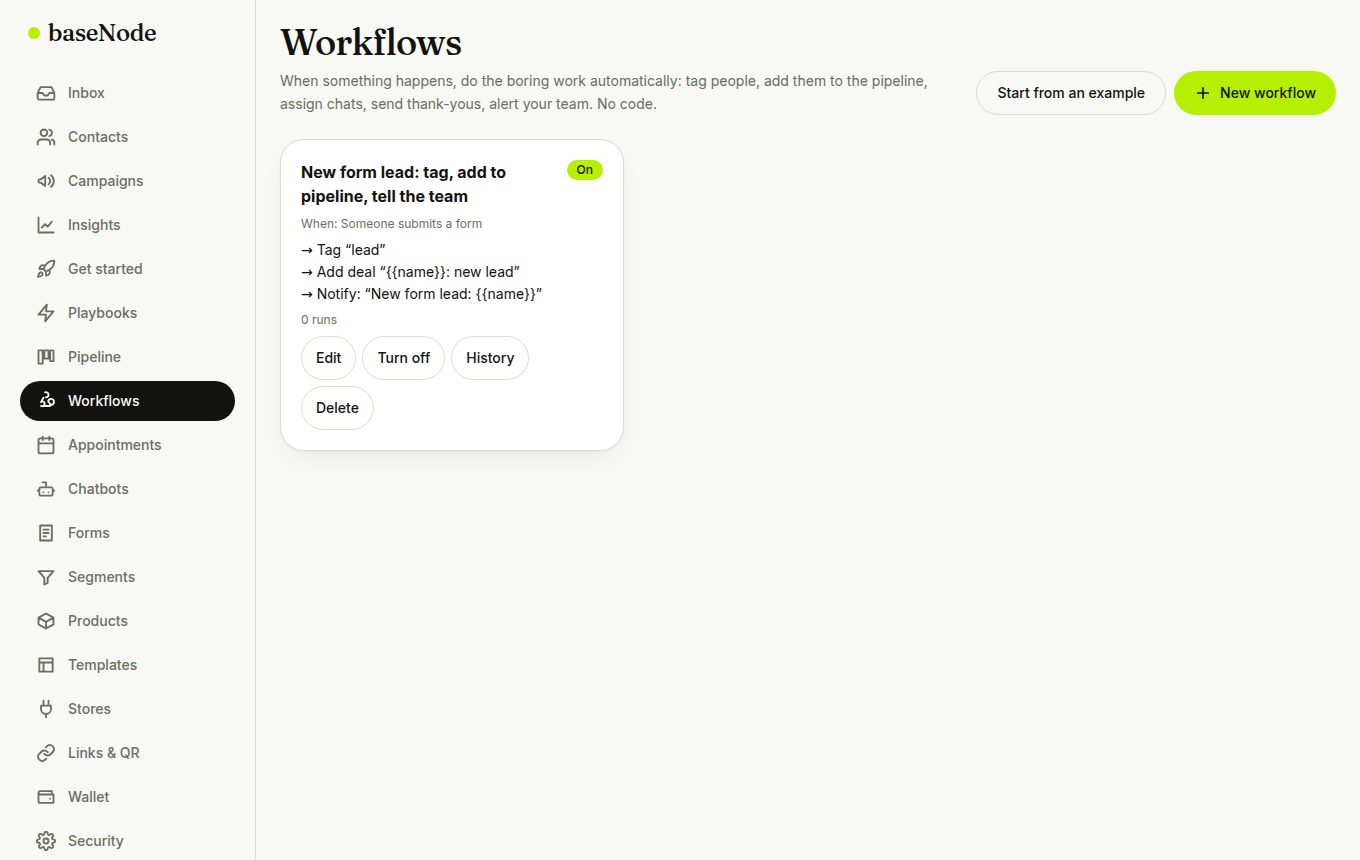
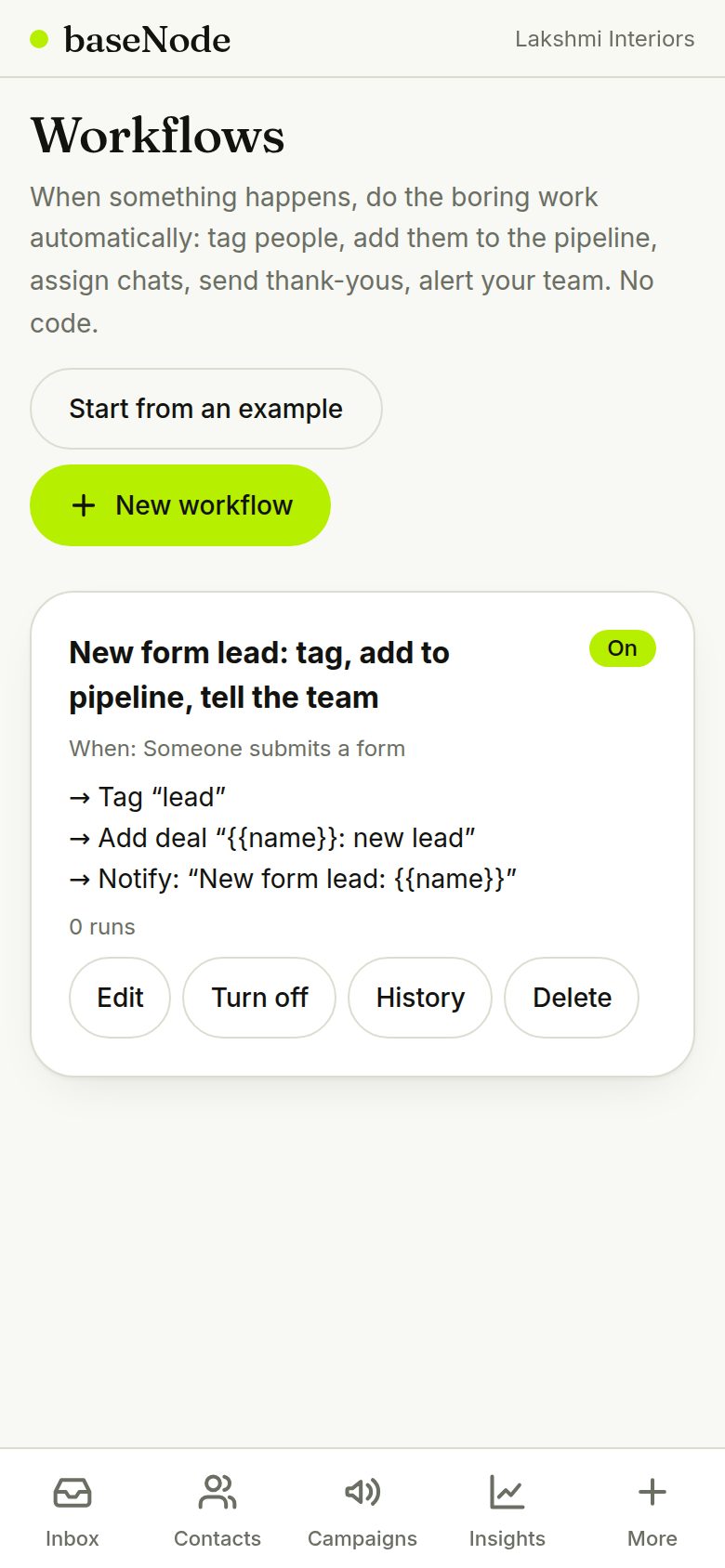
Open Workflows and tap Start from an example, for instance New form lead: tag, add to pipeline, tell the team. Adjust the trigger, optional filters and the actions, then save.
- Actions never trigger more workflows, and the same one runs at most once per customer every 30 seconds, so nothing can loop
- Messages only send inside the 24-hour window
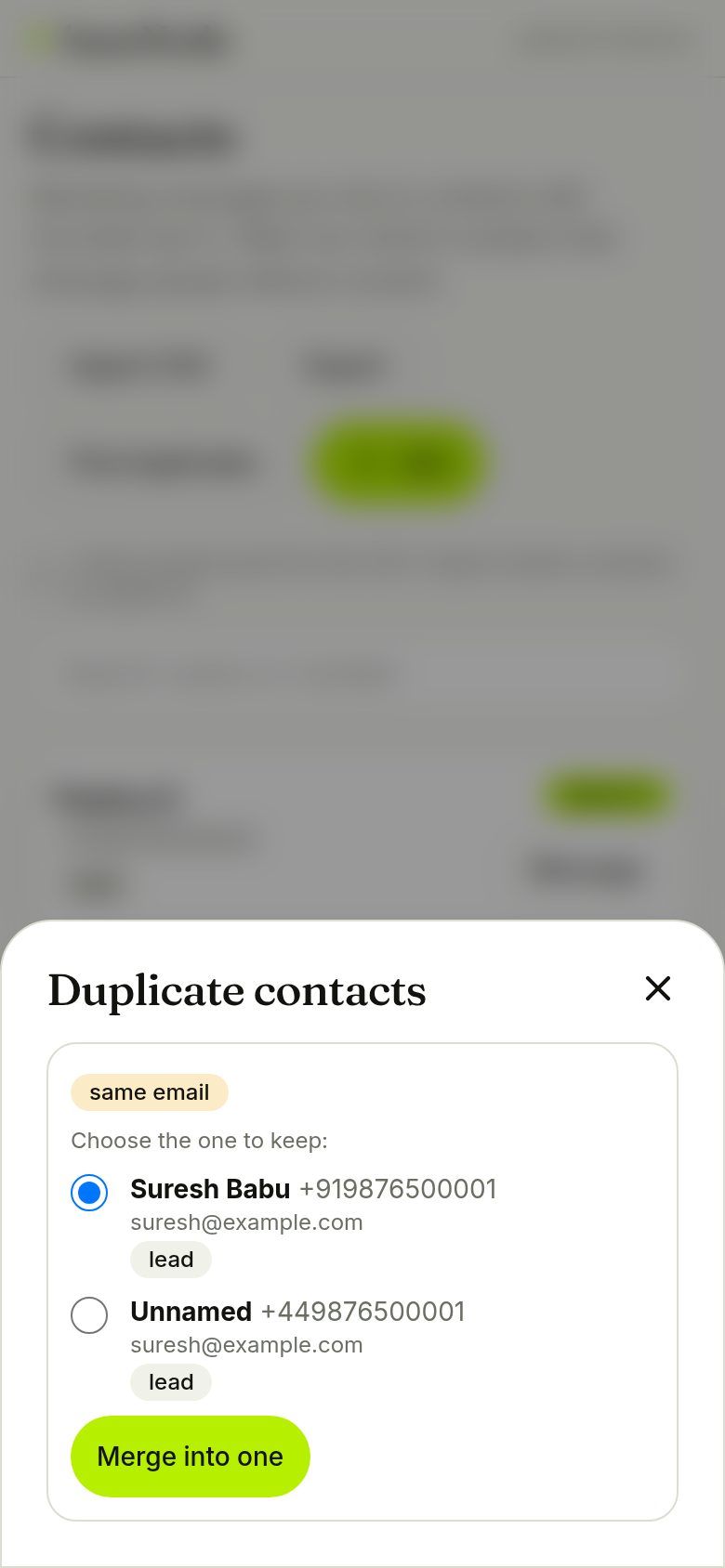
Merge duplicate contacts
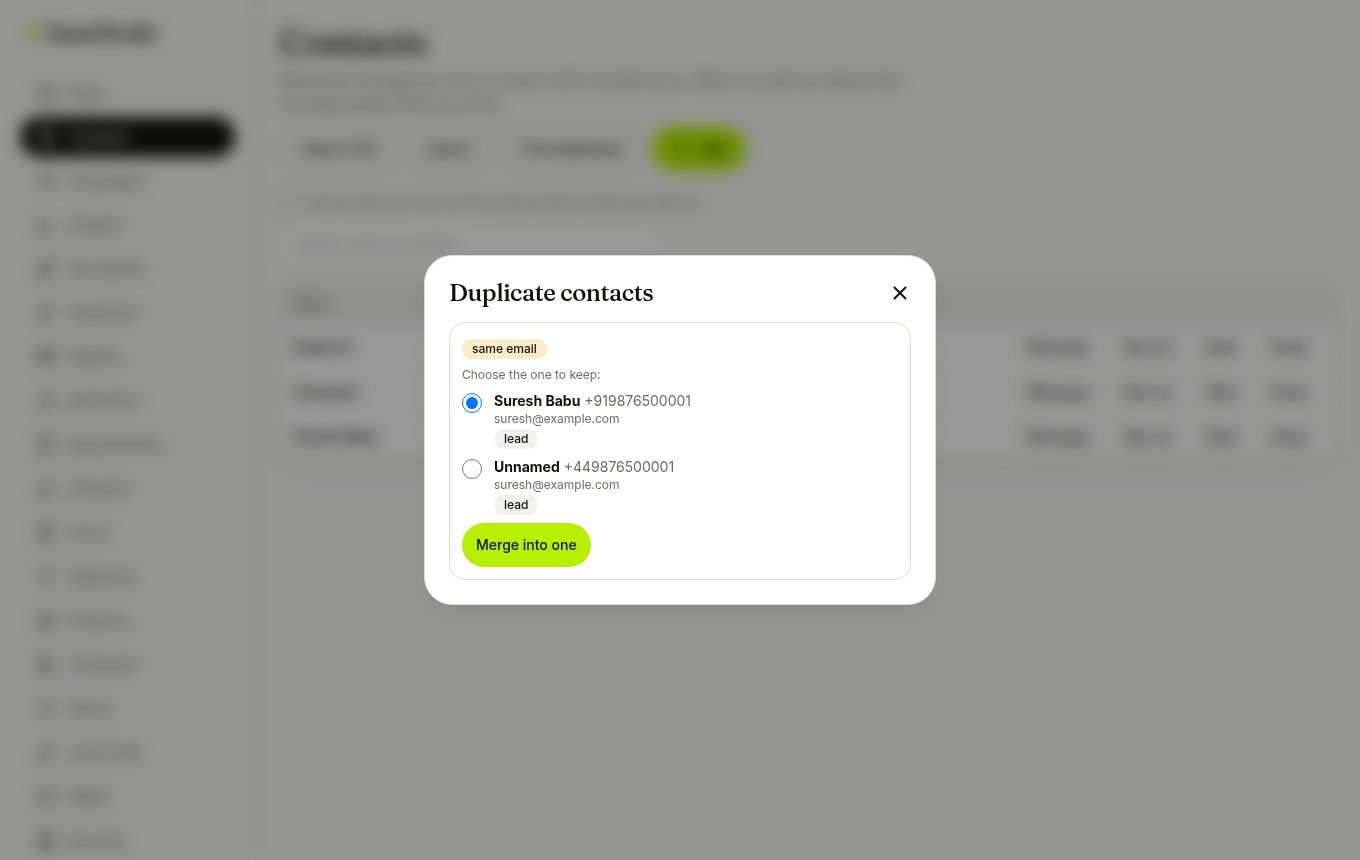
In Contacts tap Find duplicates. People with the same email or the same last 10 digits are grouped. Pick the one to keep and merge: chats, tags, deals, forms and consent proof all move over, and the old number still reaches the same person.
- If either person had opted out, the merged contact stays opted out
- Merging can't be undone
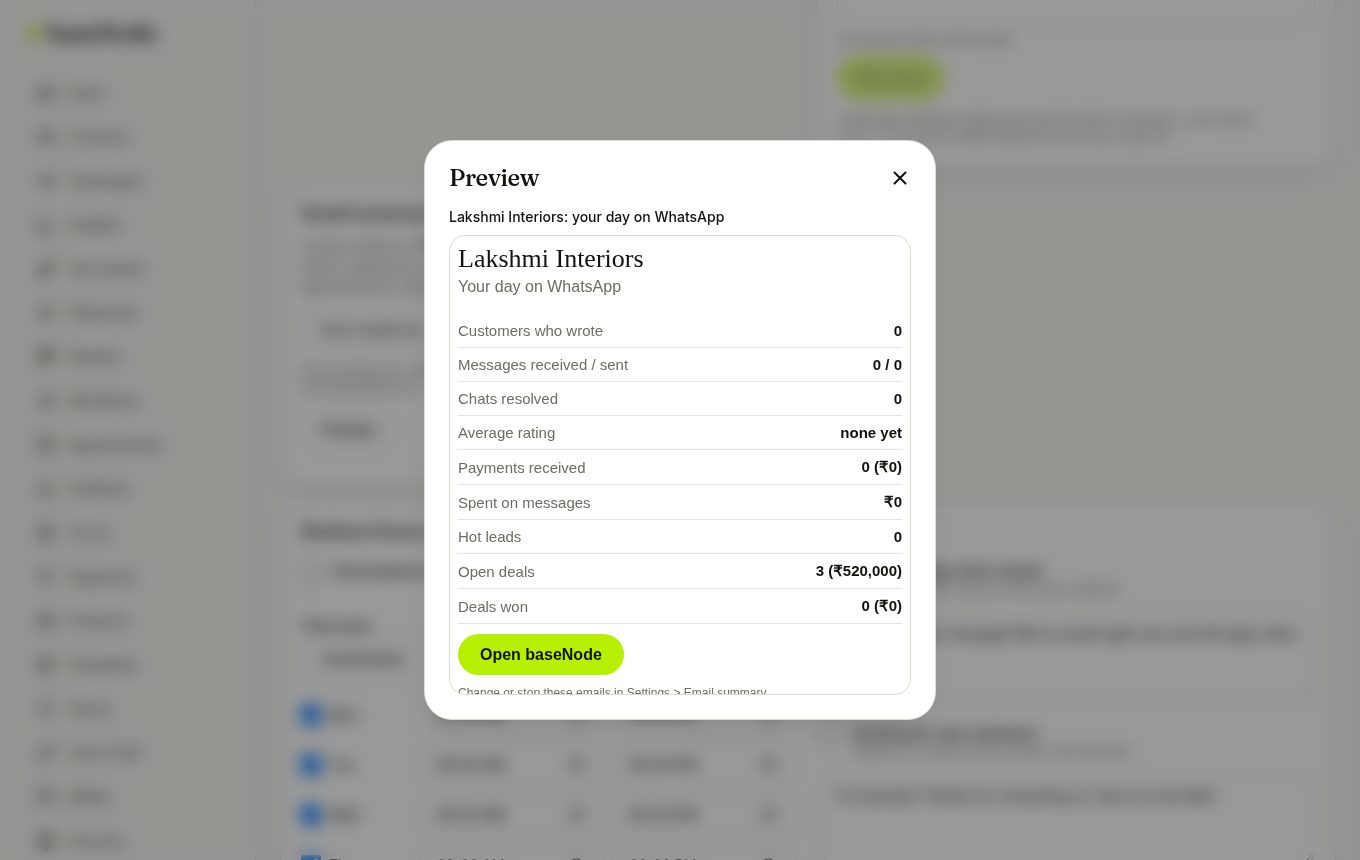
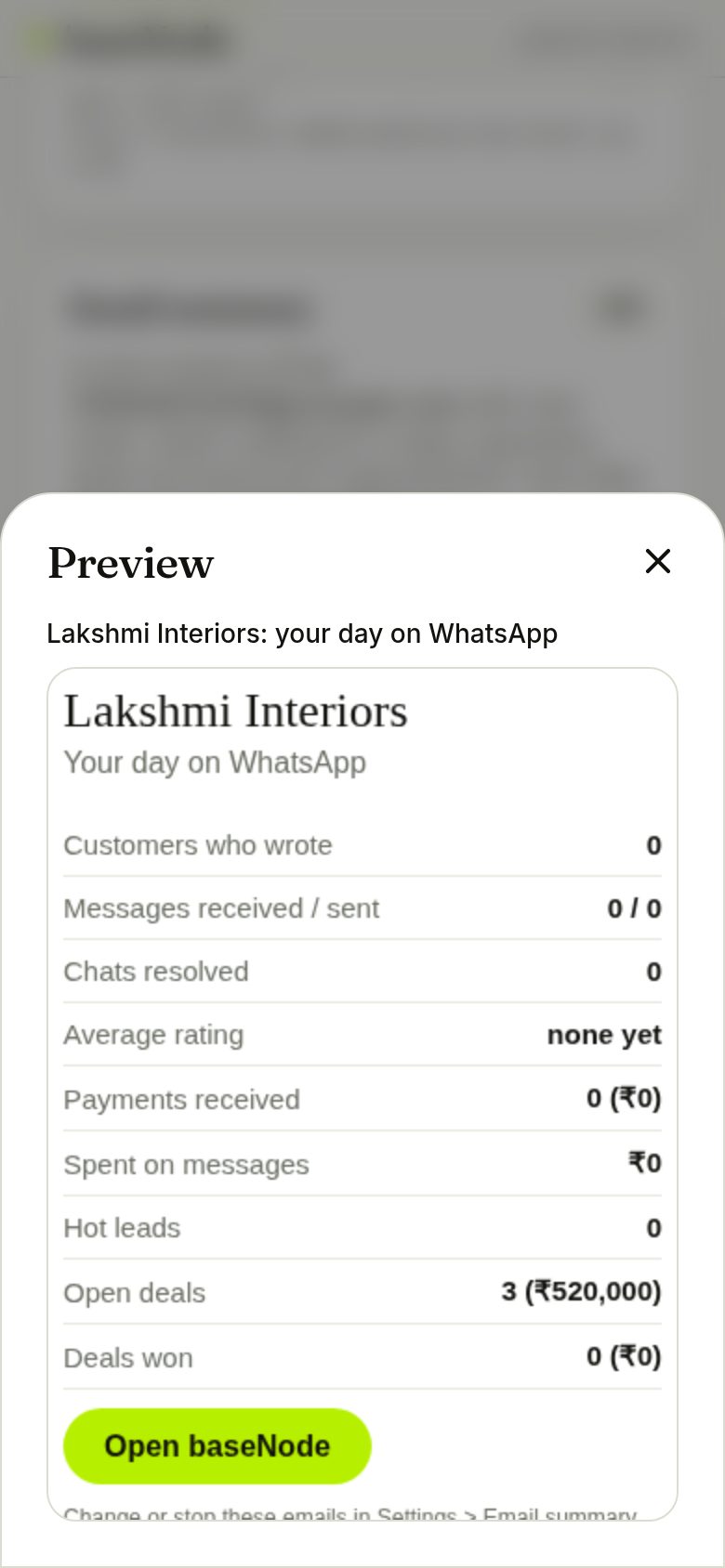
Get the email summary
In Settings choose Every morning or Every Monday. The email lists chats waiting, payments, deals, hot leads and tomorrow's appointments. Preview it any time.
- Needs email switched on for the server (SMTP settings)
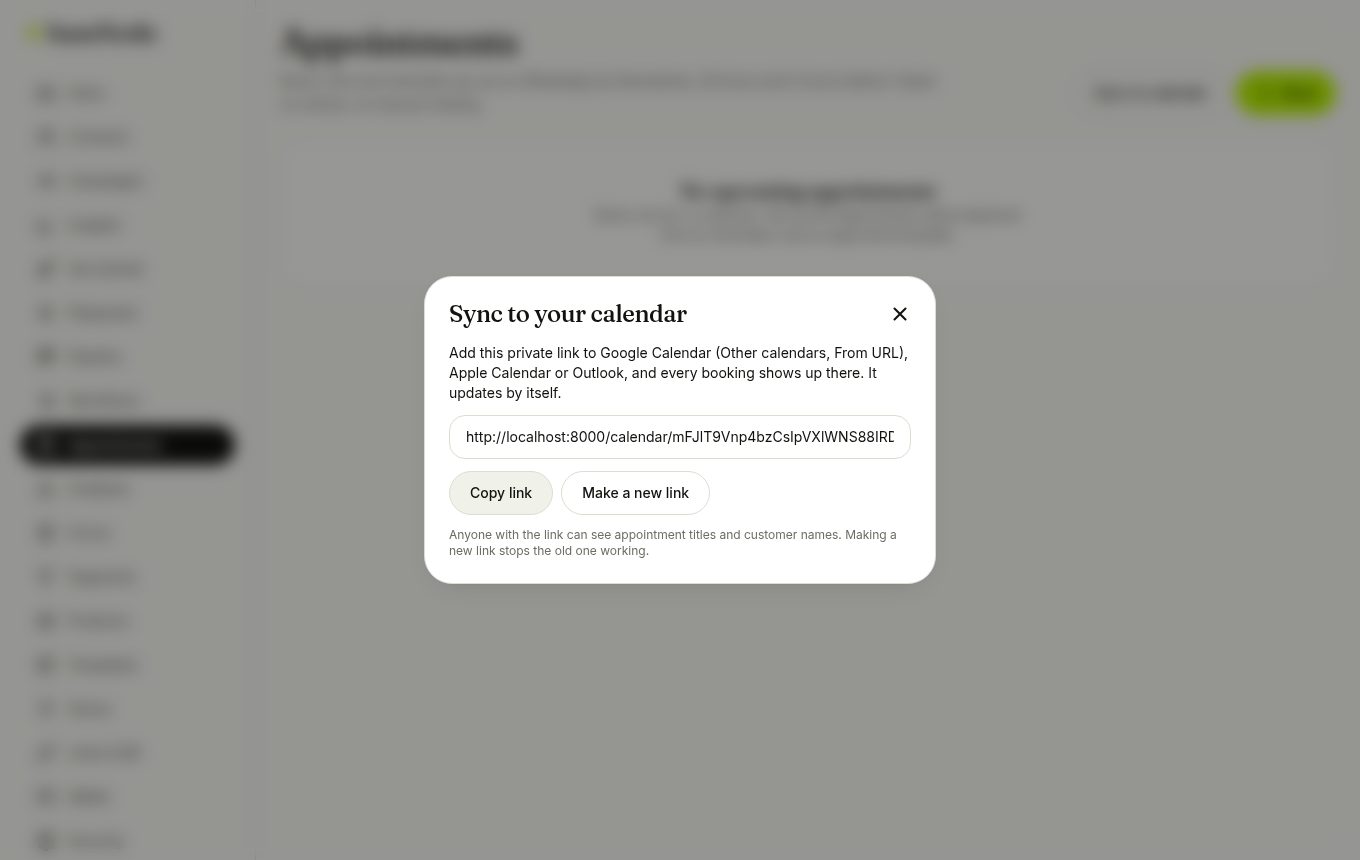
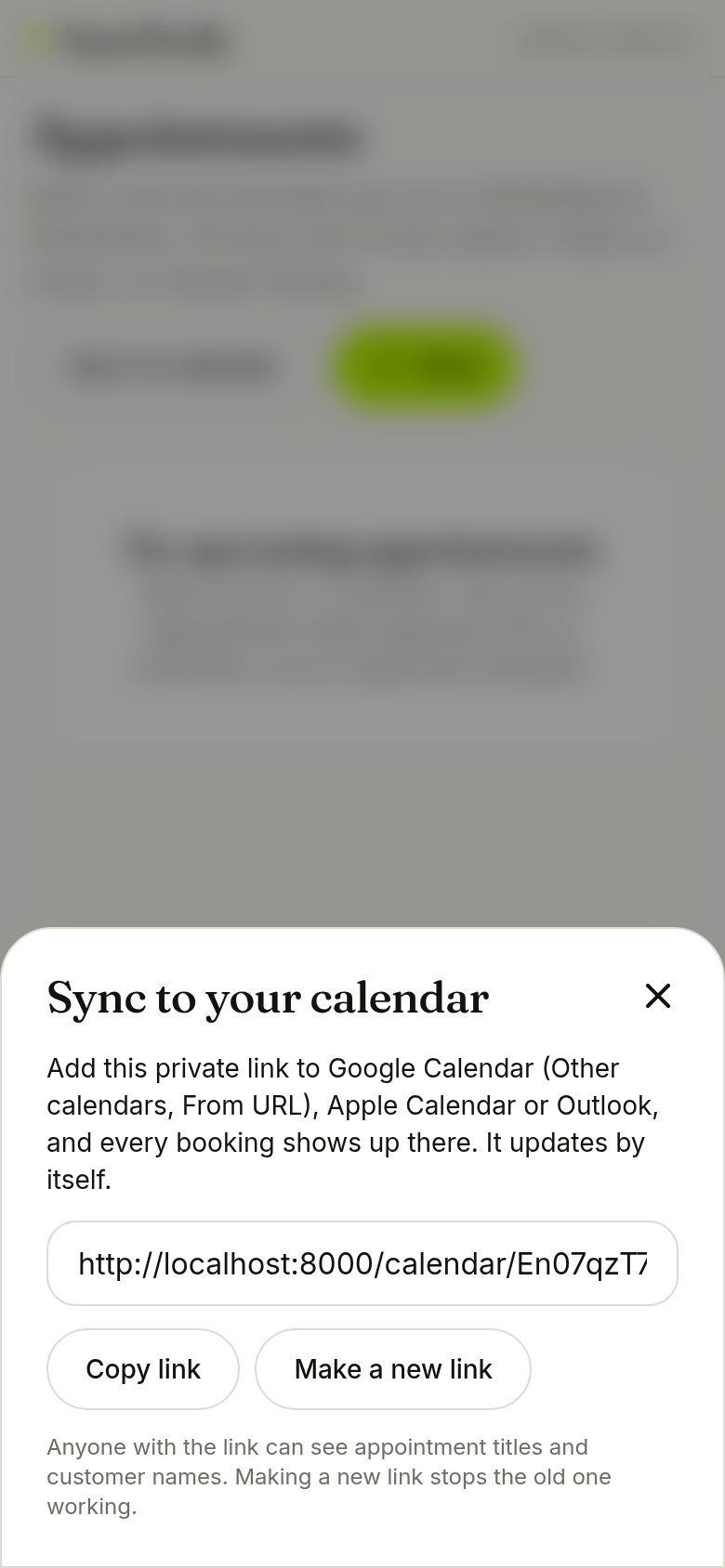
Put appointments in your calendar
On Appointments tap Sync to calendar, create the private link and add it to Google, Apple or Outlook Calendar. Bookings, reschedules and cancellations follow automatically.
- Making a new link stops the old one
Connect other tools
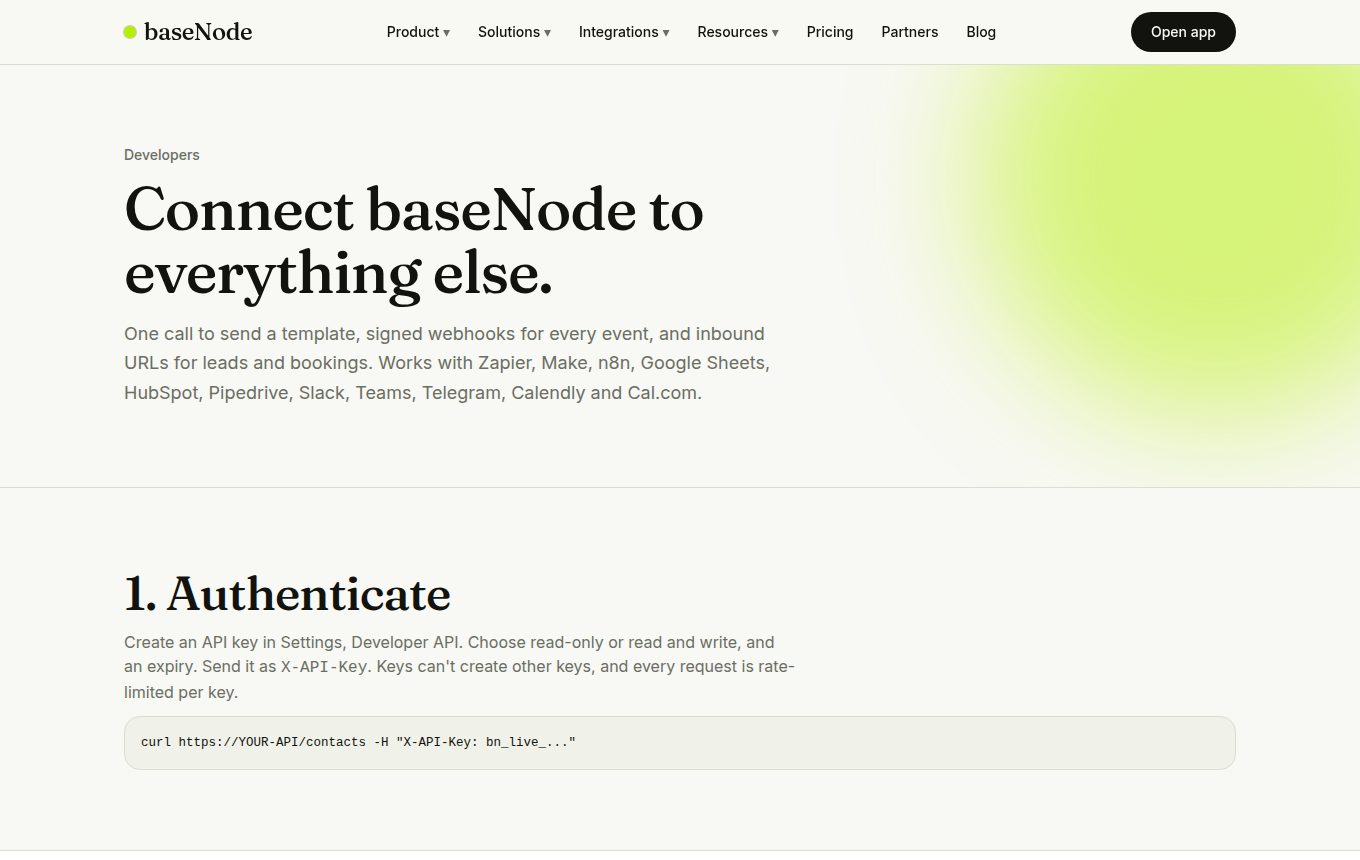
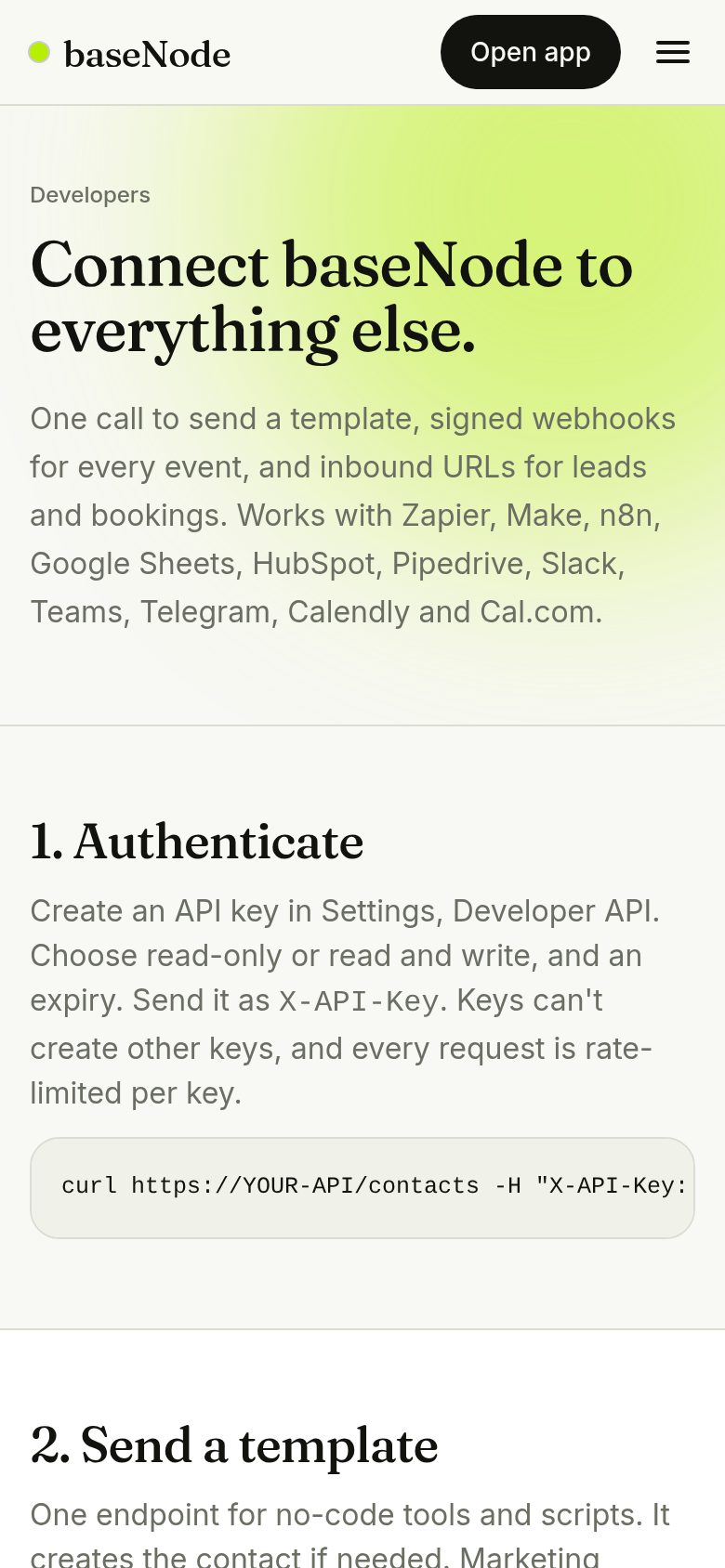
One call, POST /send, sends a template to any number from Zapier, Make, n8n or a Google Sheets script. Webhooks send events out (messages, forms, payments, deals). The payment-link expiry and your business details on invoices are handled for you.
- Marketing templates need consent: true, which records your proof of opt-in
16. Your day: Today, ownership, contacts, reports and help
The screens that make the daily routine faster: one page that says what needs you, clear ownership of every chat, tidy contacts, honest campaign reports, and help inside the product.
- Open TodayWaiting chats, appointments, deals, alerts
- Reply to waiting chatsOverdue first
- Assign or labelRight in the contact panel
- Follow up dealsDue ones are listed
- Check campaign report
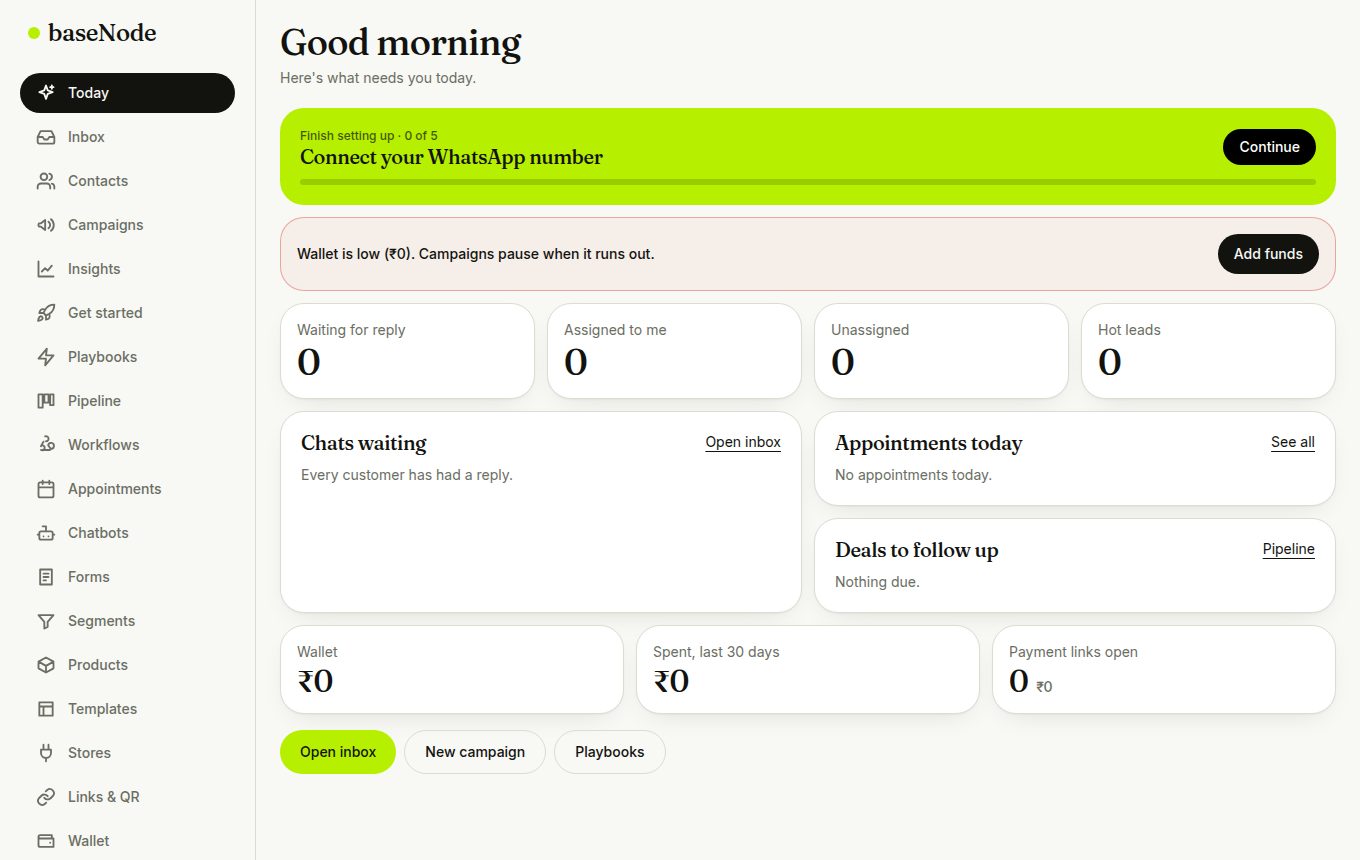
Start on Today
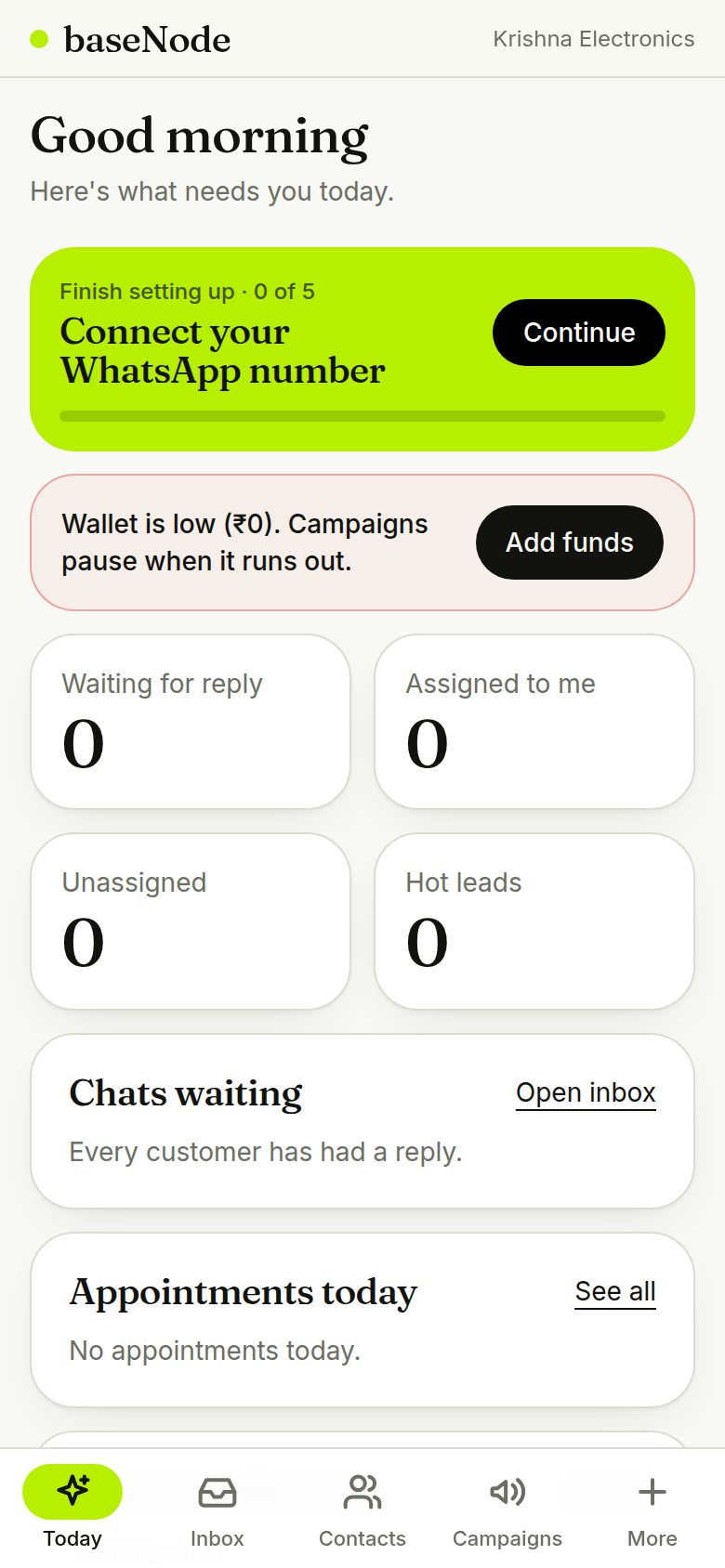
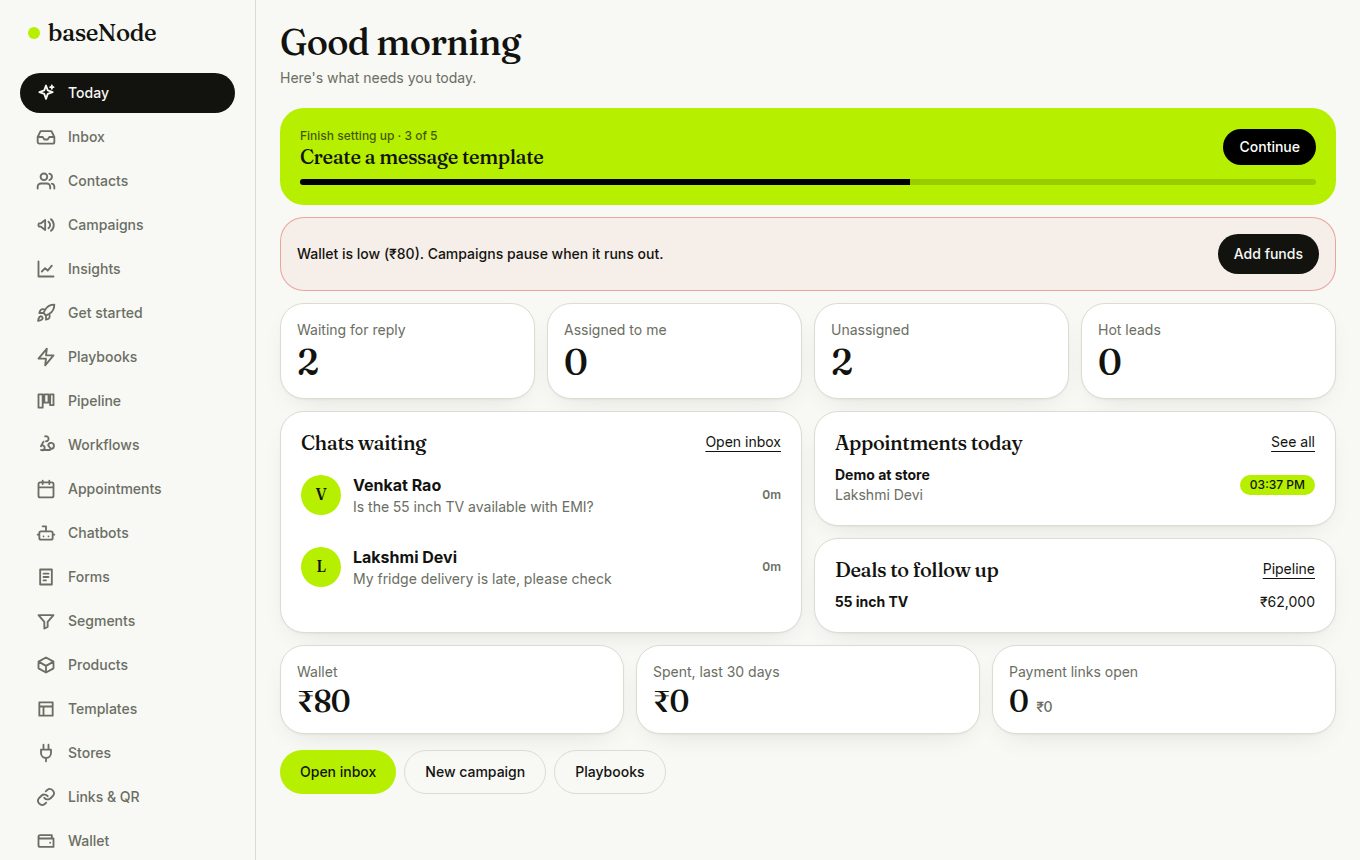
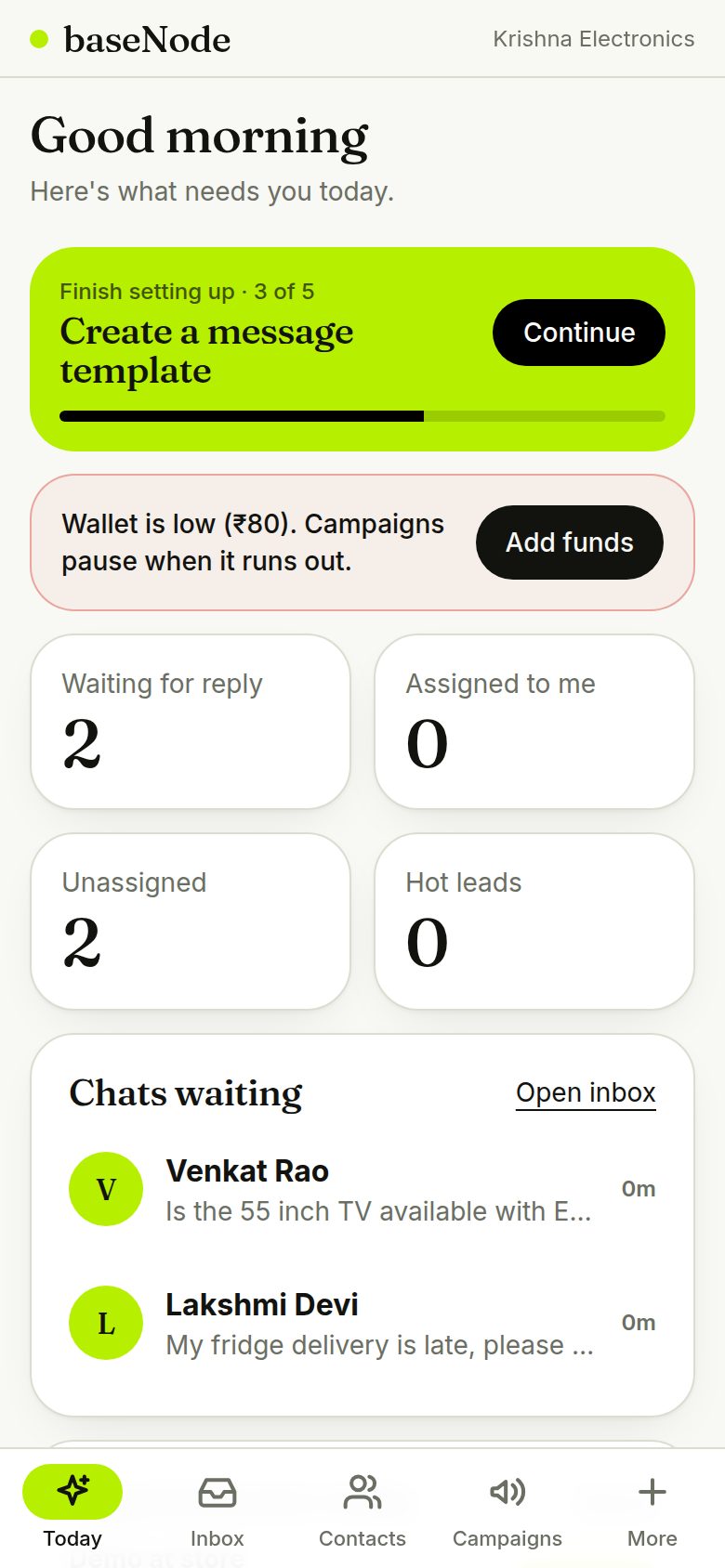
After login you land on Today. It shows setup progress for new workspaces, alerts that need action (low wallet, a rejected template, a number that lost its connection), counts of chats waiting, assigned to you and unassigned, the chats waiting longest, today's appointments and deals due.
- Every card is one tap to the thing to do
- Agents don't see wallet or billing items
Assign and label chats
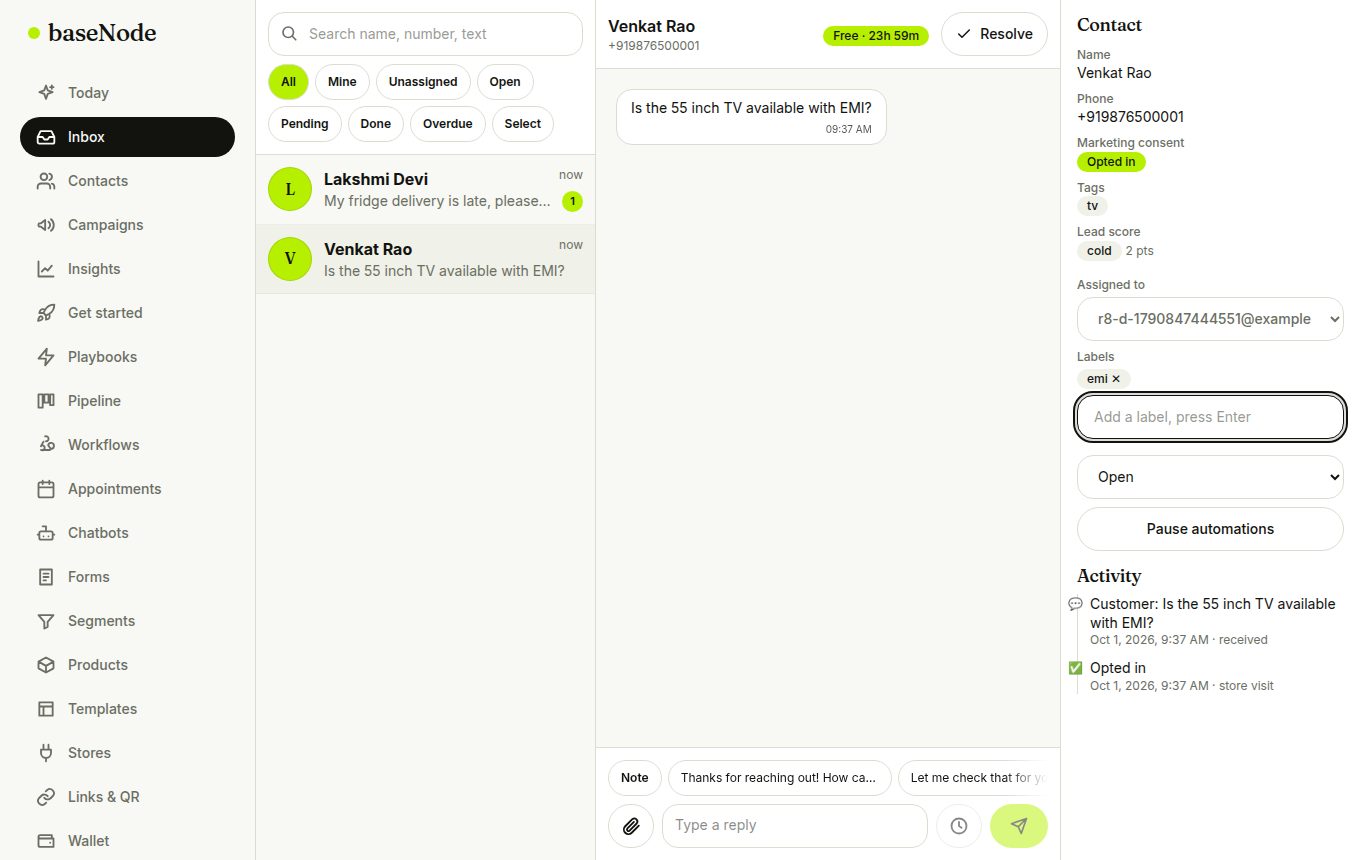
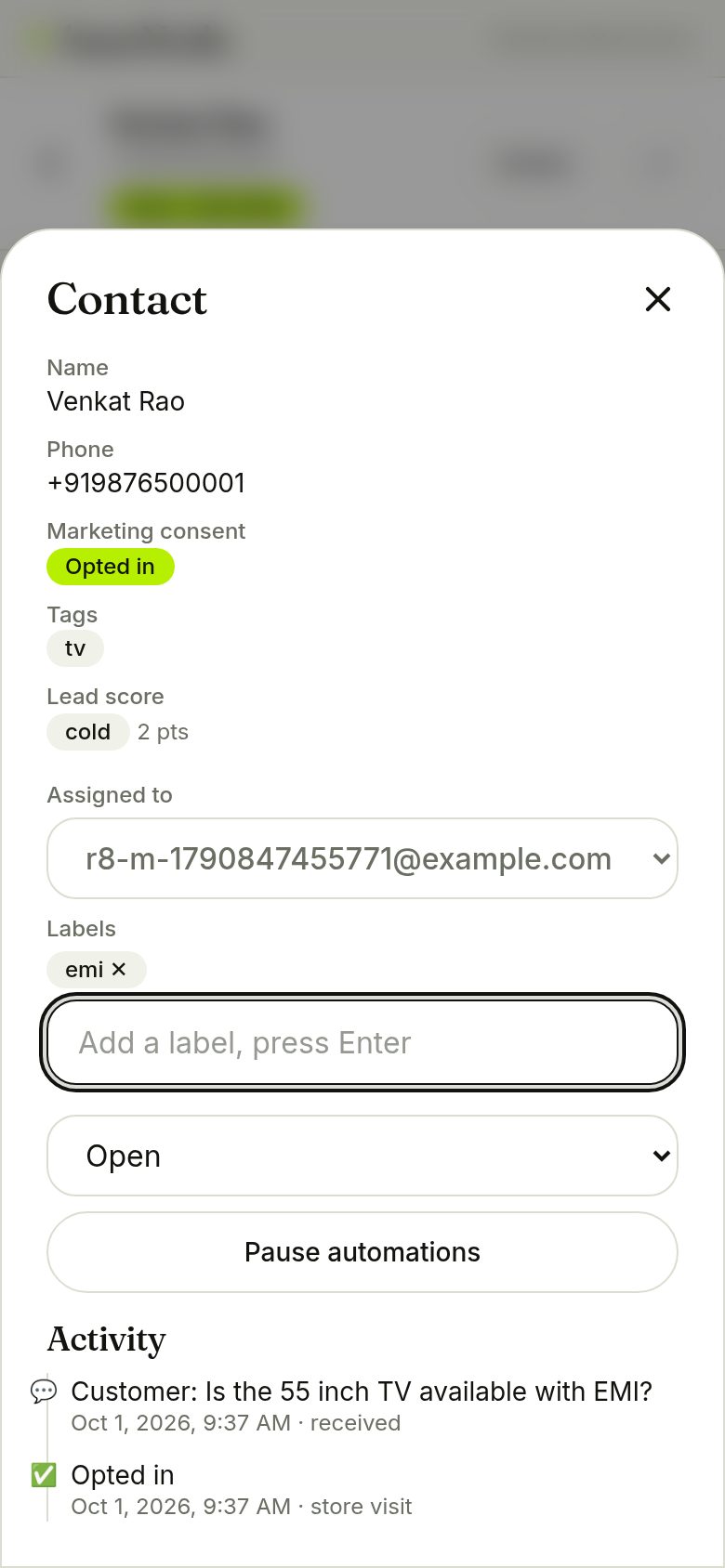
In any chat, the contact panel (the Details button on a phone) lets you assign the chat to a teammate and add labels. In the inbox, filter by Mine, Unassigned or a label. Search also looks inside message text.
- Shortcuts on a laptop: j and k move between chats, e resolves, / searches, ? shows help
- Paste or drag a photo or PDF into the chat to attach it
Keep contacts tidy
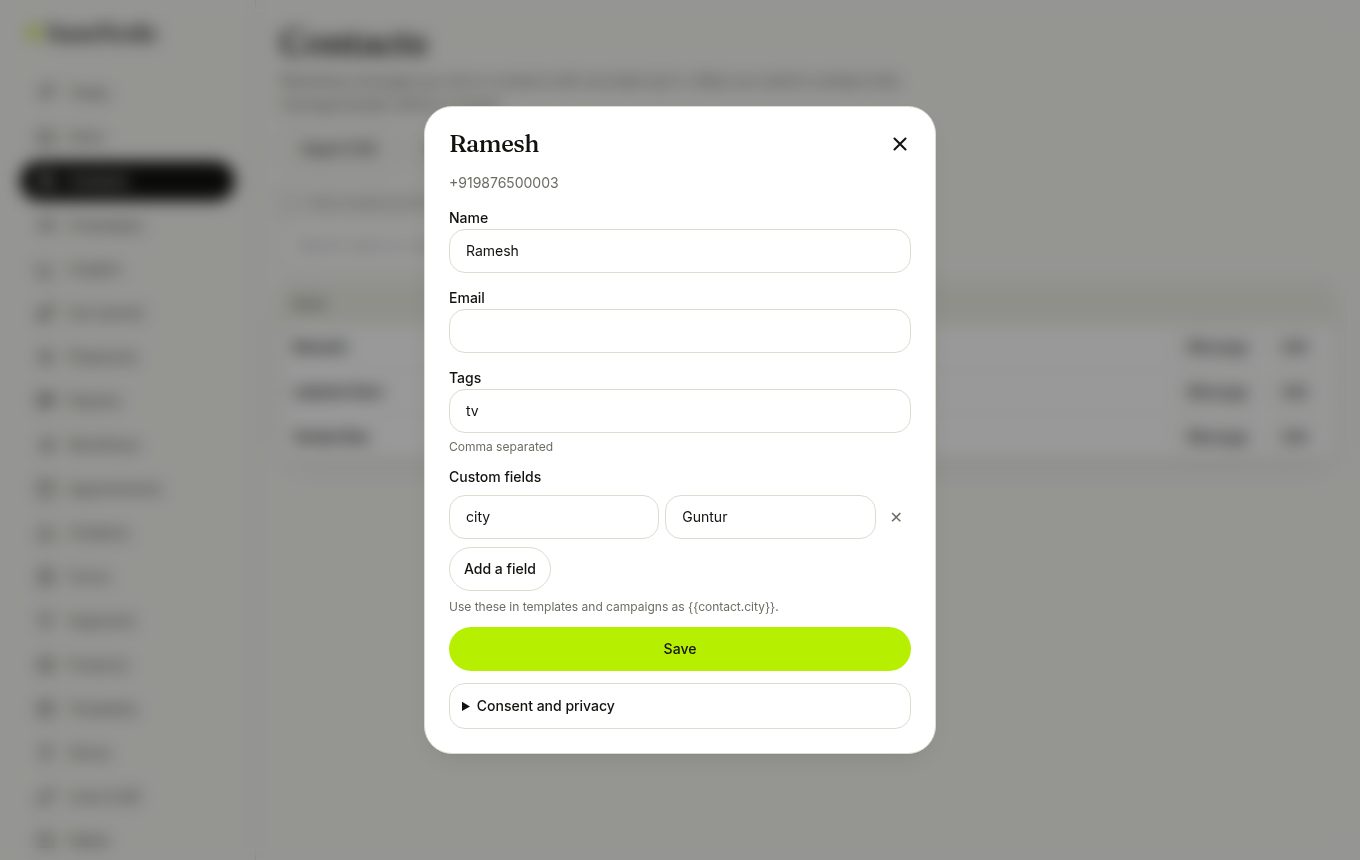
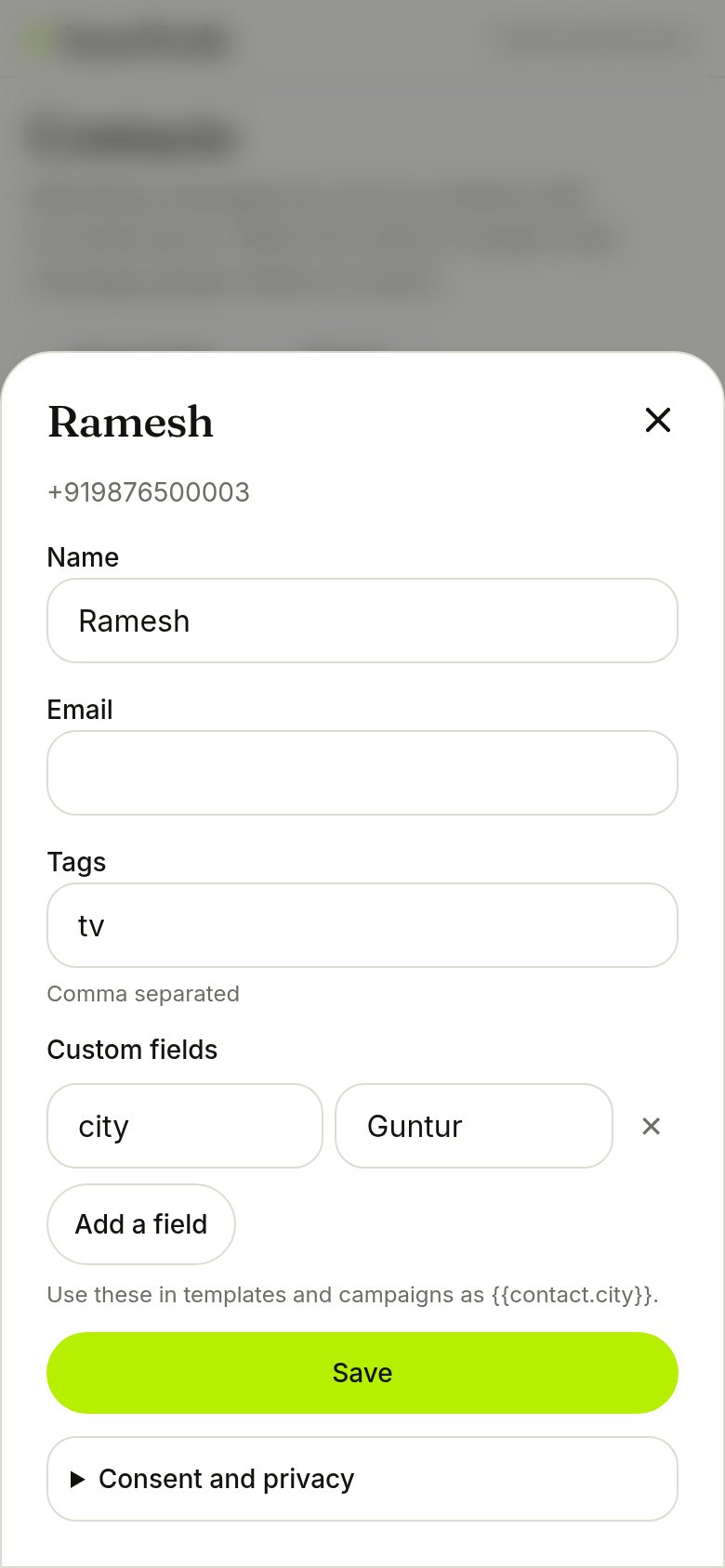
Tap a contact to edit its name, email, tags and custom fields. Use Select to tag many at once. Imports turn any extra column into a custom field and list the rows that need fixing. Consent, data download and erase are under Consent and privacy in the same sheet.
- Download the CSV template to get the columns right
- Use custom fields in templates as {{contact.city}}
Read the campaign report
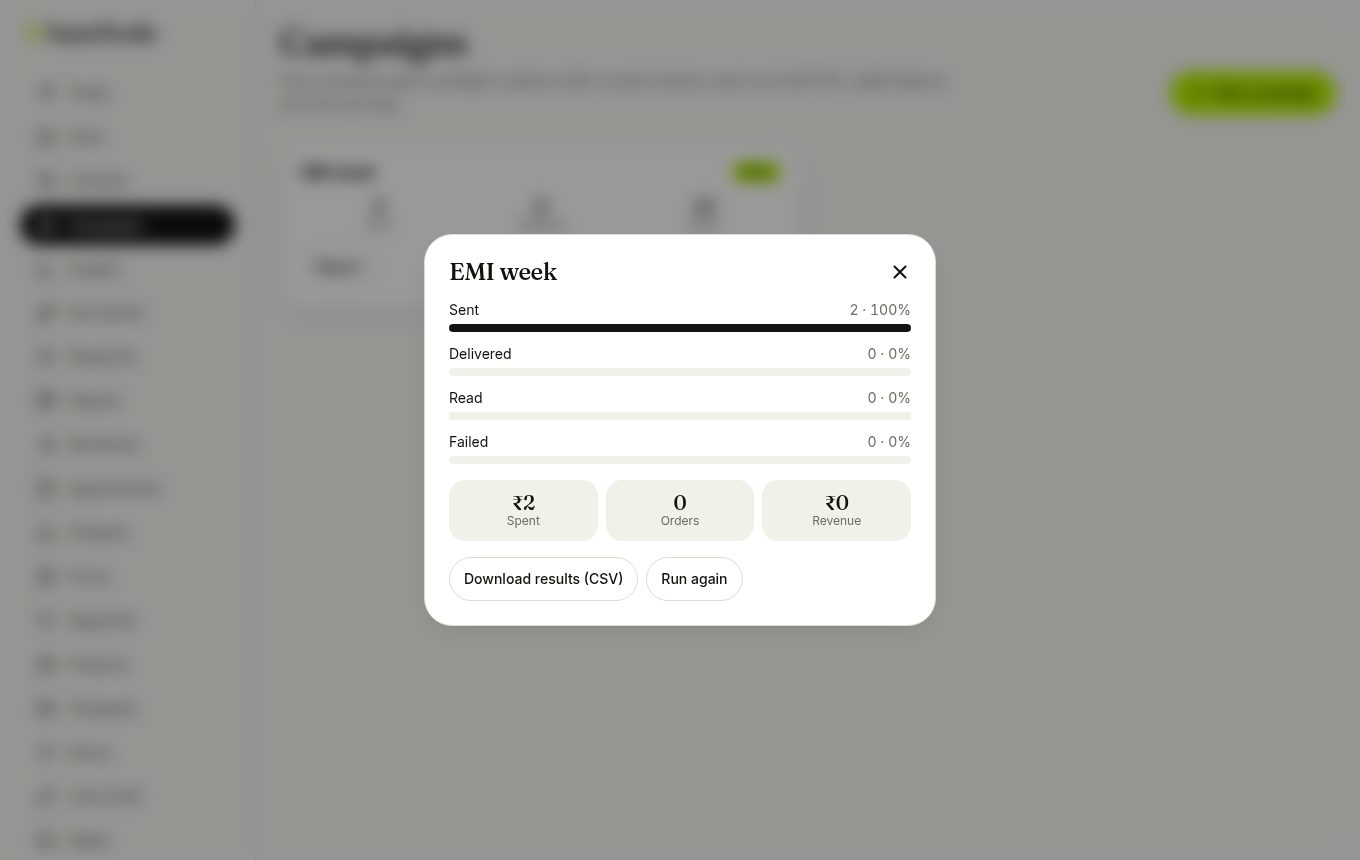
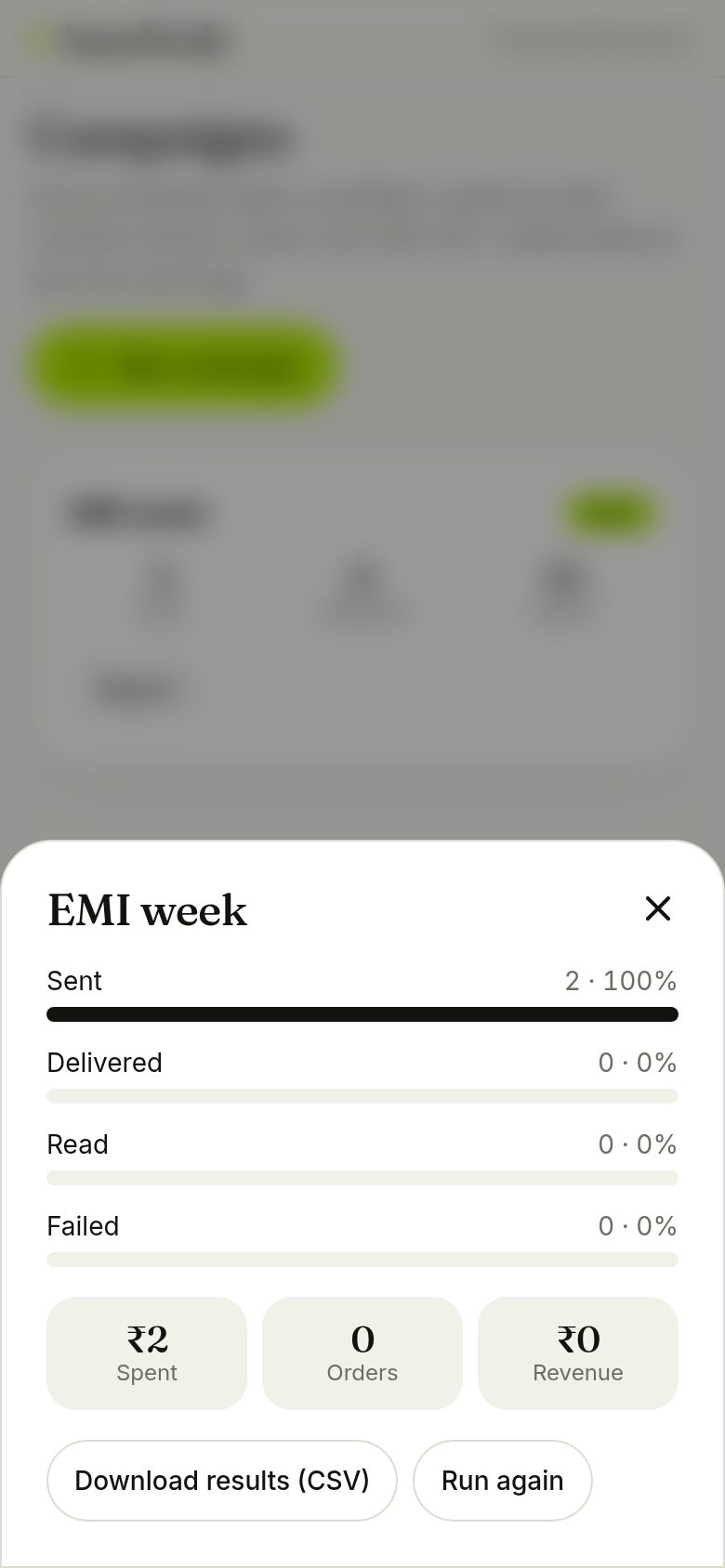
Tap Report on a campaign to see sent, delivered, read and failed, plus spend and attributed orders. Download the results as CSV, run it again, or retry just the people whose message failed.
- Failed messages are refunded automatically
Get help without leaving
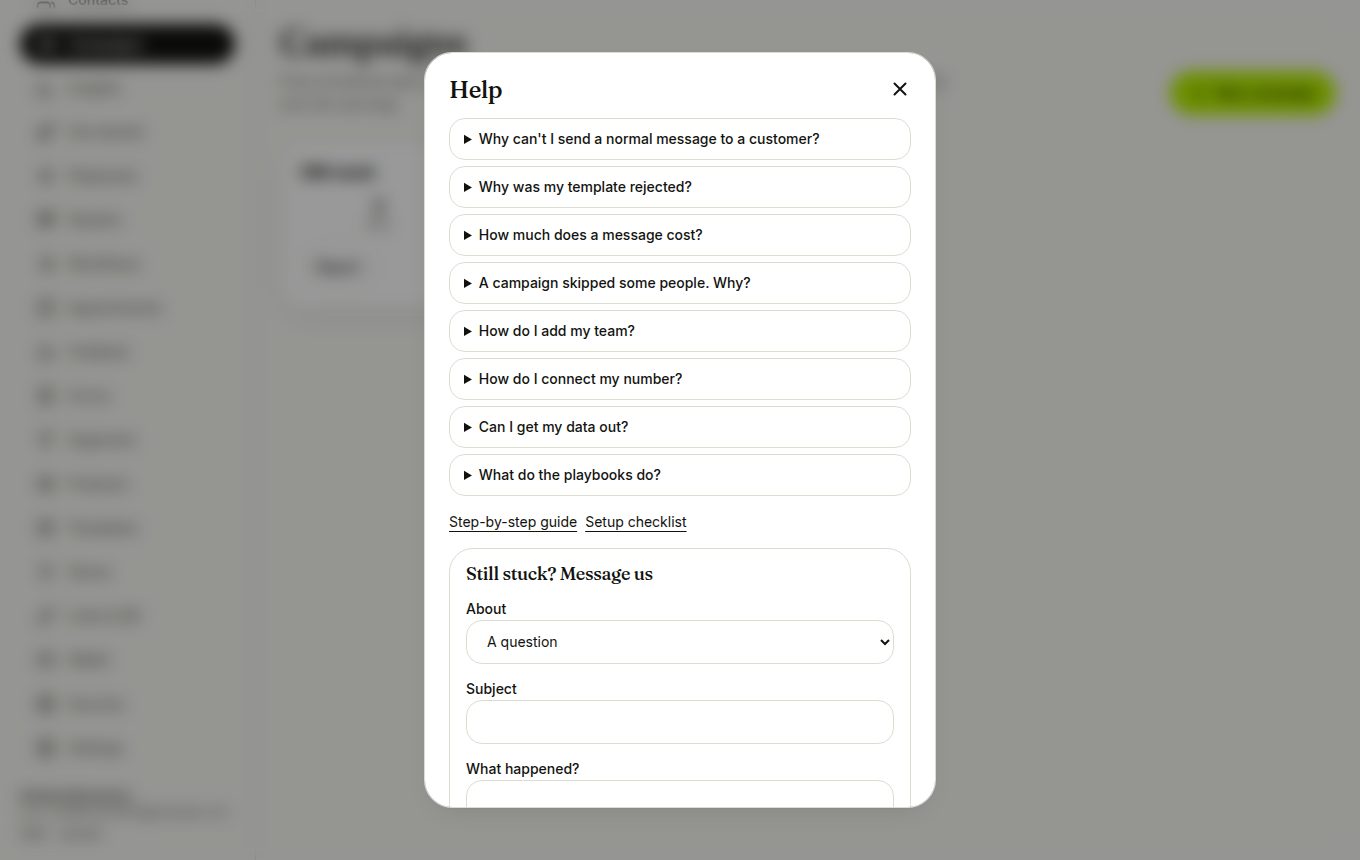
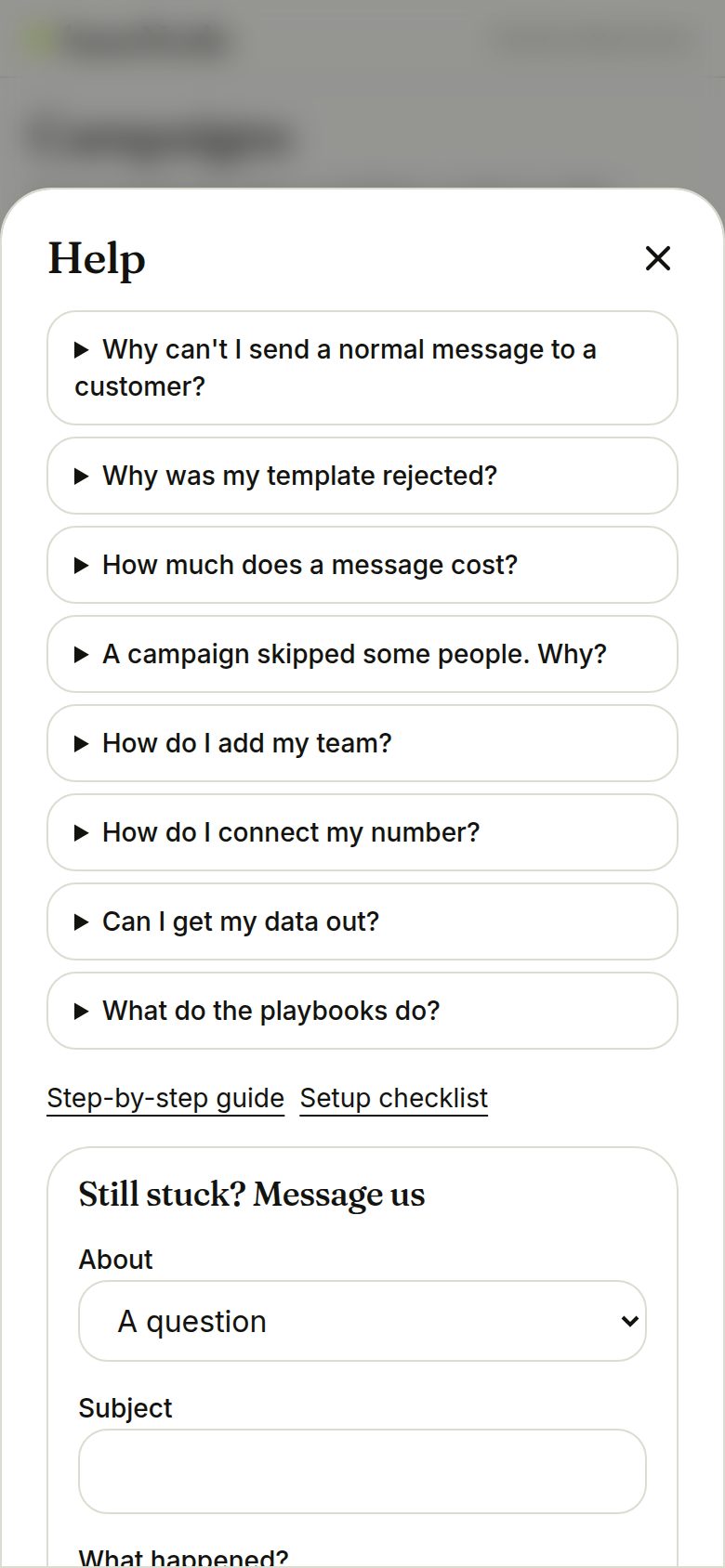
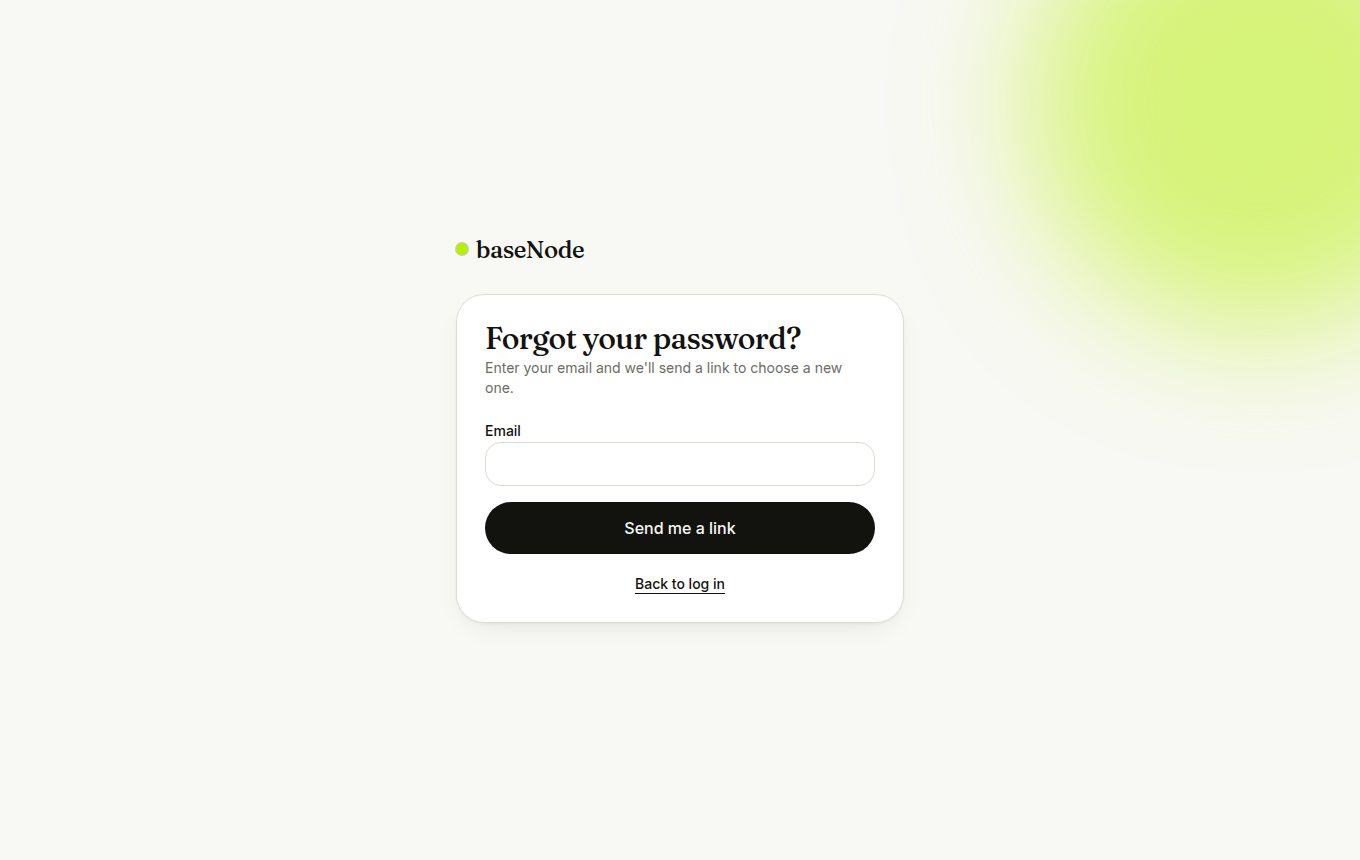
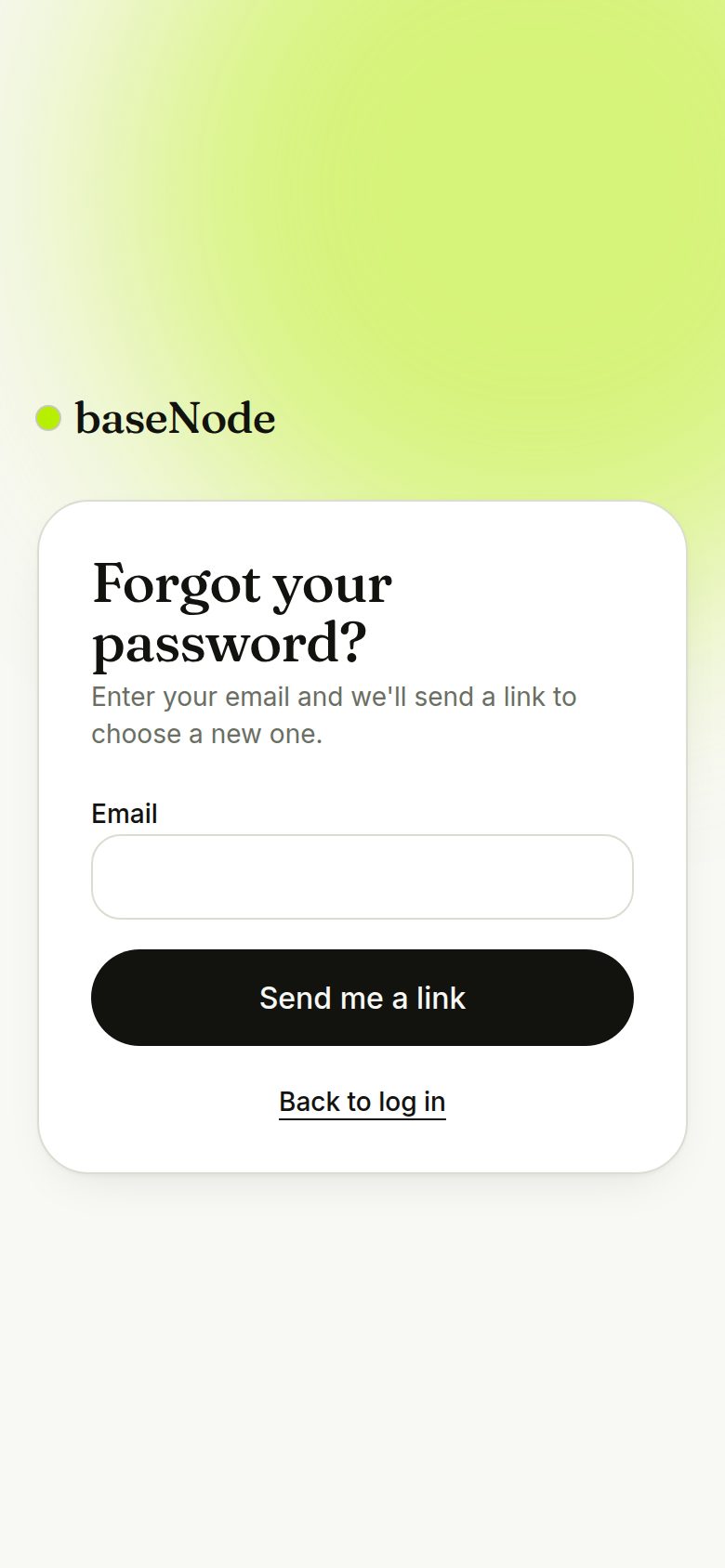
Help (bottom of the menu) answers the common questions and has a form that reaches the team. Choose Refund to ask for unused wallet balance back. Forgot your password? The login page has a reset link by email.
- Replies within two business days
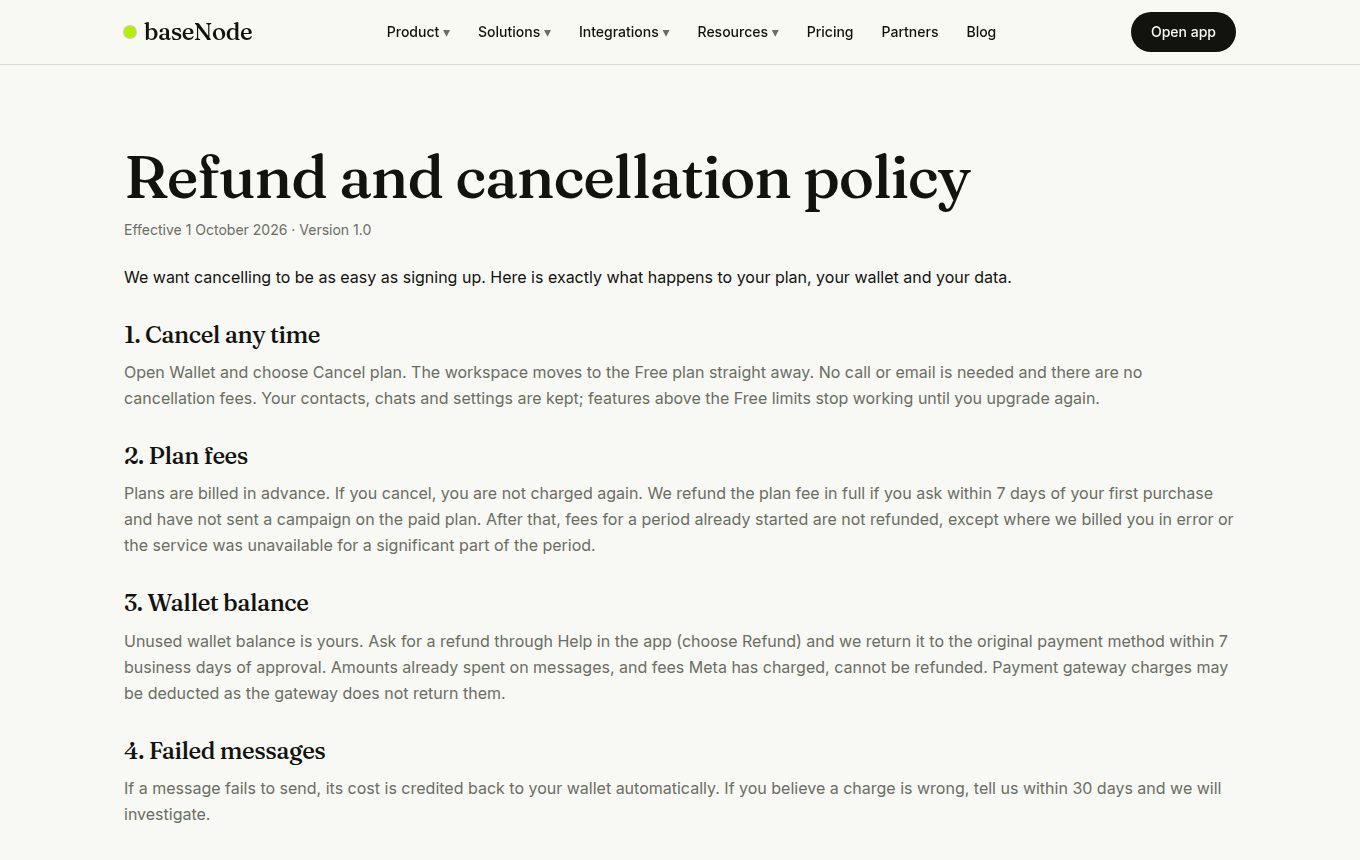
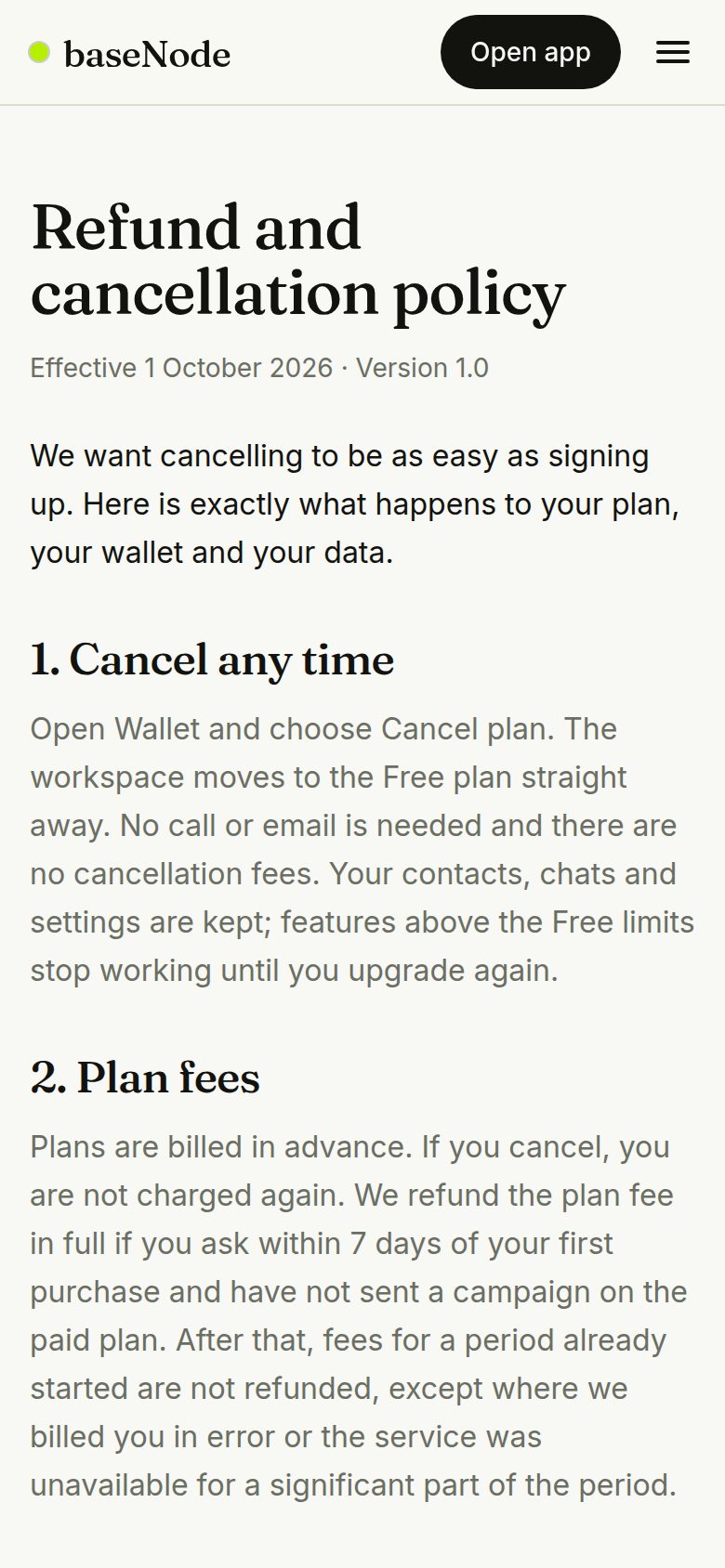
- Cancelling your plan is one tap in Wallet
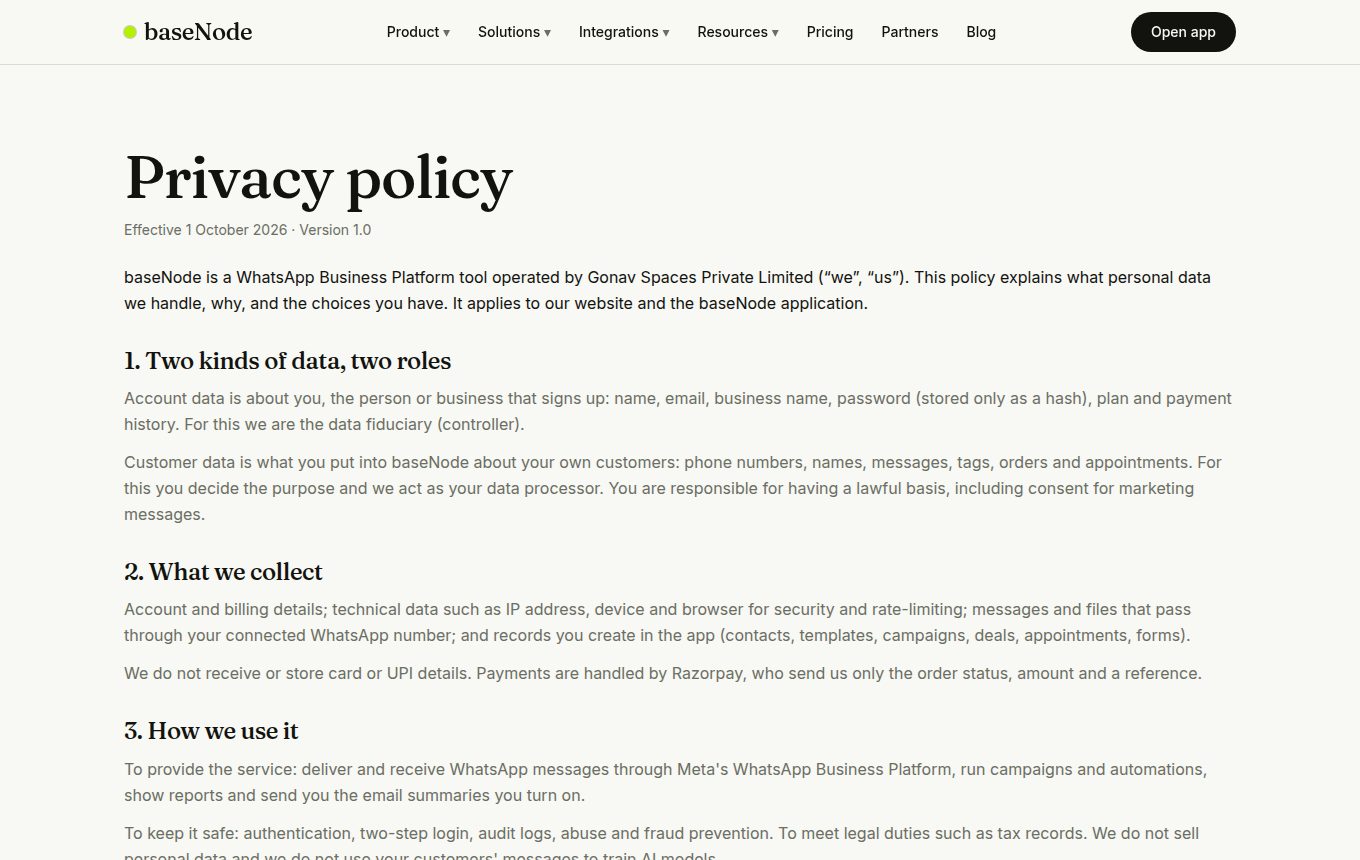
Policies customers can read
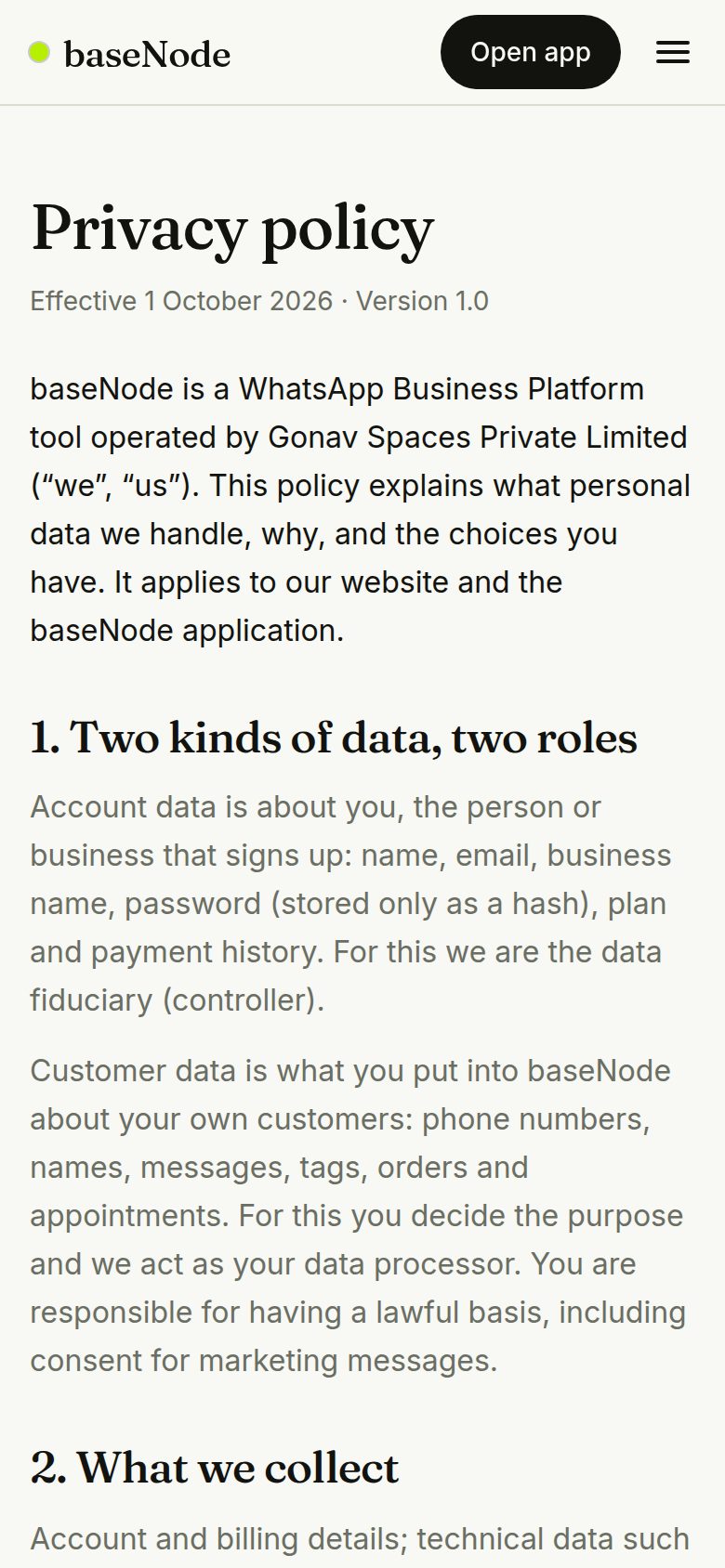
Privacy, Terms, Refund and cancellation, and Data deletion pages are linked in the footer, with your business details. Meta and Razorpay review these during onboarding.
- Have your lawyer review them before launch
17. Connections, sequences, link-in-bio and smarter insights
Bring leads and bookings in from anywhere, send alerts where your team already works, keep customers warm with sequences, give your business a shareable page, and see when and what works.
- A form, ad or site posts a leadPrivate URL from Connections
- Contact createdTags, source and consent recorded
- Workflow firesTag, add to pipeline, assign
- Team alertedSlack, Teams, Telegram or push
- Sequence startsStops when they reply
See everything you can do
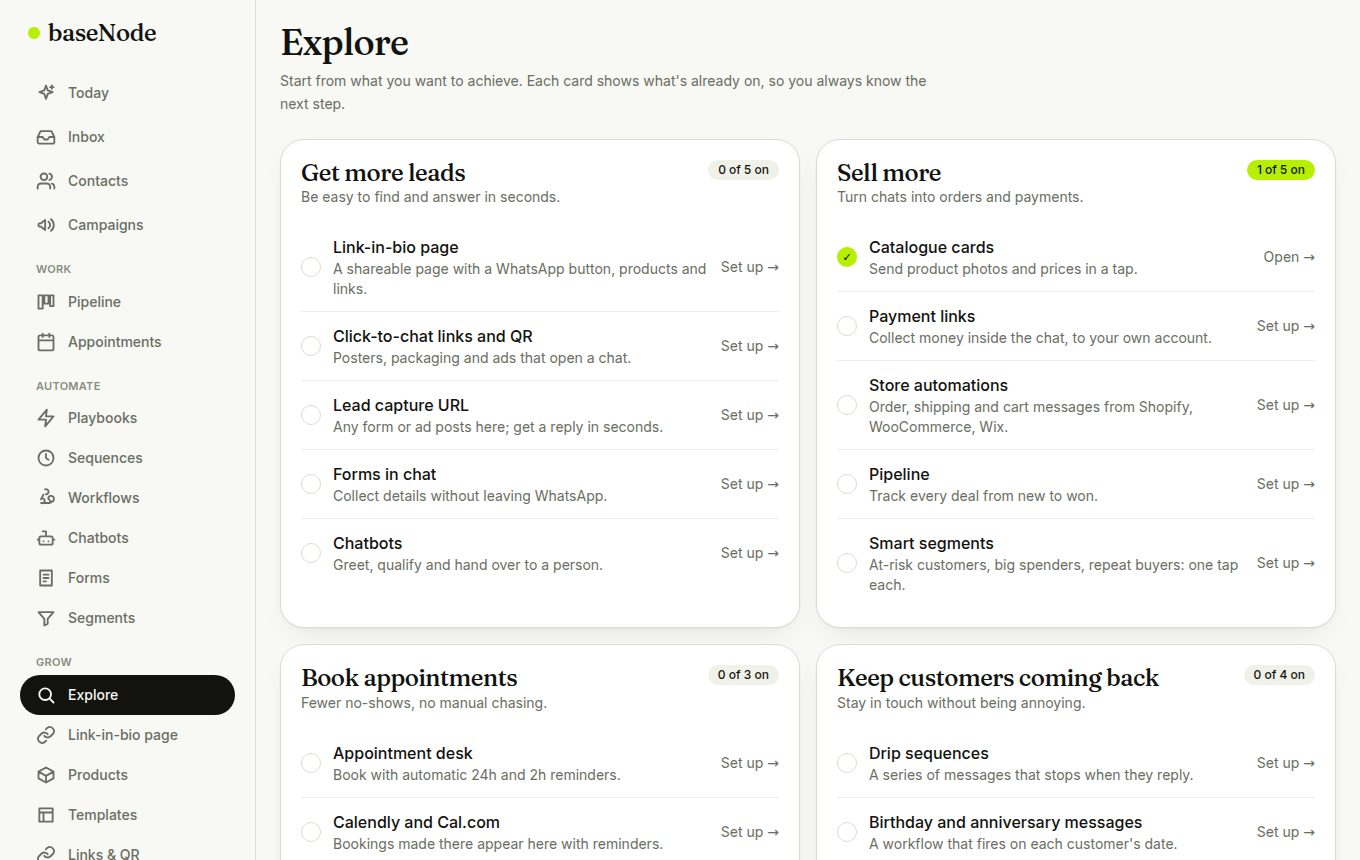
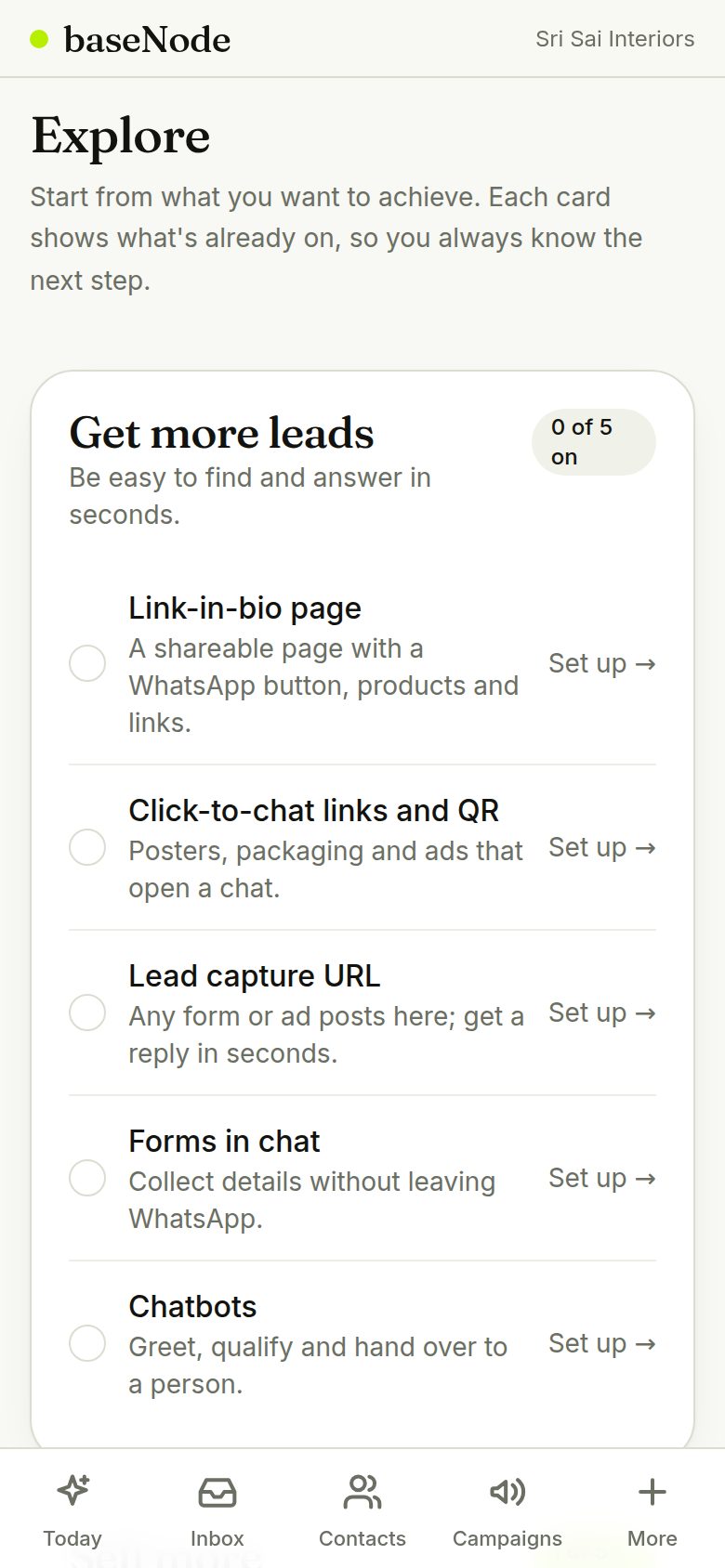
Explore groups every capability by goal (get leads, sell, book, keep customers, run the team, connect tools) and shows what's already on. Pick a goal, then the next thing to set up.
- The menu is grouped into Work, Automate, Grow, Connect and Account
Connect your tools
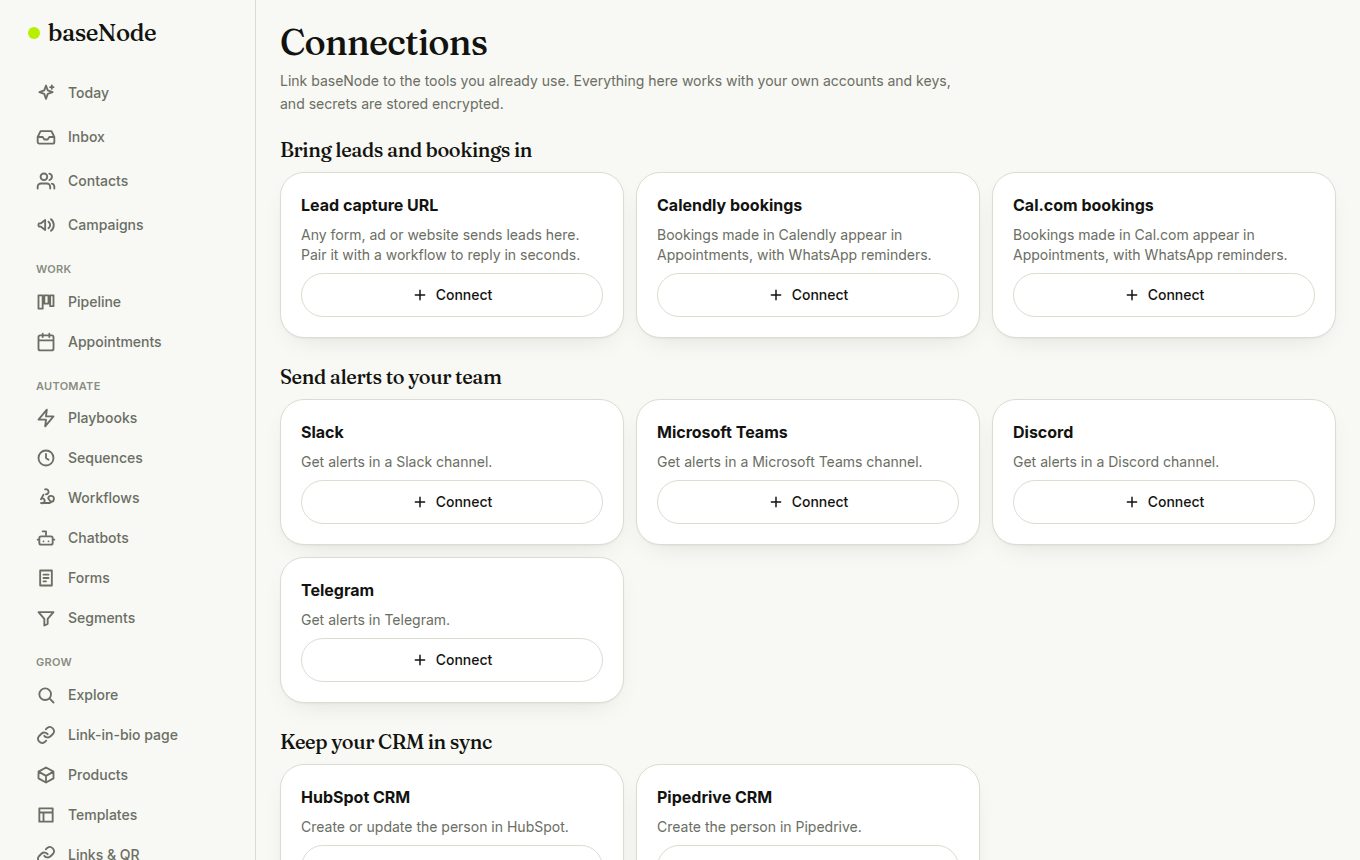
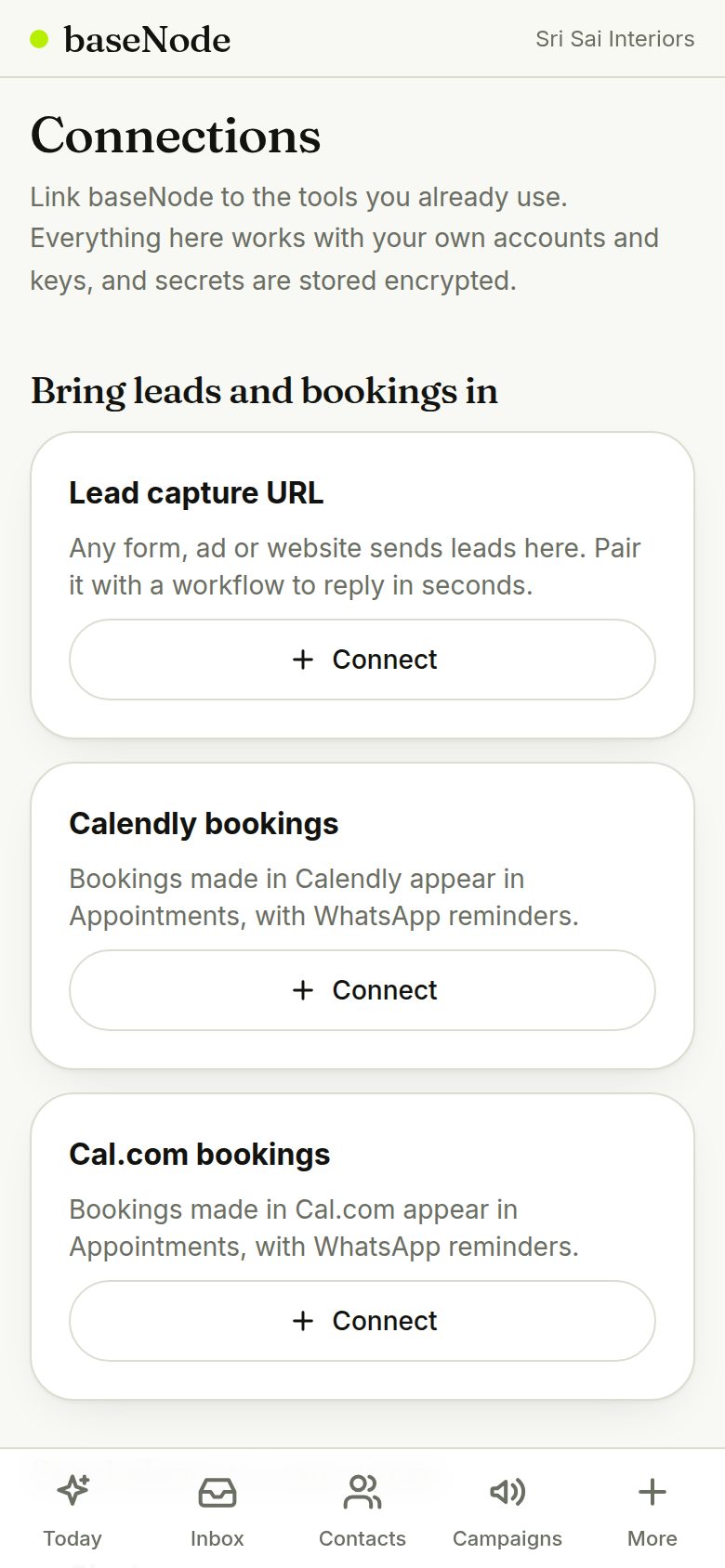
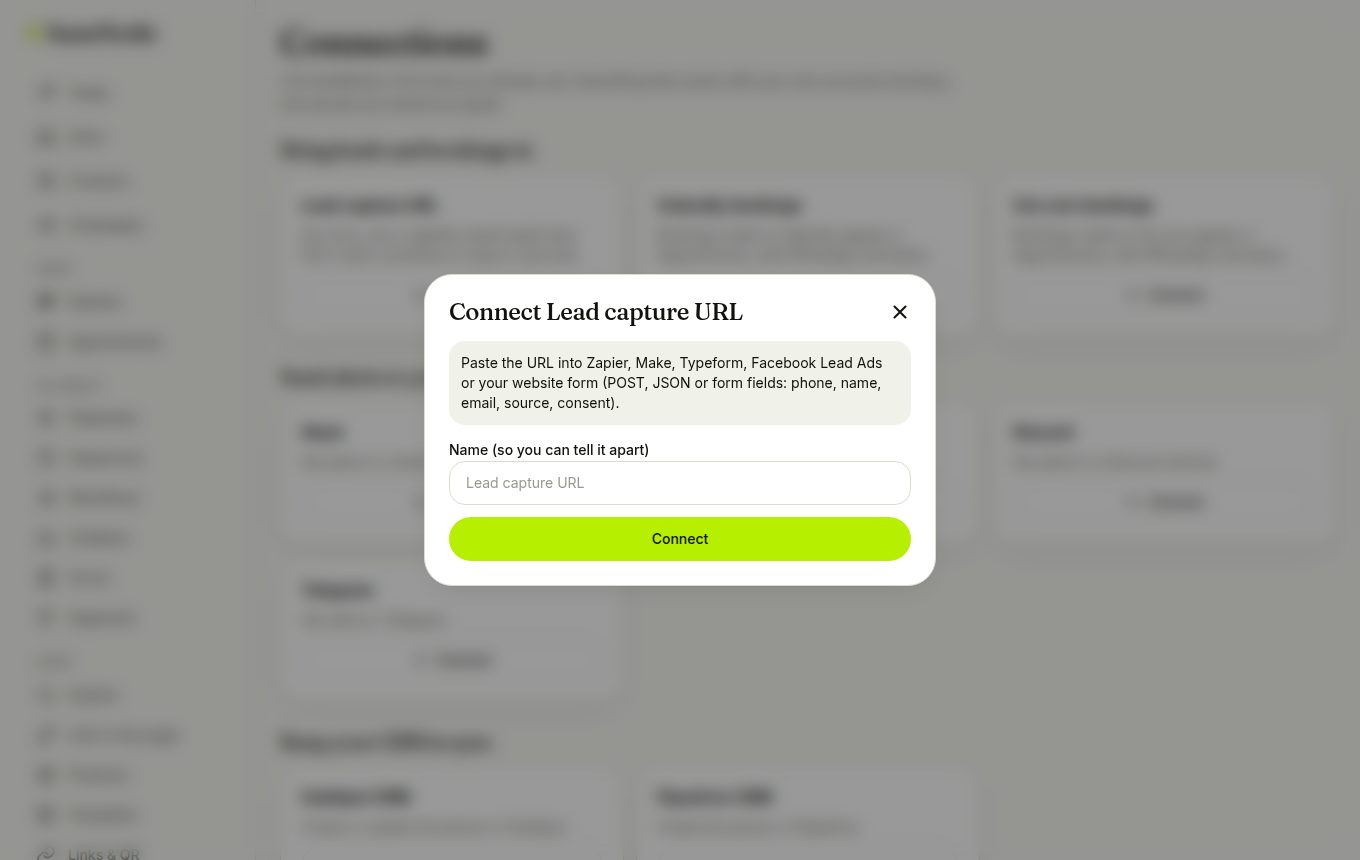
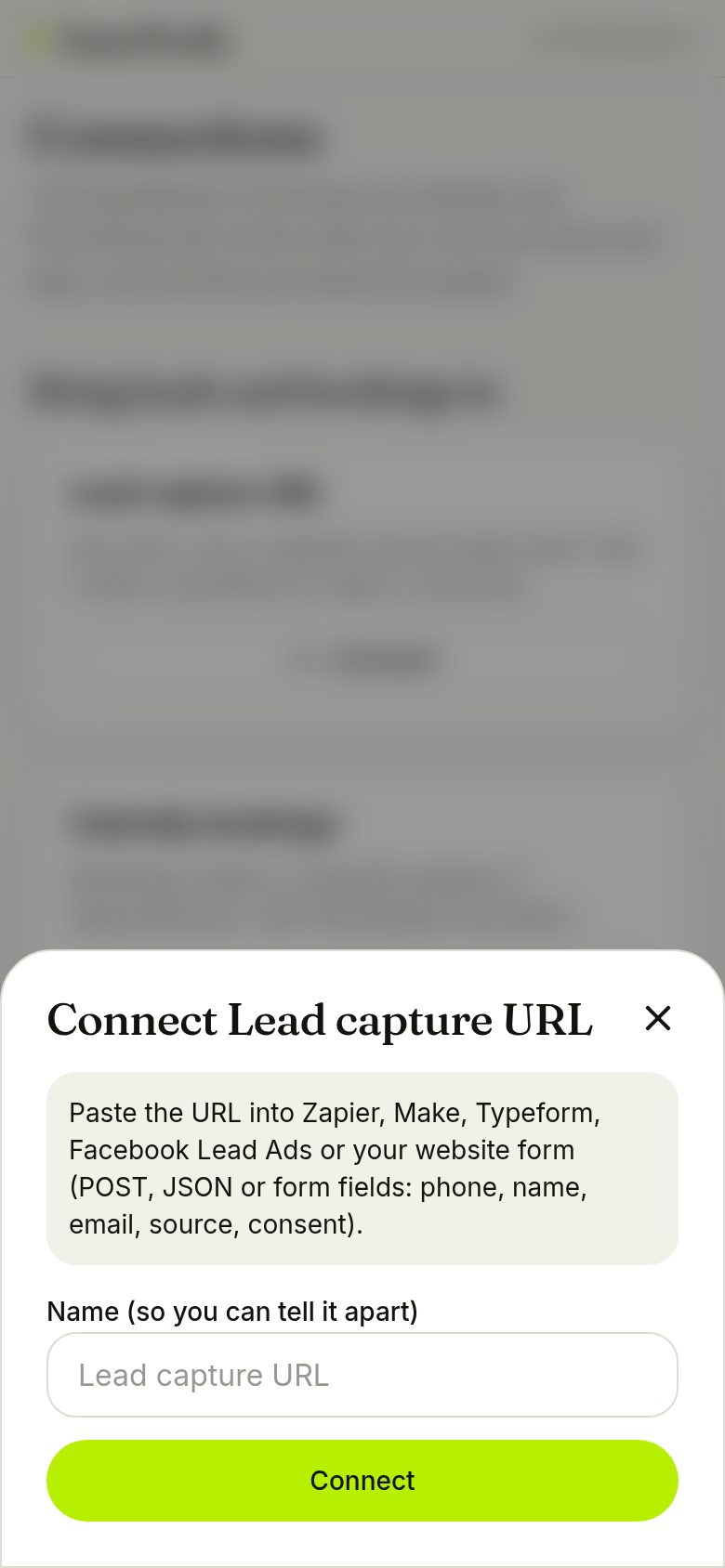
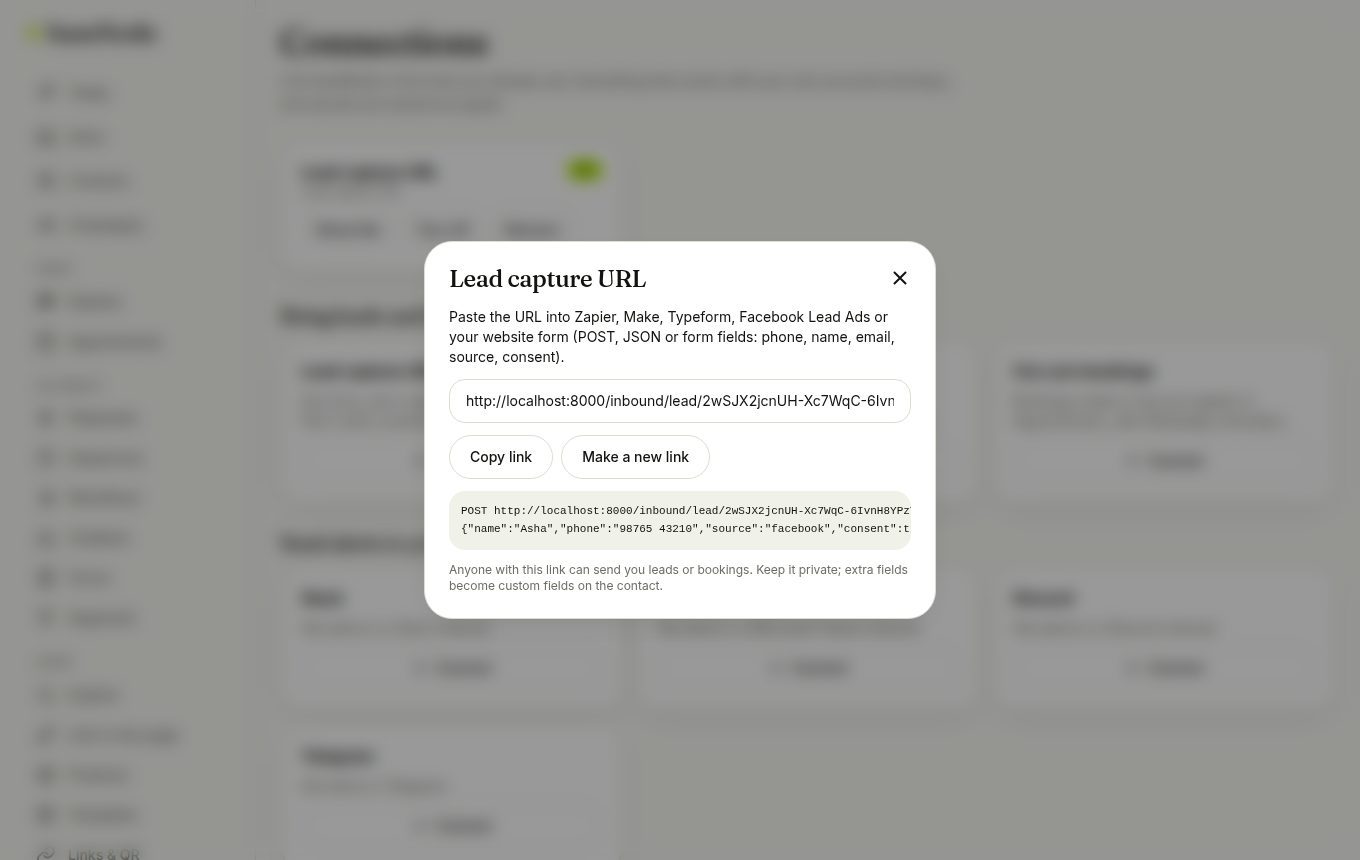
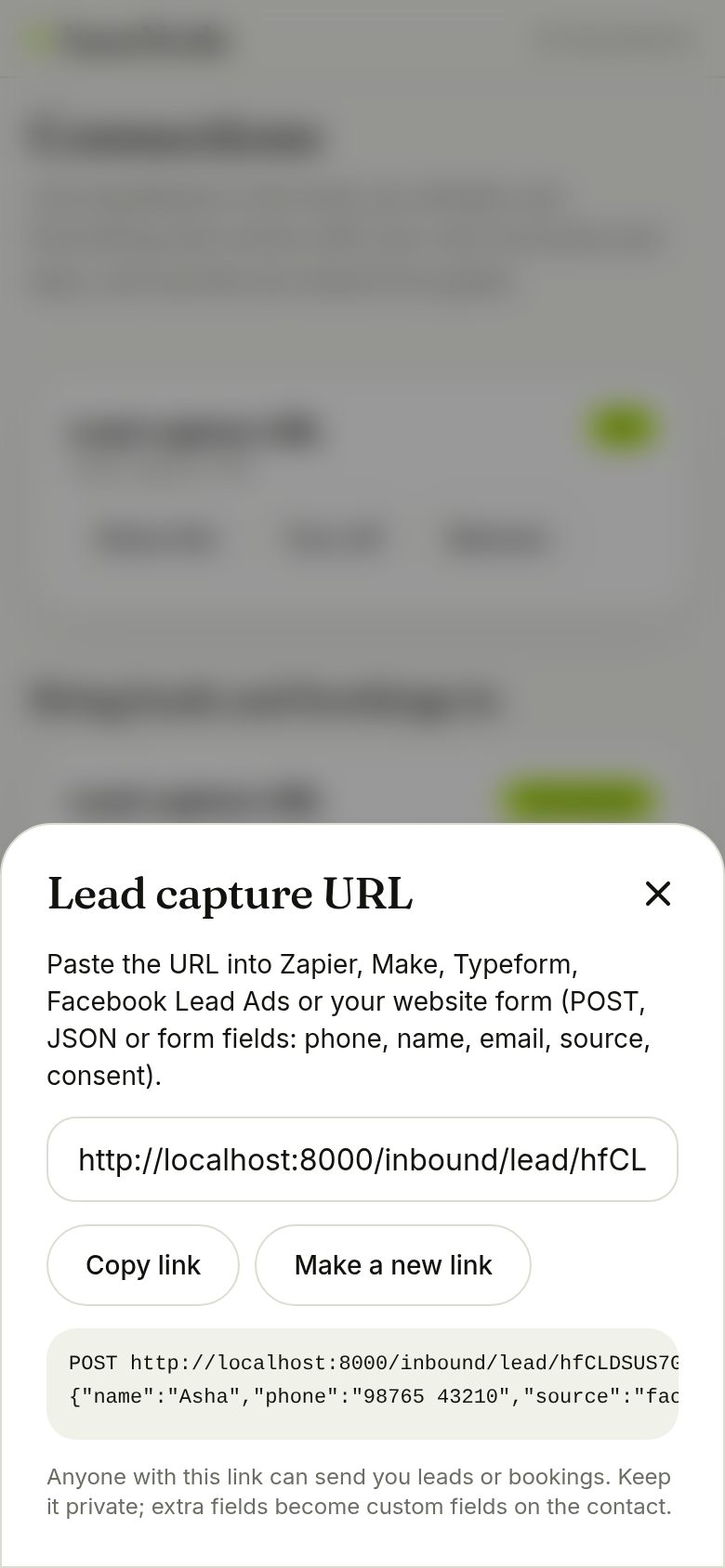
Connections links Slack, Teams, Discord and Telegram for alerts; HubSpot and Pipedrive for your CRM; a Google Sheet for rows; and private URLs for lead forms, Calendly and Cal.com. Each card explains where to find the key, and secrets are stored encrypted.
- Use the connection as an action in any workflow
- Bookings from Calendly or Cal.com become appointments with reminders
Keep customers warm with a sequence
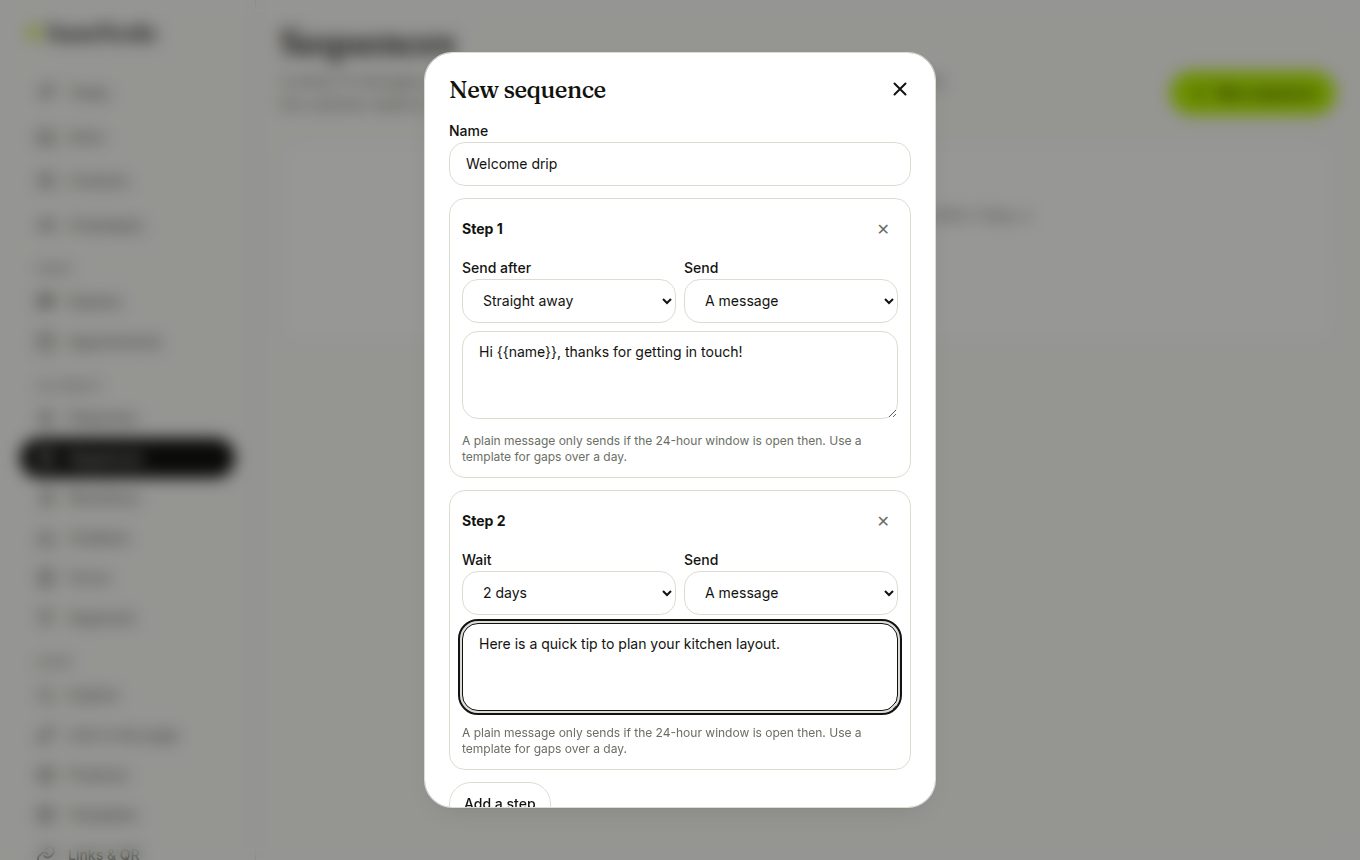
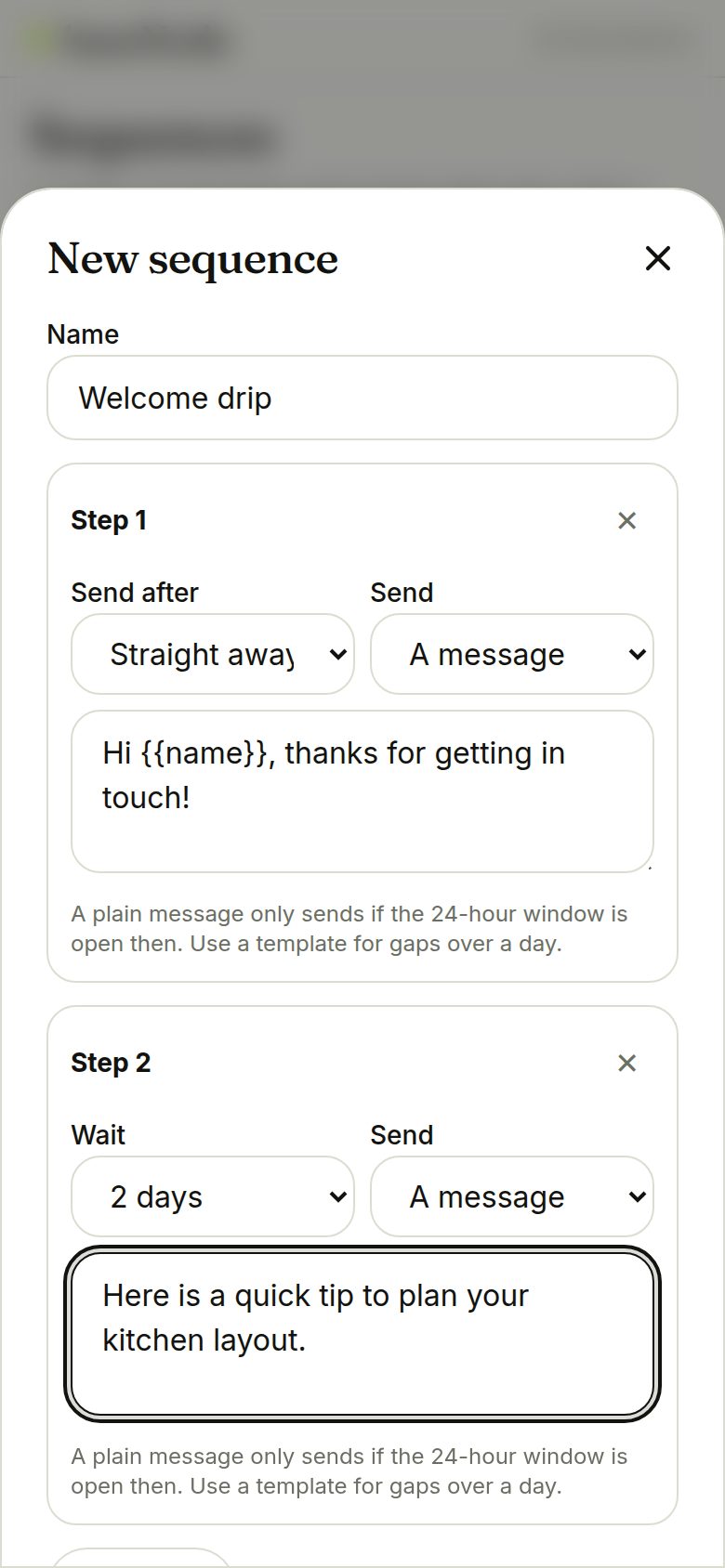
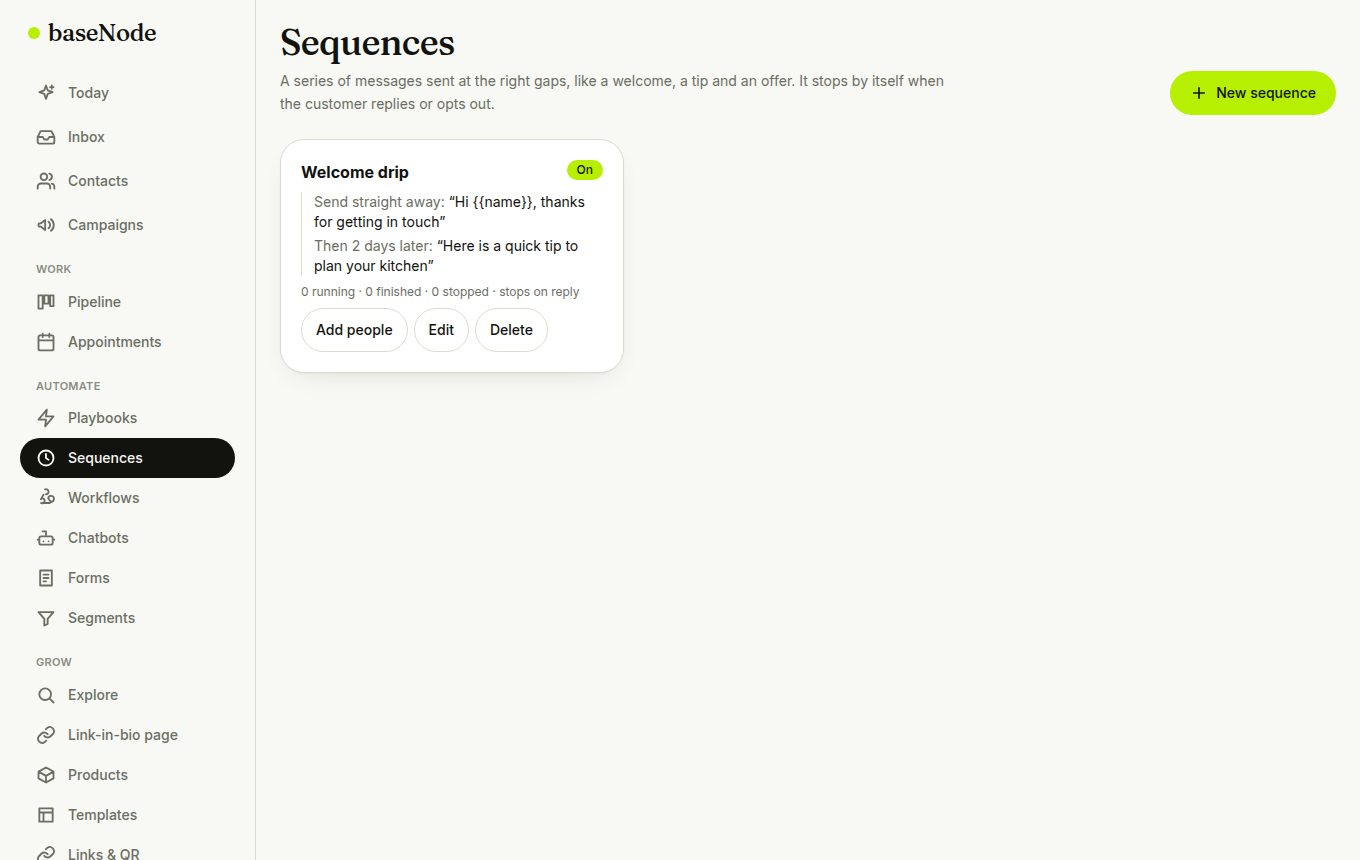
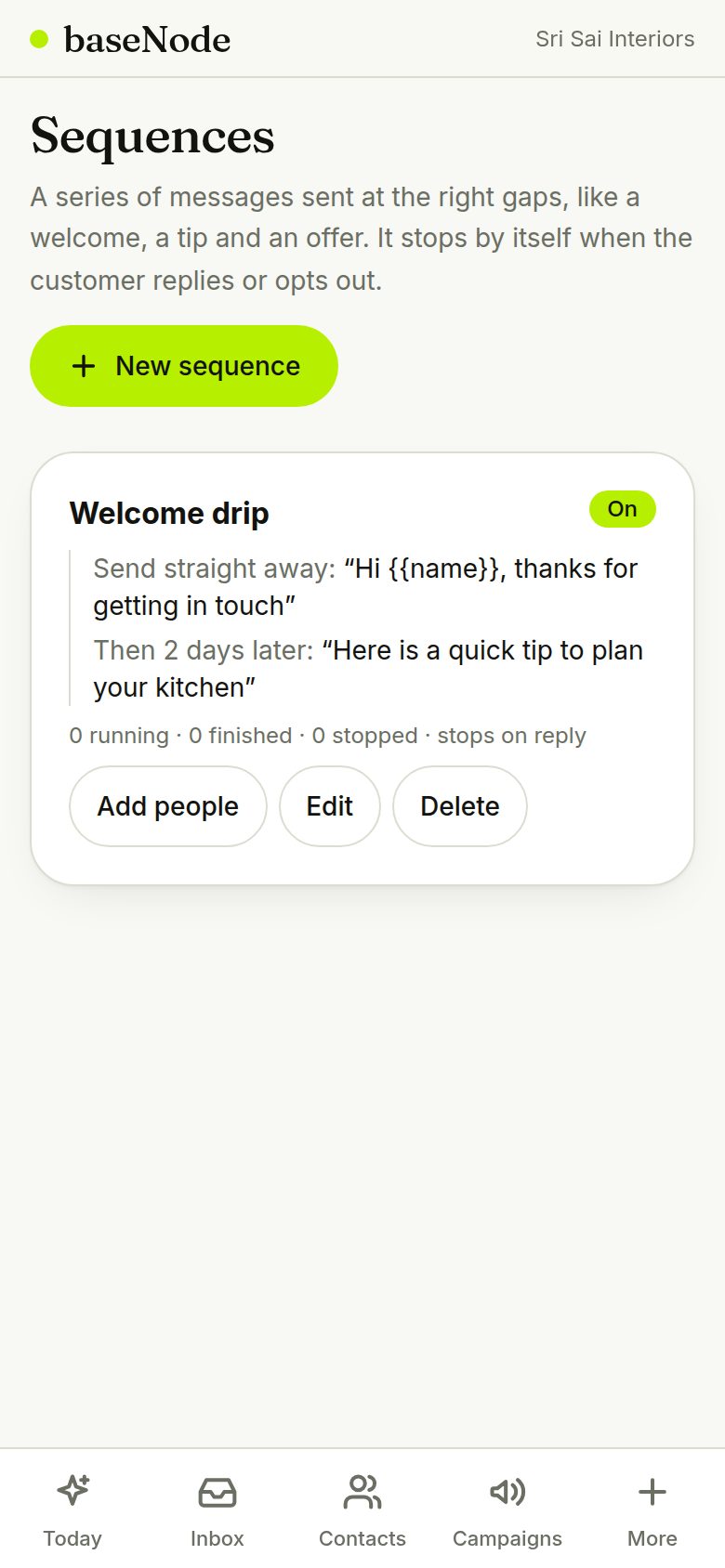
Build a series of messages with gaps (a welcome now, a tip in 2 days, an offer in a week). It stops when the customer replies or opts out. Add people by tag, or let a workflow start it.
- Marketing templates still only go to people who opted in
- A plain message needs the 24-hour window; use templates for longer gaps
Share a link-in-bio page
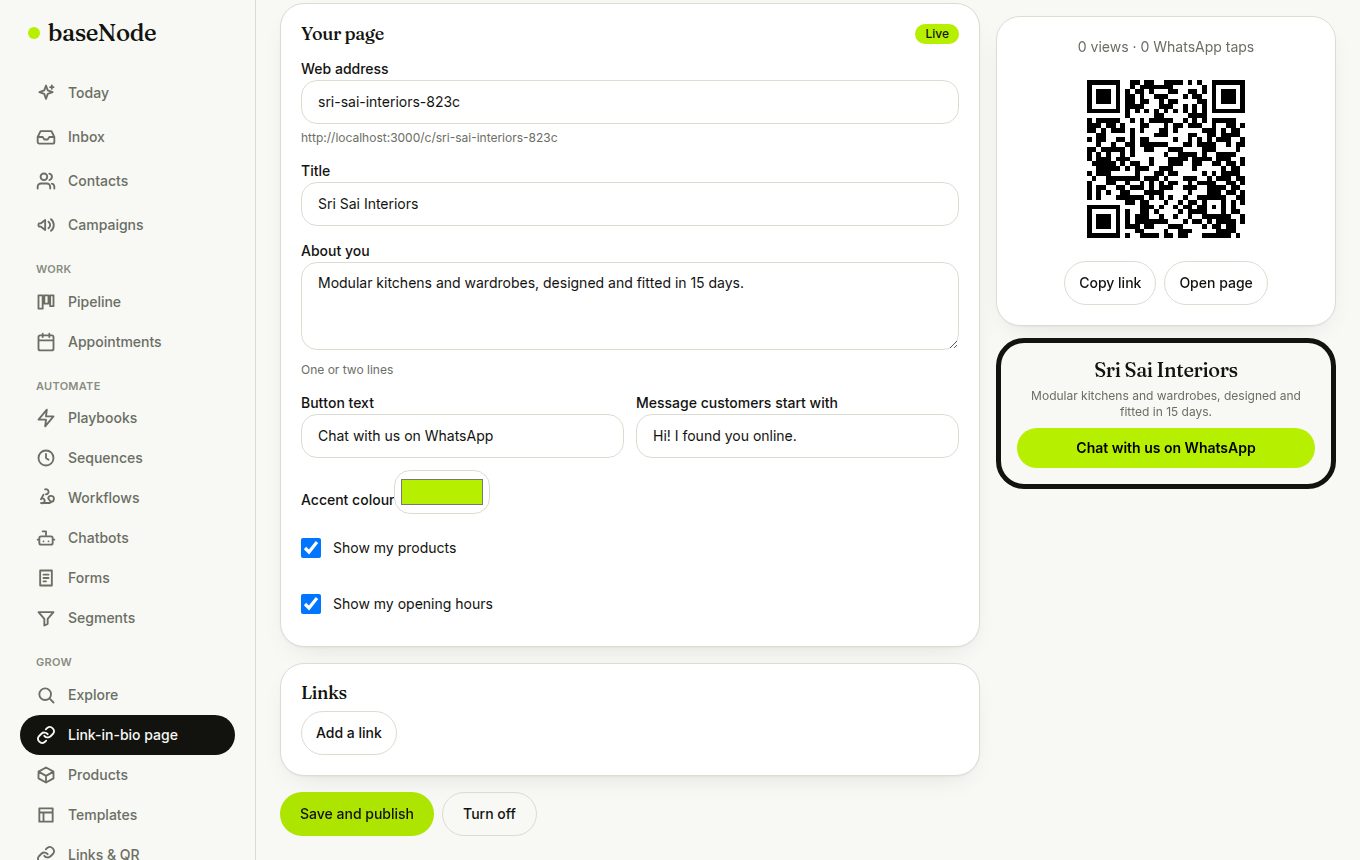
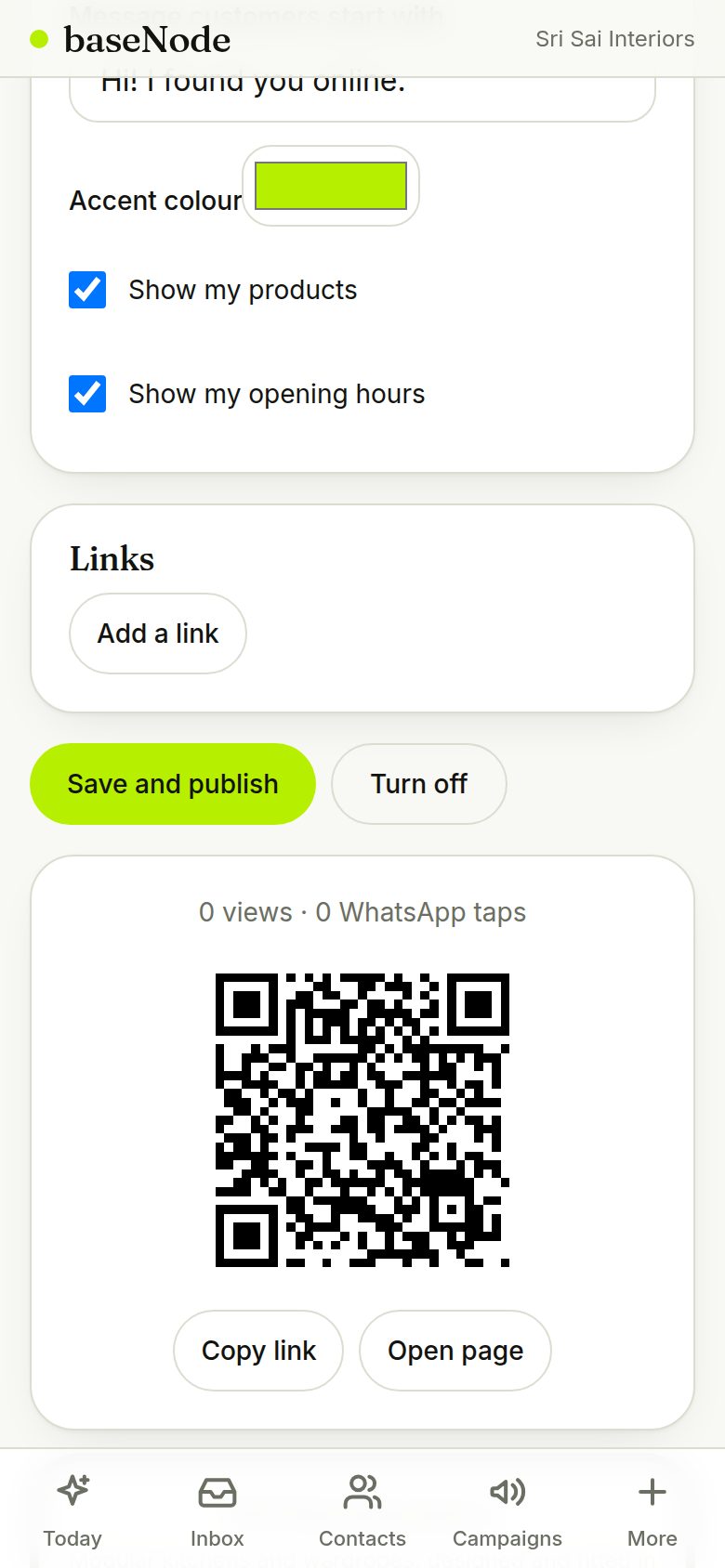
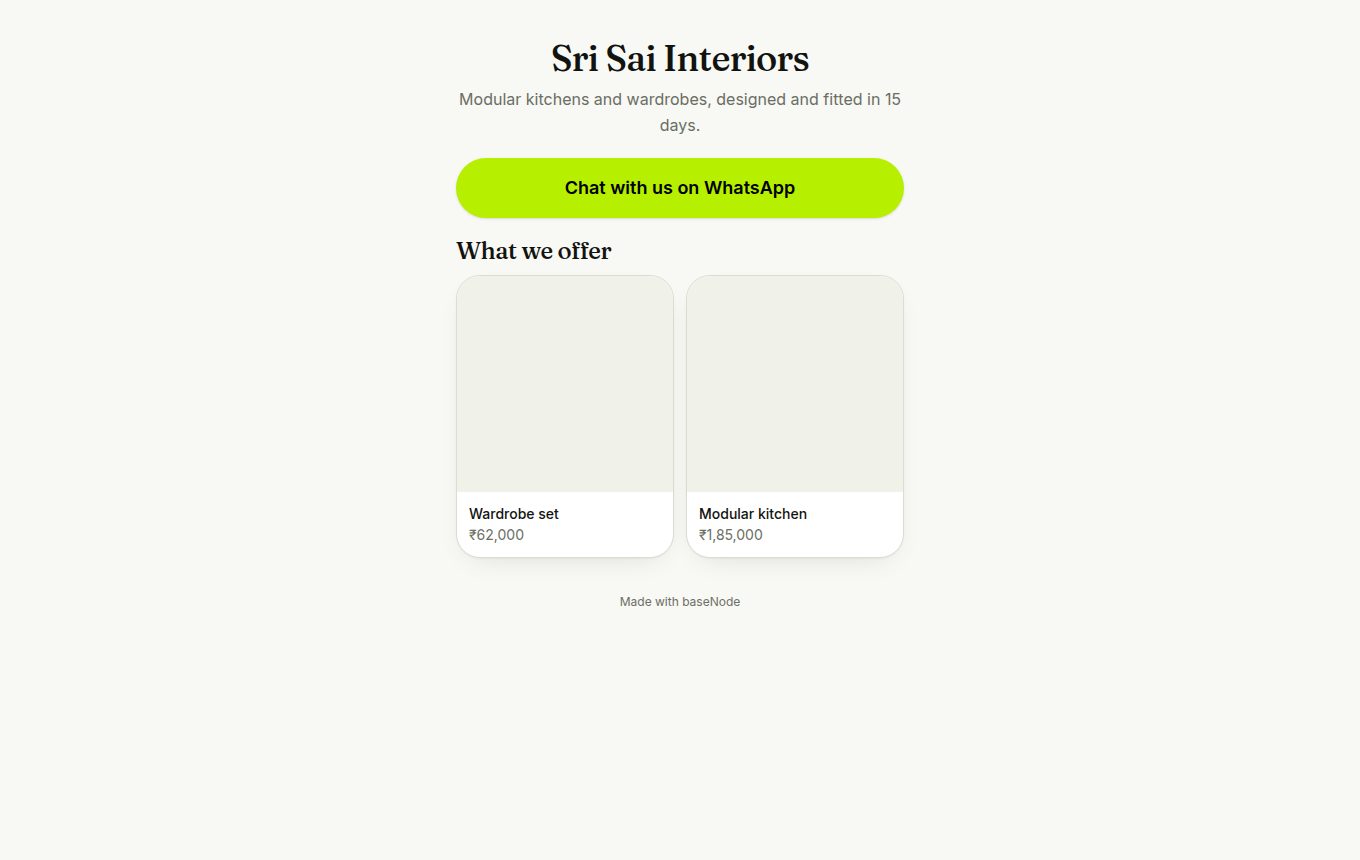
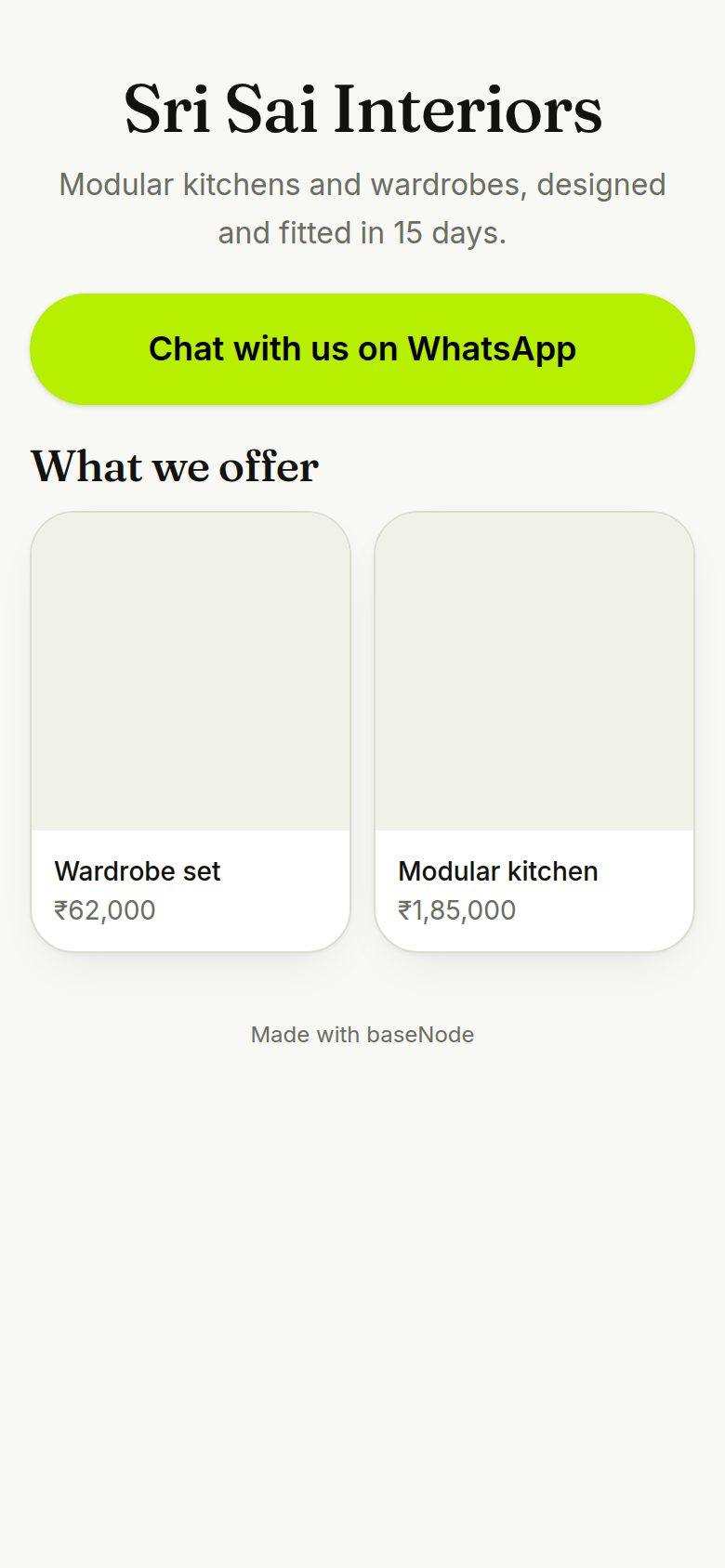
Choose a web address, write a line about you, pick a button colour and add links. The page shows a WhatsApp button, your products and opening hours, with a QR code to print. See views and WhatsApp taps.
- Put it in your Instagram bio, Google Business profile or shop window
Target with smart segments
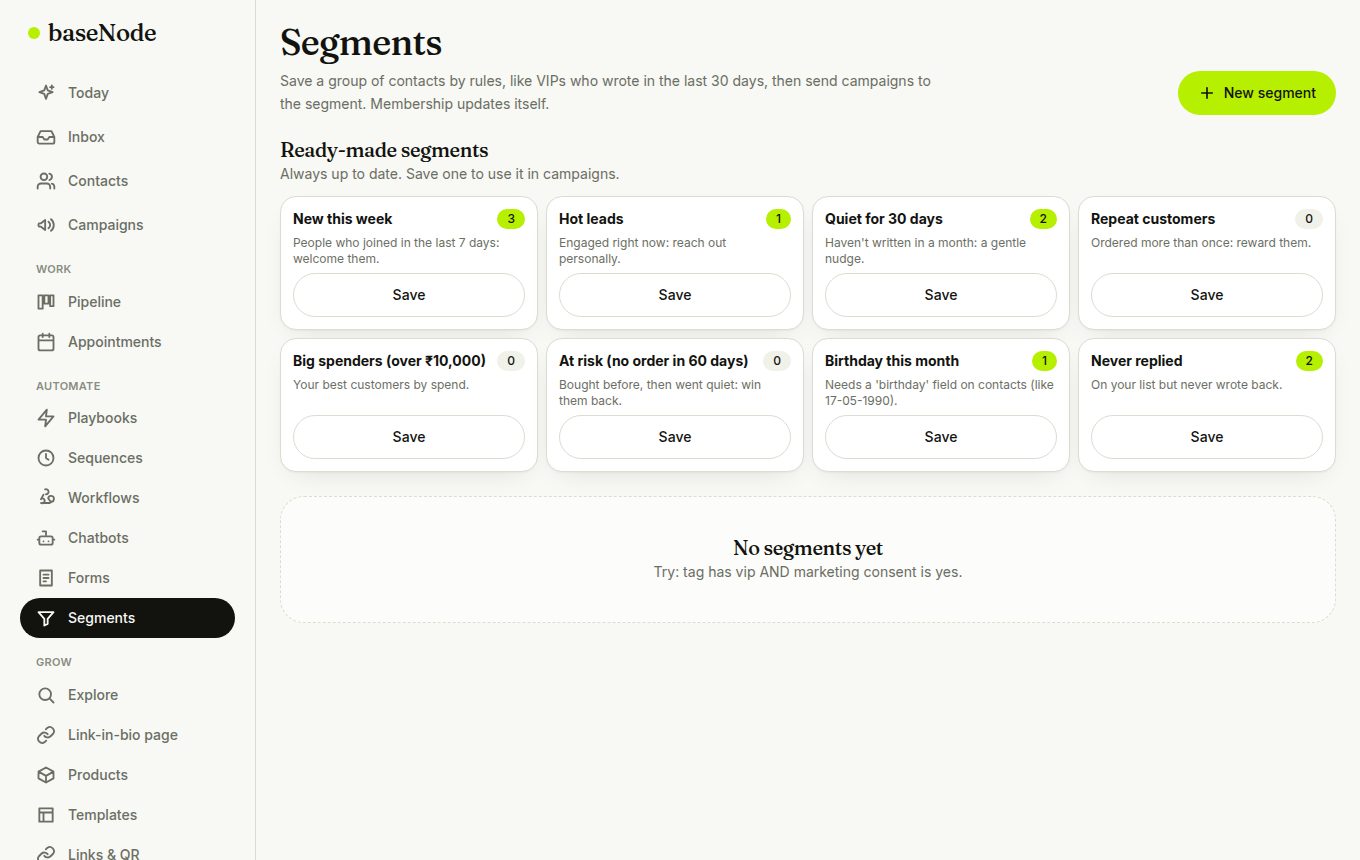
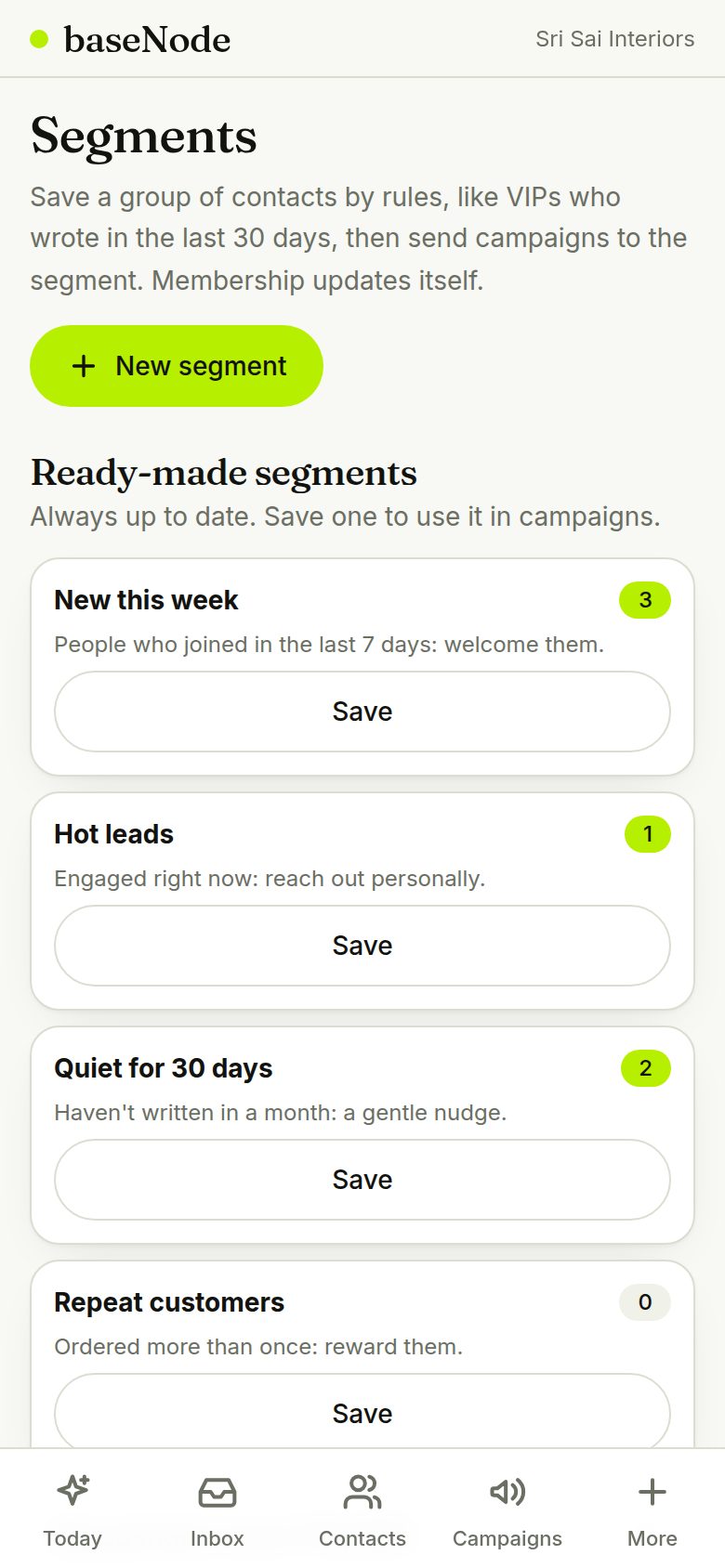
Ready-made segments stay up to date by themselves: new this week, hot leads, quiet for 30 days, repeat customers, big spenders, at risk, birthday this month. Save one and use it in a campaign or a sequence.
- A birthday field on contacts (like 17-05-1990) also powers birthday workflows
Learn when to message
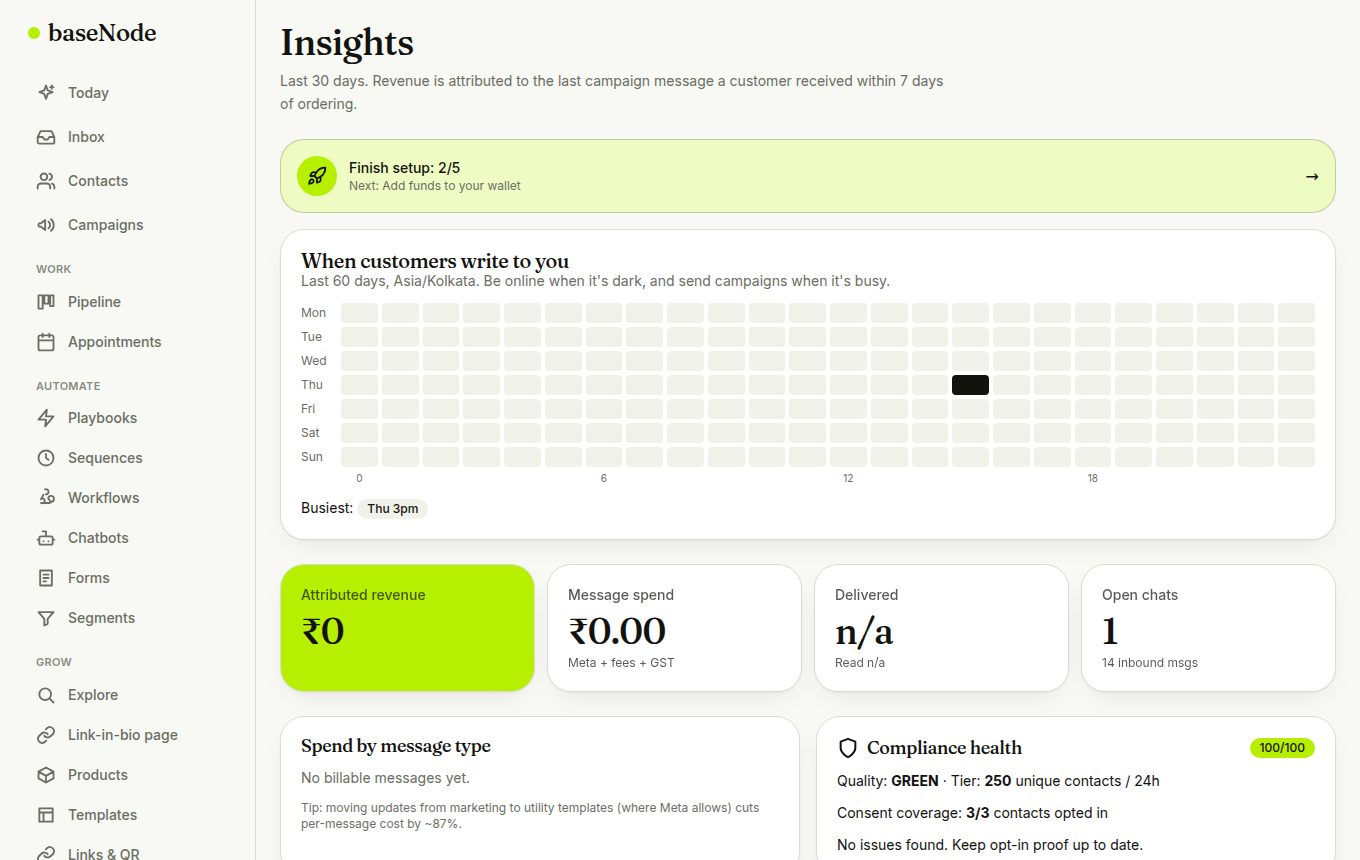
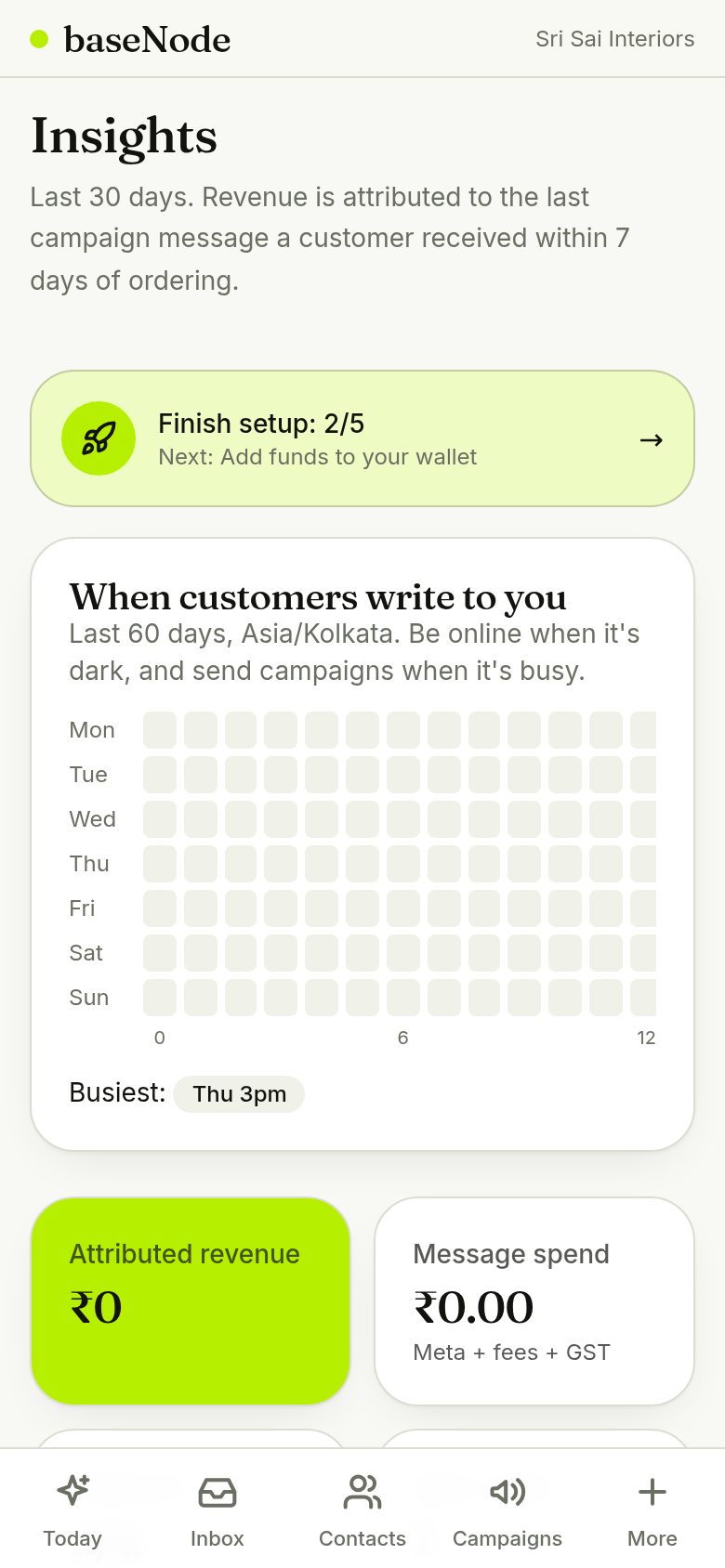
Insights shows when customers write to you, by weekday and hour, and a scoreboard of which templates get read and answered, with cost per reply. Reuse the winners and schedule around the busy hours.
- Developers can use the public API docs at /developers
Need help?
Use the contact form on the website or reply to your onboarding email. This guide is regenerated from the live product whenever flows change.